



Skip to content

Audi Satnav RNS-D Retrofit and questions
Featured Replies

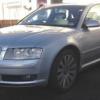
I know its not a Skoda, but the process is basically the same as its a VAG car after all.

The Satnav I am fitting to the A8 is known in Audi as the RNS-D, and this loosely resembles the original MFD fitted to the Octavia MK1 and Fabia MK1, uses DX based map CD's and I believe has the same connections on the back.

I also have the required TMC module to enable the Nav unit to communicate with the DIS (Maxidot) in the instrument cluster, this converts the Bosch CAN protocol to the VAG CAN protocol that the rest of the car understands.

I need to source a cable to connect between the TMC module and RNS-D, and believe that this cable set is all thats required. Hopefully the kit comes with instructions, otherwise it'll be a little guesswork.

http://www.ebay.co.uk/itm/120755103613?ssPageName=STRK:MEWAX:IT&_trksid=p3984.m1423.l2649#ht_2283wt_1168

Will be attempting this in a few weeks, so lets see what happens.

There are a couple of complications,

(1) I have BOSE sound upgrade in the Audi with an external amp. I know the navigation can handle it, just don't know how it connects.

(2) My A8 already has a basic factory nav system which is text based on the DIS (Maxidot), so I am going to have to disconnect some of this to avoid issues on the canbus and errors.

  • Author

Well, I got all the bits I needed and have started the install work. Using some plug and play looms from Ebay, its working out to be fairly straight forward.

Everything is working that I have done so far, but I have the most complex part to now complete. Basically I now need to remove the instrument cluster, install the TMC module in the factory location. and patch two wires into the dash cluster canbus connections.

The unit is in and running, just currently have no navigation on the central colour screen of the instrument cluster. This is where the new wiring and TMC come in, so I have 4 wires to connect, 2 power and 2 to the dash cluster and job will be complete.

I'll take a few pictures of how it looks when finished, but it certainly gives the dash a more upmarket feel.

  • Author

Well, popped back from Dorset to Hertfordshire as I have access to all the required tools and a soldering iron here.

Now its all done, fully installed with full integration into the car.

Process basically consisted of.

Disconnect text only based nav located in boot.

Remove Audi Symphony double din headunit.

Modify 2 wiring looms purchased from ebay in order to combine them into one. First loom is the plug and play loom for Gala which also gave me a required 26 pin connector on the RNS-D, second is the loom to retrofit the TMC module behind the instrument cluster.

Remove instrument cluster ( 3 x Electrical connectors and these are a pain to remove).

Install Audi TMC (Can Gateway) module in OEM location behind cluster.

Route the custom wiring loom from radio to behind cluster.

Remove about 4 inches of fabric tape from the green instrument cluster connector cable, in order to gain access to the CAN-H and CAN-L wires (Pin 21 and 22 on this connector).

Carefully remove some of the sleeving from a short area of each wire, then patch in 2 of the wires from the custom loom using soldering iron. protect it all with electrical tape.

Install GPS antenna in area below dash, but above instrument cluster.

Connect all the connectors to the correct place on TMC module, reconnect instrument cluster,

Install RNS-D.

Recode dash cluster using VCDS to enable Radio CAN communication (17 - Instruments, adaption, channel 62, set to 5 instead of 4).

Switch on and see if it all works, and presto it does, now all I need to do is sort out the mess inside the car.

post-47-0-43346500-1347728688_thumb.jpg

post-47-0-80485500-1347728707_thumb.jpg

Create an account or sign in to comment

Recently Browsing 0

  • No registered users viewing this page.

Important Information

Welcome to BRISKODA. Please note the following important links Terms of Use. We have a comprehensive Privacy Policy. We have placed cookies on your device to help make this website better. You can adjust your cookie settings, otherwise we'll assume you're okay to continue.

Account

Navigation

Configure browser push notifications

Chrome (Android)
  1. Tap the lock icon next to the address bar.
  2. Tap Permissions → Notifications.
  3. Adjust your preference.
Chrome (Desktop)
  1. Click the padlock icon in the address bar.
  2. Select Site settings.
  3. Find Notifications and adjust your preference.
