



Skip to content

Dashcam Installed Mini 0801
Featured Replies

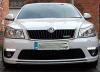
So today I finally got round to installing my dashcam that I have had sitting around for a while. My reason for getting one is that I have had so many close calls from other drivers and feel that I may need this one day to back me up.I have routed the cable along the headlining and down the nsf A pillar and under the glove box and round to the 12V socket. Looks nice and tidy. The camera itself is a Mini 0801 and have mounted it just behind my rear view mirror. Cant really see it from outside or from where I am sitting. Only one issue I have is that the cam has an auto on/off function when you switch the car on/off but the 12V socket is permanent live and does not switch off. Its no real biggy as I just plug it in when I get in the car. Will provide a sample of the video very soon.


Thanks

post-118850-0-59852800-1430675337_thumb.jpg

post-118850-0-08851600-1430675338_thumb.jpg

post-118850-0-55654600-1430675338_thumb.jpg

post-118850-0-07622500-1430675339_thumb.jpg

Edited by gazpot0111645

Have you mounted it on the screen dots with sticky foam tape?

I was going to mount my Möbius holder this way but I was worried about breaking the screen if I needed to remove it. The 3M tape on the holder is very strong. Any thoughts?

As an aside I have the Möbius on my bicycle following being hit by car last year. The advantage of this camera is that you can have two different setups and easily switch between them and between two different holders. One setting allows the camera to be mounted upside down and the image inverted to compensate.

  • Author

Yes it is mounted on the screen dots. If I ever need to removed it I will just remove using a heat gun.

Hi

I have installed the same camera, and mounted it in the same place.

I did also buy the hard wire kit and wired it in the headlining down drivers A pillar and then into fuse box using an ignition switched live from a piggy back connector http://pages.ebay.com/link/?nav=item.view&alt=web&id=181496327696

Very easy and OE style install.

Camera great by the way!

Edited by Mil7215

One way of providing a ignition live and no live feed is to modify a cheap two plug 12v socket. One which is screwed together.

 I did one by opening it up and cutting the live plate at the bottom in two and soldering in another positive feed wire. This extra wire is wired to a ignition feed and the other to a non ignition feed , both in the fuse box.   This modified two plug socket is in the small cubbyhole beside the fuse box.


The camera is plugged into the non ignition live and the GPS is into the ignition live so now no plugging and unplugging.  This means camera is live all the time and GPS switches off when ignition off

Have you mounted it on the screen dots with sticky foam tape?

I was going to mount my Möbius holder this way but I was worried about breaking the screen if I needed to remove it. The 3M tape on the holder is very strong. Any thoughts?


When I traded in my mk1 I struggled to get my blackvue mount off - but with careful application of a large screwdriver I got my mount off.... didn't think of applying heat at the time!

You would have perhaps been better routing the cable down the drivers A-pillar and then into the fuse box at the end of the dash.

From here you can piggyback another existing switched live fuse, this way the camera will turn on and off with the ignition meaning you don't have to keep plugging and unplugging it.

I leave the camera on all the time as it doesn't draw any meaningful power from the battery and the motion detect function seems to discard all the clips that are empty of movement

A reason for doing what I did with the modified twin socket was to keep the cable that came with the gps/sat nav , it complains if I don't use it, it wont pick up traffic info unless its got the original cable /plug. .Another was keeping to a 5volt feed., my camera doesn't like 12 volts.   

Create an account or sign in to comment

Recently Browsing 0

  • No registered users viewing this page.

Important Information

Welcome to BRISKODA. Please note the following important links Terms of Use. We have a comprehensive Privacy Policy. We have placed cookies on your device to help make this website better. You can adjust your cookie settings, otherwise we'll assume you're okay to continue.

Account

Navigation

Configure browser push notifications

Chrome (Android)
  1. Tap the lock icon next to the address bar.
  2. Tap Permissions → Notifications.
  3. Adjust your preference.
Chrome (Desktop)
  1. Click the padlock icon in the address bar.
  2. Select Site settings.
  3. Find Notifications and adjust your preference.
