



Skip to content

Google maps on Android Auto
Featured Replies

Does anyone know, when using G-Maps through Android Auto, if the GPS signal comes from phone or car head unit/aerial? 

Been on a regular route today which normally has no problem with signal but although going there was fine the return journey just lost the signal almost the whole route.

Any ideas on reasons or how to fix would be appreciated.

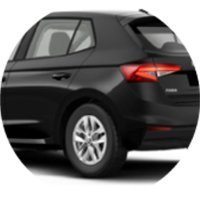
This is on 23 plate Fabia SE Comfort DSG with basic Swing media unit.

I believe in your case the GPS signal is from the Android device. 

  • Author
37 minutes ago, Warrior193 said:

I believe in your case the GPS signal is from the Android device. 

So would that mean the position of the phone within the car may make a difference to the signal?

I thought it would have defaulted to the car antenna.

GPS signals cannot pass through metal or concrete, even thick foliage can seriously attenuate the signal - so long as the Android device has a reasonable view of the sky through glass, it should be able to pick up the signal from satellites. If your car does not have integrated GPS, it almost certainly will not have the antenna fitted.

A thought occurs - you may experience reception issues if you have a heated windscreen.   

Where did you have the phone positioned?

Edited by Warrior193
added information

  • Author

Generally I have never used my phone in the car other than for Maps.

I plug it in and drop it into the space below the head unit, in front of the gear shift.

I'm guessing it might have a better signal lying on the dash?

Anyone have experience of some sort of holder for this, maybe a double-sided sucker just to stop it sliding about?

Don't need to see the screen at all.

2 hours ago, Warrior193 said:

(...) If your car does not have integrated GPS, it almost certainly will not have the antenna fitted. (...)


I believe all European market Mk4s should come with a GPS antenna for it is needed by the Emergency call module.

Create an account or sign in to comment

Recently Browsing 0

  • No registered users viewing this page.

Important Information

Welcome to BRISKODA. Please note the following important links Terms of Use. We have a comprehensive Privacy Policy. We have placed cookies on your device to help make this website better. You can adjust your cookie settings, otherwise we'll assume you're okay to continue.

Account

Navigation

Configure browser push notifications

Chrome (Android)
  1. Tap the lock icon next to the address bar.
  2. Tap Permissions → Notifications.
  3. Adjust your preference.
Chrome (Desktop)
  1. Click the padlock icon in the address bar.
  2. Select Site settings.
  3. Find Notifications and adjust your preference.
