Eddie-NL
FREEDOM
-
Joined
-
Last visited
Everything posted by Eddie-NL
-
You won't find it as such as it is now a combination CCM and CECM classed as a BCM it is on the drivers side in the footwell area, you will see relays and 3x large plugs that plug in to it
-
do you mean the cluster or the screen in the cluster?
-
what faults have you got now?
-
go and try starting it, then do a scan
-
There is no fault other than the alarm horn. I would guess that is after he cleared the original scan, A lack of power supply to a module will leave faults in that or other modules
-
Your one is 3C0 937 049 AJ with vcds you should be able to test the relay function, i will have a look on my cecm
-
Plug your VCDS in and do an autoscan https://www.google.com/search?q=vcds+how+to+do+an+auto+scan&rlz=1C1CHBF_en-GBGB745GB745&oq=vcds+how+to+do+an+auto+scan&aqs=chrome..69i57j33i22i29i30l7.11145j0j15&sourceid=chrome&ie=UTF-8#kpvalbx=_0xpjYJuUF-CO9u8Po-CV2Ag18 Post the scan up, just edit out your vin
-
They are quite cheap now, but you will need vcds to fit it, if you are not buying exactly the same one don't copy and paste the coding either. Check that the relays are ok, you could try using the same numbered ones in a different place or test them.
-
The actual name for it is CECM Central Electronics Control Module You can also find it in a host of VAG cars 2004 - 2009 Mk5 Golf, Early Tiguans, Scirocco Some relays are controlled elsewhere. You need to scan the car and try finding out which Terminal is not working The Relays are Terminal 15 Switched Live Terminal 30 permanent Live Terminal 75 supply http://www.volkspage.net/technik/ssp/ssp/SSP_319_d2.pdf
-
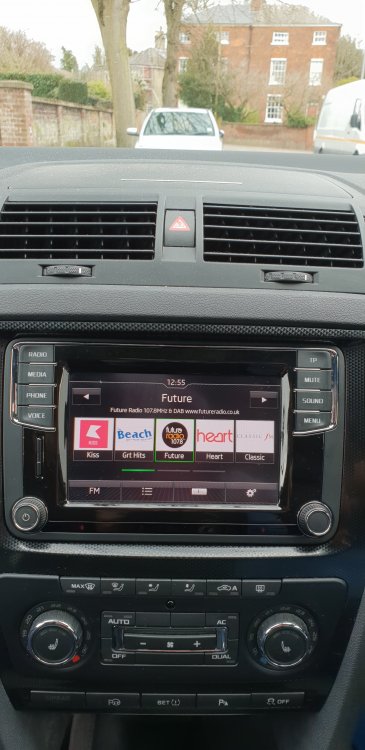
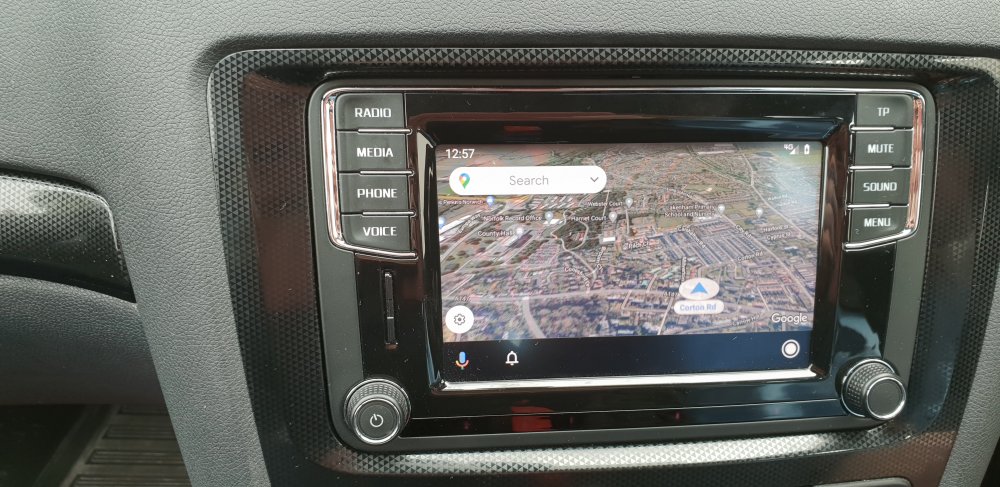
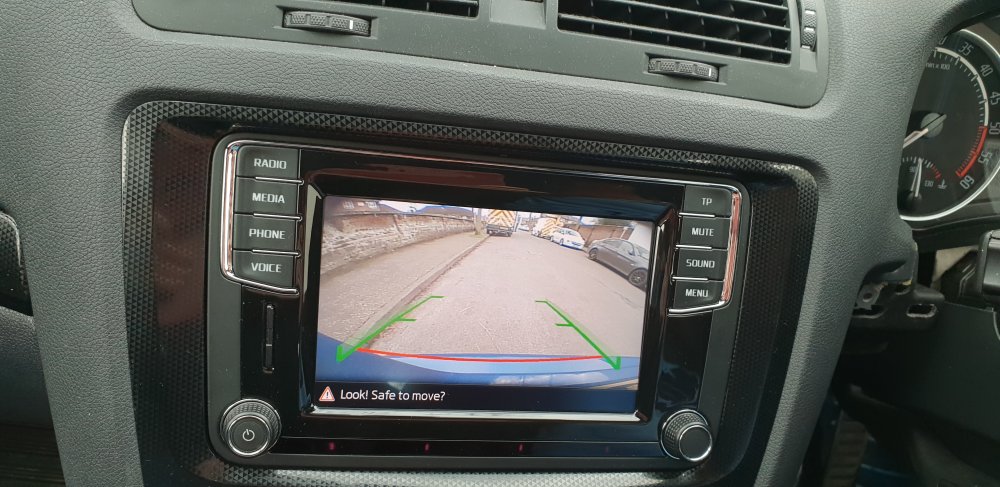
Testing this unit in my car, till I have my own one ready. Guy who I know kindly lent it to me for testing purposes.
-
ideally the CAN should be coded for telephone in the installation list. It will work with out Diagnostics in pic is to show that it is working and to confirm part number Your link for GPS module looks good and it has a right angle plug which is good too, so not to damage the wiring if there isn't much space.
-
What phone are you using? that 5N0 module is a premium one and it doesn't like iphones This kit is a better offering https://www.ebay.co.uk/itm/133678611161
-
The scales don't look original, have they been changed?
-
If the cluster has a message NO KEY = Cluster cant see correct Key. So if you don't get that your key is ok If your car starts and dies after a couple of seconds then that could mean an issue between the Cluster and ECU best to get your car scanned with vcds to point you in the right direction
-
If you dont have the large camera in the windscreen then it has nothing to do with ACC the TSR Lane assist camera does have direct wiring to the front radar
-
Mileage recorded in a vcds scan is from the instrument cluster, you can check it on some ECUs
-
-
does the nav display in the maxidot i have found that some cars don't like BAP coded and experiment with shortpress too
-
is the RNS510 a vw unit or a skoda unit? check the firmware on the unit which buttons don't work?
-
You can remove it, just make sure you don't turn the ignition on also it can be difficult to remove if you don't know about the two metal spring clips at the top. (have a look at my guide on adding low screenwash warning) i think it shows the two springs
-
does the cluster power up as it should? where are located?
-
If the module is coded for trip computer, then that will cause the right side scroll wheel not to work in roller mode. but press it will still do the ok function.
-
The module will have a default coding, i would say they haven't coded it properly Take it back or find someone with vcds
-
Your slipring on your car also has the module built in, that is why if it is changed it needs to be coded. features like cruise, rear wiper, mfsw and paddles are listed in the coding. if it is coded correctly then the issue could be with the mfsw module (built in the buttons) or the wiring
-
sounds like they haven't coded it properly