Tell
Members
-
Joined
-
Last visited
Everything posted by Tell
-
You can check the progress of TomTom reported Mapshare amendments via the Sygic app https://www.sygic.com/gps-navigation Which uses TomTom Maps, that's updated much more frequently so as well as seeing the TomTom validation team accept a report, which may not appear on their display immediately you can keep an eye on the progress of your changes in the Sygic app which will overtime appear in the Vag download. On your issue I think they just wrongly classified those places as villages rather than towns. A lower attribute than others. Telling them the population size might help as well (wiki link say). You have to evidence in reports. Openstreet has attributes to places you add, TomTom will be the same. They just got it wrong. TomTom are more tardy with reported road speed changes since anyone could ask for a speed change. I haven't had any of my requested speed changes accepted just put on pending. Here Maps collect local government road speed planning orders via a clerical task. Not sure how TomTom do it. Traffic sign recognition is your best bet in the car if worried about speeding ;)... works a dream.
-
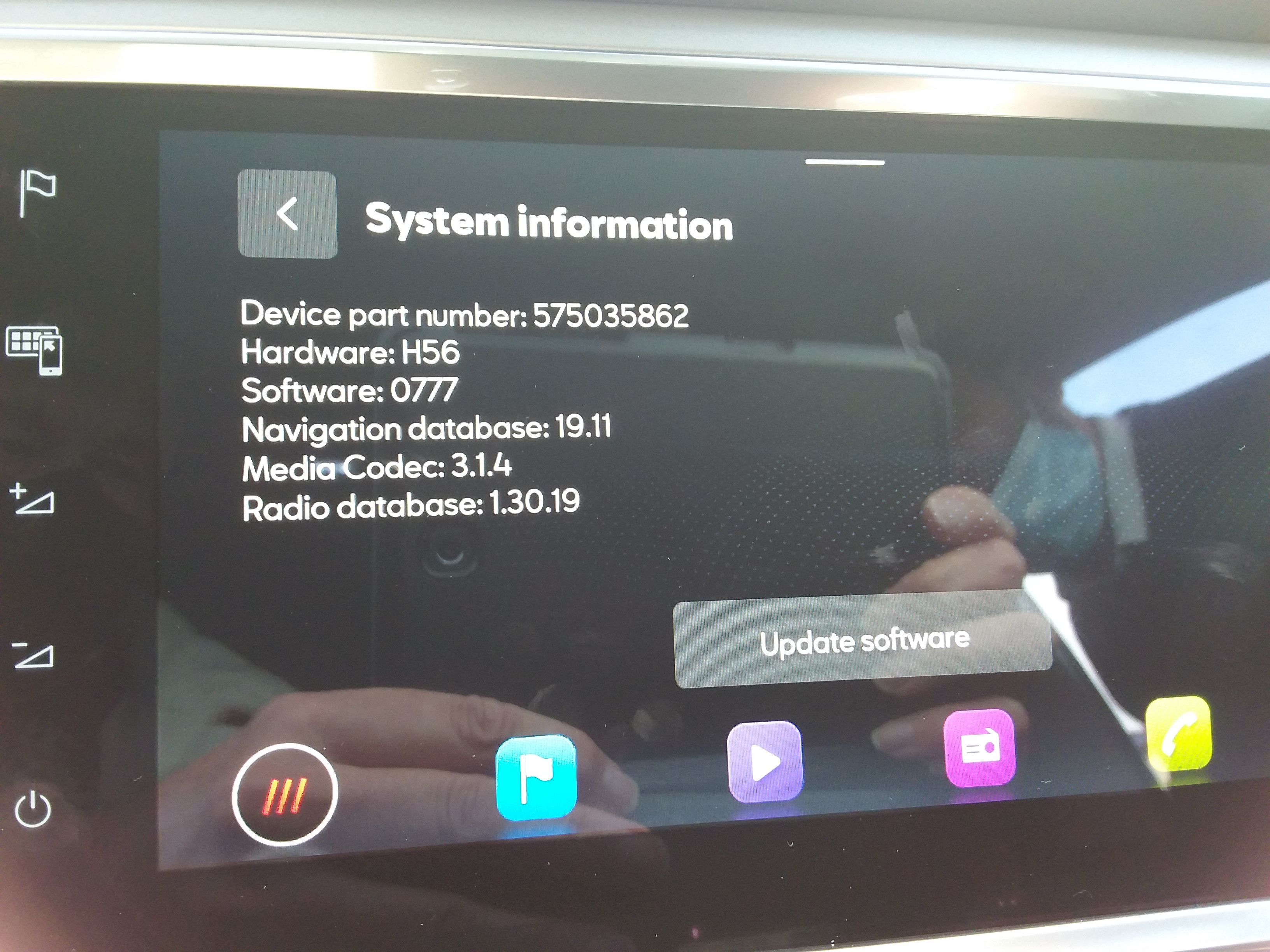
First two yes. The last one most probably is. That's the other conversation with MartiniB where I'm trying to get people with the new hardware to live dangerously and try to update it with the downloads. Question of finding the update button on those and trying to import one of the 2020 files. On the VW site under Passat 2019 model and 2020 the current one is published whilst MartiniB put the very latest links up. Yes this Skoda range: https://www.skoda-auto.com/news/news-detail/new-infotainment They have arrived to Seat on the new Leon and the face lifted Ateca and Cupra Ateca. Dubbed Mib3. What we don't know with those yet is whether the files are interchangeable between brands as mib1 and 2 are within respective model range. For Seat whether you can do it... Needs people with the unit. Early days on that.
-
From the VW manual >> Navigation map update requirements • You will need an SD card with a minimum of 32 GB of storage to update your navigation data. Volkswagen recommends the use of a Class 10 SDHC card, which is readily available to buy. • You will need the “7-Zip” data compression system with Windows operating systems. You can download this program from the manufacturer’s website. You will need an unzipping program that supports the “7z” file format should you be using another operating system. • The map material requires more than 25 GB of storage capacity. This space needs to be available on your computer’s hard drive. Your computer’s hard drive needs to be formatted as an NTFS drive to enable your computer to handle files of this size. This is standard with newer computers; with older computers please check this in File Explorer by right-clicking on the relevant drive under the “Properties” menu option. Checking the version Use the “MENU” button to check what version of map material you are using in your Discover Pro. On << The NTFS is on the drive not the SD card :). It won't grow beyond 32gb since the SSD is split that way with the spare capacity going to the jukebox, that will be the firmware can only change that. Thus they don't envisage the user using anything than an SD card of 32gb in Fat, which they come in. Ntfs is just talked about for the drive. .
-
Definitely Mib2 standard (Amudsen) is TomTom cartography. I put the standard ones to them, the high ones to Here Maps. VAG changed to TomTom circa 2015 on, think it was tied to the launch. Whilst mib1 is Here Maps. So then everything is on Here Maps for mib3, the latest system. Boards put mib2 Amudsen down to Here Maps incorrectly due to history. Got one of each. mib2 standard on the partners car, mib2 high on mine... so put in update on both systems. Will take about a year to come thru threw but it will if accepted.
-
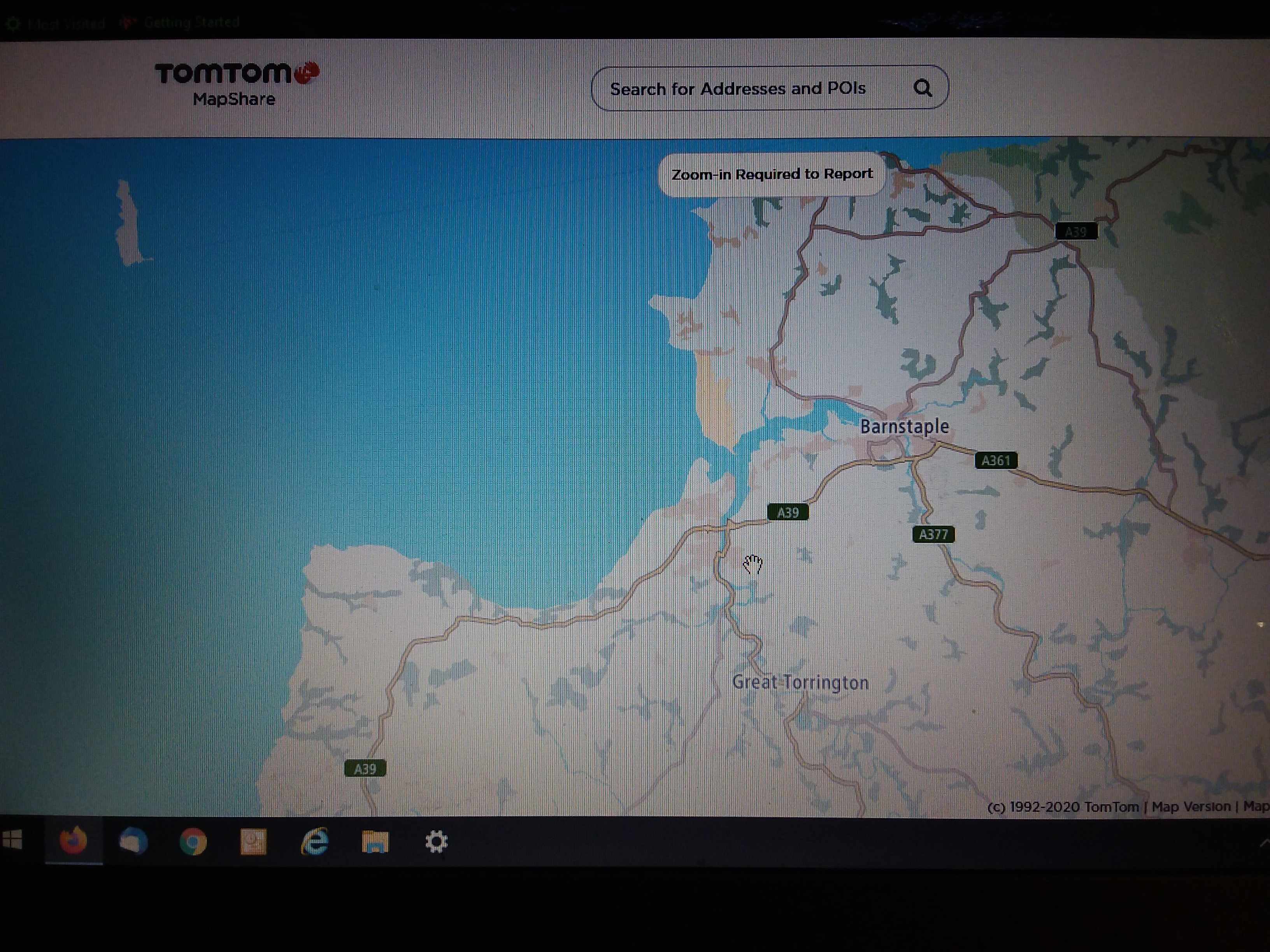
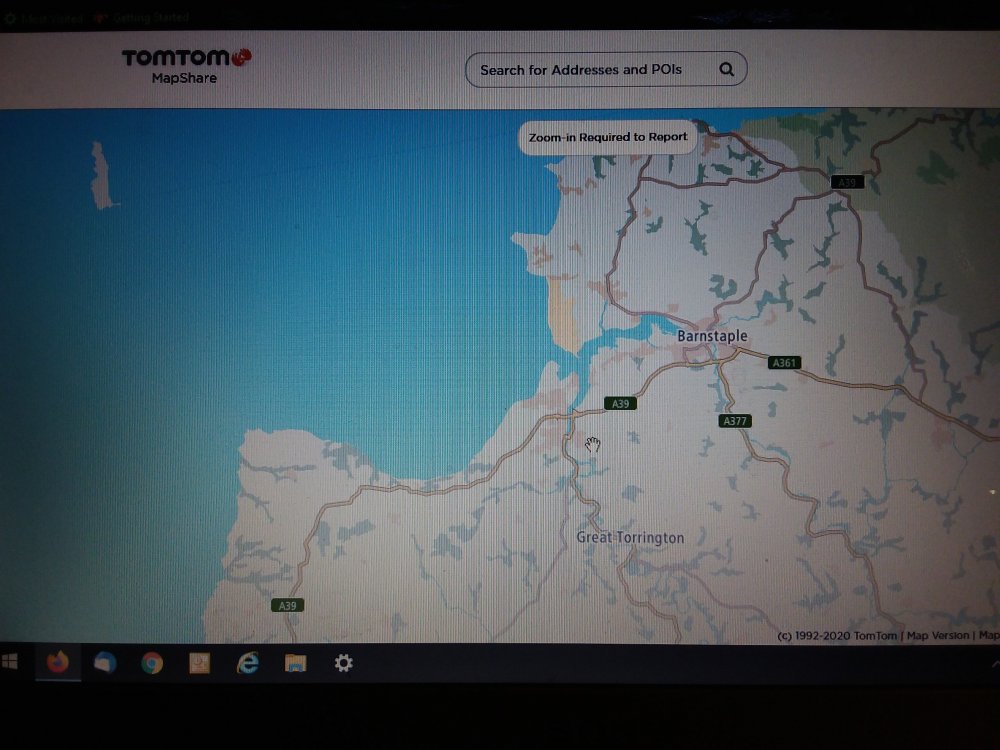
I think we are getting there... you said Map Creator that's the Mib2 High Cartography (threw me into thinking we were talking mib2 high), Amudsen mib2 is TomTom cartography TomTom Mapshare not Map Creator. It's TomTom MapsShare site you want to put it in as as bug. Picture attached. You have to register. https://www.tomtom.com/uam/UI/Login?realm=/uam&spEntityID=mapsharereporter&service=onetomtom&authLevel=0&goto=%2Fuam%2Fidpssoinit%3FmetaAlias%3D%2Fuam%2Fidp%26spEntityID%3Dmapsharereporter%26redirected%3Dtrue I suggest you put it in as an Other, Other error at that position with text and attach photo that the town name is incorrectly set up. They will ney or yay it if you keep checking. The photo should do the trick for them to check what they have set against the name (wrong property, like a village and not a town). I'd keep at them if they don't accept it.
-
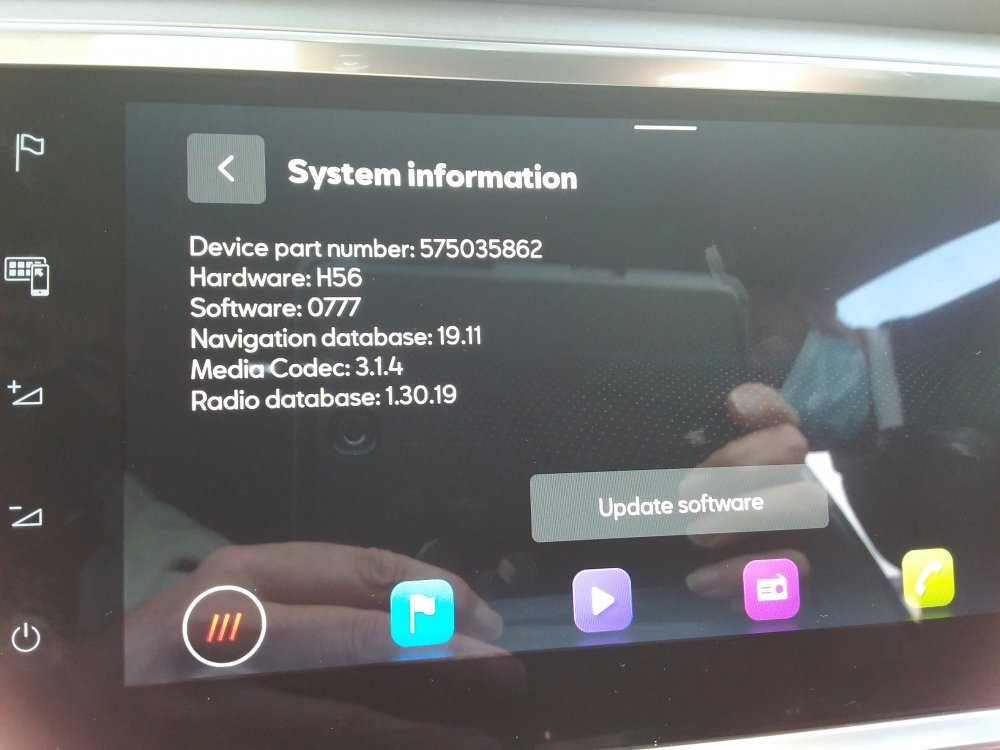
It's this one which is the Seat unit in question zn1 part number as build across all new Leons, Ateca's and Cupra Atecas in the UK. News story on VW https://www.caradvice.com.au/774202/volkswagen-passat-mib3-detailed/ If you look at the VW Passat download as current for 2019 models it's the same file across the two units which explains this text "Ahead of its arrival, the company’s global division has detailed the new infotainment system. Dubbed ‘MIB3’, Volkswagen’s third-generation modular infotainment interface comes as standard with both the 8.0-inch ‘Discover Media’ and 9.2-inch ‘Discover Pro’ navigation units." So that was the 2019 model dummy run that VW had for mib3, then rolled out across VAG brands this Autumn 2020. So they have consolidated the Media unit and the Pro into the same download... the word Premium is used for one of them now. That's also true for Seat where the base unit is on Here Maps and everything is now called a Plus. It's the 5ghz Android Auto WiFi link without coord that's on the zn2 units not sold in the UK.
-
-
Those are they.... Well specifically the VW Passat from 2019 "mib3" what we don't know is whether they can be uploaded into Skoda & Seats. I don't know. Seats just have a software update button whether that does it... haven't had anybody try it. All face lifted 2020 models basically. The Passat seemed to be their test bed then rolled out across VAG in the face lifted models and new for this Autumn. Dubbed Mib3. Connect services on the map updates. Seat manual has a section on map upload, but button is missing off UK ones but has the software update. That might be like the SWDL command and work ?. Needs people to try.
-
-
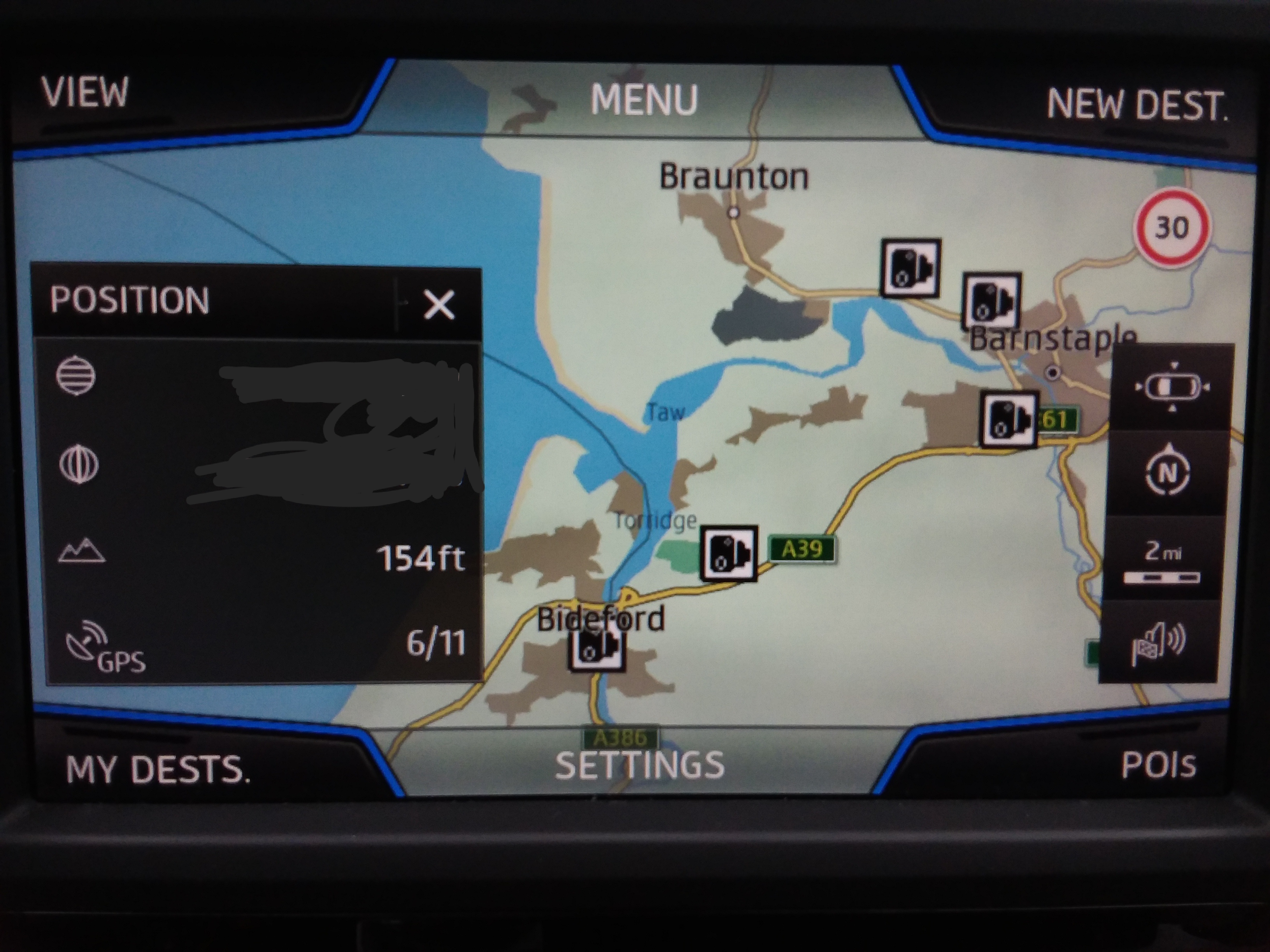
Size looks identical on Co-pilot which uses Here Maps cartography e.g. looks fine. Probably a blob size parameter on the mib2 high implementation of the name. . Still would be interesting to see how its handled in mib3. Covid times and all that. Whether it's a rewrite of their display processes from the same cartography or looks identical with the "bug". Will have a look next time I sit in one at a dealer with mib3. I'm sure later today I'll find the same issue with Barnstaple v Bideford on my Seat mib2 high... let you know if it's perfect .
-
You can do but the issue is when people start formatting the SD standard map card (not the high) in anything other than Fat32, doesn't work. Or a 32 gb SD card to upload to the high. Reports of running out of space due to the indexing. Skoda German Community Board. The easy answer is to stick to Fat32 as the take away else you get long threads of people having issues.
-
Question is who owns the way the map is displayed. The people who put the files together for VAG I believe is EB Automotive GmbH although it has been sold out to Continental. I see on the Android App Here We Go the sizes of two towns font look the same. Think it's the VAG implementation rather than the cartography but there will be buck passing between parties. You could see what it looks like under Mib3 which uses Here Maps cartography. That would be an interesting test to see whether they have ported the issue between Mib2 and Mib3. That table I gave you proves that mib2 high doesn't use full postcodes. You are better to type in the address rather than post codes if you want the best location. I know there are a breed of people that type postcodes in. Gives you the postmans walk on domestic addresses. Start clipping that back and it's worse that that (how mib2 works in the UK). Attempts are being made to fill out house numbering across the country so where the maps have this digitised in, in the correct place, you will find that to be accurate, better than just the postcode. Postcodes are our unique issue in the UK of how they implement the European zip code box. That's the task on Mapcreator to get the missing house numbers in and the wrong ones sorted. They seem to have started an automated approach to in fill missing house number and stretch them between the two ends of a road even thou the houses are all at one end. Major rural areas have been done by hand, the other ones where this 80's approach to geo information systems is deployed :).
-
Right well the place to look for the technical minded is via SQLLite is in Mib2 / Truffles in say Great Britain table Word. This what links search words etc into the geo database using suggested words. Bideford is there so some other table for back to Here Maps. PSF files you can't do much with but the SQLite ones you can poke about in. That's where you won't see whole post codes. Here end ith the lesson :). PS don't save anything since you will mess up the upload.
-
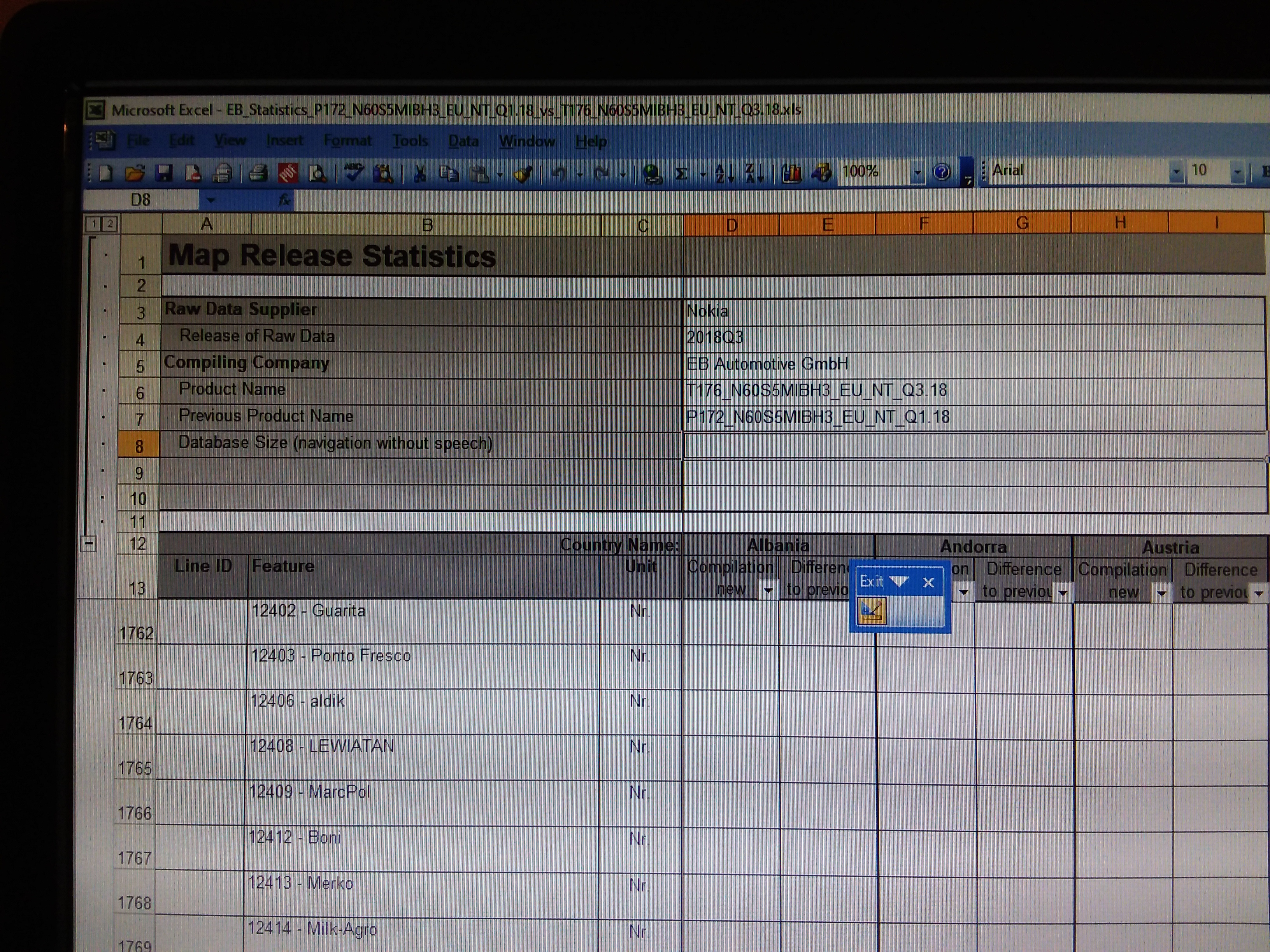
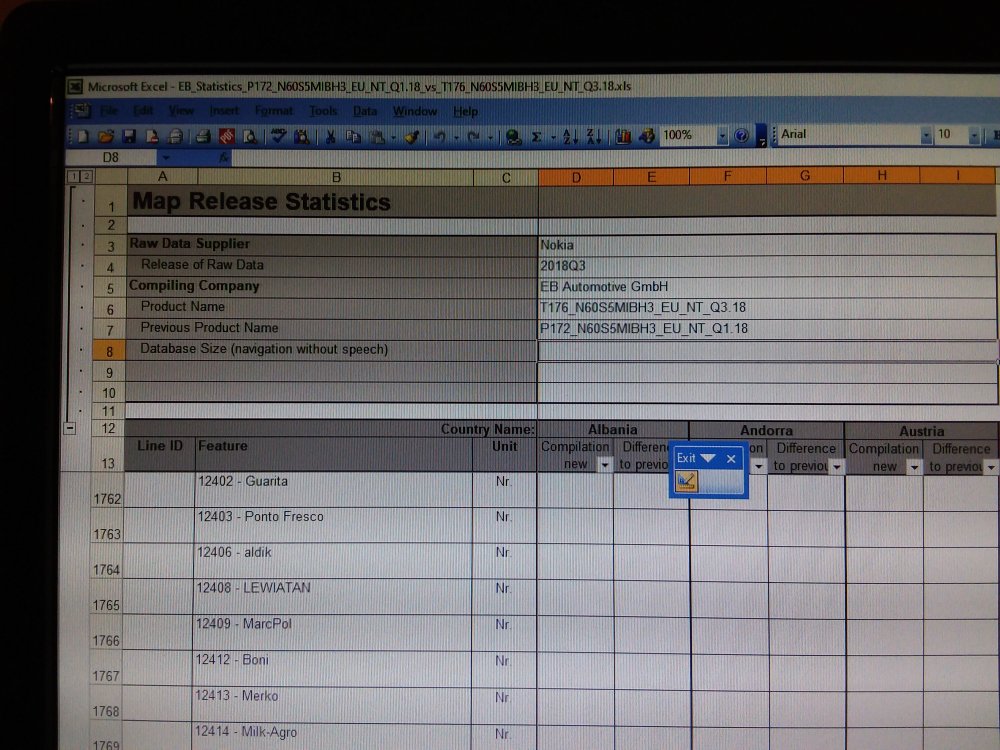
I believe a German digital mapping company does the work for VAG taking the Here Maps cartography plus associated files and generating the upload for the mib2 system. The company name crops up on the Excel spreadsheet that sometimes get released with the files. You look at properties and read it off :).... it was on a pivot they had produced between releases but it got shipped out with the files. I reckon it's them that need to address issues like that. You can dig about in the mib2 download files to find cartography relationships. The company is called EB Automotive GmbH. It's Seat that let this one slip out. The Skoda one of recent wasn't so interesting but excited the German Skoda Community Board.
-
You can format bigger than 32gb SD cards with ntfs or SD Formatter https://www.sdcard.org/downloads/formatter/ The old faithful. I'd just splash out and stick to 32gb SD cards, less than £7 from Amazon Prime. Just keep them for the job. Cheap enough. Needs to be class 10. VW and instructions are here https://webspecial.volkswagen.de/vwinfotainment/dam/jcr:c08aab64-ee73-4082-86a6-0fa82362282a/Discover Pro June_2019_EN.pdf I'd keep to the instructions and don't deviate. Covers Mac there as well. 7zip is here: http://www.7-zip.org/ Hole digging is when you deviate. They write the stuff for a reason since its tested and works. They don't say NTFS. Certainly if you format a 32gb card with NTFS it reported current map won't fit on it. On the standard system the units won't read NTFS and fail to work correctly. Also why I say don't use NTFS. All the issues appear when people go off piste. The Mac stuff again people have found alternative ways of doing it without CleanMydrive but any garbage in files related to Mac use or incorrect unzipping will stop it in its tracks. Best to do it by the letter which is in the VW guidance.
-
Yep SD is best. Class 10 or better. 32gb SD. I run with three. Keeping the last copy and the one before cycling them like back ups. Scrap of hand written paper on what's on each :). Don't write it on the sticker. 4k is good on the sector size but performance is better on an SD card. The missing space is the indexing that FAT32 creates on the image above related to sector size. Don't use NTFS whilst we are on the topic.
-
-
I think MartiniB closed the mib2 standard 2021 thread down yesterday after I posted that up and reopened this one which had existed before but had vanished. Probably needs a stìcky as you said. Why I posted it up over there which is now closed.... (confused ears as they say on cat Twitter ;)) Anyhow the all Europe map seems to work fine, least in the UK.
-
-
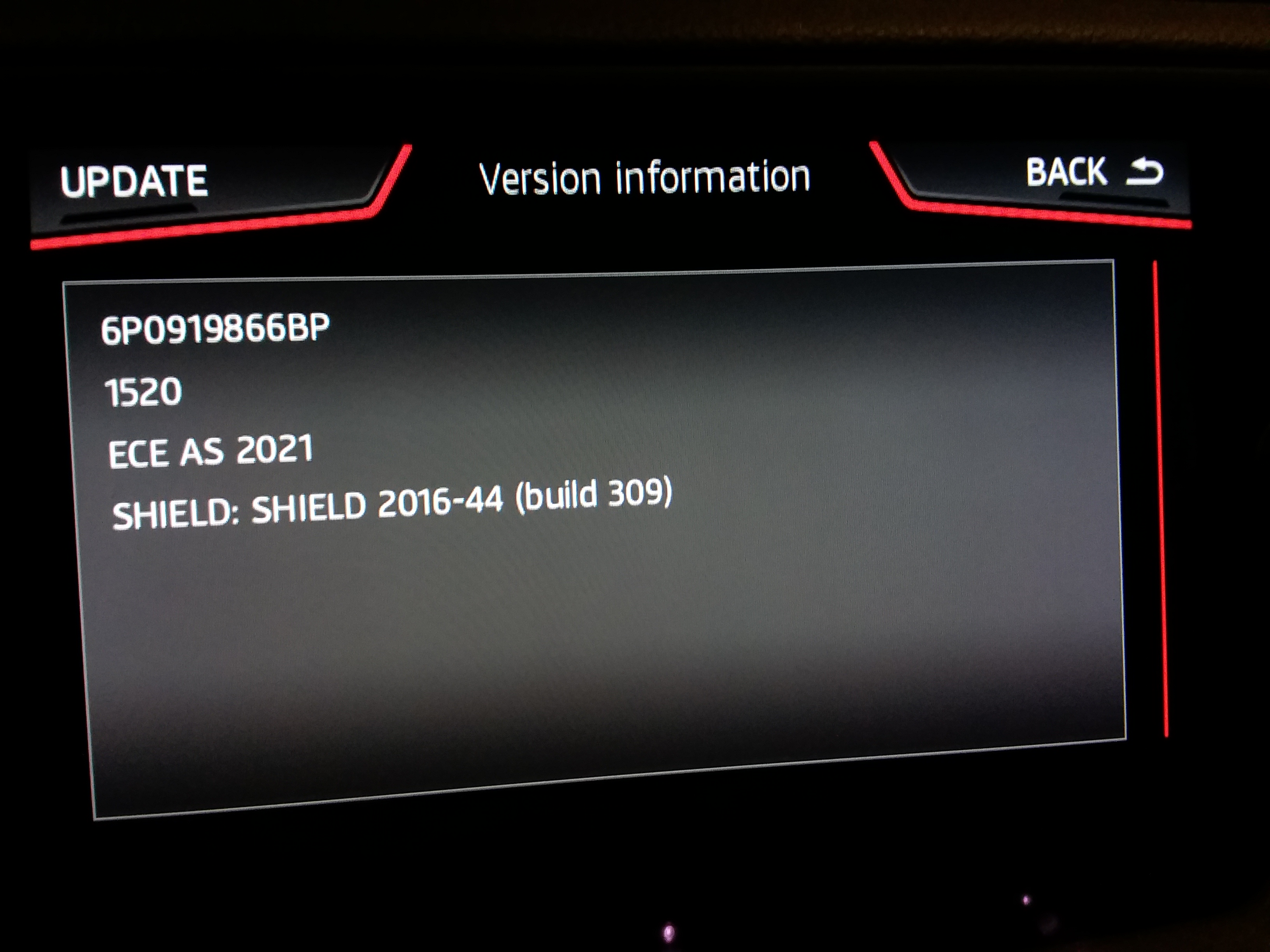
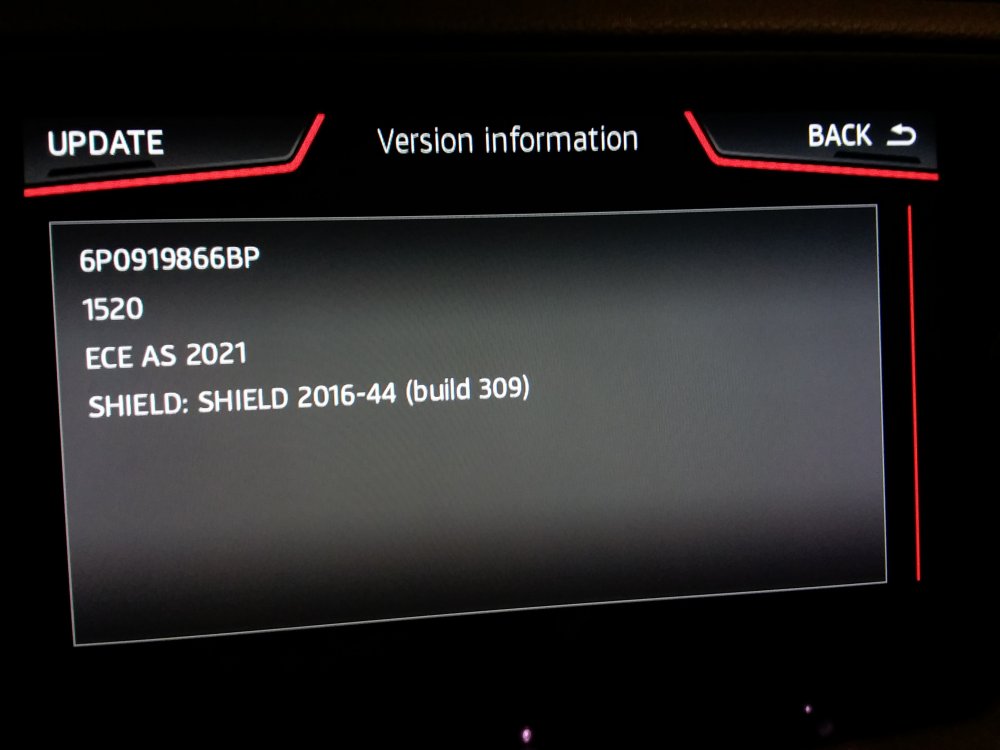
The all European one 1520 has broken cover on Seat servers. A bit of a first given Seat always drag their heels. It was found by the German Skoda Community board. Not wrapped in a web page yet, direct link: https://seatmapdownloads.akamaized.net/EUAS/EU_AS_STD_1520.zip At the minute can't find the thread that MartiniB was posting the November 2020 standard mib2 releases on... sure there was one. Leave to add to that. Loads up fine on a Seat with normal Seat workaround for Mapcare. You won't get the 6P ID on Skoda, you will get your own when loaded. The manufacturer dates are in the sequence of the other releases so far for 1520 when you open it up. Not sure how long it had been hanging around for release but as long as the E directories we have seen so far. Give it a fuller test today on a run.
-
& FAT32 is what you should be using :). The VW documention says you should use NTFS but that's on the hard disk not on the SD card. Probably where they get it from. On the standard units equally disasterous since they don't read the SD card correctly. The units run QNX and expect nice FAT32 media put in them. Fluke otherwise.
-
They are just sitting on the respective servers without being wrapped in the web page to trigger the download off. All of them are incredibly difficult to manufacture. The high ones need the VW keys which I don't reckon anyone has. For non believers that they are all the same files from whatever source you do a hash check on them: https://www.raymond.cc/blog/7-tools-verify-file-integrity-using-md5-sha1-hashes/
-
-
I see another board (German Skoda community) is reporting they have found "Amundsen is leaving soon. Variants 1, 2 and 3 are already on the VW server". Using a Linux sniffing program when questioned how but didn't publish the link. Perhaps it won't be week 48 as some suggest. Have to check your drive2 page. No problems with 189.
-
Those are the retrofit instructions. Backend menu (SWDL) is locked down in Mib2, wasn't in Mib1. Once unlocked and the navigation FeCs can take the update then off you go (Skoda / VW mib2 you are fine, Seat not, have published a table on the Seatcupra forum which provides the boundaries, ready reckoned for mib2 high navigation FeCs). You can use this method even if it's not a retrofit if you unlock the backend menu via VCDS / Obdeleven but won't work if the navigation FeCs aren't up to it (Seat only). It locks the navigation up within 30 seconds after selecting a destination. You must reload the maps that tally with the navigation FeCs. But as said not an issue or shouldn't be for VW and Skoda mib2 high. I do the open and close the door trick every 15 minutes to keep the unit powered up using this method, so don't have the engine running during the the update, do it off the battery. After 20 minutes if you dont open the door the unit will power down and you loose the updates - have to start again unlike the front menu. 15 minutes gives you a 5 minute safety buffer. Cup of coffee, go to the loo, back out to the car to see how its going. Should be done in about 40 minutes via the back end menu.