zacko_O
Members
-
Joined
-
Last visited
Everything posted by zacko_O
-
I fixed mine 2.5 years ago, just replaced whole wires to longer and it’s still working. I’m gonna sell it
-
Thanks for sharing the file!
-
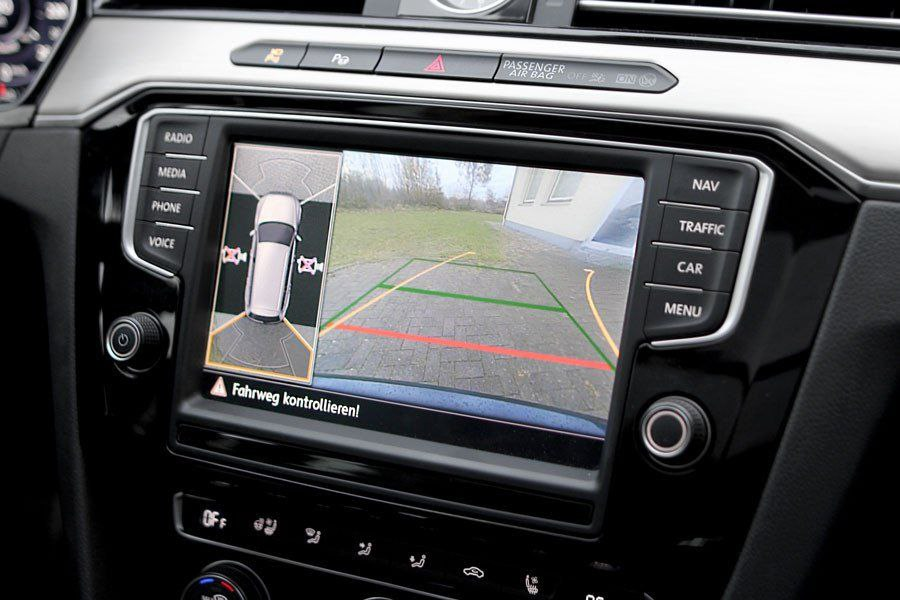
2000 - price for full kit, also oem logic of 360 is very stupid. And need to customize skins for Superb on MIB2 Thats looks weird:
-
60 EUR vs 2000 EUR
-
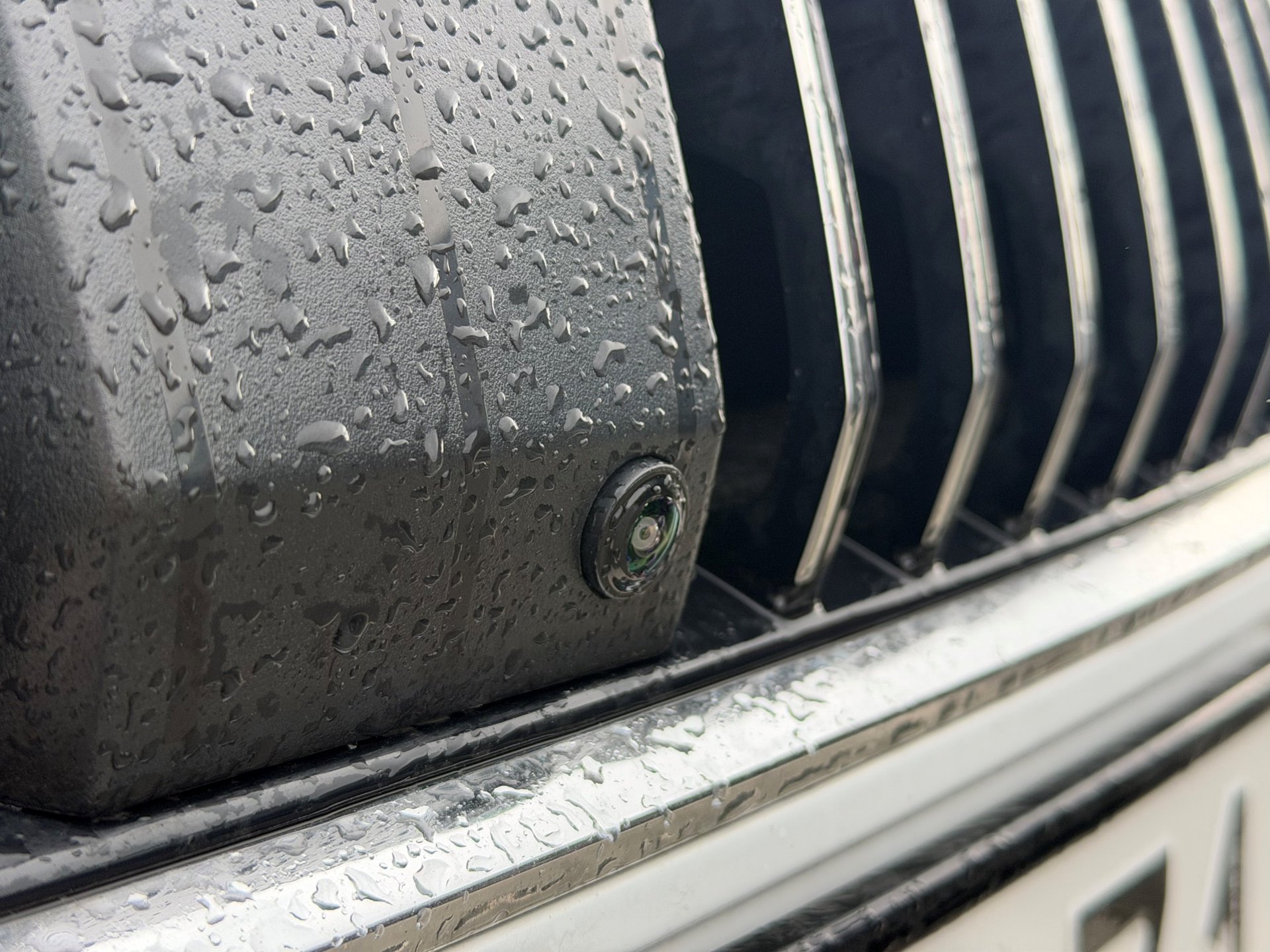
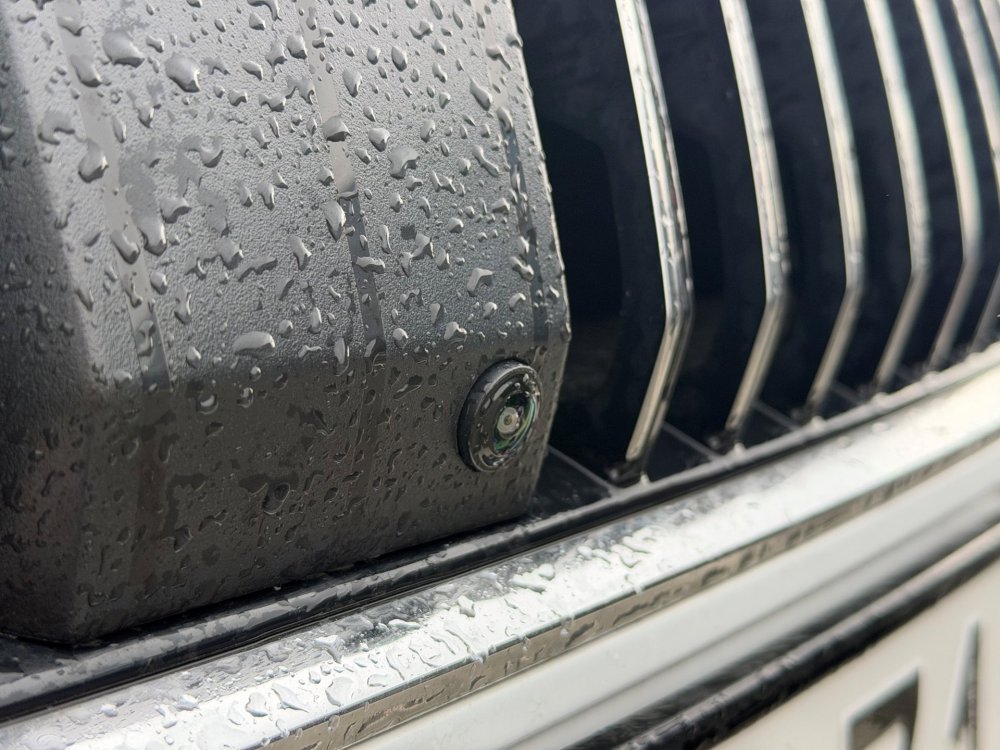
10EUR CVBS camera from Ali Overall, it's pretty straightforward. Run the camera power wire to terminal 15 at the fuse box, video wire to MIB and then repin six wires at the quadlock connector via module.
-
One small project done - front parking camera with automatic swtich front/rear based on gear selected. I used a Chinese camera because there's no practical way to reuse the original one. So far, nobody has figured out how to disable the image mirroring. The video switching is handled by a module that I developed.
-
Not today, but finally found the way how to convert seat unit from 5Q0959760B/C/D/E/F to 3Q0 with lumbar massage About an hour of soldering, then firmware, and we get a unit with a massage
-
Read it until the end - the driving mode itself is also described there. It’s 2026 - translators have existed for a long time already. btw, If you don’t have ODIS, VCP, etc., there’s no point in trying to figure it out.
-
This can be changed only by modifing gateway dataset.
-
Then you can replace module E.g. Bosch 0281003085 costs much cheaper then original
-
Easier to measure from controller side. There pins G1-4 on module, measure each one to ground. If infinite or more then ~10 Ohm - replace glow plug
-
Eject control module, check resistance of each glow plug, should be few ohms. If yes replace control module.
-
So yours might actually be original. From my experience, fake antennas started flooding AliExpress about 2.5 years ago, but it seems there are still some sellers offering originals. What was wrong with my AliExpress kit: Periodic U012700 error in the gateway, indicating no communication with antenna no automatic wheel position detection front left sensor had poor reception one sensor always showed 2.2 Not sure what will happen if I change sensors
-
I’ll share my personal experience. Fake on top, original on the bottom. The QR code on the Chinese ones looks identical (if you compare it with the photos a few posts above). The font of the part number is different (not noticeable in this photo). The Cyrillic text is poorly done. "ЗроблеНо в НiмеЧЧИНi" - fake. "Зроблено в Німеччині" - original There is no Huff / BHSens logo. - fixed in new fake antennas You can't upload dataset If the antenna is already installed, you will see this menu in the Tire Type settings. Of course, they’re not standing still and keep improving the fake antennas.
-
this one looks like a fake topics to read: https://www.drive2.ru/l/673718879045834225/ https://www.drive2.ru/l/717594065918495629/ https://www.drive2.ru/l/648258312915128932/
-
Yes, new sensors will be automatically detected after half kilometer. But if it is genuine VAG antenna. Btw it’s possible to manually put sensors ids via diagnostics tools For fake antenna you can’t upload dataset with tire pressure settings.
-
98% TPMS antennas from Ali are fake
-
@SuperbDan 👆
-
You need Lin module the buttons should work like this: Left button - Main Menu Right button- View More details: https://www.briskoda.net/forums/topic/522203-new-generation-steering-wheel-swap/
-
well, we can only guess, because we don't know what equipemnt you have. E.g. in my Superb coding was 6410 Open coding and check whats is extra is on or off
-
There 2 versions of 5Q0.953.569A clockspring for VW w/o third stalk fo ACC and for Skoda with third stalk support. Try to restore coding from previous clockspring, if it won't atccept coding, probably you bought clockspring from VW Another option is restore your old one
-
I did it with an adapter, but in mqb
-
Voice - 0x19
-
Maybe you need press button to show values? it will show value in DEC
-
Gateway - Measured Values