Leaderboard
-
MikeTheThinker
FREEDOM9Points8,538Posts -
MoggyTech
Resident Member7Points6,533Posts -
Aspman
Resident Member7Points21,291Posts -
Breezy_Pete
Sponsor6Points24,577Posts


Popular Content
Showing content with the highest reputation on 23/09/20 in all areas
-
2 pointsThought the following would be useful SE-L and Monte Carlo spec have 215/45 R18 89V tyres, not a common size For all season can get : Vredestein Quatrac Pro Continental all season contact Maxxis AP3 .....and that’s it (although older Quatrac 5 and AP2 might still be available at moment) being rare size, likely to cost £500-600 for set of 4 all season tyres For SE spec wheels with 205/55 R17 91V lots of choice For S spec wheels with 205/60 R17 92H also plenty of choice and lot cheaper than the 18 inch versions For those who live in the mountains, or where there are very steep hills. You may prefer to swap to dedicated winter set of wheels/tyres. Any of the above sizes are valid, as are 16 inch wheels with 195/60 R16 or 205/60 R16 Unlike the bigger cars, Karoq etc with 5 x 112mm wheel bolts, the Kamiq uses the small car size of 5 x100mm bolt, so if getting new rims make sure they are this size. Offset ET varies slightly by rim but is between 35-40 so ideally anything in this range is suitable. Hope this is useful, as these questions always come up this time of year2 points
-
2 pointsNever created a topic on international forums. Because I really get a lot of information on Briskoda from fellow users, I think it is fair enough to show you guys my own car and what I've done to it. On 17th of April this year, I bought a Skoda Fabia MK2 1.2TSI 105bhp from 2010. Car itself is quite loaded and the owner before me already did some upgrades to it. How I got the car (changes I could see and find were the Eibach springs, Fabia mk3 wheels, retrofit Xenon headlights, Monte Carlo front grille and shifter. After I've collected my car and drove it around, the hunting for parts and upgrades started. Genuine Skoda roofracks. The speedo meter needle had issues (LED was trippin') so I've upgraded them from plain white to green. After that, I've tinted the windows by myself. No bubbles or weird cracks. Seems fully original. Very pleased with the results for a DIY. Added some colour (RGB) to the interior by placing ambient lights. Bought for a very good price a set of VRS wheels in 17" They needed a refurb but who cares for 100euros including tyres. Bought some Brembo 4 pots 323MM brakes from a Seat Leon Cupra R. No I don't need that moch stopping power (I know you guys love the 312mm setup and you upgrade the brakes after you upgrade the power ) but I always love to have big brakes because of 2 major things in my opinion: 1. Looks way better and cooler and 2nd. stopping better and earlier is safer in any circumstance. I've restored the calipers myself and painted them Skoda Rally Green. After fitting them on the car, the VRS wheels didn't fit anymore (the inside of the wheel is not meant to fit a BBK). Bought (again) for very cheap a seat of Audi TT wheels (I mean.. 50euros for a set?!) Bought some rubber in the correct size (205/40/17) and mounted them on the wheels and fitted them on the car. I was keen with what I had till I saw a good KW V2 set on sale for a fair price.. Well, we know what happened next lol After getting frustrated by the look of the wheels, I've decided to give them some paint. Primer: Graphite metallic: And this is how the car is right now Thats it for now. Plan is to fix the squeaking accessories belt and I'll try to drive it like how it is for a couple of months. when the turbo claps out, I'll swap it for a hybrid one to get to plusminus 170bhp with a custom remap. also wanna make the front lights darker since it is way to bright (don't like chrome). Thats it for now, will update later.2 points
-
Hi! I just signed up to post write this guide, as I couldn't find any info about it anywhere. What you need is an isofix bracked, two screws and two nuts. I believe there is also a plastic cover for the bracket, but I couldn't find the part number for it. Here's the backside of the front passenger seat. Start by removing the two small plastic clips on holding the plastic covers on either side of the seat. Do so by pushing the pins in the middle all the way through, then you can pull the clips out. Remove the adjustment knob on the right side of the seat by simply pulling it out. Pry out the covers to expose the holes where the isofix bracket is supposed to be fixed. Fit the nuts to the lower round holes. Here's one end of the isofix bracket. The round hole is where the screw is supposed to go and the pin goes in the rectangular hole in the seat. Bracked installed. Reinstall the pins for the side covers along with the adjustment knob and you're all done. Easy peasy!1 point
-
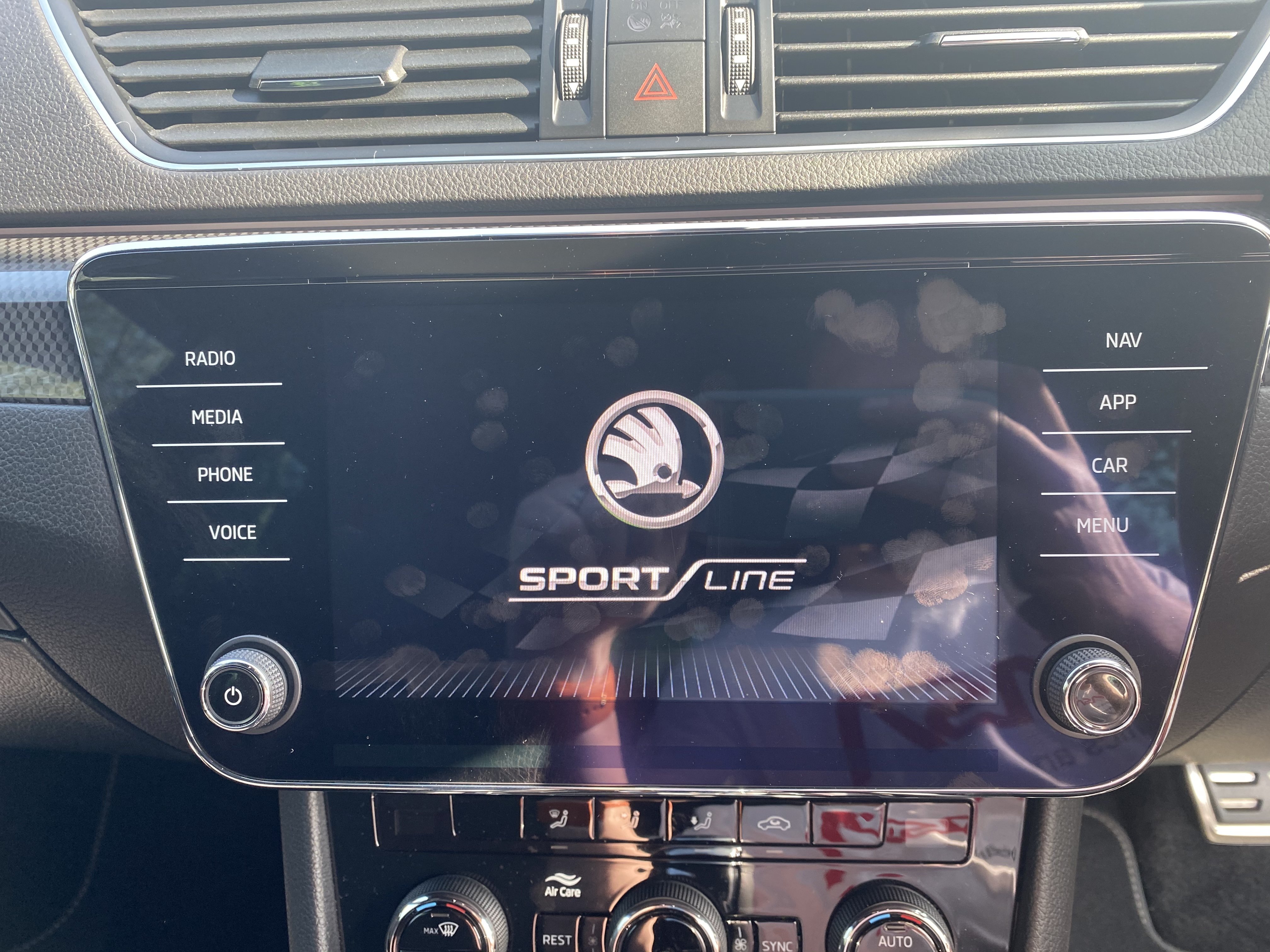
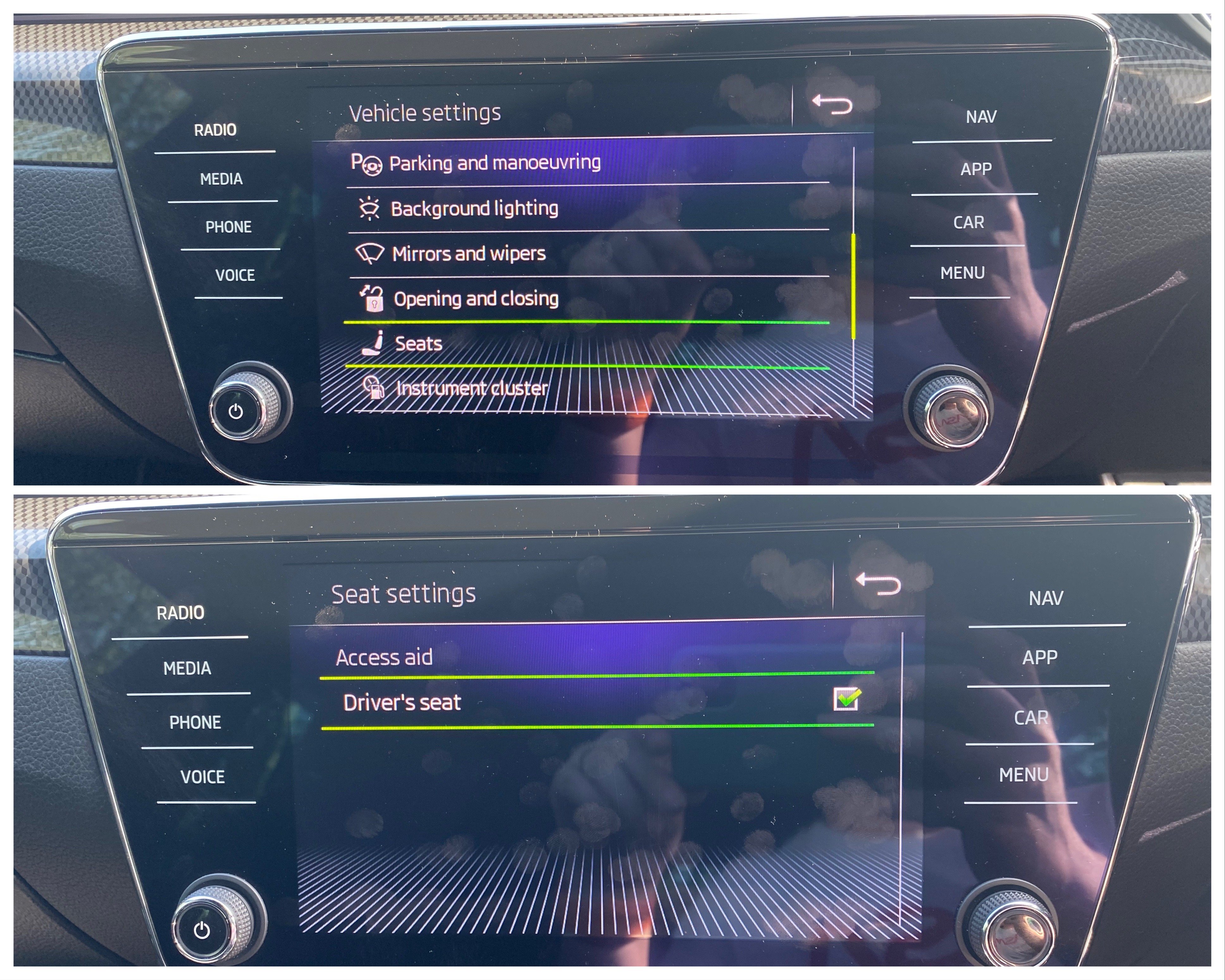
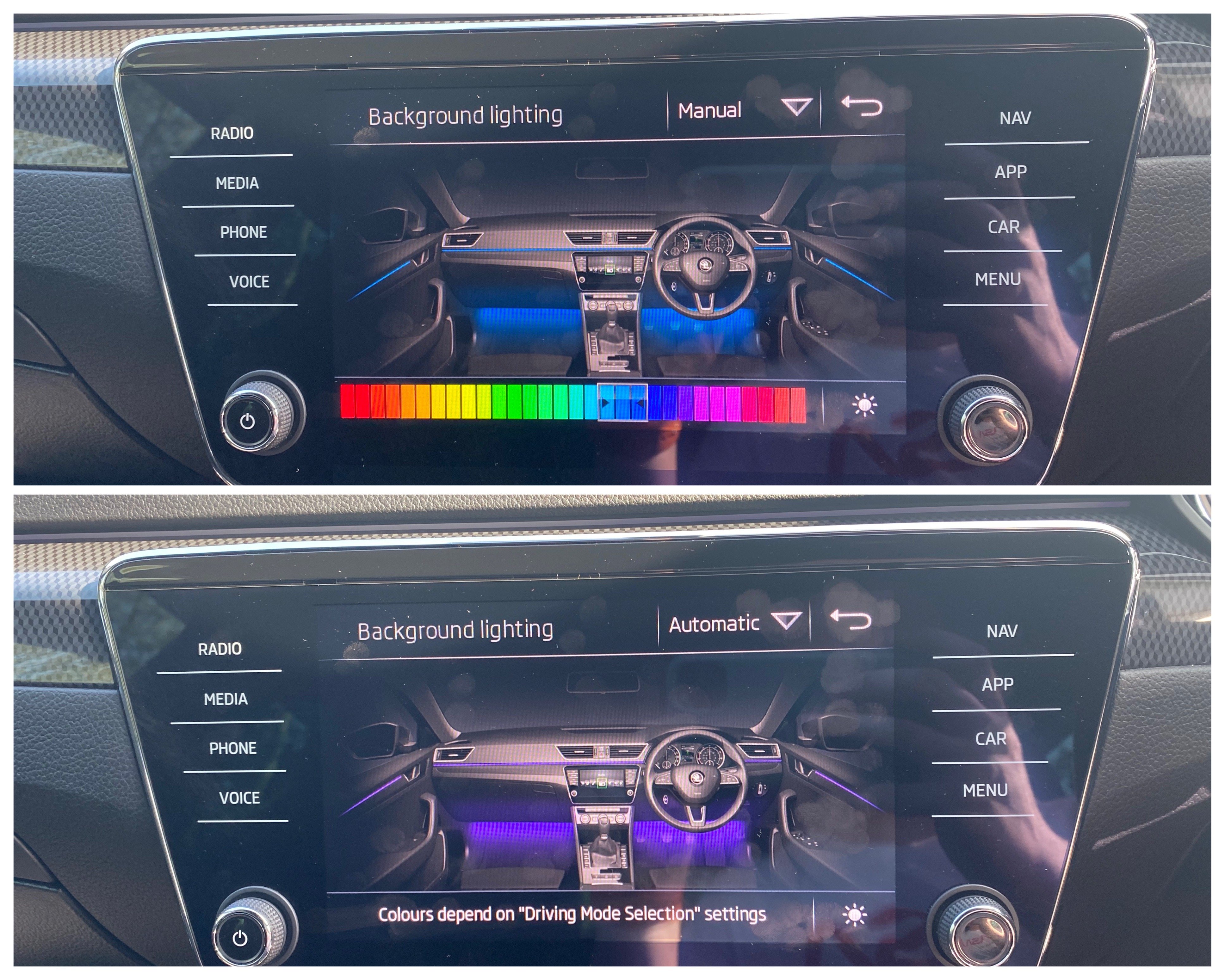
1 pointSo I could have sworn the SportLine I had in a few weeks ago had a radio splash screen that said SportLine. That car was a 2017 with MIB2 Columbus. Not sure if this only affects the cars with Amundsen but apparently there are people out there who have SportLine Superb’s and the radio splash screen just has the normal ‘Welcome to Skoda’ screen like the late 2018 (MY19) car I had in yesterday. So if this affects you, coding is 5F Byte 18 and you change the value from 8 to 13 in text mode, reset the radio and boom! SportLine splash screen. You’re welcome 😁 Also coded other goodies like the seat comfort access with working radio toggle And 30 colour lighting with pre coding for RGB footwell lighting which is a retrofit that is coming soon!!
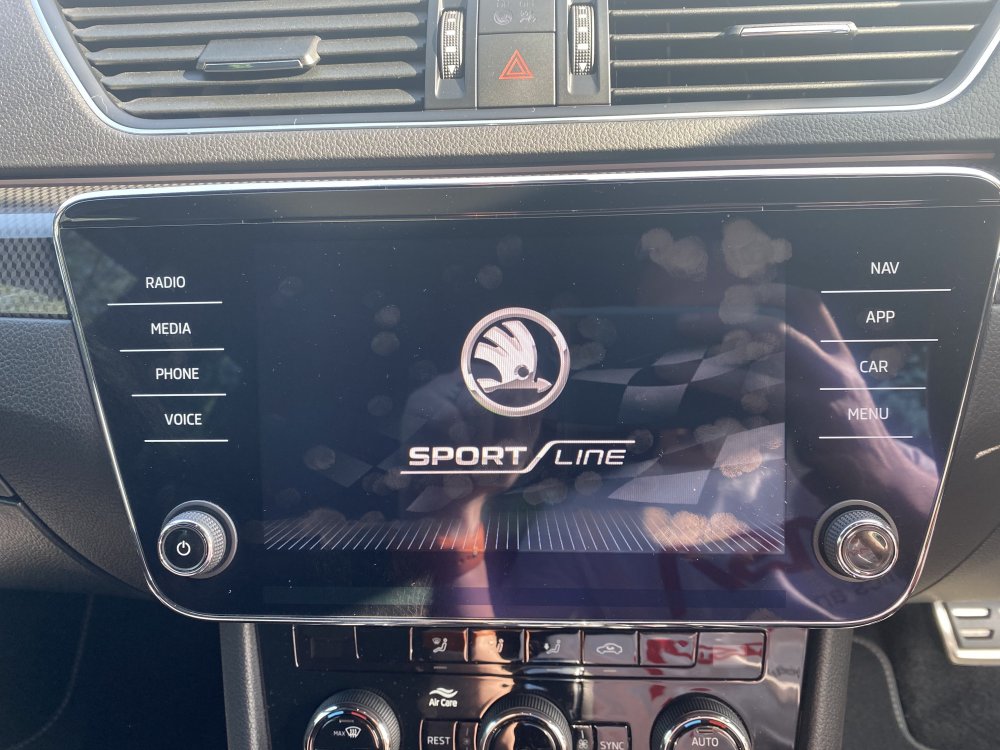
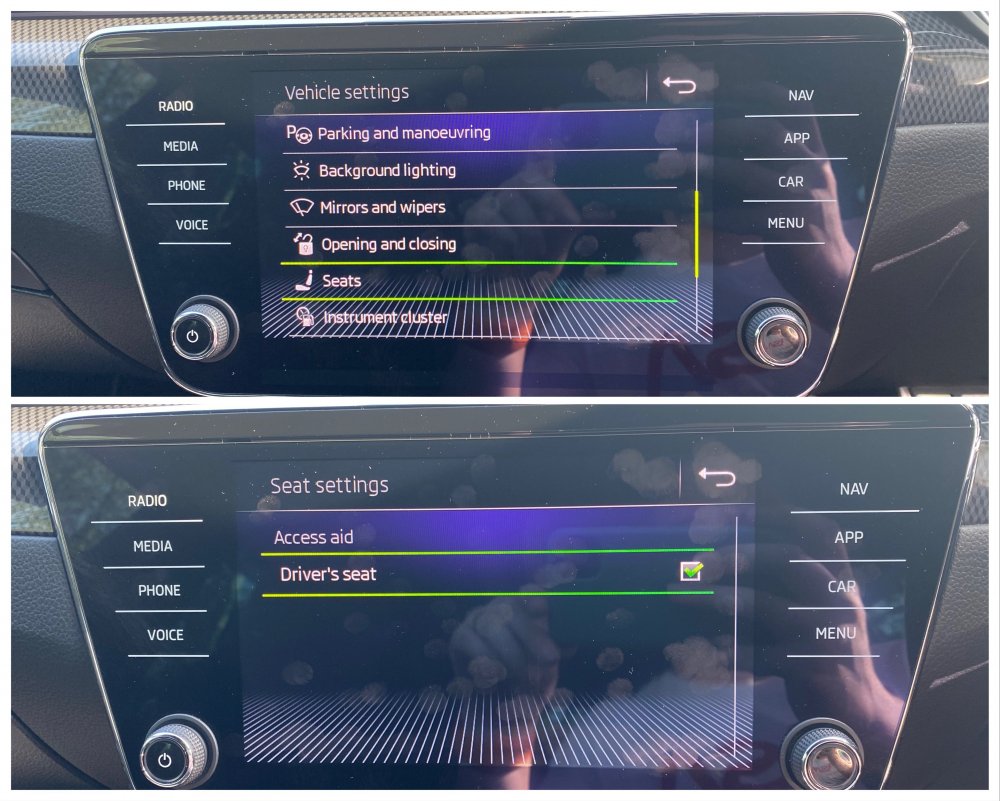
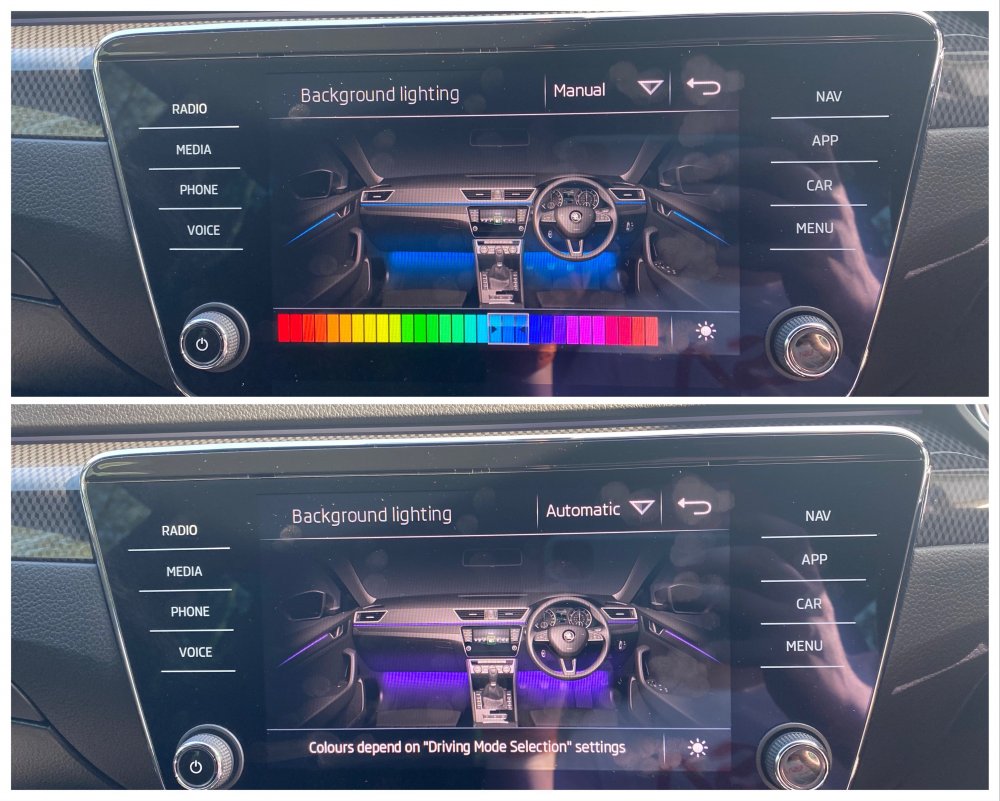 1 point