varooom
Resident Member
-
Joined
-
Last visited
Everything posted by varooom
-
VAG do not give changelogs, and they usually don't add new features. Mostly bug fixes.
-
MOI3_RW_SKMQB_P27800P Version 0278 is available (need to verify on PC) Edit: 0306 is the latest
-
@Willow971Try once more, this time press down Menu button for a full 10 seconds. You are looking for Software Train, and this will be location for firmware update button also.
-
Try again
-
Press and hold Menu button to bring up engineering menu with Software Train information.
-
Good luck with that. There's no changelog with a firmware, we can only guess as to what they fix.
-
Might be wise to format and download a copy of the maps again. Did you update firmware with map card in the car?
-
You should post or translate exactly what you see on the screen when you try to load navigation.
-
You did, it's still in your private messages from 2 hours ago, unread.
-
It might be the one they sourced doesn't have Bluetooth? Try to get the hardware number out of it from the menu/setup key press.
-
Right place at the right time 🤝
-
Very good, you can update firmware to 0253 As for maps, you may need it activated, but you will need to get a Skoda map card as they have an ID embedded that the car has to read, or it will not allow maps to load. You can pickup these cards on market websites for not too much money.
-
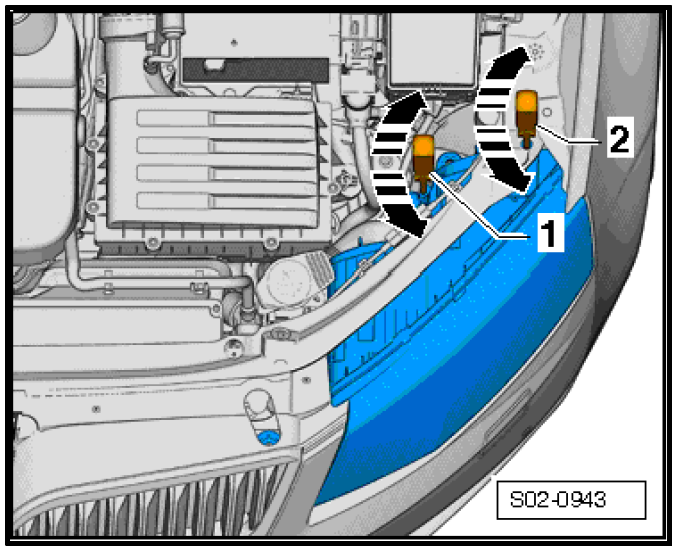
Check that you have these 2 screw postions as seen, then you should be able to adjust the beam, this will affect the dipped/high beam at the same time. Height is postion 1 Left and right deflection is position 2
-
Sent another link You should press and hold down your menu/setup button for about 10 seconds or less to enter the engineering menu with the Software Train value in. Also take a picture of the front of the screen with buttons, if you don't have a NAV key, then odds are no you cannot load maps.
-
In theory any dealer should be able to order it in, and might be stock in the main UK distribution network.
-
At least 4GB (as far as I remember) So 4, 8, 16 or 32GB will be fine.
-
You have the latest version for that software train.
-
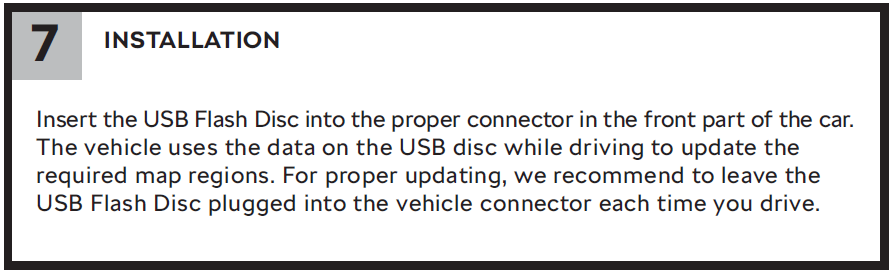
Here is the MIB3 Map update manual Map-updates-mib3.pdf And snip from page 6 So yip, keep driving it, and check after a while if it has downloaded the maps.
-
https://www.briskoda.net/forums/topic/506488-dreaded-looping/ @Carl248 Had a dead radio not that long ago, tried to flash the SW, but in the end had to swap it out with someone one eBay iirc. EDIT: update RNS 510 with newer firmware and maps See if you can follow the first part of this, and get some response enough out of you unit to get image of your Hardware version and current firmware version
-
Don't quote me, but I think that downloads in background. Check after 1hr of driving.
-
True, worth getting them to wipe the grime off it.
-
USB I have never found anyone who has made it work with MIB1 to MIB2.5 Try once more with SD Card, and you should get it to work.
-
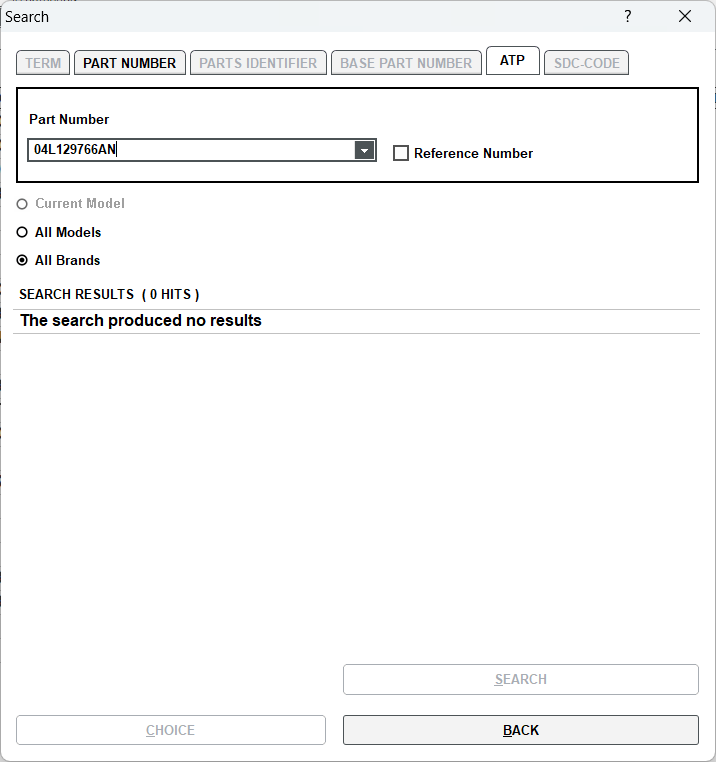
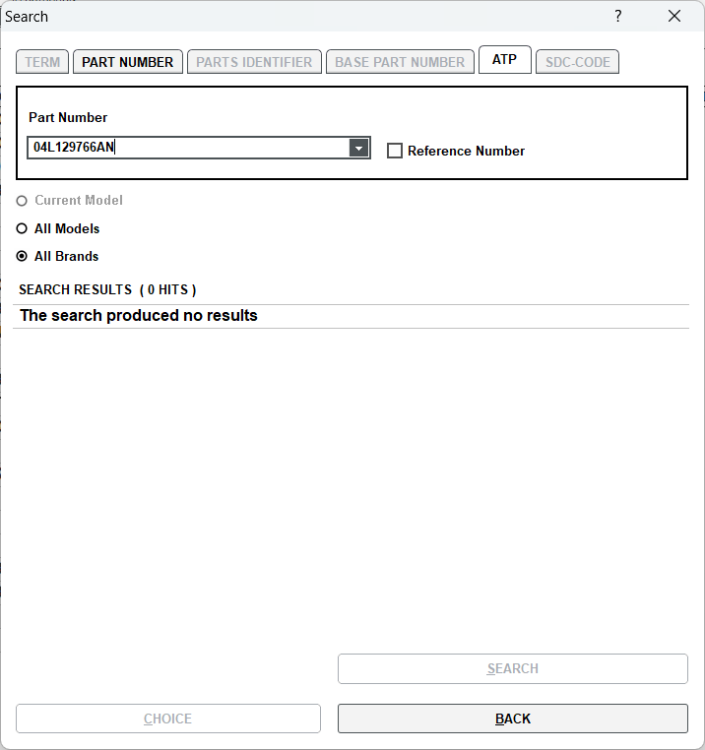
The link that @Breezy_Pete linked to earlier (removed extra crap) should be good enough to replace what you have. https://www.ebay.co.uk/itm/155133613768 Ideally find a BA version, but probably hasn't hit the eBay market yet for being too new Thankfully AN is not a legit part, so contact the above seller to confirm that it is AM not AN Best of luck!
-
Stick to one of these 3x values to be absolutely sure of a compatible fit
-
04L 129 766 Q --> 04L 129 766 AM --> 04L 129 766 BA This is how your part changes to the latest version