




pab567
FREEDOMTech
-
Joined
-
Last visited
Everything posted by pab567
-
You have download link on PM _ however as I always say, if you don;t have any issues then there is no need to upgrade as every upgrade may brick the unit.
-
Google for it, it's quite well described, just remember that after upgrading to VW firmware you will also have to patch the unit (as all FEC/SWaP codes will be deactivated - again use MIB STD2 TOOLBOX). You will also have VW skins so if you want to have SKODA skins again you have to reflash them. I'ms sorry that I can't guide you more but I don't use MIB STD2 TOOLBOX at all :(
-
Basically you can do it with MIB STD2 TOOLBOX however as this is engineering unit it might end with bricking it so honestly speaking I would keep it as is.
-
Your unit has definitely been retrofitted. Originally you had 5L0035680A.
-
-
-
This doesn't look good - intermittent failures are the nightmare for analysis and finding the root cause. Having a log could help but for this you need PC connected with UART to the unit when it fails.
-
There is no newer version for your firmware. How does it crash?
-
I do not recommend aftermarket units. To replace with Bolero or AMundsen you need display unit, glove box unit and harness to connect it all. Glove boxunit must be patched to disable component protection and enable new features.
-
Does it react on ignition switching on/off? If yes then probably the BT module itself, which is built into the glove box unit, is faulty.
-
Dis you buy it as brand new car directly from SKODA? Pls share VIN so I can check original configuration.
-
Ad. 1 search for MIB STD2 TOOLBOX Ad. 2 was it brand new car when you bought it? Maybe someone made some retrofit..
-
Indeed, it's tied to a lot of other systems, that's why I do not recommend aftermarket units as I have not found any that is 100% compatible with all the features, if you need to replace then IMHO the best in class is original MIB STD2 PQ unit How can I tell if the TV module is installed? => Pls share VIN so I can check. Do you think the original unit is salvageable? I'm pretty sure it can be recovered, pls take it out and share the picture of a label from upper housing.
-
-
Rather bad luck, pls share part number and SW version of your MIB2 unit.
-
Check your PMs for download link
-
Check your PMs
-
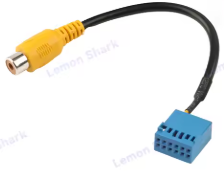
Ad. 1 - OEM camera is connected to QuadLock blue connector pins 7 (signal) and 12 (gnd), you eitehr need an adapter from RCA to OEM pins like the one below or cut the yeloow plug and add original OEM pins instead. Ad. 2 - you will need to replace your PDC module, check if you are able to code camera in your current PDC. There can be three scenarios: it's not possible it's possible but you don't get a view of camera and PDC visualization on the same screen it's possible and you get a view of camera and PDC visualization on the same screen In case of first two you will need to replace your PDC. You can use either 1Z0919575G or 1K8919472C. 1Z0919575G is P&P while 1K8919472C requires re-pinning or special adapter. Big advantage of 1K8919472C is that it can turn on PDC automatically when you slowly drive towards wall / other car in front of you Of course in both cases coding might be required.
-
@gogiii @wim_rommens upgrading from 02xx to 03xx is possible but it requires unit to be patched first because, as Patch must be made to swdownload file, google for MIB STD2 TOOLBOX. Only after this is done you can upgrade to 0480. @prosist MIB STD2 TOOLBOX is also a solution for you to activate SmartLink. I sent you link to MST2_EU_SK_ZR_P0369T on PM. As I don't deal with aftermarket units I can't give any guidance. My personal opinion: if you can get OUE unit that matches your requirements then stick to it! @AlexScout you have download link on PM too!
-
-
The qyestion is what new features are you looking for...
-
Only infotainment reader (glove box unit), no need to replace display unit. You can use Bolero 5Q0035842x / 565035842 or Amundsen 5Q0035874x / 565035874. New unit must be patched - none SKoda dealer will be able to officially activate new features that are not supported by your original 5Q0035820 unit (Android Auto, Apple CarPlay, Voice Command, Sport Menu). Each of replacement units I mentioned also supports Rear View Camera. I can deliver replacement unit in Plug&Play version, if you are interested pls contact me on PM.
-
Bolero MY15 can't, must be retrofitted Bolero MY16 part numbers 5Q0035819A and 5Q0035820A can't, must be retrofitted, but 5Q0035840A and 5Q0035842A can have it simply activated General rule is none 5Q0035840, 5Q0035842, 5Q0035819x and 5Q0035820x can't have Android Auto activated (x - any letter, can be missing) and therefore must be retrofitted (only infotainment reader required retrofitting, display unit can remain).
-
What is the part number and firmware version of infotainment unit?
-
So now you have AMundsen MIB1, with Bluetooth, with DAB, part number 5E0035874A, with USB 5Q0035726B and fortunately you don't have CANTON sound system. You can install one of four different OEM glove box units: - MIB2 Bolero - MIB2 Amundsen - MIB2 Columbus - MIB2.5 Columbus You also need to replace display unit: - for MIB2 Bolero you can use either 6.5" model number 5E0919605H or 8" model number 5E0919605N - for MIB2 Amundsen and MIB2 Columbus you can use listed above display as well as 6.5" model number 5E0919605J, 8" model number 5E0919606, 8" model number 5E0919605M - for MIB2.5 Columbus the only display unit that works is 5E0919606D If you woulkd like to use Apple CarPlay then you also have to replace USB port. The question is what is your budget and which of listed below features are "must have": - Video playback from DVD, USB, SD - CD playback - OEM navigation - displaying OEM maps in Virtual Cluster (Active Info Display). All units support SmartLink (Android Auto, Apple CarPlay, MirrorLink), rear view camera, voice command. features that differ them: - MIB2 Bolero - no OEM navigation, no CD/DVD drive, no video playback from SD/USB - MIB2 Amundsen - OEM navigation, no CD/DVD drive, no video playback from SD/USB, support for displaying OEM maps in Active Info Display (Virtual Cluster) - MIB2 Columbus - OEM navigation, CD/DVD drive, video playback from SD/USB, no support for displaying OEM maps in Active Info Display (Virtual Cluster) - MIB2.5 Columbus - OEM navigation, CD/DVD drive, video playback from SD/USB, support for displaying OEM maps in Active Info Display (Virtual Cluster)



