




Tell
Members
-
Joined
-
Last visited
Everything posted by Tell
-
I dish out the Mac advise although I don't have one... wash my mouth out with salt water... but it fixes them all. Mac's stick an extra carriage return on the line or whatever. The map file is protected with a sla1 signature which means a secure signature is placed on the metainfo2.txt file. Private / User key. https://en.m.wikipedia.org/wiki/SHA-1 Vag signs the map file with their private key, the unit knows the public key and says, yes, this checks out and allows import. 1 character out and it rejects it. You can't manufacture the private key from the public key unless you have a security service type of computer like a Cray 😍. Then you could manufacture an import file via the secure methods. Ways around avoiding the signature have been found with the mib2 unit... they didn't close down feeding other code into the unit after the signature which is the exploit that developers of mib tool boxes use and specialist modified firmware which also carries the FeCs through another developers exploit. Saying that cross checks are not made on the integrity of what gets imported if you avoid the signature check so CleanMyDrive is even more important on a Mac if you are importing firmware of this nature. All clever stuff. CleanMyDrive removes all the bloat Mac characters so it looks like the PC download.
- 155 replies
-
-

- 1
-
-
- columbus
- discover pro
- maps
- mib
-
Tagged with:
-
Assuming it's mib2 high and patched with the life long navigation FeC for Audi the conversation above as I recall, if not on the previous release, then it's going to be you are using a Mac and you need to use CleanMyDrive on the SD card after unzipping it. That's the common Mac error after unzipping. Failing that it's the format issue where I say stick to SD card 32gb, fat32 else you enter the territory of formats, covered above. That's about it. The life time navigation Audi FeC was published above or on the other thread. Look at yours and compare. Some retrofitters scam by just giving you a short term FeC to induce extra work. Why you need to check what you have against the life long FeC. That's set at the high point in the table where VAG will stop issuing releases before you hit that. Edit. Was this thread. Audi 23000ee the one Boo boo had.... we went round the houses before pinning the issue down, check yours and check unzip, Mac issues and format plus attached VAG (Discover Pro pdf above) notes I posted on the process above. Some Skoda drivers go off piste by using USB sticks then you enter the format debate. Stick to SD cards class 10 32gb and we dont need to cover that... the Vag guidance.
- 155 replies
-
-
- 1
-
-
- columbus
- discover pro
- maps
- mib
-
Tagged with:
-
& mine on a mib2 high. Was a technical failure in the company that runs TMC in the UK. Similar to the one a couple of weeks back. Nothing to do with the map update.
-
I checked my Mib2 high in the afternoon and TMC had a cross thru it so it's taking a break 🤫.
-
I will have a look to see what's happening today on it. As I said TMC took a break a few weeks back for a day or so then reappeared again. Was reported on a Seat board. Have access to the standard mib2 unit and mib2 high, was off both which concurred with the Seat poster. So nothing to do with the standard map update, just coincidence. Decides it was a technical network glitch. TMC is broadcast via Classic FM but receivers can get mixed up in some parts of the country between the free service and the paid service. The free service is paid by the manufacturers e.g.. VAG in this case pay for the free service for the customer. Traffic Master is the paid service. Weird and wonderful world of TMC https://tisa.org/technologies/coverage/ Have a wiki https://en.m.wikipedia.org/wiki/Traffic_message_channel See under UK. Think their servers have a wobbly at times... not good if there is traffic. 😨 Probably held together by sticky plaster that falls off at times.
-
Invest in a 32gb Skoda card from an e seller, normally ends with a bay at the end. That's what people have been doing with their Seats in readiness for the day when it out grew even with the language fix. You have to look at the review index and determine whether they are genuine Skoda ones or the "gold card" ones. I bought mine when members of a German boards were buying them about three years ago, that was a genuine Skoda card. Seat 32gb card would do, or VW, they are all interchangeable. The CID is recognised as Vag so it works. Why I experimented with the 32gb Skoda card but it's come to pass mib1 units work with the mib2 card although you have to have mib1 stuff on it obviously. Don't be duped by people that say reformat the 16gb card with a 2k cluster size, its been known to screw up the card e.g. kill it. Skoda 32gb have been killed this way. Apparently the newer manufactured cards don't take kindly to reformatting, always delete what's on them than hit reformat.
-
There was a TMC UK issue a few weeks ago. Came up on the Seat Cupra board similar, map had been updated but I tested in on my standard unit and the mib2 high. Both were down. Then after a couple of days it came back. The person reporting it got it back so I re checked. Conclusion wobbly feeder systems in the UK which populate the TMC data. The top icon disappears on the Seat, with TMC with a cross thru it when it's not working. No cross and it's receiving. It will be back. You mark a route into the centre of London for testing 😍.MartiniB has a thread for that:SD 32gb card, class 10 in Fat32 is the official way of doing it as recommended by VW in their material which is the gold standard. The maps haven't busted the 32gb SD card yet in Fat32. It does if the card is in NTFS. I just keep a couple, this release, last release and rotate them. Nice 3/4" scrap of paper with the release number written on it clipped in the box.
- 155 replies
-
- columbus
- discover pro
- maps
- mib
-
Tagged with:
The same release works across brands. Identical file. The part number it throws up is based on it knowing what brand it's installed in.Almost like a license arrangement to offer old maps or just incompetence of the brands. Savvy owners know where to look on forums for links to the latest maps not the brands websites. Probably the web developers not being well managed whilst the brands internal staff keeping on top of the releases but the web developers not bothered. You always get impressed in a work environment when you find the people who know what they are doing but the management is useless. The guy at their desk who is on top of things. "I'm looking for this" and they pull it up. You start looking in June and November for the two annual releases. Serial number is more important than year code after VAG altered how they named them a few years back. This year we got them in May for June. No complaints there thanks to eagle eyes of the community.The brands other than VW often lag. Skoda is well known for offering up old maps. The goto place is MartiniB server listings not the brands websites. There is a German forum similar but that has been lagging as well this time round 😨.I've seen nonsense data on Waze... complete garbage where someone has digitised a housing estate that has not even been built. Certainly hasn't passed any QA checks. Google Maps also have processing delays plus rubbish QA. Another one with a complete housing estate missing for 5 years. I don't give them any stuff now. Tough they won't take out a farm track in the village which leaves cars coming down and dead end or bouncing down an unmade road. DHL and Amazon use the farm track... One of them ran over a dog in the dark charging down the farm track that isn't a road. So they can rot. I keep Here Maps and TomTom up-to-date but won't touch Google Map editing since they are rubbish. It's the domain of poor QA and mapping fantasists that enter roads where there aren't any since they feel there is a public road from the aeriel image... no. Farm tracks plus the ones that take plans for an estate that hasn't been built on a green field site and put roads in. 😨. They are not kicked out during QA.- 155 replies
-
- columbus
- discover pro
- maps
- mib
-
Tagged with:
On the first just one character out can lead to the map upload being aborted. Keka and CleanMyDrive are the two techniques for a Mac, Keka unzips, CleanMydrive deletes all the Mac characters it puts in, that's run on the SD card. The SLA1 signatures check is carried to ensure the files have not been tampered with. A VAG master key (primary key) is used construct the signature based on the contents of the file. A user key is built into the unit. Examination of the contents with the signature and if it says, "yes" it get passed for import. What must have happened the cleaning process whatever you used didn't clean as expected. Whilst I don't have a Mac it always works when I tell people to use those two pieces of software as VW recommends. For the hell of it I once ran the SLA1 authorisation algorithm with the set of user published keys. I found that the master key, whatever that is, is the same across the firmware and map files since the same user key would work. A few years back you needed a month's Cray super computer time to crack the master key, why the industry was telling people to get off 1024 SLA1. They study this subject at University now.... branch of applied mathematics coming from pure... once you get the master key you can manufacture source files that appear as real ones. The mib2 firmware exploits have been done by avoiding the signature key check. The family of mib tool / toolkit software and firmware presented in such a way plus developer tools left in the firmware, clever. On your second MartiniB's attention to detail he publishes when the files were processed within them, in this case Files inside: 2021.10.14 The process is Here Maps will generate the master file and it goes off to whoever turns these files into the VW map files. Thus your 2022Q1 is outside of the date. The Here Maps app Here WeGo is suppose to be the first view of the production files and if that is wrong, that's when you tell them since they have duff data in their master file. Co Pilot also gets updates more frequently so you can check there as well to see whether their master database reflects what it is suppose to be. The Mapcreator app seems to use artificial intelligence to pull parts of maps apart and falls foul of rounding error !. Sure it does, so it decides points you placed together get pulled apart, duplicates included etc. To combat that you have to visit the same location on the map daily say and run across the bottom right horizontal bar validation tool clicking on each item to see what it's revealing. Where the automated validation system has introduced errors they can be seen there plus joins in roads left open. They are only geographers that run these systems bless them 😉. MapCreator you are working with the development database, not the production database. You also get pestered with mapping fantasists that place farm tracks on maps as highways. Builders roads on development sites that should never be digitised and the rest of the nonsense. Here Maps process do study other digital maps and flag up what they have "missing" against others. So nonsense from those maps can get into HereMaps if not correctly validated. They use probes generated from mobile file track data as well as a tool. In the UK OS planning maps used by local authorities can be used as the gold standard for what is on the ground. They are part of the Land Registry maps done by proper surveyors, next level up is the developers plans on new builds which they sell the houses against. The aeriel image can be compared with them. Street View is useful but also shows how Google bounces their cars down private farm tracks and they get put in as public roads. The speed that is digitised against minor roads will also effect the cars routing algorithm, where some of the rubbish routing comes from.- 155 replies
-
-

- 1
-
-
- columbus
- discover pro
- maps
- mib
-
Tagged with:
How it works normally without aiding it is that it churns away doing it 20 minutes after you close the door with ignition off, then stops, it has a restart point, then will restart from there. The whole process is ~40 minutes but with restore points can be longer since it restarts from where it got to when it dropped the restart point. You can cheat by opening the ďoor and closing it before the 20 minutes is up. 20 minutes is the power down, the normal one when the radio / music stops if sitting in the car. Some people say you can leave the door open, never tried that. Most people just drive to work without navigation and get the ~ 40 minutes one way or another. I use the SWDL menu since I like to get it done and see the stages. You must open and close the door every 15 minutes on that, 5 mins leeway. No restore point, you have to start again if it looses power. One of these days I may do it the normal way 🙄.- 155 replies
-
-
- 1
-
-
- columbus
- discover pro
- maps
- mib
-
Tagged with:
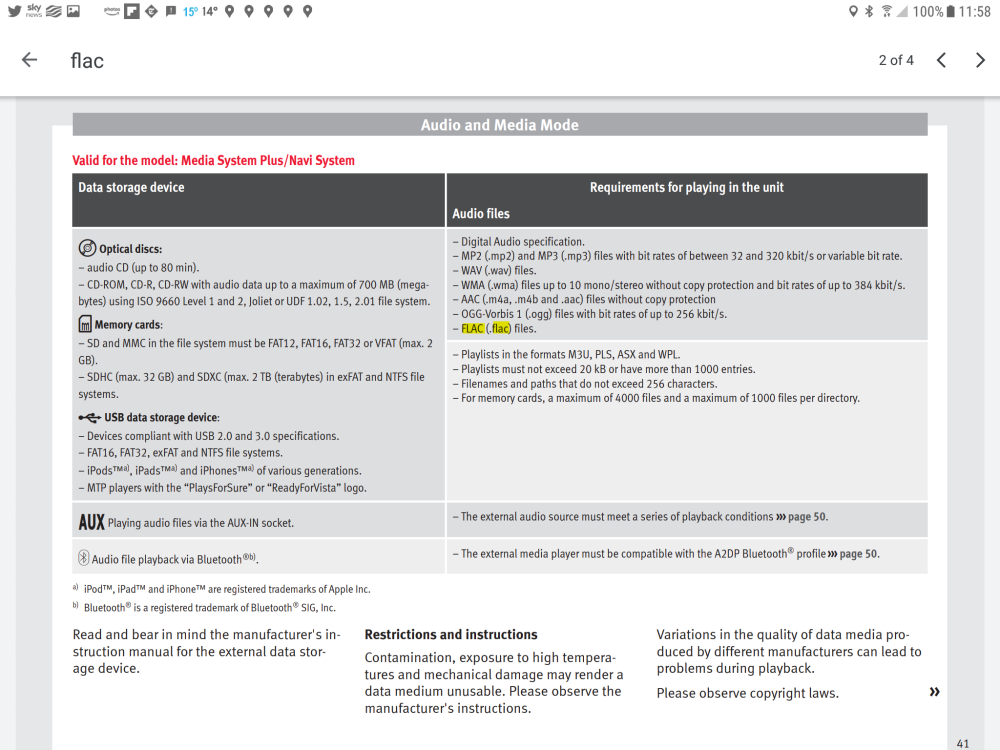
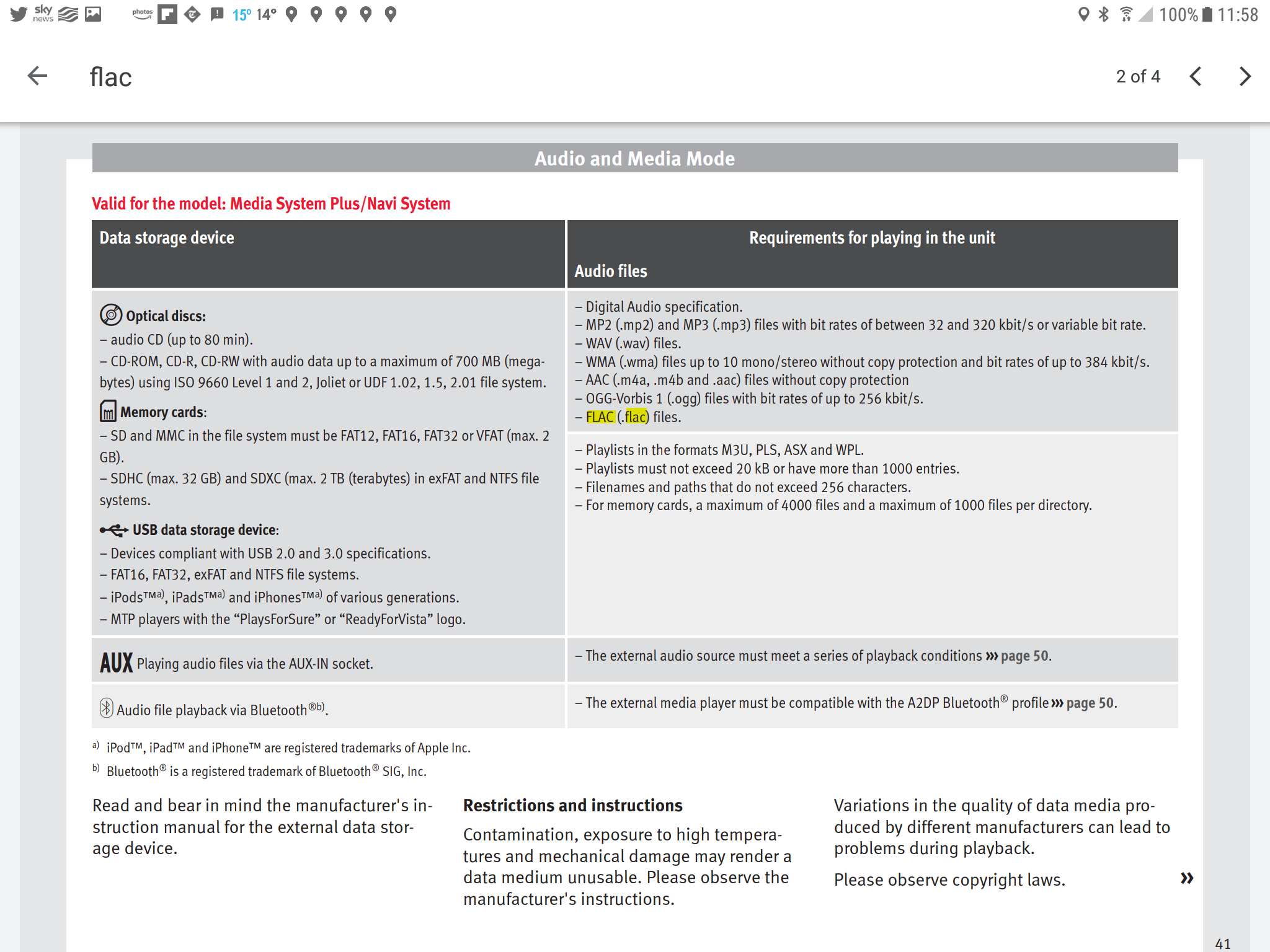
But it's not showing a WAV file thou 🙄. They will all be the same but varying quality of documentation. I reckon it won't resolve 800×800 cover art thou.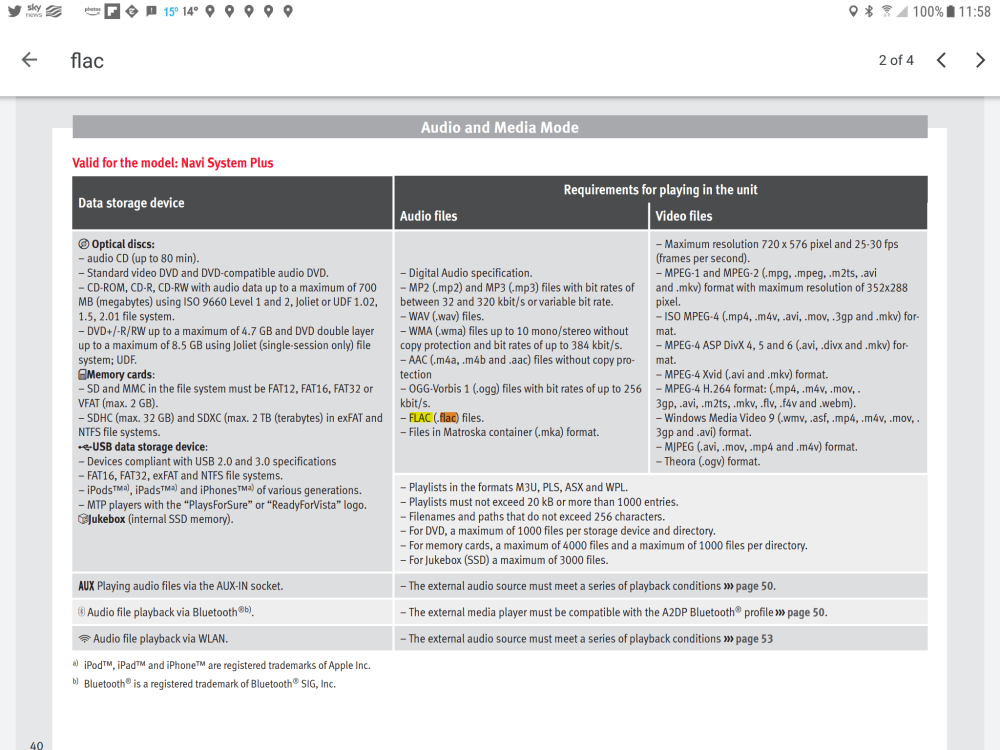
- 155 replies
-
- columbus
- discover pro
- maps
- mib
-
Tagged with:
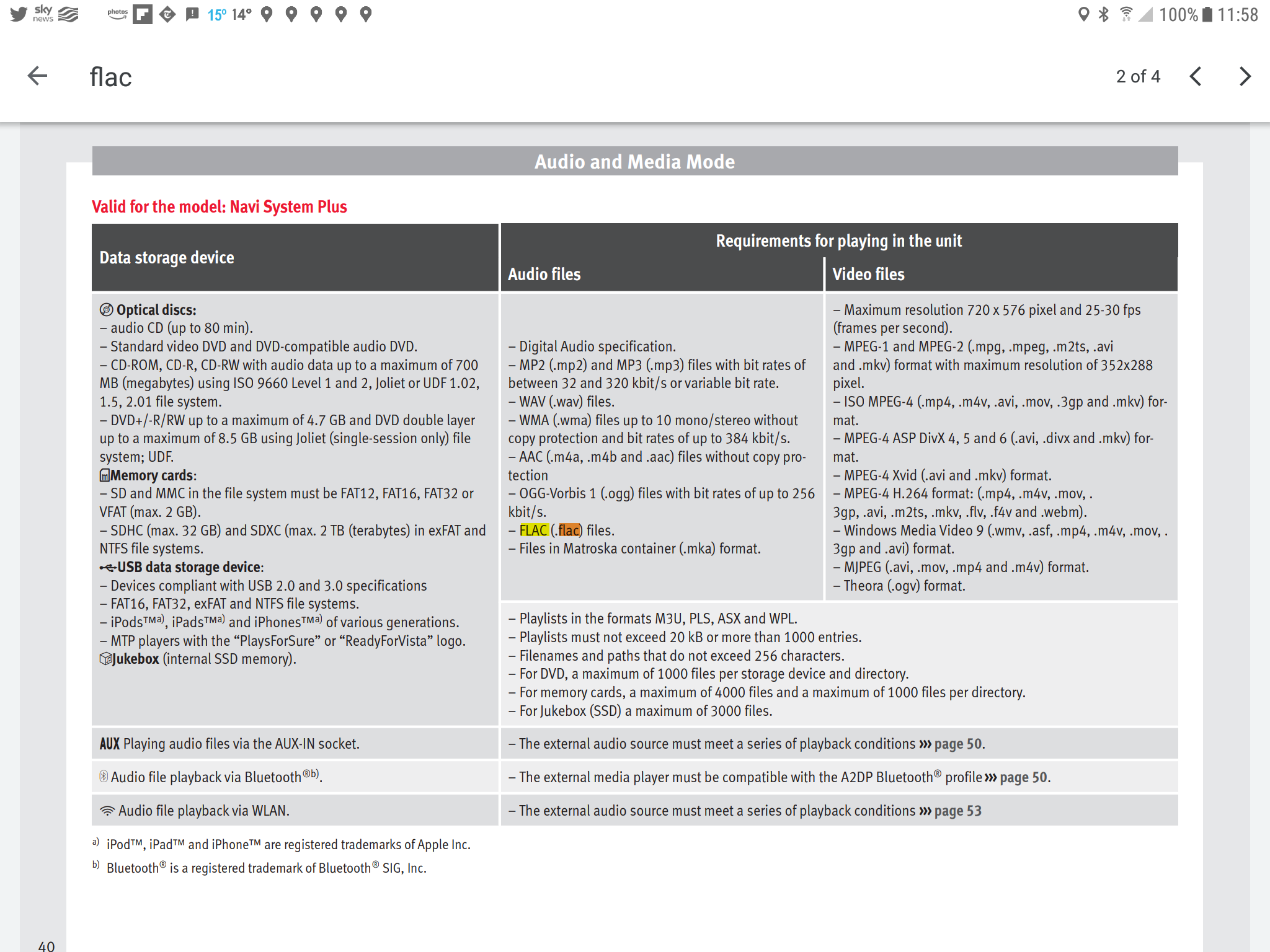
Interesting FLAC isn't on that list. Reckon that's an old page :). Newer firmware / hardware in Mib2 High's plays Flac. The image size of 800x800 doesn't tally with 512x512 standard as per Seat Mib2 and Mib3 spec. I've printed it out as my off pista update routes for the maps. I can see with more modern PCs cutting down on ports they may not have SD card slots so USB may have attractions to some for the update rather than using the VW instructions I posted up above which is the gold standard dealing with Mac's as well.- 155 replies
-
- columbus
- discover pro
- maps
- mib
-
Tagged with:
The VW PDF attached on updating the mib2 high where it's says 32gb, fat32 SD card, class 10. Basically deviate at your peril. I know some of the Briskoda people like to take the top road 😂. For £7-50 saves a lot of trouble although with newer laptops you might have to buy a USB / SD adaptor which don't have an SD slot... another £7-50 or so. Discover_Pro_June_2020_EN.pdf- 155 replies
-
- columbus
- discover pro
- maps
- mib
-
Tagged with:
It does... but won't on a 32gb card unless it's in Fat32 due to the overheads of NTFS addressing against Fat32. The addressing takes up the space so the image won't fit on. It popped that one about a year ago. People love NTFS so format willy nilly in that... if you do that on the standard navigation map card the unit doesn't read the card correctly as well as a fair few people screwing up their navigation cards since newer ones don't take too kindly to being reformatted. Keep it simple stupid approach applies else you end up digging people out of a mess they put themselves. That's buy a 32gb SD card class 10 for the purpose, keep to fat32. That might change if the high maps outgrow 32gb and the unit can support that. Not sure on the latter. Must be an unpublished upper limit in the QNX code.- 155 replies
-
- columbus
- discover pro
- maps
- mib
-
Tagged with:
(Or a slight variation on the second para on when you see the attributes before Start or after, second bar down. The main thing is it differentiates out between when the media is being seen and whether what is on it is correct, wobbly navigation FeCs get identified on NavDB not being possible, see the rest and it's seeing the media, just navigation FeCs won't allow the update)- 155 replies
-
- columbus
- discover pro
- maps
- mib
-
Tagged with:
I did a Google... why I said if all the rest is correct then may be VAG have taken the FeC out for Audi, way to test on an old release of the maps. With Seat in the developers SWDL menu where the navigation FeC is unsupported you see N against the map attributes. Y is good (will be the same). You can have a look in there. If you aren't seeing the media, then it's not seeing the media, but if it is seeing the media if will show the media to select. Tap it. You go SWDL, manual download (tap), then start (below tap), then you can scroll down the attributes. NavDB, Eggnog etc. N is bad, Y is good. Doing an update that way you have to open and close the door every 15 minutes to keep the unit live. Dont start the update if the attributes arent marked as Y.- 155 replies
-
- columbus
- discover pro
- maps
- mib
-
Tagged with:
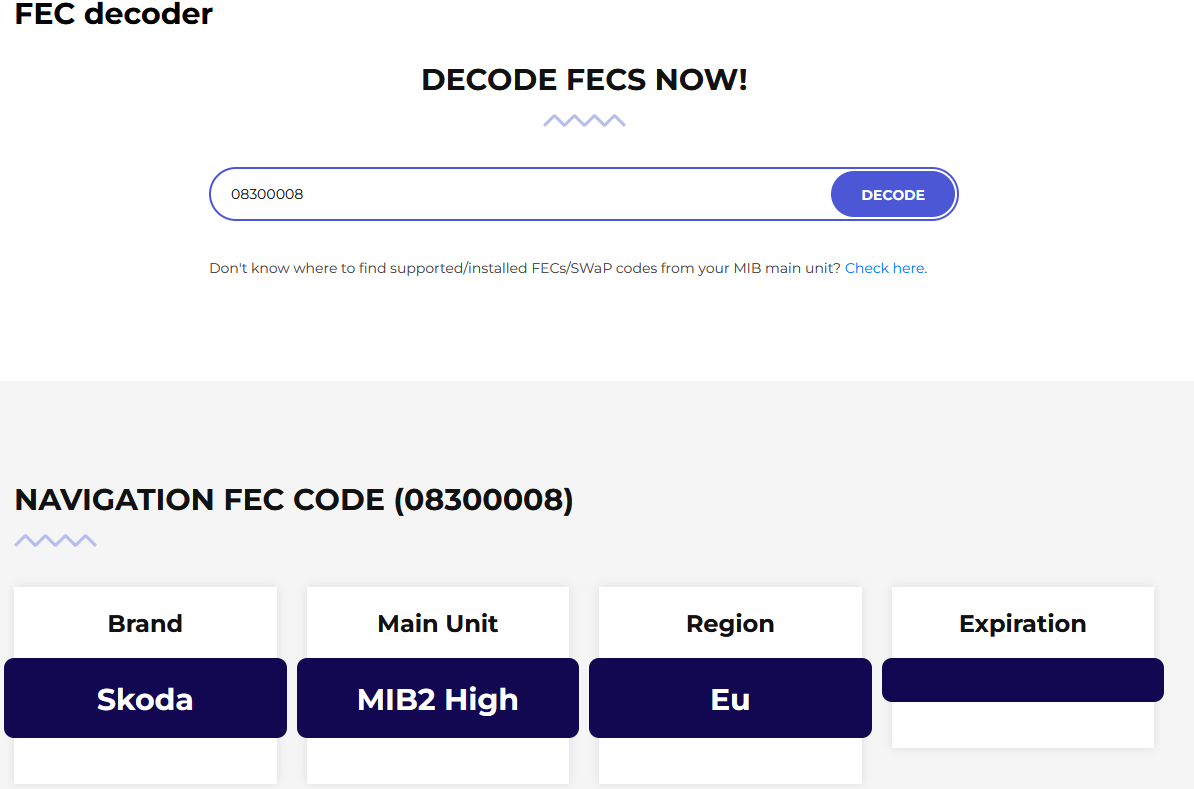
BooBoo the other thing to do is try uploading an old Map which you know the unit took to test whether the Audi FeC can be used with this release. I think we are getting somewhere... if it is the Audi FeC then the Skoda 08300008 may work. Never got down to the bottom of why VAG left out Seat this time last year, then put it back on the six month in November. For all the random stuff going on why I say to people stick with the 32GB card, Fat32, Mac Keta and CleanMyDrive and it shouldn't go wrong.....- 155 replies
-
- columbus
- discover pro
- maps
- mib
-
Tagged with:
Are you sure it's not suppose to be 08300008 That's the magic FeC I have for Skoda and the ones that the M.I.B. people use.... yours is a Audi one, whilst Seat work with Skoda not sure the other way round with a Skoda one and that was via the developers back end thingey Skoda works in a Seat. You need to get it at 08300008. In June 2021 VAG left the Seat FeC out of the release so it couldn't be read in. May be something similar with Audi in this release ?. Their lookup http://mib-helper.com/fec-decoder/?fec=08300008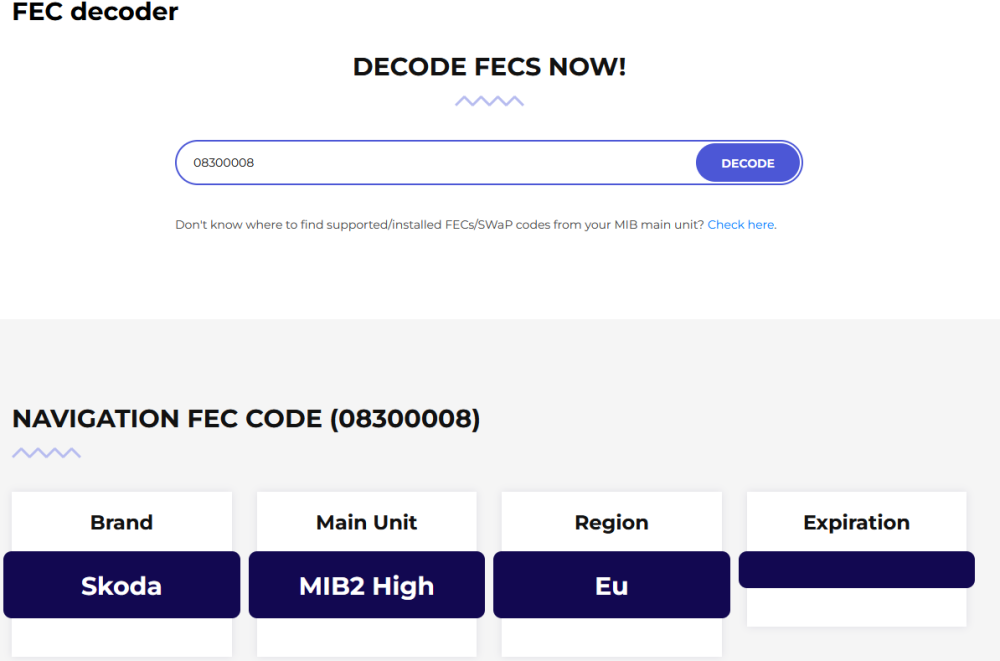
- 155 replies
-
-
- 1
-
-
- columbus
- discover pro
- maps
- mib
-
Tagged with:

Important Information
Welcome to BRISKODA. Please note the following important links Terms of Use. We have a comprehensive Privacy Policy. We have placed cookies on your device to help make this website better. You can adjust your cookie settings, otherwise we'll assume you're okay to continue.