Tell
Members
-
Joined
-
Last visited
Everything posted by Tell
-
You use all files, school boy mistake to use too much intelligence. It dives into both of those directories. Just historic internal naming. The VW ìnstruction are attached which are good for Skoda and Seat. Obviously they are for the November 2020 release so the file names different and screen layout slightly different. Skoda did change its zipping method on the latest release. Conversation in the thread. You might just as well use the VW release where 7zip will work. Note Mac OS instructions if you are using a Mac. Stringent validation is used in the unit as the files are read in. Mac's leave additional characters in the files that will stop the import dead in its tracks. CleanMydrive Mac utility run on the SD removes that. Thats covered in the VW instructions. Discover_Pro_November_2020_EN.pdf
-
Answer your question... The next release... this thread which is out. 192 was the June 2020 release, 195 is the November 2020, the latest. You go the one before. Still it's a good learning curve.
-
You can move to 195 now 😄. Those cards are sold for people who feel unable to copy cards. On the plus side you do know now what it's suppose to look like on the card.
-
Good money if you can get it and are a retrofitter 🤣. Retrofitters scrapping around for money. If it was a Seat they would be adjusting your navigation FeCs but that's not the case for VW and Skoda Mib2 high. There are DIY solutions for that in any case. Get yourself a 32gb class 10 SD card from Amazon Prime for £7-50 or something like that. If it's got utilities on them, delete them. It will be in Fat32 already. Don't reformat it. Stick your fingers in your ears to people that say you can use a MicroSD card with an adaptor, you are advised not too, they are cheapskates. Don't bother with a USB. Certainly don't format it to NTFS. Unzip to the HD of your PC. Then copy that to the SD card. If Mac follow the Mac instructions, put the SD card in. Attached is the official VW guidance. You need to use the latest file as per MartiniB top post. I'd use the VW server link and 7zip if you are using a PC. The guidance covers Mac and you do need to use the special guidance on that if you do it that way. Discover_Pro_November_2020_EN.pdf
-
As MartiniB above is saying you Dont have a problem. The guy here updates your maps on your model: https://forum.vwpassat.nl/index.php?/topic/45008-discover-pro-kaartupdate-2019/&do=findComment&comment=863123 Not a problem. I'd pay attention to how you unzip it, built in Windows unzipped as I went into above in the thread if you use the Skoda download, 7 zip if you use the VW download. It's just zipped differently, same file. If using a Mac use CleanMydrive on the SD card. Takes out the dross that Mac systems put on and you would use the VW download link and Unarchiver... whatever I normally say at this point.
-
I think to be sure the original poster needs to get the part number and Google as above. You might right thou. I'd do it on the part number thou.
-
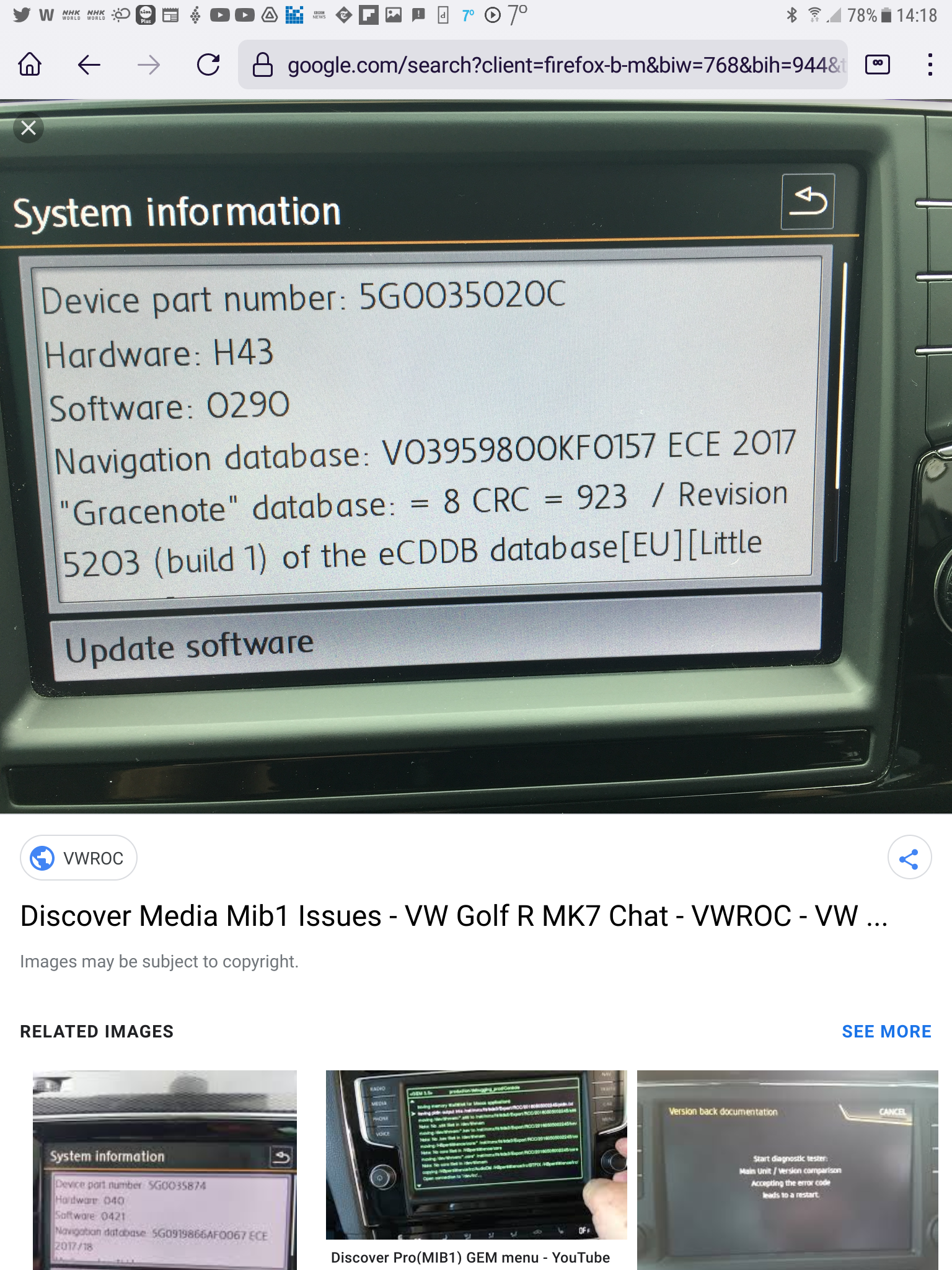
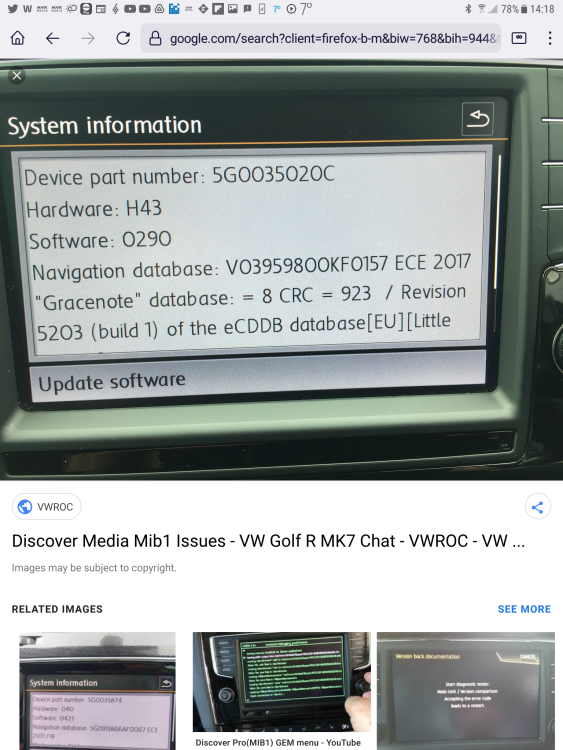
The screen you need in the car is the one with the Part number on it. That's generally on setting, not within the navigation menu. You put the units part number into Google and look at the images. Read what is printed on the unit sticker. It's going to tell you whether mib 1 high or mib 2 high. Tap the Part number in of yours into a Google to resolve. Then you really need a VW pdf of the time of how to do it 😉. It's going to be knocking about on the net somewhere or in the original manual. I always thought it was DIY along the lines of mib2 pro given they share the same upload file. The RNS units before mib1 high did use DVD's for the upload. Those arent updated now and there was a period when someone was manipulating those files obtained from map updates into shareware DVDs. The name was Kong associated with that one. I came into this with mib2 high... No past history of updates on mib1 high. Example of mib1 high with over lap maps to mib2 era:
-
I'd put it at the top end ~ 40 mins but newer units have faster processors which may be why you get the quicker values quoted.
-
From what you say it is a European car imported in with a European map that worked. Check it still works with one of the smaller zones that fit the 16gb card. Having checked the card is fine then do the steps 1-7, you might not need to go beyond step 7. The method has been used by quite a few of your country folk on import cars... Well two I know 😂.
-
It has to be Fat32. Reports now of cards not taking too kindly to being reformatted... they stop working. 4096 has to be the cluster size. I'm not too sure whether the recent mess ups reported on Seat board is due to the default on Windows 11 format that ismy 4096. NTFS is known not to work on mid2 standards. It is Row 1. A map pack for another area won't work unless you mod it. Is the car an original one for the region or imported ?. If it's imported with a European card there are tricks: Got a car with a working installed map but outside of the region - need to get local map working ? (Mib2 Standard only) Example taking a car to Morocco. Exporting a US VW to France. Exporting a European car to Palestine. Emigrated with your mib2 car from Europe to Australia. The T6forum perfected some of this but joint working across the boards got it going for more modern units. Guy in Palestine sorted that out for latest VWs which were the problem. Arona standard Mib2 is happy with the original T6forum method with the workaround above. Advanced method with example with Israel as the map (text taken from a VW user): https://www.t6forum.com/threads/how...-in-non-eu-countries-e-g-morocco.10331/page-2 1. Download the required Region Map Update. (For example, "Non-European countries - Package 3") 2. Use a VW SD card, as VW SD Cards have a special [CID] card identification code, and normal SD cards cannot be used for browsing data. 3. Erase everything on the card, (Before making a backup of what's on it). 4. Copy and paste the maps folder after unzipping it (do it in Windows because the mac fails something when unzipping, or use a recommended program "see volkswagen page"). 5. Use a file explorer to open the 'maps' folder on the SD card. Depending on the map package you have, you will see several numbered folders. 6. Change the name of the corresponding folder of the Region number found inside the 'maps' folder on the SD card to '00'. For example; To use the MRM3 Region SD card to navigate in Morocco, etc., rename the folder '27' to '00'. 7. Copy the OVERALL.NDS file from the original (European) maps folder, which is in the “maps / EEC / EEC_WLD / OVERALL.NDS" path, and subscribe it to the card in the same path. 8. Copy the file OVERALL.NDS from the original maps folder (European), which is in the path “maps / 00 / nds / PRODUCT / E1 / OVERALL.NDS”, and subscribe it to the card in the path “maps / 00 / nds / PRODUCT / XX / OVERALL.NDS ”where XX is the code of the desired region (ME1 in the case of Morocco). 9. Copy the PRODUCT.NDS file from the original (European) maps folder, which is in the "maps / EEC / PRODUCT.NDS" path, and subscribe it to the card in the same path. 10. In the car, restart the Infotainment System by keeping the on / off button pressed for a few seconds, then insert the card and you're done. Basically 7. is the Exciter workaround 8 and 9 are the two additional steps that some VAG heads required to make it work on out of zone maps. Was fine for the Arona, step 1- 7 was sufficient and only presenting the target country in 00 directory not editing and leaving the rest as is. Suspect the wifi standard heads of Seat would need steps 8 and 9. Had maps of Morocco and Israel on a European Arona unit. The method with steps 8 and 9 was used on the VW car brought to France from North America and the car that was exported to Palestine from Europe. For the US car the country code is 01 so 00 content is renamed to 01. ---- Those instructions can also be used on UK cars exported to OZ, USA ones to Europe. ---- if you have messed the card up with a dubious reformat you'll have to obtain another original Vag card from an eseller. Frankly bad guidance is given on reformatting these cards. You should never. Just delete what is on them.
-
Probably a production problem, they may have slightly moved the roads in that area so it put you off road or left out the element that does the navigation. Probably the map allignment. Mib1 one had tuning parameters to get the car on the road. Mib2 high teaches itself via the roads turns after you have done something significant to the unit. Not sure what mib2 standard has. Think you can hope the issue will be sorted in six months. Kent not exotic 😉.
-
Have you tried the alternative downloads in post 1 from MartiniB ? eg. a different zone. I'm wonder whether there is a specific problem for the geographical area you are looking at. The maps work fine in the UK. The other test is you can do in the advanced menu is to put the navigation system into demo mode. You then place the car somewhere else by street, town etc then navigate to a destination. Try it in the UK say if your download covers that. If the maps have been incorrectly prepared wherever you live, it would show it working in the demo area but not where you are. If that's true keep your fingers crossed that, that will get fixed in the next release. In some parts of the world the maps are not fully digitised so you might get an instance of the road showing but the navigation not working since that's a separate set of data it uses. You see that sometimes in car parks where the road is drawn but it won't navigate. In East Europe, Middle East etc you can expect to see that effect. Obviously an error if they had it previously but not now.
-
OK we applied the scientific method. Replicated your links and checked the SLA1 signatures they are all identical so the same file :). On the Skoda zip file you use: On the VW 7zip, 7zip: & look at the metainfo2.txt in the route and in Mib1 and Mib2. Identical in each which means they are the same. The other way of comparing is to run the 7zip CRC SHA SLA1 checksum on each of the unzipped directories within. These all tally: Folders: 832 Files: 1574 Size: 31256300045 bytes (29 GiB) SHA1 checksum for data: F18EF2285597436B90FA3F7AE2EE1A545D1ECAF2 SHA1 checksum for data and names: EB8A20606DA52783848E7E1F8577AA7C461E95DF So the two downloads between Skoda and VW are identical if unzipped correctly. Don't know where you got your results from... suspect you got a bit of dross in one of your files perhaps during download or unzipping. MartininB gets the prize again. 🤩
-
I used Windows 11 in built no issues. You might have had a data error on your comparison. The old test is if it doesn't unzip don't use since its corrupted. Hence the October 22-30 conversations. If you read the thread people succeeded with three different unzip programs without error. That Skoda one is being installed fine on Seats I know that using the inbuilt unzip of Windows and MartiniB's links.... but either way VW and Seat servers run better so best to take it from their (links above). In October there wasn't a choice so we used the Skoda one. MartiniB makes reference to the Drive2 rebate at that time as well. I never use the Skoda VIN method, I've got two Skoda VINs one for each 🤣. Given Skoda are always late to the party you look for the direct file links and MartiniB's excellent posts. On your comparison the SLA1 signatures would have to be different for both to work in the car else one would get rejected. It's possible that VAG made twigs on the final production, but if you said the SLA1 signature was the same then one would be corrupted. The signature isn't the one on the top level metatxt2 file but in the ones it dives in... that which protects the payload to the unit in that area from data corruption / user meddling, the bottom line in those. If they are all the same between units then the data in the files can't be different. Different data, different SLA1 signatures for the files to load up without rejection if they are valid alternative uploads to the mib2 high. The Skoda ones on MartiniB's link least in October worked fine....but best not to use 7zip now. That was the conclusion in October 2021 and still stands.
-
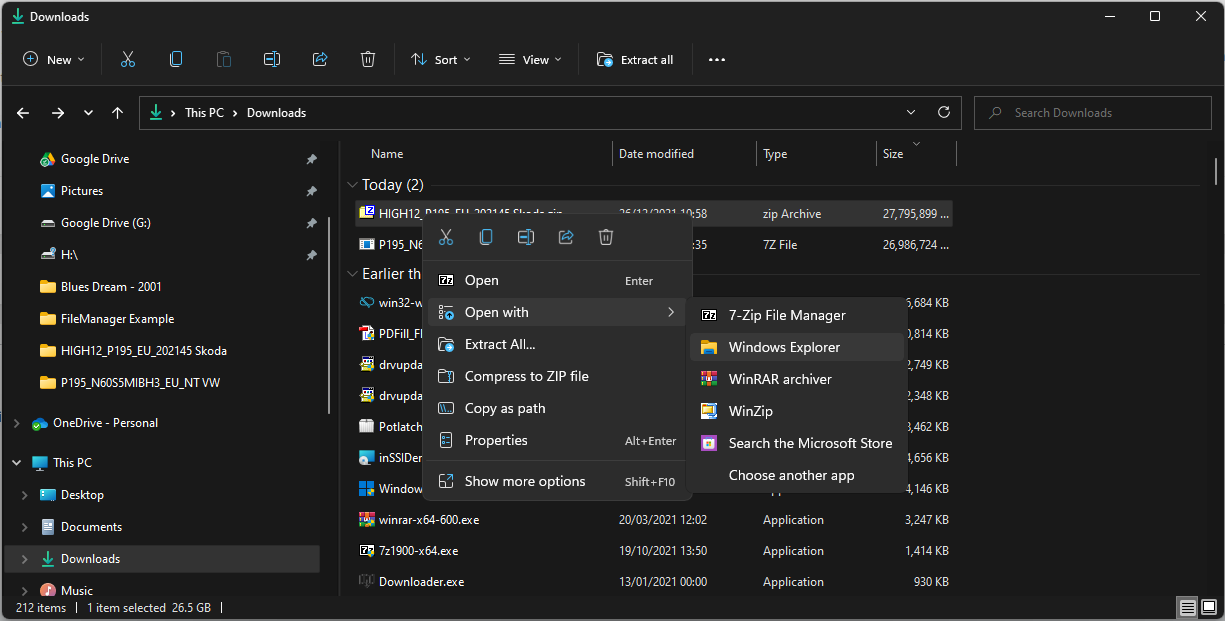
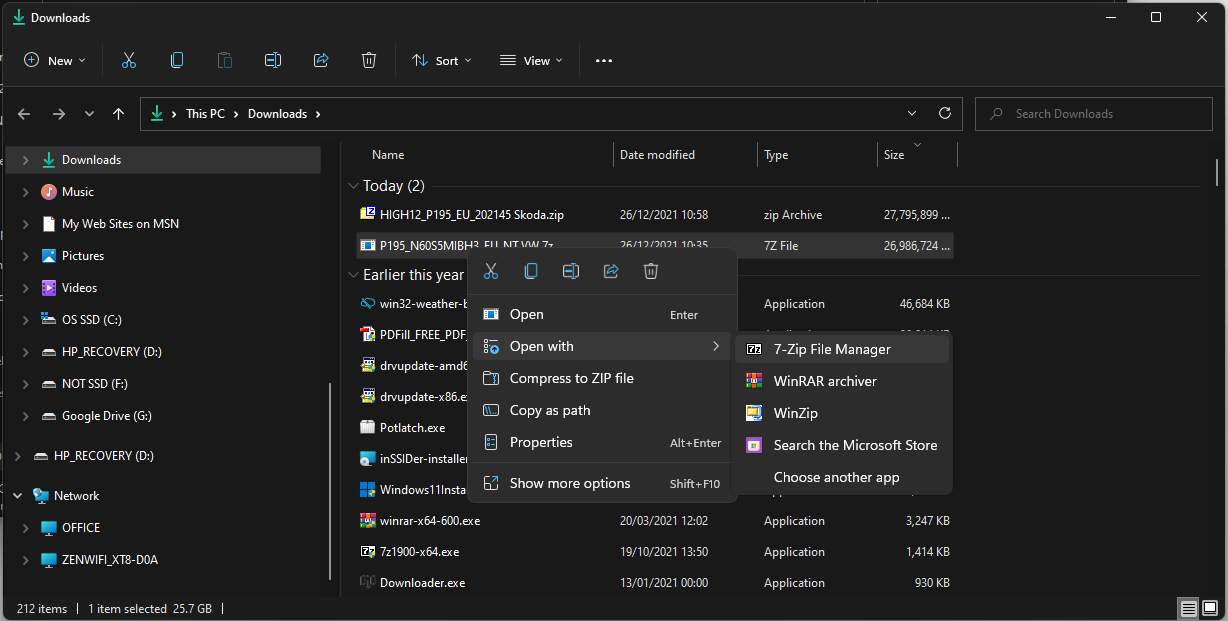
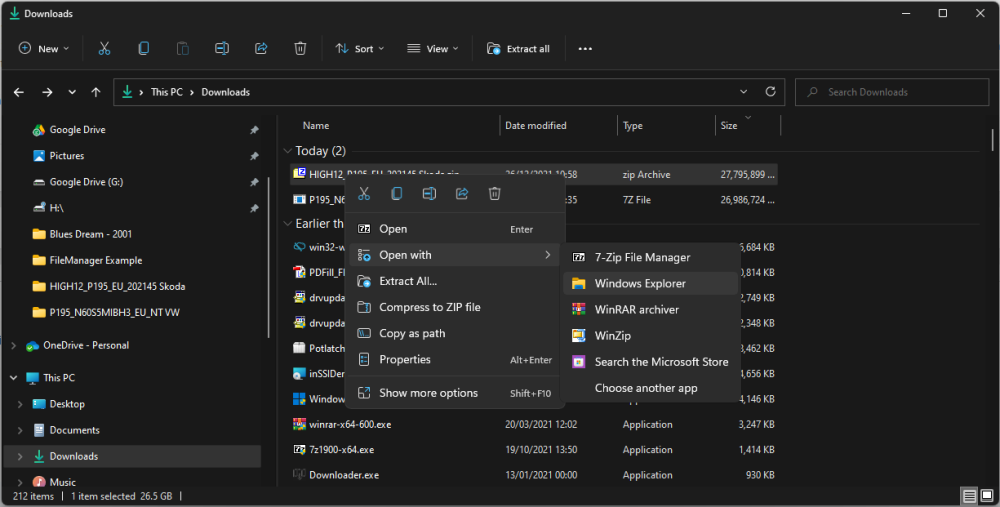
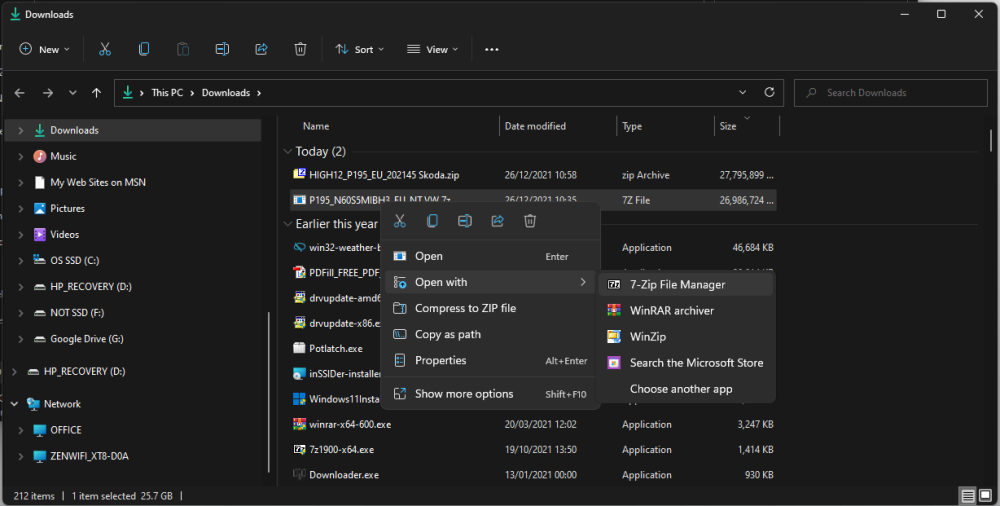
My post 31st October shows the File Manager right click into Windows Explorer the built in free method that works with the Skoda files. MartiniB links he posts up for Skoda files are identical to the ones on the Skoda board with VIN when they go live. Once unzipped all serial VAG files are the same across brand. 😉
-
It's not that you shouldnt use it, read above, it's they changed the compression between the files in it so it throws up 7zip errors. MartiniB used his method he recommends above (Total Commander on it I seem to recall), I used the built in File Manager unzipper of Windows. See above also... or just use the non Skoda alternatives for the 195 release. Think Skoda now assumes you use the built in File Manager unzipper, right click on the zip file within File Manager, pick the unzip, drag and drop to a new directory on HD, copy out. Bob is your Uncle. All on the thread above, 22nd / 23rd October.
-
Feels like your download is corrupted. Stick to MartiniB's links in the first post. Steer clear of Mac's use a PC. If you do use a Mac run CleanMydrive on the SD card and follow the VW Mac instructions on the in zipping program to run. Unlike a mib2 high (Columbus) there is no data validation on the map data. It wont corrupt your unit but it won't work properly if you have duff data on the card. Stick to the 16gb zoned files in case hacking the map file 32gb to fit messes up the file e.g.. The language edit you get wrong. SD cards can also fail. Buy a new 32gb Skoda one if it's that. May not be accessing part of the card with a new map if it's in a failed part of the card. It wont be the firmware I'm sure. Skoda have also been using zipping programs of recent which lead to issues unpacking their files with unzip programs. If PC based the inbuilt file manager unzip program works fine in this instance. Right click on the zip file in the filemanager, open the inbuilt unzipped of Windows, drag and drop out. Gave an example of that in the matching Columbus thread to this release. Traditionally you were suppose to use 7zip following the VAG guidance but Skoda switched systems which provided varying levels of zip compression which upset unzipping programs. The built in Windows Filemanager can cope with that. The VW guidance I've attached which covers Mac's and the need to use 7zip on a PC now eclipsed by Skodas funny zipping which you may find. Best to use MartiniB's Seat or VW links to avoid this issue but follow VW guidance on procedures. There are my suggestions. Happy Xmas. Discover_Media_MIB_Gen.2_June_2020_EN.pdf
-
If it's a new Kodiak that will be a mib3, not mib2, the thread. Your maps are downloaded automatically over the air in principal. All 2020 models and beyond changed to mib3 across the VAG brands. Probably should say best of luck 😂. You should find threads in the relative parts of the board. The downloads you see for mib3 on the VW site you can't do anything with yet. It's all via your eSim in the device and a good cellular connection. The maps are downloaded in fragments as required. It's a waiting game till you get one, is it going to work, is it not, user set up correctly etc. That's what you will see on the threads. So yes if you maintain connected services beyond the free period you automatically get the latest maps.
-
Traditionally on a Mac based on VW instructions you were suppose to do what I posted up on 1st November, Keka for unzipping and CleanMydrive once it's copied to the SD card. CleanMydrive removes all the Mac garbage that if inserted within the files will stop the unit doing it's SLA1 signature check. Suspect thou Keka might blow a trumpet on the way the files are zipped by Skoda. VW download doesn't suffer from Skoda's wobbly zipping so you are better using that link. It's all the same material. Bit by bit .
-
I see the missing one ECE3 from the Seat site has turned up on the VW site. Thanks.
-
Reality is the files won't unzip if the zip file is corrupted so the md5sum check is an overkill. Skoda is catching up with Seat. Originally only Seat had it. Has that changed one for MartiniB.
-
Not sure but he's happy. Think a lot of people think these maps found on servers before they are wrapped in a web page are not legitimate / housed on the "wrong" manufactures site are an issue. As we know mib2 maps are interchangeable between VAG brands in general (bit for bit the same). Skoda tends to release 6 months after VW so stay ahead and use whatever is available.
-
On a Seat it just does it after the language edit doesn't give you any commenter. It is a short term solution since at some point it is likely to out grow what you are deleting so a 32gb card or a zone may be used. To test it you can put the unit in demo mode under advanced setting... That's how I test these type of edit.... saves wasting fuel.
-
Windows 11 File Manager I was using on the tricky one which was the Skoda site for the Mib2 High release. That worked whilst the Skoda site zipped file thru up errors on 7zip and WinRaR. Don't reckon the Seat zipped files are affected by the zipping process, just Skoda. You generally use 7zip first until one hit the Skoda zip file issue.
-
What we like to hear, Microsoft doing something right 😂 . Suspect Skoda assumes that users use the built in unzipper. Their files least on the high unit were built with a varying level of compression that makes 7zip and WinRAR complain but the built in one is just happy about it.