Cairus
Members
-
Joined
-
Last visited
Everything posted by Cairus
-
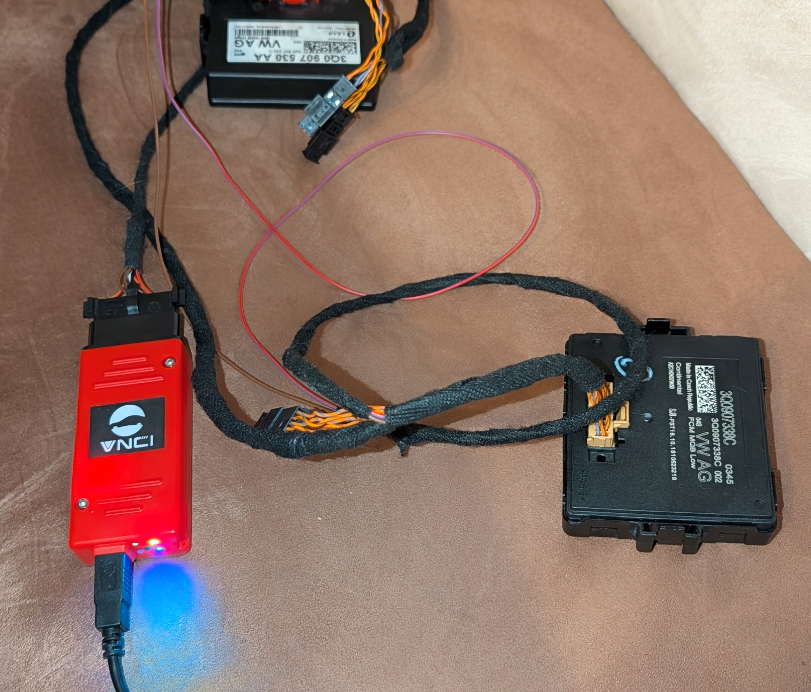
Yesterday, work continued at the "table." The Kodiaq data set was loaded, and the coding was prepared as far as possible from the 4B unit.
-
You dont have an Sensor in the wheel,or?
-
You have Active System? I think no. Then you have No pressure HMI
-
-
Forced reboot done?
-
This 5E0971584A
-
I Look in view mins
-
-
-
Enable developer mode, patch the unit (using Toolbox) so that it accepts all meta files. Then edit the meta file from the 0480T firmware. Run swdl, making sure to deselect EMERGENCY MAIN & CPU. Perform the update. Once that's done, install the normal firmware with the original meta file over it. Have fun... Alternatively, everything can be done without developer mode and without Toolbox. Only SD Card Update's
-
I never have to resync the Keys. 4 MQB Cars at Home
-
Read the Manual?
-
Then buy a Display and unit for the Table
-
What you want?
-
-
-
-
What i know is, by mib 2 high not Possible
-
I will Check
-
You need for Matrix Facelift BCM, Facelift 4B Unit and Facelift A5 unit
-
You can buy it on AliExpress or DIY
-
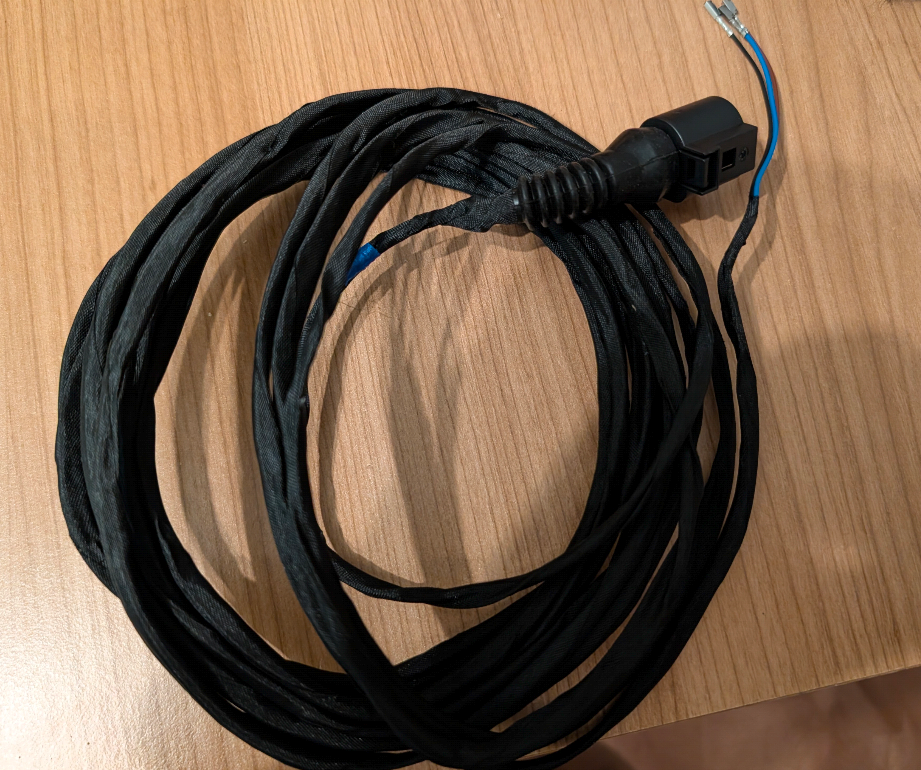
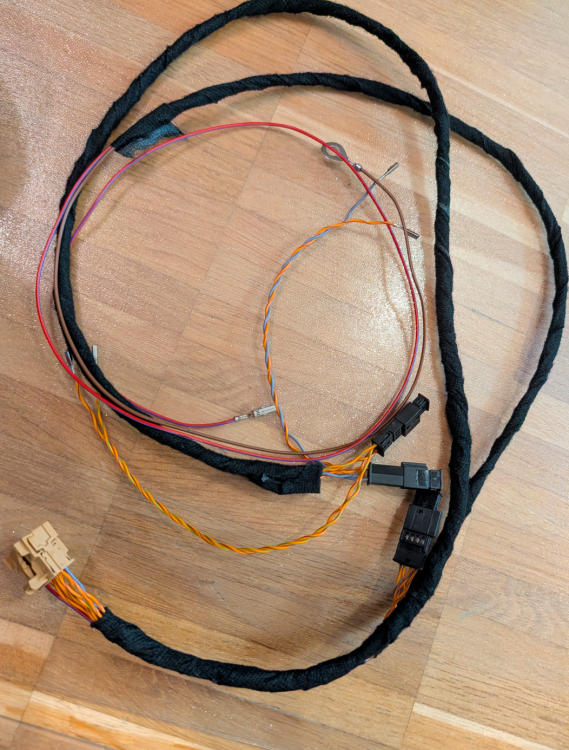
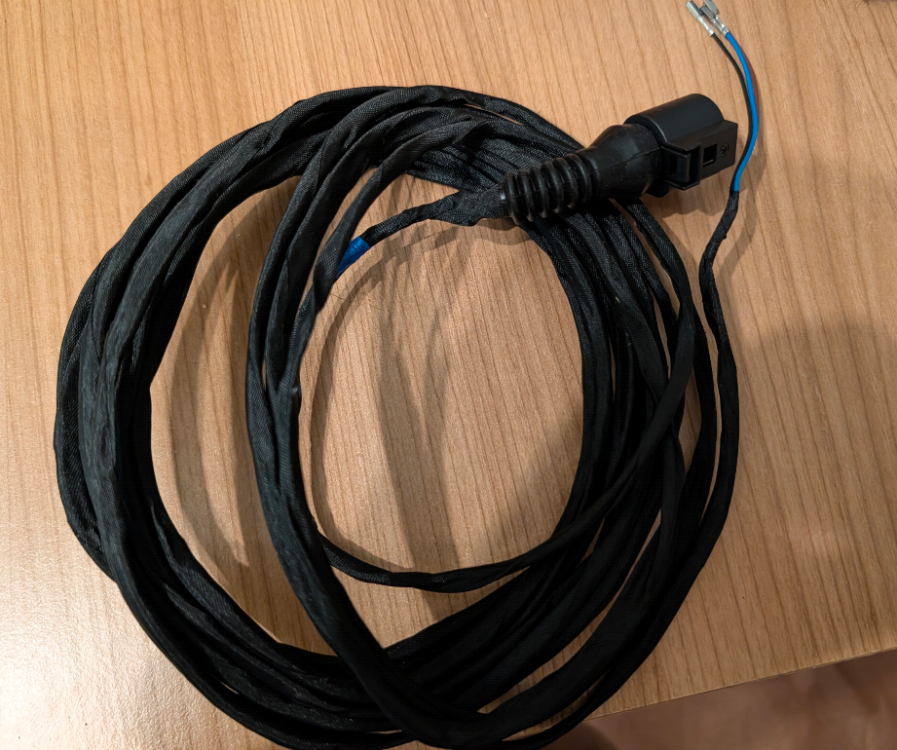
So, wiring harness 4B and the wiring harness for the axle sensor are mostly finished. Today I ordered more colored wires so I can complete the wiring for 4B to the headlights. Connector 4B still needs to be replaced; it's just my wiring harness test connector. Then I can finally start the Retrofit I gathered some important information from the retrofit in the O3 so I don't make the same mistakes again.
-
G11 latest 1447 what i have @caraushv
-
Firmware 0480T
-