Cairus
Members
-
Joined
-
Last visited
Everything posted by Cairus
-
He didn't clone anything. He read the immobilizer data from the old speedometer and one key, and wrote that data to the new speedometer. The second key is not stored in the new speedometer.
-
😂 Sorry, Bad Work from JCars
-
If the EEPROM in the original chip were defective, they would have cloned the error along with it. Was the original dump saved by the new chip? Was it really the same EEPROM? I think no
-
-
-
-
-
This spare parts should be buy only OEM
-
Which valeo Part Number?
-
Your vehicle doesn't offer the function you'd like. The "2" means you have two notifications, like on a phone: swipe down and drag the status bar.
-
OBD 11 can To Basic Setting, you have the Equipment for set Basic Setting for the LED Light?
-
SD Card
-
The adjustment should/must be done using a diagnostic tester. The headlights are still adjusted directly via adjusting screws on the headlights, but the automatic leveling system is given a new basic setting for the headlights.
-
You start the Update in the Service Mode with SD Card?
-
-
Engage the electric parking brake, open the driver's door, and unlock the hood. Ignition only.
-
Security Login done? S12345 = Code
-
When you have rhd Car, Set Bit aktiv
-
Ready
-
It makes no difference whether it's an OEM wireless system or an aftermarket one. Imagine a 3-8 hour road trip where your smartphone might be in the Qi charging pad. The phone will definitely overheat. Even an iPhone can't handle it. Plus, you have to find a place for the extra module so it's not visually obtrusive. If you buy the MIB2 standard navigation system cheaply, you're looking at between €180 and €250. Even someone with two left hands can activate it. Of course, the OEM solution requires a diagnostic tool. Usually, you also need a new USB port, which, complete with wiring harness, costs less than €30 on AliExpress. My customers have always opted for the OEM solution. But it's good that there are alternatives.
-
-
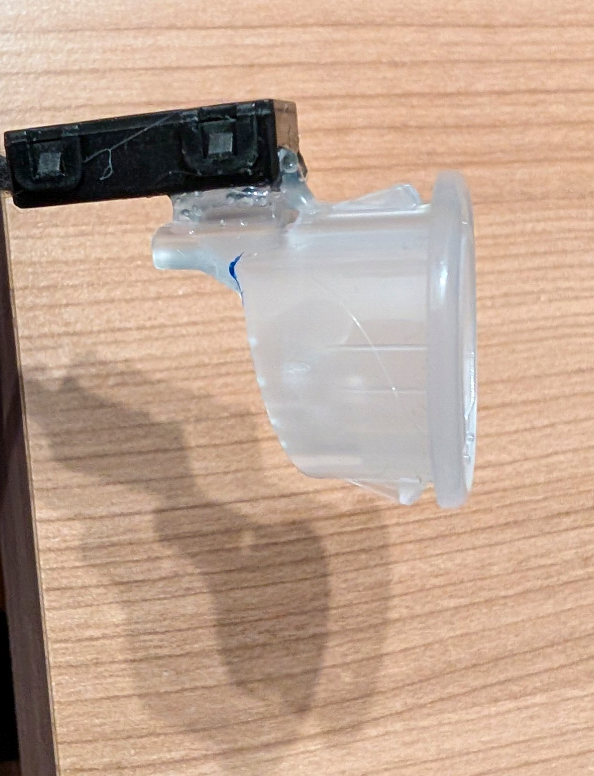
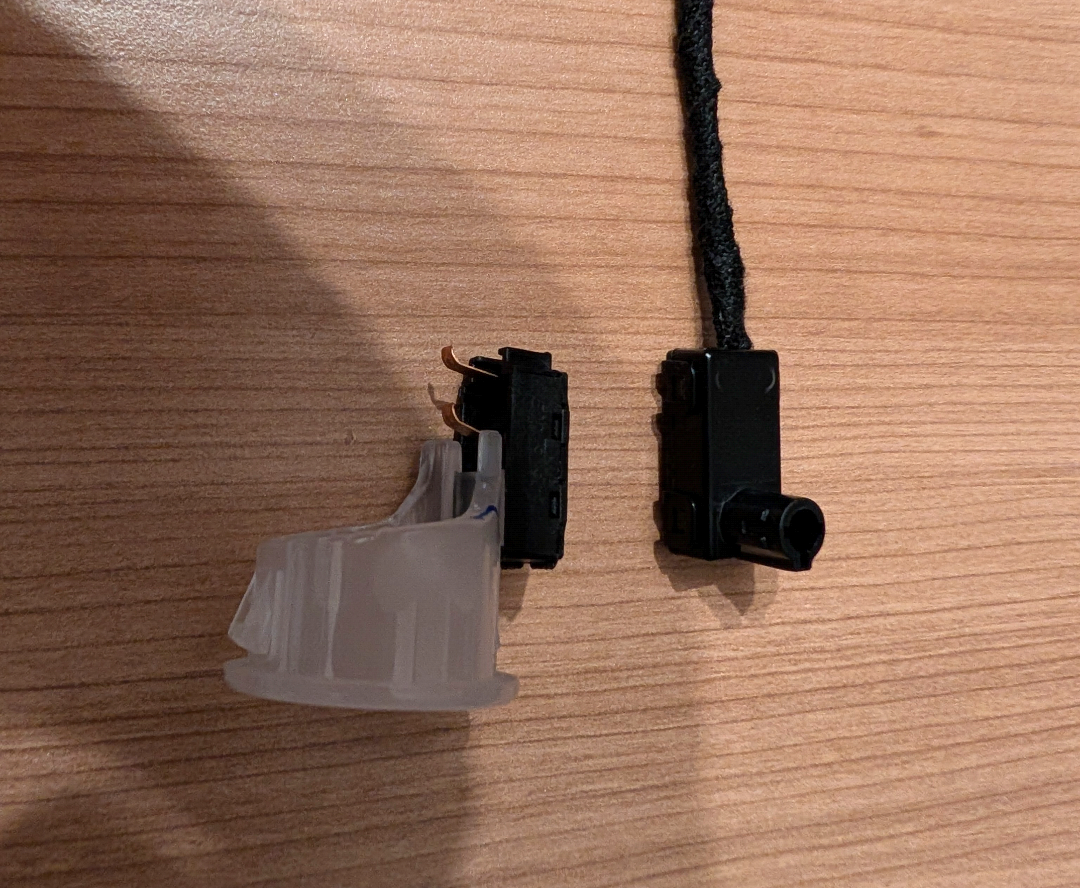
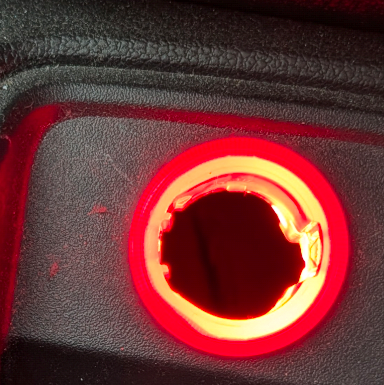
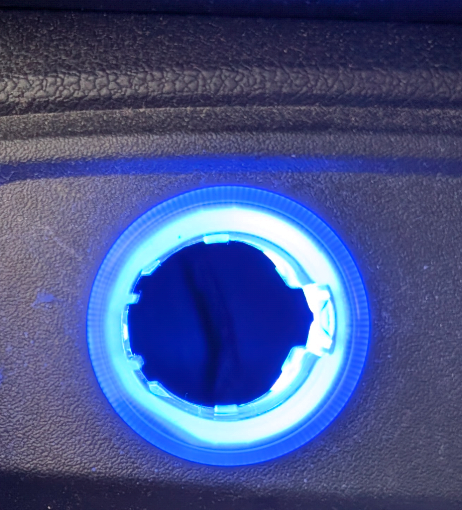
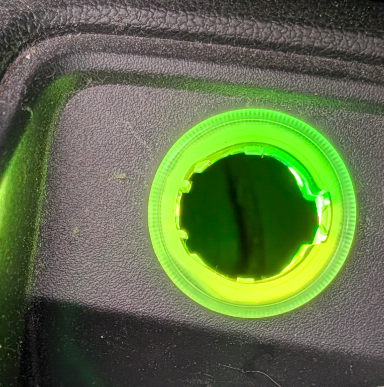
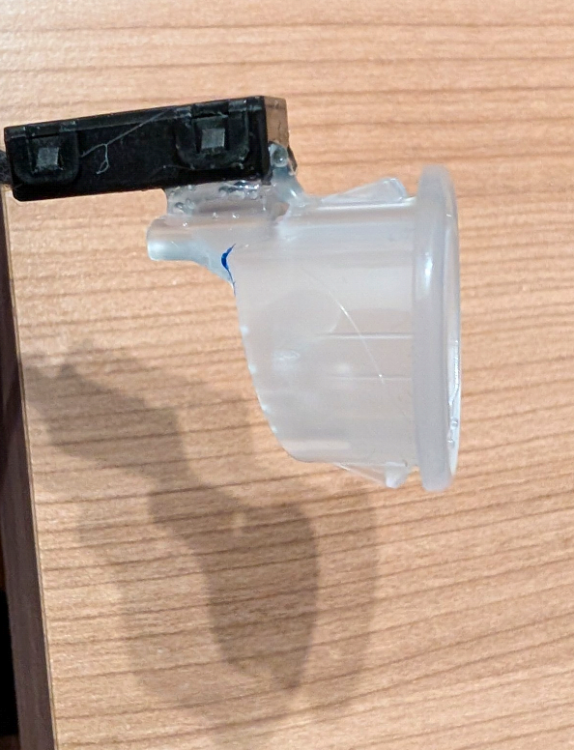
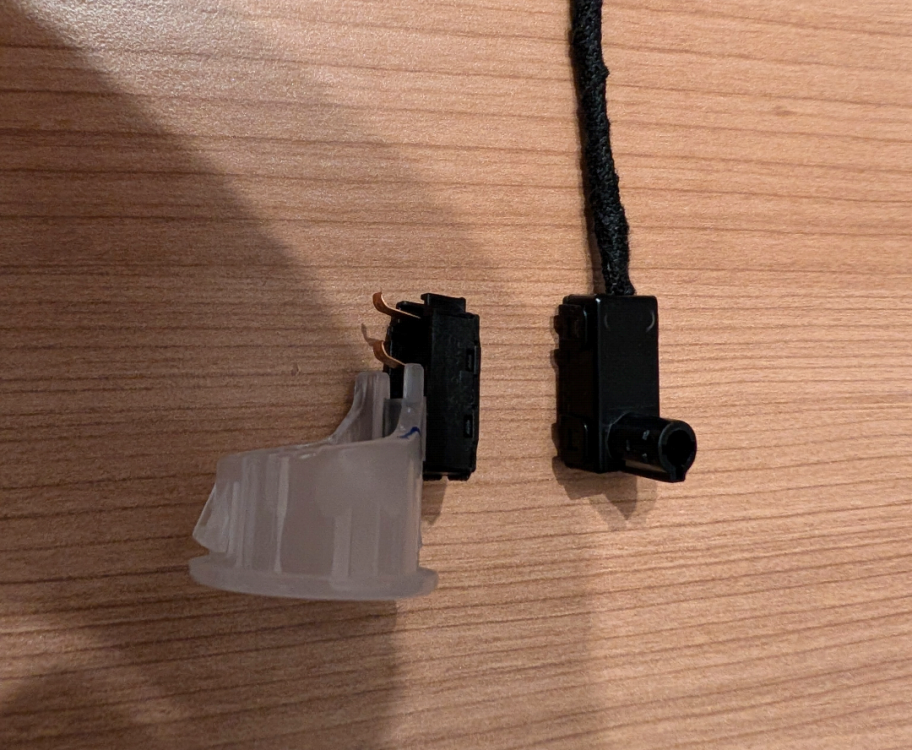
Today I manufactured ambient lighting for the 12V socket, of course controllable via the MIB.
-
Lucky Man 👍
-
-