Cairus
Members
-
Joined
-
Last visited
Everything posted by Cairus
-
Why you want Update OCU?
-
The Radio Unit is the Part in the Glovebox. Display is only Display. https://github.com/Mr-MIBonk/M.I.B._More-Incredible-Bash/discussions/181
-
-
****, that's just awesome 😎
-
What say the Error Log?
-
The multi function steering Wheel is a sub Controller of the Gateway. This need the correct LIN for the function steering Wheel
-
-
-
-
The BCM have nothing to do with multi function steering Wheel
-
Error Log?
-
Coding 08 Unit?
-
Which Index have the Gateway?
-
-
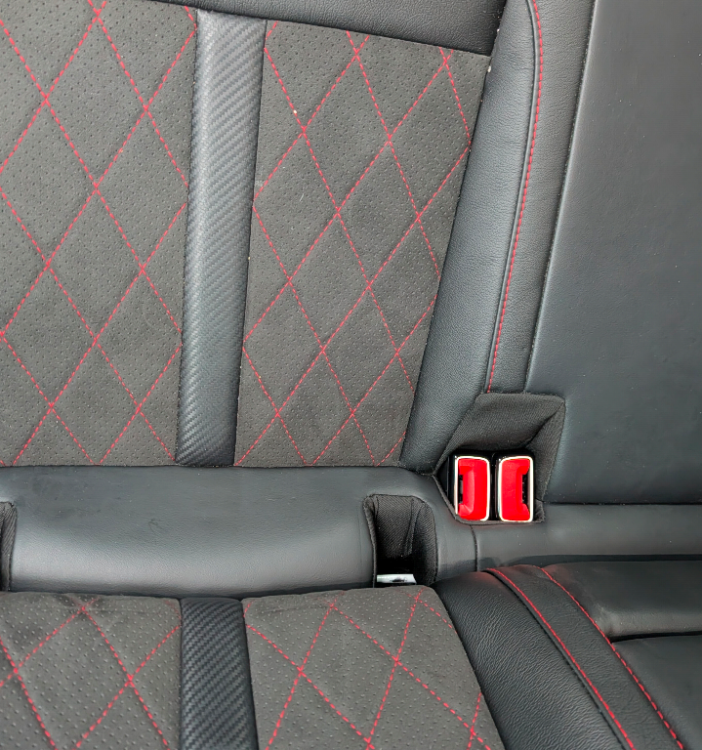
First step
-
Password PM to me https://mega.nz/#P!AgATM2AIoku3qNk0YxE2UwelAWmbs1F8V1c3SZMMaMJ3z6KmwgbS5xaISS8XX9IAQHVedo7dLfRZfdY1oMJG3GC0GIqKYJE29hraCXeldFMygOj_Mko_lw
-
Don't get me wrong, does your colleague know what he's doing?
-
pACC Take the Information from the Navigation
-
Firmware is Possible to 0480T Which cable? Which Smartphone? Smart Link is aktiv in the Radio?
-
-
By Retrofit DAB, i Always use this one: https://www.amazon.de/gp/aw/d/B09ZPHHBNL?psc=1&ref=ppx_pop_mob_b_asin_title
-
Yes 0480T
-
I know, thanks RTA short Form
-
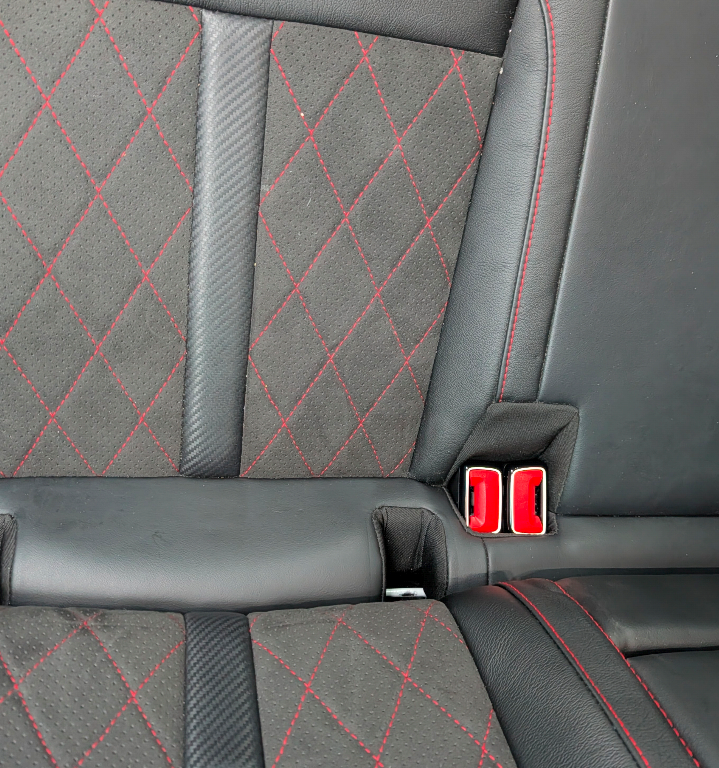
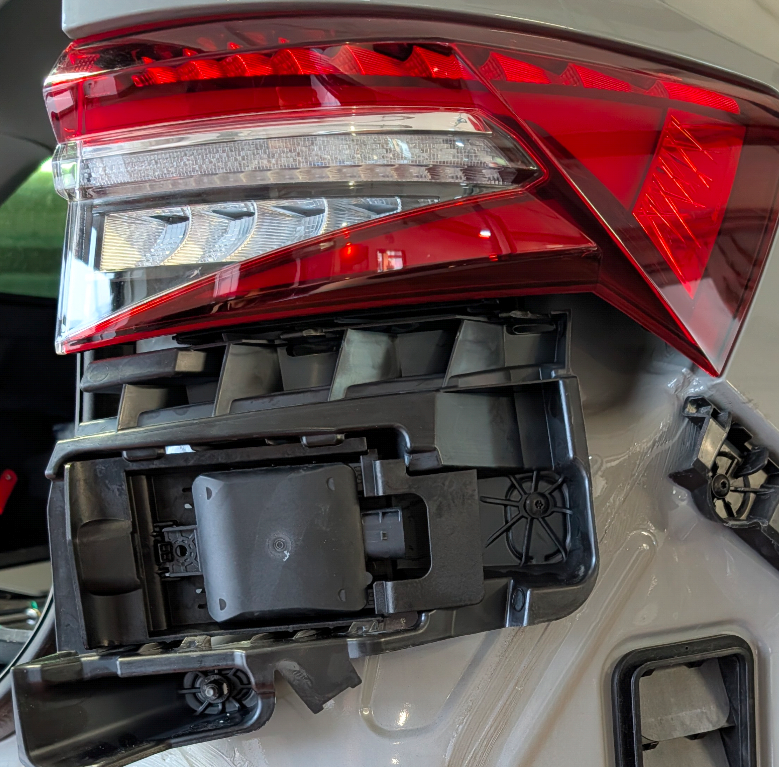
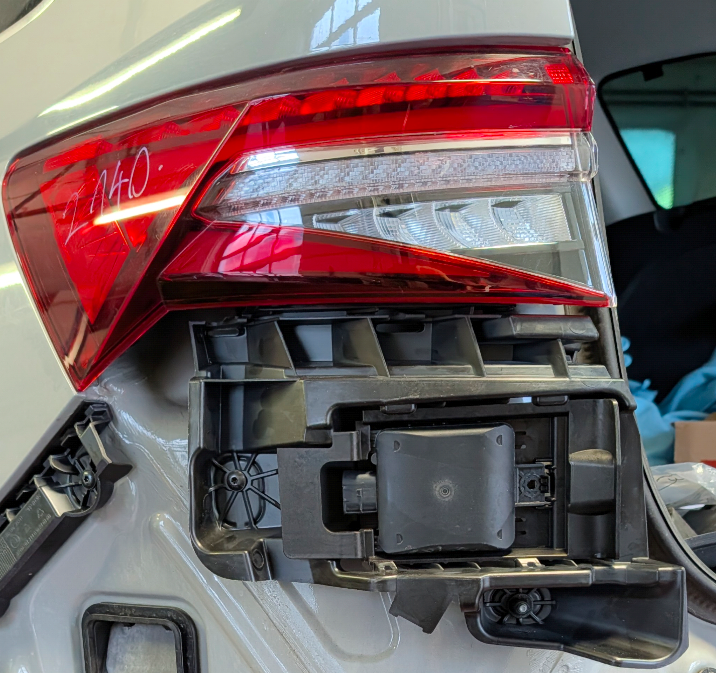
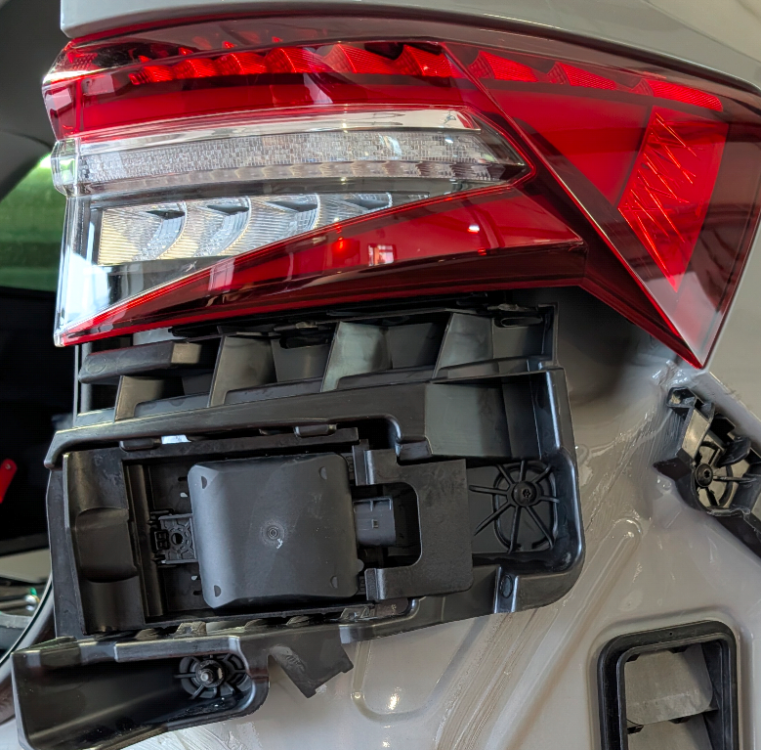
So, Today we started installing and wiring the radar sensors. Since it's the facelift rear end, we installed the OEM bracket for the 2Q0 radar sensors. At the same time, we installed the tow hitch. The mechanical part is mostly finished; the cables are in the trunk and all that's left is to route and connect everything inside the car. Coding is also required, of course. A few photos.
-
Correct But without Error Log, better dont Touch