Everything posted by Cairus
-
First Test
-
Why you want IT?
-
Dont Update a unit with Hardware 02. The Chance that IT will brick is High
-
You can Not JUMP in Other Firmware Train
-
FeC Code 00050000 is Bluetooth and valid Flash Firmware New
-
Diagnostik Tool can Not FIX the Problem i think. Go in the Service Menü und Check Valid FeC Code and make Pictures and Share it
-
-
Personally, I've never heard of unlocking developer mode with an SD card. How do you copy the Tool Box files to the SD card? Is it a Mac device?
-
Simple Job
-
-
Because the links are time-limited on my end. For the password, please send me a PM.
-
AliExpress Round about 120€ New LCD Screen
-
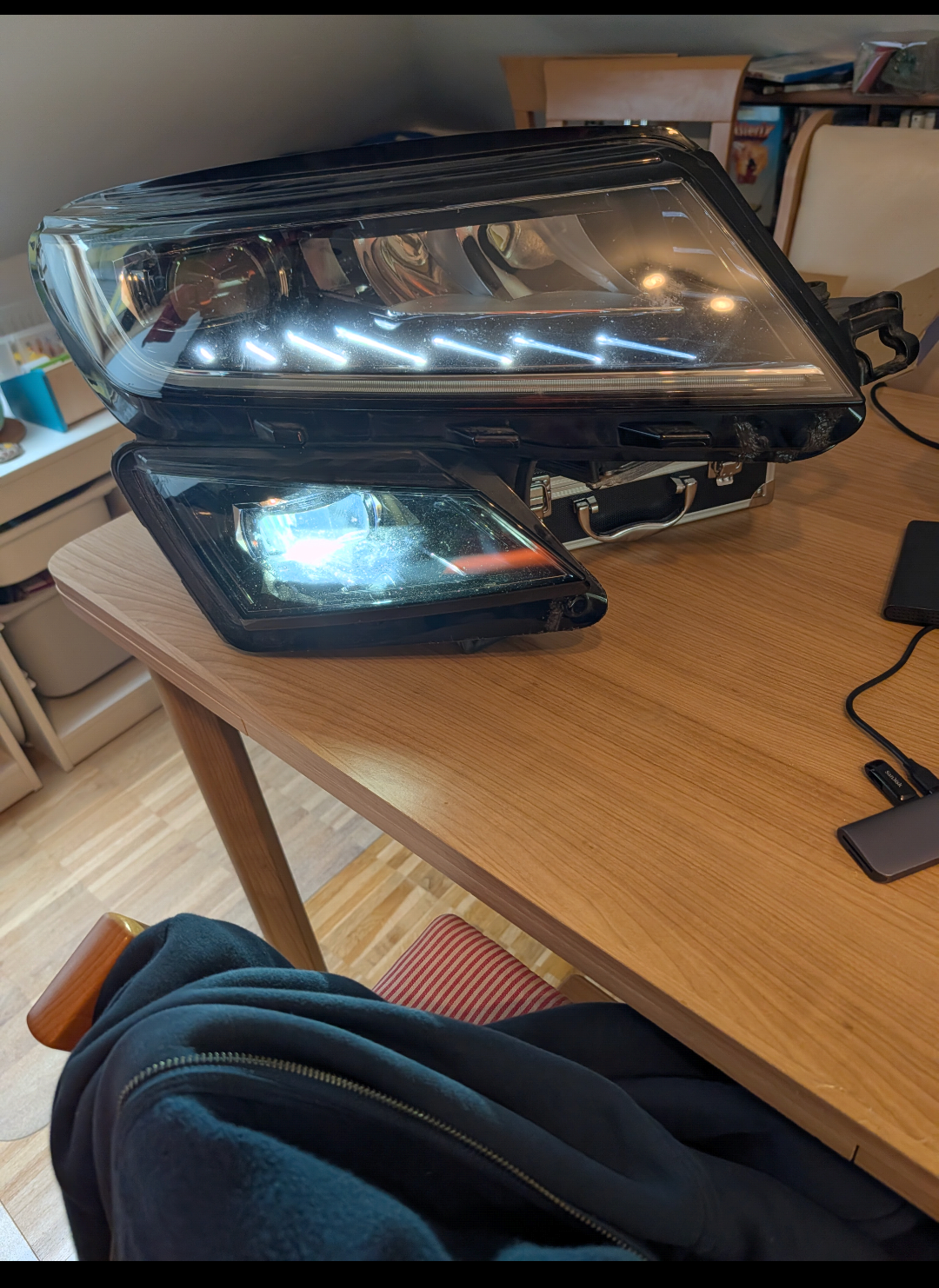
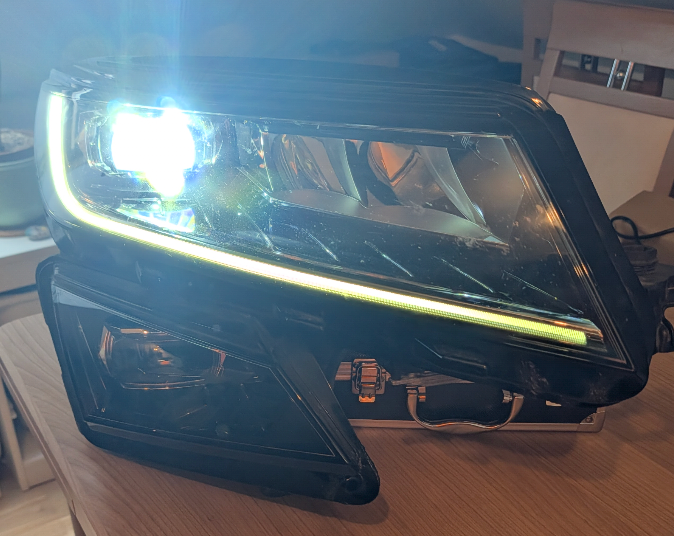
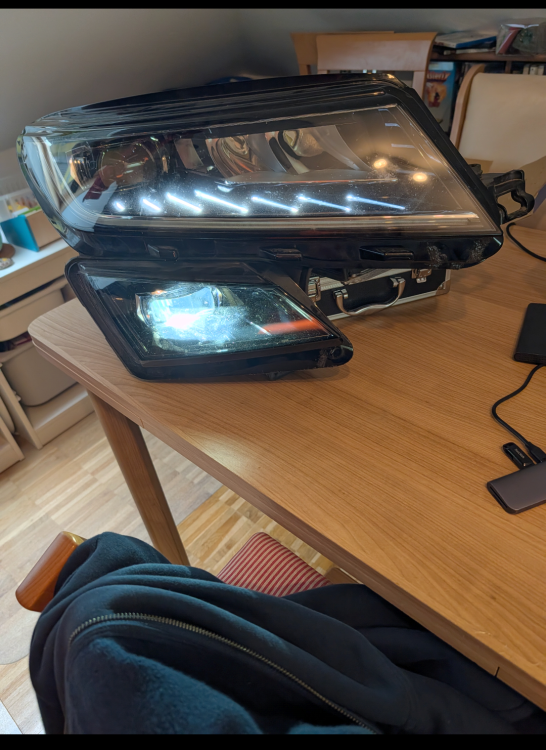
As with the Octavia, the Kodiaq is slated to receive OEM LED headlights as a retrofit project planned for 2026. Required materials: LED headlights, part number: 566.941.015.F LED headlights, part number: 566.941.016.F LED ballast, part number: 7P5941591AJ LED ballast, part number: 7P5941591AJ LCM or multi-function control unit, part number: 3Q0907338C Rear axle sensor, part number: 5Q0907503 Windscreen washer fluid reservoir & headlight washer system, part number: 5NA955449 This is a very rough estimate, and the front bumper with headlight washer system (part number: not spzecified as it varies considerably) is not included. Since the Kodiaq already has a 14-pin connector, unlike the Octavia 3, I intend to fabricate the necessary wiring harnesses myself, using OEM wire colors based on the wiring diagrams. All information and part numbers are orovided without guarantee of accuracy.
-
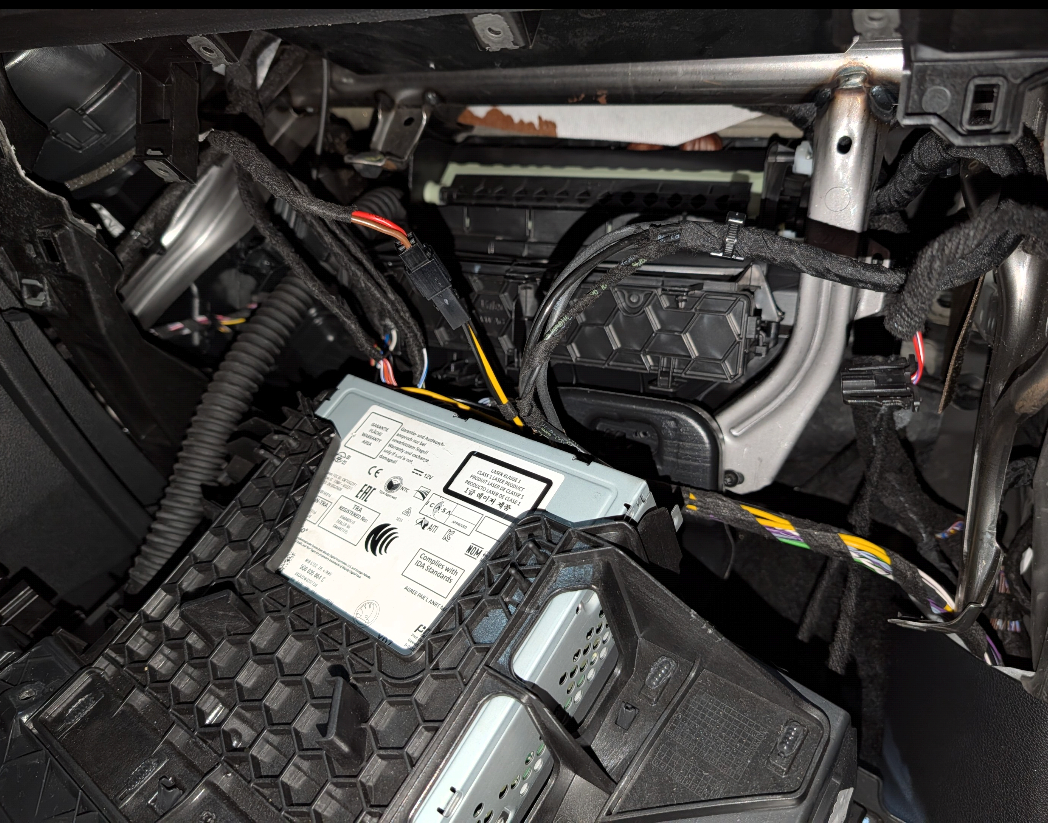
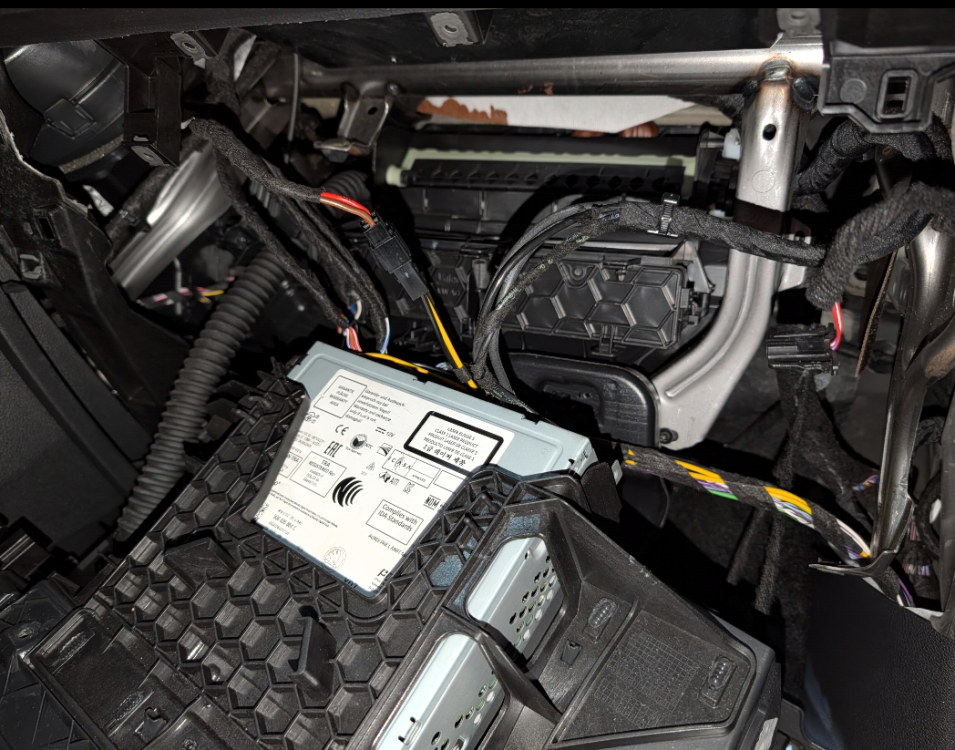
That's an awkward situation. It's the Oetker display, not the radio. The radio unit is located in the glove compartment. So either the display or the radio unit would be ideal for testing.
-
Erwin
-
MEGAMEGA provides free cloud storage with convenient and powerful always-on privacy. Claim your free 20GB nowFor Password send PM
-
Change Part @travs i Dont know all, and i also have mistakes
-
cold or broken solder joints on the micro switches of the tailgate lock
-
-
-
Update This Firmware: https://mega.nz/#P!AgGXoRLZuppgpEyPjdCH9a8KO5NEkWOrU-ccHXcd_uJqD8KneXtJd1Awh5ZLEk85WsJaqeuwTdX8gN_9LUIPlYCCrly8zf8UxZqaJ8OSpuVKPpdEwygosiRQGeGFHHPiOV8y1peqRw4 Password send PM to me
-
https://mega.nz/#P!AgFiMzUNOFp-kui3X6tEzVmpOfdi2L0wlEiaSNLmY8AGSRDfqh49qDA_Le2Nlu_M7UUa9dOu7ScKq9h_inWOkCEJT-ZyuFuQeGrOqBbznPKqc5bTEX8gQD-WzP34R1Rg5Wrd14tz9Bw The files can be updated without Toolbox and Green Menu. Ideally, I should copy the files to the SD card via remote access. Only die Firmware 0369T Update Firmware 0480T
-
I finished the retrofit today. The sound is very satisfactory, even without configuring the DSP.
-
-
You want the hex Code or the Dataset Number?