TheWanderer
Resident Member
-
Joined
-
Last visited
Everything posted by TheWanderer
-
-
I still do the life saver check in the car and with the dashcam it makes me much more aware that I'm being watched by something (which should be used being a former train driver) that can save my neck or slay me. As it shows the driver of the Ferrari appears to be quite happy to follow the silver van, so once the silver van when the other way, I dropped it down a gear in sport mode, indicated and went and as I went past him he decided to go too without any indication whatsoever. If he'd used his mirror (done a life saver) he'd have seen me. Still the dash cam footage has been sent and as far as I'm concerned it's down to the insurance company to sort out.
-
But the intrinsic fact is the driver was driving an untaxed vehicle at the time, however I will be leaving it to the insurance company legal team to deal with, because that's why I pay the legal premium on my insurance policy each year.
-
Strange that you answered my question as I was about to say the same thing. It is still it IS insured but untaxed though and shouldn't have been on the road. I'm leaving it to the legal team of Privilege to deal with as that's what I pay a legal protection fee on my insurance policy for.
-
So if the vehicle is SORN where does that leave me? I'm unhurt just damage to the car, I know that means he's untaxed, does that also mean no insurance?
-
He. He's about 60-65 years old.
-
The view is deceptive that section is about ⅔ mile long I wasn't even a ¼ way up and there's plenty of space. And I still had plenty of power available to complete the overtake safely.
-
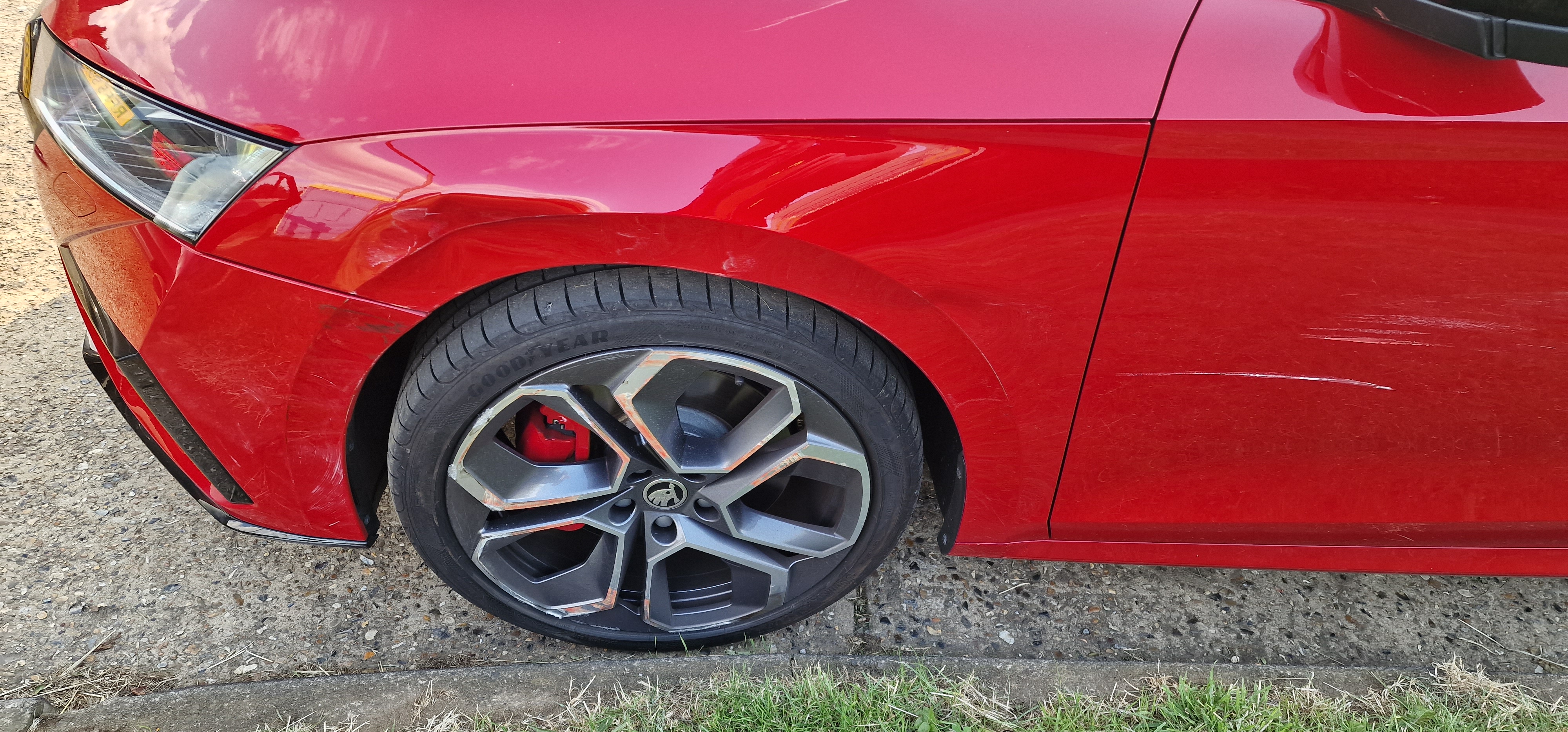
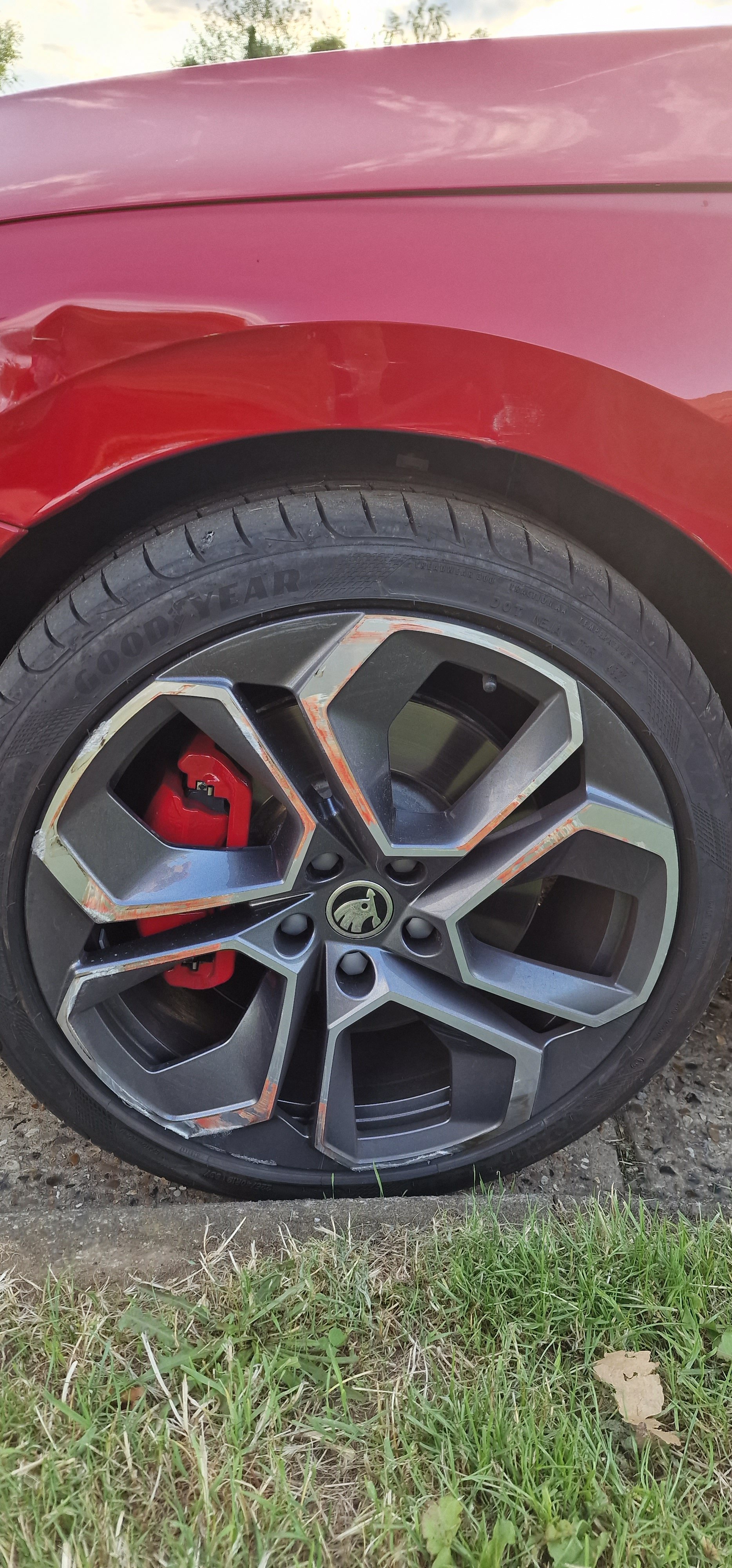
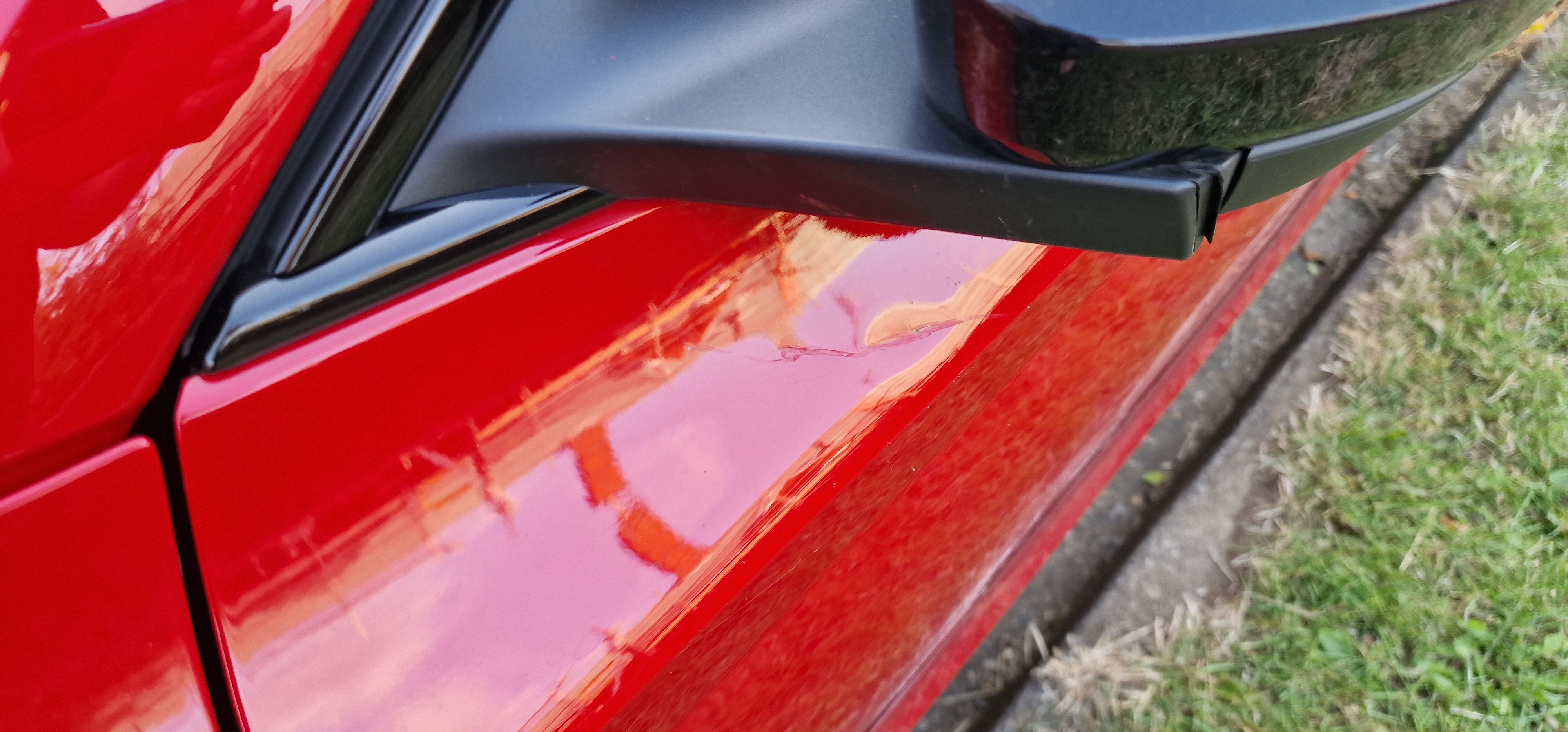
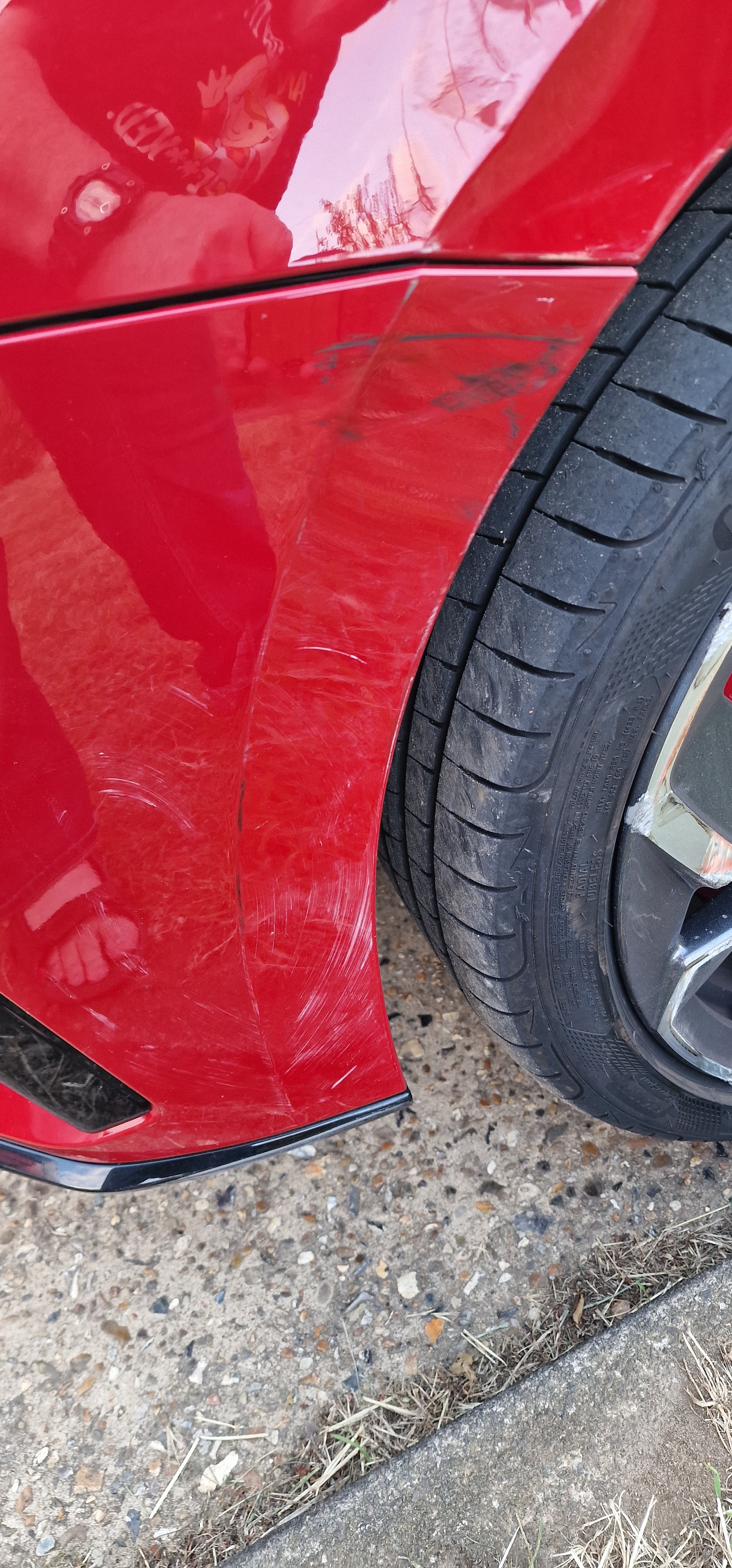
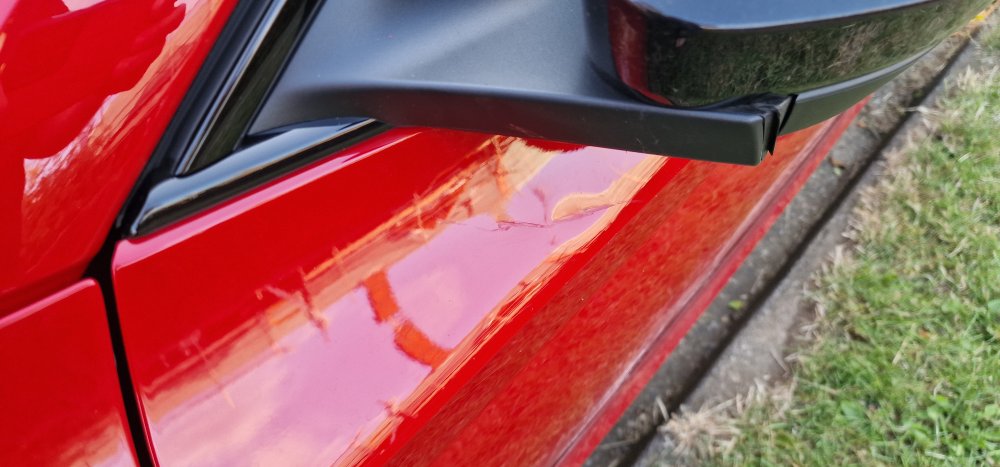
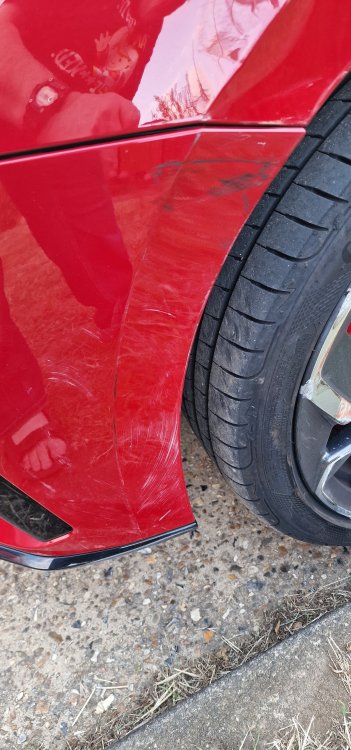
It's hard to see on the door, but there's a dent under the mirror I think that the door may not be as bad as first thought and maybe able to be pulled and finished, the bonnet maybe as well, the wing will be new. I suspect that the wheel will be too.
-
Anyone get an unexpected software update today. I got it as I parked up at the supermarket and it had installed itself by the time I'd finished shopping. No issues so far.
-
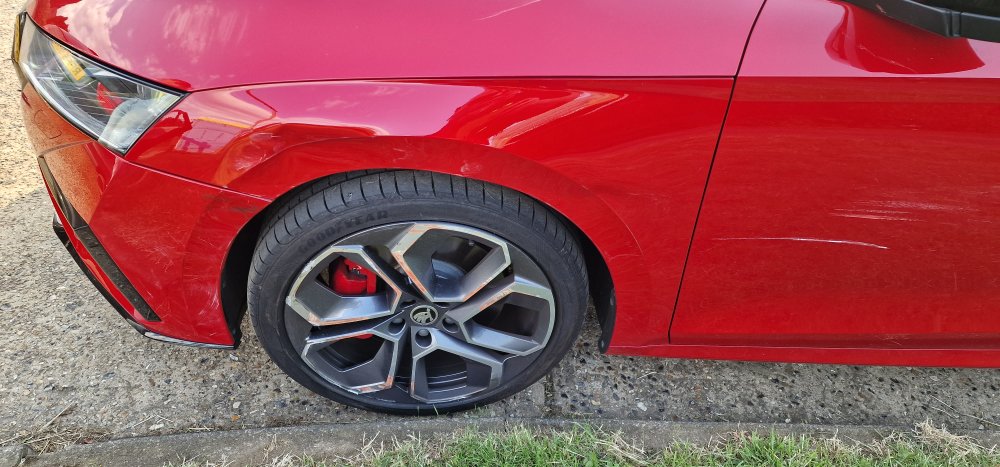
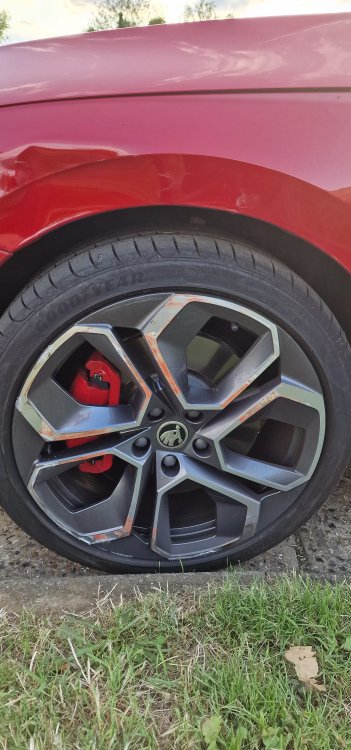
A coming together. A new front wing and wheel, bonnet and front passenger door will need to be sorted out and possibly resprayed and the other scratches will probably be able to be polished out. Front spoiler will need to be checked and resprayed or polished out. Front headlight will need to be checked and calibrated. He did more damage to his damned Ferrari than mine. That'll teach him to check his mirror before maneuvering.
-
230719_175611_856_FL.MP4 Hacked off with a certain driver this afternoon
-
How old is the car? If it's under 3 years it could be done under the warranty, over 3 then it will be putting your hand in your pocket and paying for it yourself I'm afraid. Ultimately it depends on how long you intend to keep the car.
-
You may need to have a hardware update as well as software.
-
It does appear occasionally when in manual mode and it thinks that you need to go up or down accordingly.
-
It usually pops a message onto the virtual cockpit and a little yellow symbol, with a ping notification sound.
-
You've gone to the Skoda Portal and successfully downloaded the map updates 😆 The 1941 software update is found by asking a selected member or two for a link to it and then do what I said on the previous pages. If you have got it right you will have just 3 items which you either copy from your PC to a EMPTY memory stick or extract directly to a memory stick so that it looks like what I posted 3 items and absolutely NOTHING else.
-
You can get 3rd party engine covers, but they're pretty expensive and I don't know if they would be classed as a modification by insurance companies. Yes it looks a mess but it is what it is and your not looking at it all the time. 1941 software has solved most of owners issues regarding the random restarting of the system and other issues, however some have found that the dreaded pop pop syndrome has returned, but I don't know if that's down to their cars having older hardware, if so it might need a bit of hardware replaced, but it seems that overall the installation of 1941 software is generally successful in solving most issues.
-
That's the update that I did say would happen, you may or may not get a second one, which is the manuals going back in, if they're not there, or an error regarding them appears don't worry about it, it disappears after about 48h.
-
You'll be doing it again in a few months when the new set come out unless it drops in via OTA update
-
Just ask for the software, extract it from the zip file to a EMPTY USB C memory stick, if you go back a couple of pages you'll find out how to do it yourself as I posted a guide.
-
These are the only altered settings on my S22 Ultra. USB Debugging - Off Wireless Debugging - Off Default USB - Transferring files. AVRCP - 1.6
-
Do you have a VPN installed? Also you may need to tweak your phone. Do you have developer mode enabled?
-
I think that you need a new bit of hardware to resolve your problem.
-
Then it's a server fault. From what I've been told the files are from November. You may want to try using the VW navigation site.
-
Is that using your vehicles VIN number? If so then like the message says there's a server error.