




pab567
FREEDOMTech
-
Joined
-
Last visited
Everything posted by pab567
-
You already have the latest firmware installed (0480). I suggest you check your battery dynamically, with charging-dischargin cycle. It's very probable that one of cells is broken - I had the same recently in my car.
-
PM sent
-
So now you have Amundsen MIB1, with Bluetooth, with DAB, part number 5E0035874A, with USB 5Q0035726B and fortunately you don't have CANTON sound system. You have to replace both glove box unit and display. Glove box unit must be reworked - patched for Component Protection and activations. It must also have coding and adaptation adjusted to match your car equipment. If you would like to use Apple CarPlay then you also have to replace USB port.
-
All you need in infotainment reader (glove box unit), either Bolero or Amundsen. I can deliver such unit in Plug&Play version - I will send you an offer in PM.
-
I've sent t=you PM to agree the scope
-
It's up to you. Generally it's not the rocket science but it requires some tools and knowledge - see https://github.com/olli991/mib-std2-pq-zr-toolbox/issues/371 If you don't find yourself comfortable in running emergency update procedure then of course you can send it to me, I can make it, upgrade firmware to 0480 and unlock all the features.
-
Yes, several times. Typically this is caused by faulty MPEG module. There are two repair options: Disable MPEG module in configuration (must be done with SetConfig, Martech or any other software tool for RNS510 that connects to the unit via UART) and then flash with modified firmware that skipd MPEG update. After repair you cannot play DVDs but the other functionality remains active. Replace mainboard.
-
Sent in PM
-
Pls share part number of your Bolero or VIN of your Fabia.
-
1. format SD (best max 32GB) under FAT32 2. unpack to root (metainfo2.txt and all the folders must be placed directly on SD, not in any folder) 3. insert SD card into the slot 4. enter Service Menu (long press MENU button)
-
@matbeva you don't need dLink for MIB STD2 unnits. Do you have UART interface to connect it to the unit?
-
@Paulygee22 I sent you download link in PM. If this doesn't help then I beleive it's a HW issue.
-
5Q0 035 820 C does NOT support SmartLink. If you want to use SmartLink you must have infotainment reader (glove box unit) replaced with Bolero 5Q0 035 842 C / 565 035 842 or Amundsen 5Q0 035 874 C / 565 035 874.
-
Your unit is MY16 - software 02xx (0245). APP button is supported in MY17 and newer units, i.e. units with software 03xx (e.g. 0369) or 04xx (e.g. 0480). All other buttons and features will work.
-
Yes, but APP button will not work as it requires SW at least MY17 (03xx)
-
Link sent in PM
-
Sure but this is something extra you can do in the future :)
-
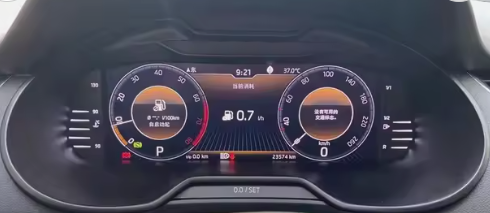
Yes, you can replace your instruments cluster with digital one, called Active Info Display (AID) or Virtual Cluster (VC) as in teh picture below: Yes, you can save money and install a simpler version of MIB unit with CarPlay support and keep your current display Looking at your requirements I believe Amundsen is the right choice. I will PM you for details.
-
Indeed, factory setup is Columbus MIB1, with Bluetooth, with DAB, part number 5E00358020A, with Media In port and fortunately you don't have CANTON sound system. You can install one of four different OEM glove box units: - MIB2 Bolero - MIB2 Amundsen - MIB2 Columbus - MIB2.5 Columbus You don't have to replace display unit unless you want to go for MIB2.5 Columbus as the only display unit that works with it is 5E0919606D. You also have to replace Media In with USB port. The question is what is your budget and which of listed below features are "must have": - Video playback from DVD, USB, SD - CD playback - OEM navigation - displaying OEM maps in Virtual Cluster (Active Info Display). All units support SmartLink (Android Auto, Apple CarPlay, MirrorLink), rear view camera, voice command. features that differ them: - MIB2 Bolero - no OEM navigation, no CD/DVD drive, no video playback from SD/USB - MIB2 Amundsen - OEM navigation, no CD/DVD drive, no video playback from SD/USB, support for displaying OEM maps in Active Info Display (Virtual Cluster) - MIB2 Columbus - OEM navigation, CD/DVD drive, video playback from SD/USB, no support for displaying OEM maps in Active Info Display (Virtual Cluster) - MIB2.5 Columbus - OEM navigation, CD/DVD drive, video playback from SD/USB, support for displaying OEM maps in Active Info Display (Virtual Cluster)
-
@Matess36 I confirm what @varaderoguy wrote, in such case I believe this is either some HW issue with your infotainment unit or broken microphone harness.
-
@mystique4u was Columbus MIB1 factory installed? Could you pls share VIN so I can check compatibility and share the options with you?
-
-
You already have most recent SW version for your unit.
-
There might be different reasons: Coding issue. Do you have any diagnostics tool to check coding and adaptations? Software issue. Pls go to service menu (long press MENU button) then see FEC/SWaP codes and post a list of installed and valid codes. If you don't see menu item for FEC/SWaP codes then you need to enable developer menu in adaptation of 5F unit. Also pls post part number and current SW version (menu SETUP then SYSTEM INFORMATION) - your unit might require software update. Hardware issue. If coding is OK, unit has current SW version and FEC/SWaP code for Bluetooth (00050000) is installed and valid then probably Bluetooth module inside your infotainment unit is broken.
-
I sent you PM


