




pab567
FREEDOMTech
-
Joined
-
Last visited
Everything posted by pab567
-
@DanielMoise you already have the latest available SW version @sto PM
-
@foxtrotoscar19 you must start the update from Service menu (long press MENU button) @amr1 PM
-
PM
-
PM
-
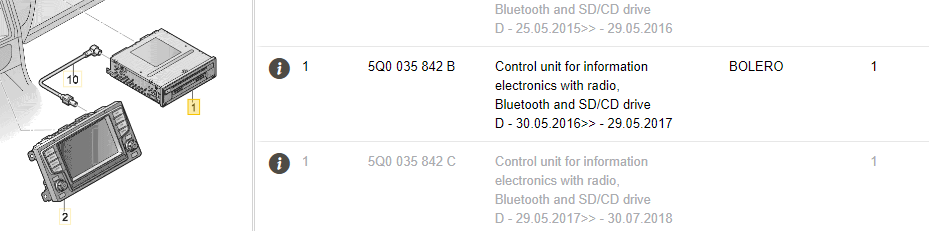
Thanks for sending VIN over PM. Your unit is Bolero MIB2 with DAB/DAB+ receiver and RVC support, model number 5Q0035842B: The problem you described is typically caused by EMMC failure but it can also be flash or iMX6 processor problem. Flash and EMMC error can be fixed by replacing flash or EMMC chip respectively (in case of EMMC it als requires patching the unit). If the problem is caused by iMX6 then unfortunately you can just throw it away. I can try to repair it if you deliver it to me (Poland).
-
Splash screen is just a question of coding. Pls post VIN on PM so I can see what is the unit and let you know available options.
-
@dsdd PM
-
I don't think so... download link on PM Is the SD card original? hae you unpacked files directly to the root of SD?
-
Was this unit factory installed or retrofitted?
-
Pls post the list if installed FEC/SWaP codes @PvD check your PM
-
I don't have any... others pls check your PMs.
-
All check your PMs. No message => no SW update available or you already have the latest version I know.
-
All check your PMs
-
You need to connect the camera to pins 6 (signal) and 12 (ground) of blue 12-pin plug in QuadLock.
-
Assuming you have original (non-retrofitted) unit, your Fabia is MY15 which means it has 9cm wide trunk handle. See this aliexpress offer and select the camera for you - I beleive it's gonna be LS8011. You will also need trunk handle cover 5J0827229 and 2 pieces of M6 nuts (original ones part number is N01508210).
-
Check your PMs
-
@iain1012000 - nope, this is the latest version @southwell check your PM
-
PM
-
Model number and current SW version of your unit?
-
Can you link a movie?
-
There can be few reasons, mostly it is full NAND that must be erased and programmed from scratch, or faulty MPEG module.
-
Check your PMs
-
Search briskoda for update manual and just follow it.
-
PM
-
PM



