spcdust
Members
-
Joined
-
Last visited
Everything posted by spcdust
-
New Download Links: I have uploaded the file to a couple of my cloud services, and no password is required. Give them a try and let me know if they are working okay for you. The first link will likely become unavailable when it hits a bandwidth limit so best to download ASAP. https://e.pcloud.link/publink/show?code=XZVfN9Zh62r0cJ7y4YQMaldlQMJxbP78tTV Hopefully this link should work okay: https://drive.google.com/file/d/1rT0eItntrx6zeUz0dMAnzpBKL5Ktswg7/view?usp=share_link If requests become to much I will likely have to restrict downloads but for the time being I'll keep them live and un-restricted.
-
Very unlikely they would update the Infotainment system software as a matter of course if you have not reported any associated issues - basically work on the principle of “if it isn’t broken….”. If you request they update it they of course would do it but as a chargeable job. As a side note it’s worth checking what your extended warranty covers. I have a Skoda Approved Used Car warranty on my 2021 Octavia but software, and I assume firmware, problems and updates are excluded.
-
Skoda now has a firmware update for the SOS / Telematics module which solves the issues and, it would seem, is no longer physically replacing the units. I assume, originally, they hadn't formulated a fix so replacement was the only course of action available. My module had the firmware updated and it went from crashing 8 out of 10 journeys to now being rock solid. Agree with @Markeknows, now the software issues are sorted it's a great car. Unfortunately, I think Skoda has damaged customers' trust and its reputation by initially releasing shoddy software and then taking a long time to sort it out.
-
Cannot argue that Skoda / VAG initially released shoddy software which they then took an inordinate amount of time to fix. I was fortunate that I bought my 2021 Octavia in October 2023 so, after applying software updates, it has been rock solid - had I experienced the grief that early purchasers endured I would have been very frustrated. The software has been good for quite a while now, especially since infotainment software version 1941, however, there are going to be cars still out there that need the updates to get them to that point. These forum groups are an invaluable resource for car owners.
-
If you are getting the SOS issue and Pop Pop noise then likely you will need to get the Telematics module's firmware updated, just updating the Infotainment software in isolation will not be the fix for that. Hopefully, you should be able to get a local Skoda dealer to sort it but once that is done and updated to Infotainment software version 1941 or the even more recently issued version 1969, the issues will very likely be completely fixed. There is a Skoda-issued TPI concerning the SOS unit that has been discussed on this forum (I have posted about it and uploaded a PDF of the document somewhere on one of the threads) which you might be able to fall back on. The selling dealer should also be able to arrange things with a local Skoda dealership as they should have updated the software before selling it (seems like they often "forget" this step, certainly did on mine) OR possibly the car is still under the manufacturer's original 3-year warranty which you could utilise?
-
I guess if it's a feature not specced and paid for on the original configuration and it's a way for subsequent owners to enable it. But es, it's the way it's going, reminded me of BMW's proposal from last year. Looks like they realised the consumer wasn't going to take too kindly to a monthly fee to heat their bum: https://www.theverge.com/2023/9/7/23863258/bmw-cancel-heated-seat-subscription-microtransaction As far as road sign recognition goes, unfortunately, on my First Edition, you cannot purchase that functionality.
-
Irritatingly seems like a visit to the dealer is inevitable - guess it's just one of those things, sometimes these things just don't go through as expected. Hope they have been able to give you an appointment without too much of a wait?
-
Might also be worth emailing Skoda Connect directly to see what they have to say and/or what steps the dealer has to take to enable the function. If your purchase has successfully completed it really should have been a simple unlocking of the feature via the cars connectivity with Skoda servers?
-
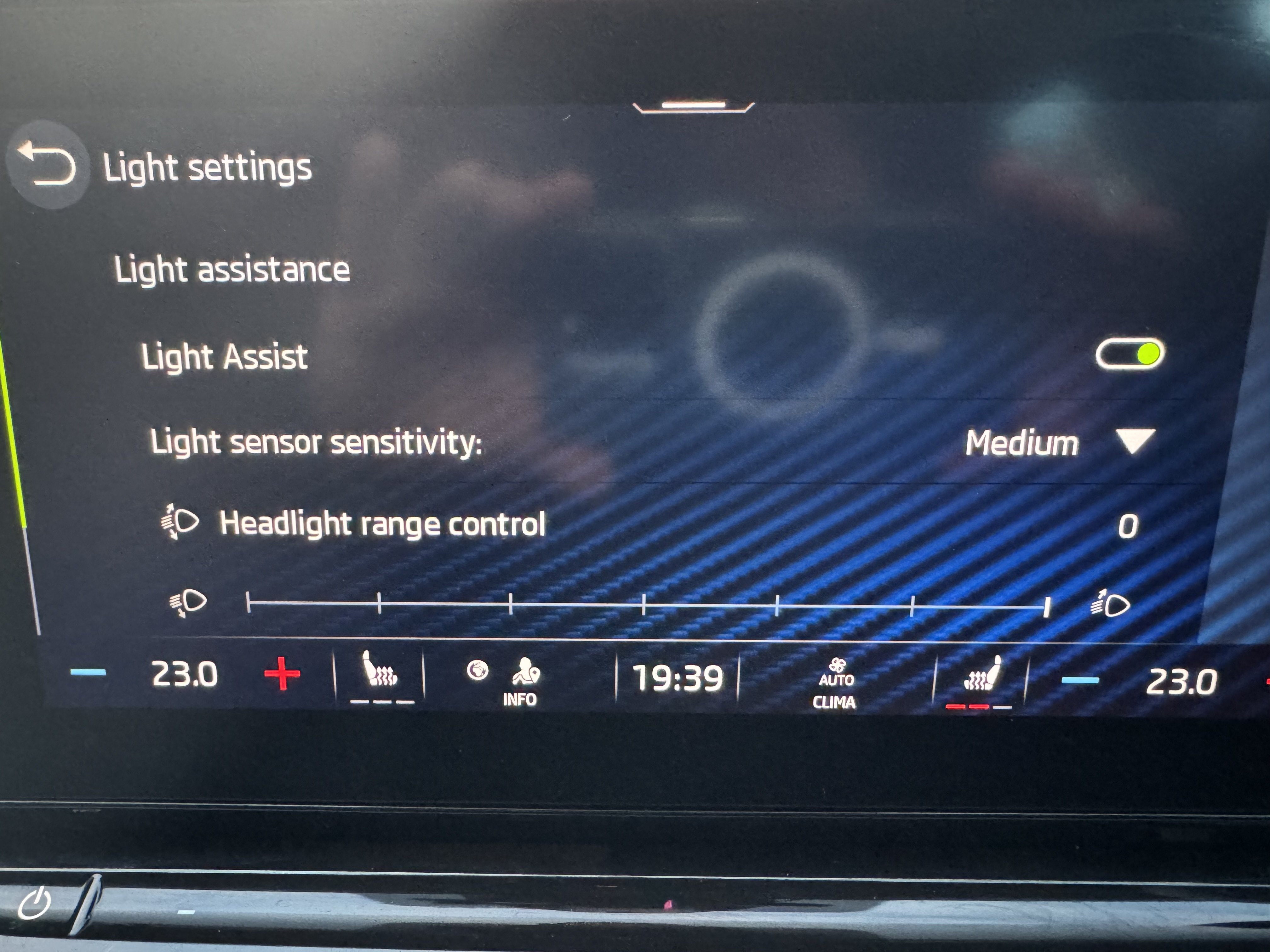
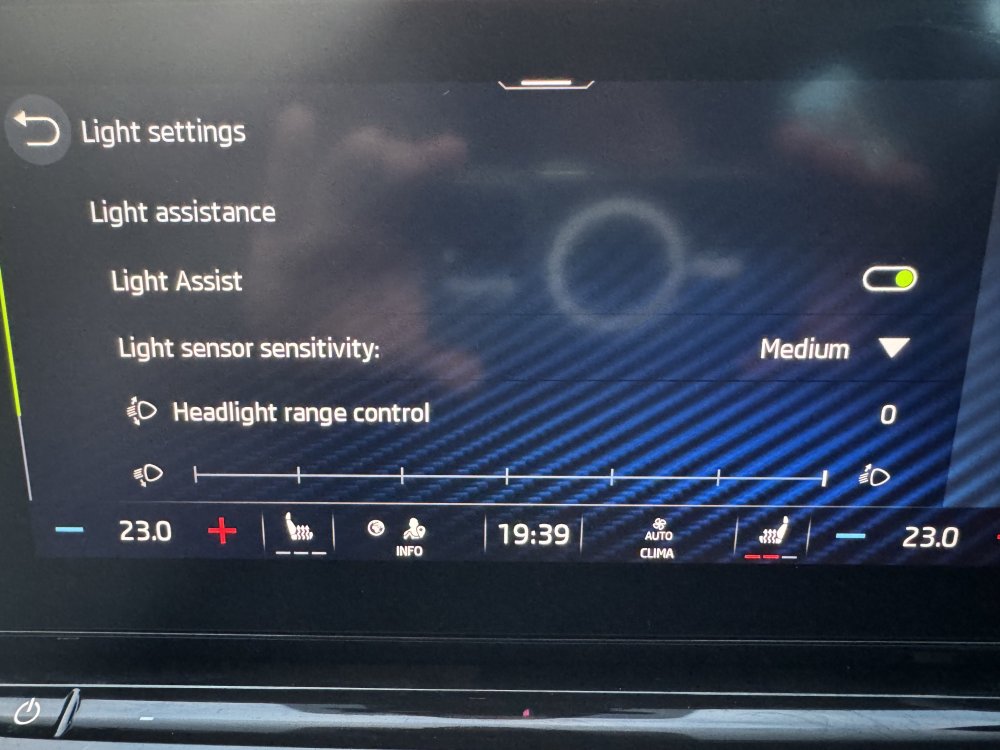
@Veloist99 from what you are saying your headlights setting menu looks like this? Are you able to switch the feature On or Off or is it grayed out? Wierd if it’s activated it’s not coming working when you switch the lights to full beam. Apologies, a red herring my comment about driving in the dark to see if you could switch them on. On my drive home at dusk, still plenty of light but headlights were automatically on, I pushed the headlight stalk to full beam and the “A” symbol was there in white (meaning lights were dipped).
-
Obvious question, have you gone out for a drive at night with Auto selected for your headlights to see if the “A” symbol appears when you put the lights on Full Beam?
-
I assume you got email from Škoda saying that the purchase is complete, or you can likely check your Škoda Connect account to ensure the order isn’t stuck on the processing stage? I’ll upload a picture later of the headlights setting menu so you can compare.
-
Yep, will work no issues
-
Slight tangent to this thread but does anyone find that using the full version of MySkoda App the vehicle status takes an inordinate amount of time to Load / Update. On the MySkoda Essential version of the App it updates more or less instantly?
-
if you have the Pop Pop sound and SOS error flashing up then very likely you require the Telematics Module firmware updated - this can only be done by the dealer / or equipped specialist. Just updating the Infotainment software would not resolve the issue. The good news is once the module firmware is updated and you are running at least software version 1941 your system should be rock solid (I suffered the Pop Pop sound snd SOS system constantly crashing, often taking the Infotainment system with it and the module firmware update sorted it out completely ). There is a Škoda issued TPI covering some of these issues which you could refer a dealer to (I have posted previously about this). Also, is the car still under the original 3 year warranty as you could get these issues resolved under that?
-
They have always been available prior to 1969. Someone in the UK registered for them previously only to find both services are not available here. I recall them posting a few months back as they wanted to delete the icons from their Home Screen and couldn’t figure how to.
-
No new functions that I can see but I really wasn’t expecting any. Some have reported a perceived faster / smoother GUI but personally I found version 1941 responsive and smooth. Maybe a fix for issues with Android Auto but as I don’t use that functionality I can’t comment.
-
I kept Skoda Connect remote access as the connectivity to the car is handy. You can check if the car is locked and, in most cases remote lock it, gives you driving and fuel efficiency data, car alarm notifications, and the location of the car. I didn't bother renewing Infotainment Online as the only real benefit was OTA map updates / live traffic and I use better navigation/map services via Carplay. As @TheWanderer says, you can update the built-in maps manually via the Skoda portal, although they seem a little behind the OTA updates.
-
I think it’s important to emphasise that infotainment updates are only part of picture. Modern cars have multiple modiles that all control various aspects of the vehicle (Climate control / Tekematics / SOS systems / lighting etc). These all have their own firmware’s that cannot be update by the end user. Whilst I don’t believe Škoda are actually replacing hardware any more there are firmware updates that can apply to specific modules to ensure they are functioning properly and communicating correctly with the Infotainment system. An example is my SOS system constantly crashed and went offline which also had some odd consequences to my navigation system and would also freeze the Infotainment system on occasion. The solution was that the Telematics Module needed a Firmware update to resolve this - simply updating the Infotainment software would not have solved that particular issue. Regarding jumping from 1896 to 1969 - instinctively I am inclined to agree with @TheWanderer and do it in two stages. Possibly you could do it in one update but until someone can confirm that’s okay then why take the risk?
-
Have to say I was sceptical wether I would think the High Beam Assist was worthwhile, so much so that Skoda agreed to give me a two-month refund window to fully evaluate it, but based on driving in the dark, with appropriate conditions, it functions very well.
-
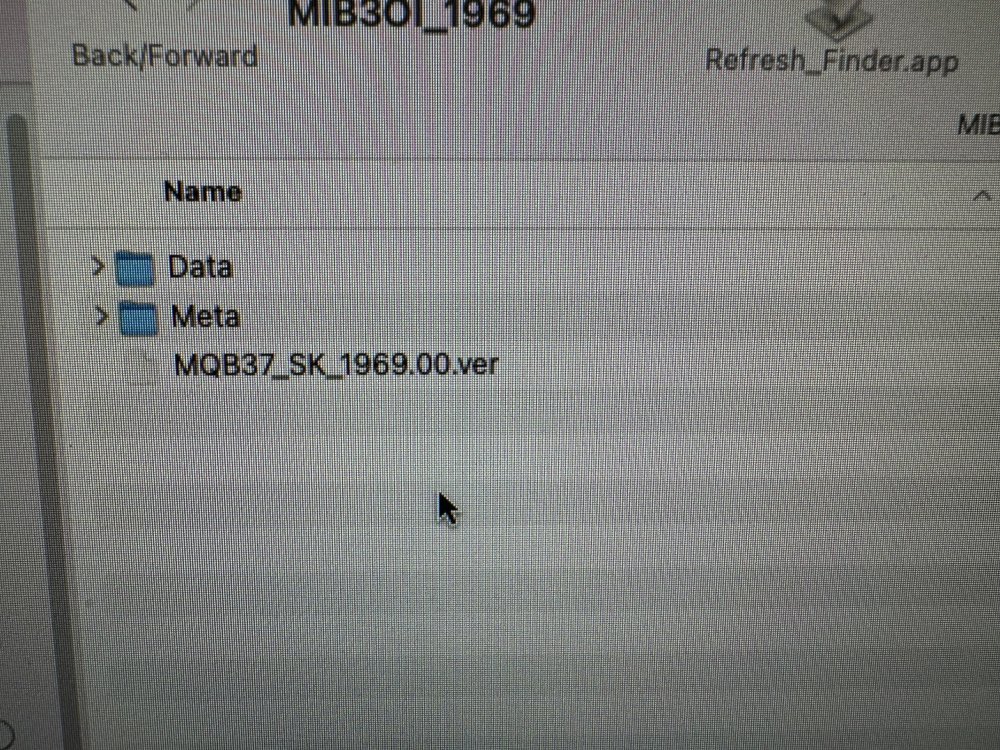
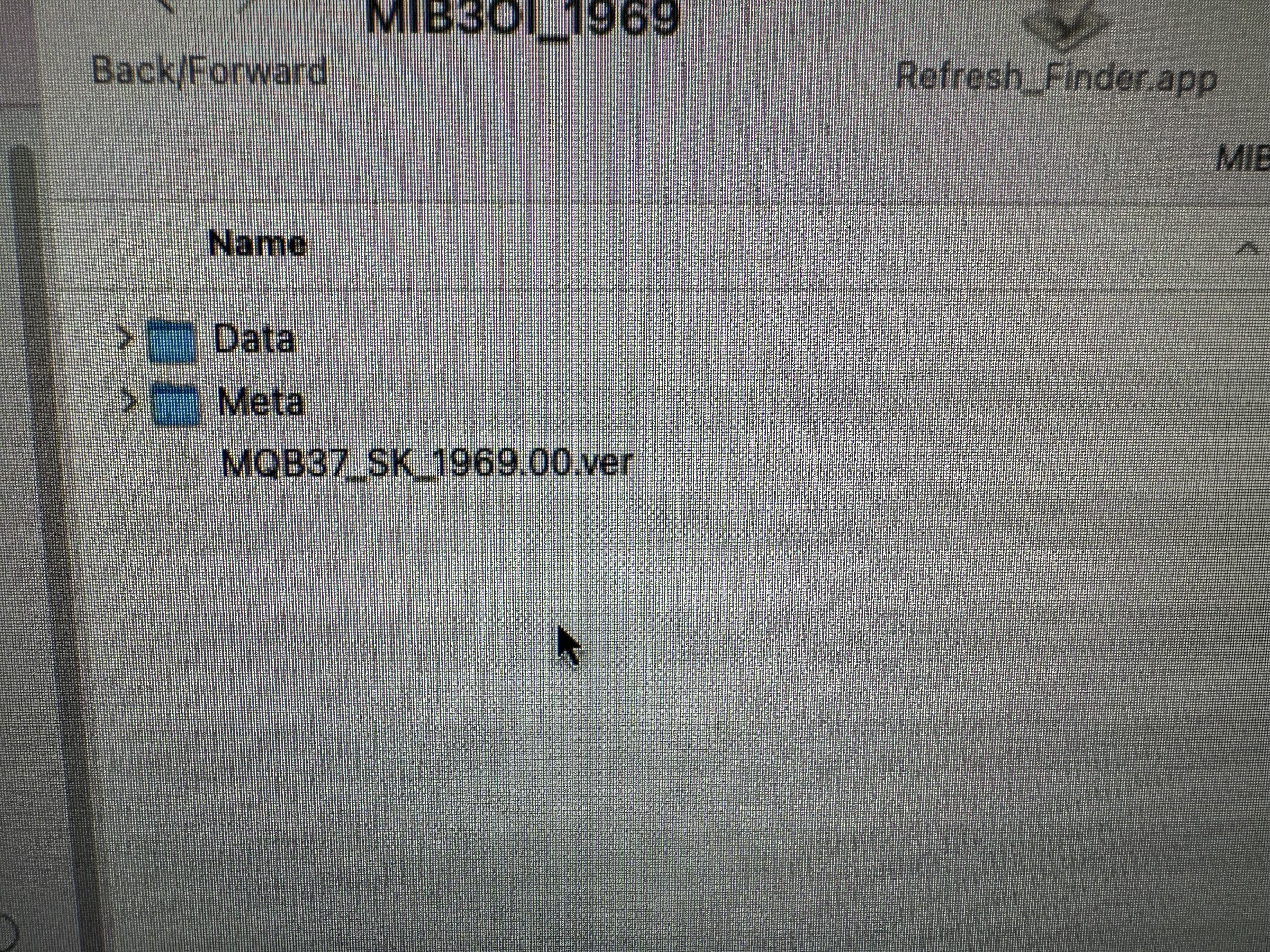
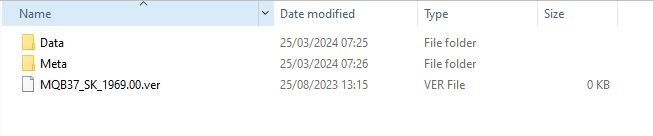
The wisdom seems to be to avoid downloading to an Apple Mac due to the way that the OSX operating system creates invisible files which makes sense. I downloaded to a Windows PC and unpacked the downloaded Rar file using the free application 7Zip: https://www.7-zip.org/ Format your media to ExFat and copy the unpacked files (should be two folders and a file) and look something like this. Finally, if you are not confident in doing the manual update yourself then I would just wait for the OTA update to make its way to you. It's not like there is any new functionality so the "If it Ain't Broken...." adage is appropriate. I have read that those using Android Auto have had issues with version 1941 so possibly this update fixes these but as I am an Apple person I can't comment so will leave that to Android users to report back on.
-
The update files for the update can be found here, credit to @Giannis20 for providing these. megaload link: https://mega.nz/file/994DUTwL key to access file on Mega u22UzB0cTcz6sutXBEx3ivis5DycYea_mq8KFY2vBm4 The megaload will likely limit your bandwidth and make you wait to download the files in three stages with 5 hour waits in between. If you want to avoid this follow @Faab advice: For those who are having trouble with the maximum 5GB limit at Mega; you can get around it via a VPN. Get there desktop application, create a fake account using a spam email account (i have..) and register. Once registered, start the VPN, download the first 4.something GB and wait for the limit. Close the application, disconnect VPN, reconnect VPN, open the Mega desktop client and get the next 4.something GB. Do this once more to get the last few 100mb... IF you do not have a VPN, than you have to wait 2x 6 hours.. They say the limit is 5GB, but it caps out at 4.something GB.. and since the download is above 9GB, it will take 3 attempts.
-
I used this device for the USB-C port: https://www.amazon.co.uk/gp/product/B0B52943TZ/ref=ppx_yo_dt_b_search_asin_title?ie=UTF8&psc=1 In conjunction with this Micro-SD Card: https://www.amazon.co.uk/gp/product/B0BX98STTD/ref=ppx_od_dt_b_asin_title_s00?ie=UTF8&psc=1
-
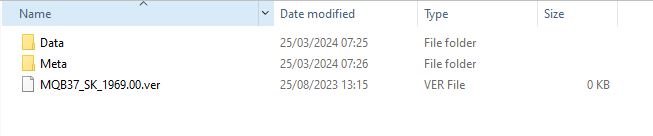
I thought it would be useful to create this separate topic and collate information as now Infotainment Software Version 1969 is out in the wild I imagine user interest will increase. All credit to those who posted information in other threads - I hopefully have credited you all where necessary. Feel free to comment on your own experiences and observations. Despite saying I was going to wait for this update to come OTA, based on the principle of “If it ain’t broken….” I bit the bullet and applied the 1969 update manually this morning (I'm a sucker for an update). All went very smoothly and took around 20 minutes. Seems an obvious point but to put your car in ignition mode, which you need to do to apply the update, just press the Start Stop button on its own, without depressing the Clutch / Brake which you would do if you were starting the engine I also switched off the climate control before proceeding although I imagine the Update process would disable its functioning anyway. I followed a previous guide for version 1941 by @TheWanderer which was invaluable. I highly recommend watching the YouTube video in the instructions as you are updating as it is a useful reference of the stages your system is going through. I have copied and pasted his guide below but it’s not my work, full credit to @TheWanderer for this: Create a temporary folder on your PC or Tablet for example MIB3 UG. Then find the zip file and then right click on it or press and hold on it, so the menu appears and it should offer you the opportunity to Extract here or elsewhere, tell it to extract the files to MIB3 UG folder and let it get on with it. When it has finished, format a usb memory stick so it's completely empty, then go to the folder MIB3 UG open it and copy the 2 folders and other file directly onto the memory stick. When it has finished copying the files to the memory stick it should look something like this... THERE MUST BE NO OTHER FILES THAN THIS. Once your memory stick looks like this, remove it and take it to the car. Insert it into a USB port, press and hold the menu button for about 10 seconds and the update menu will appear. At this point it's vital that you have a full or very well charged car battery or a battery charger attached so that the car doesn't shutdown halfway through the process. Ignition needs to be ON, the Engine needs to be OFF (NOT RUNNING)! DO NOT START IT DURING THE PROCESS. Here's a video that shows you what to do, albeit in German, you'll get the English version! If you watch it carefully you'll get the gist of what to do. UNDER NO CIRCUMSTANCES MUST THE PROCESS BE STOPPED ONCE IT HAS STARTED OTHERWISE YOU'LL MORE THAN LIKELY NEED A NEW INFOTAINMENT SYSTEM. Notes. After it has finished updating the system, give it a couple of minutes to ensure that all is well and like it shows on video press resume an wait for about 90s or so and the system will restart just, like in the video. DO NOT START THE CAR UNTIL THE SYSTEM HAS RESTARTED After the update the built-in manual is unlikely to be available for about 48hrs, it does come back! You will more than likely receive another OTA update, it's OK to accept it. Ultimately if you are at all worried about doing it, take it to a VW Independent or Skoda dealer and ask them to do it for you Once it has been updated, there should be no more random restarts or crashes on the infotainment system, the pop pop issue should be gone too.. https://youtu.be/4AsSbGd3caU
-
I purchased this a couple weeks and once the purchase has been processed they should be available to work shortly afterwards - no need to visit dealership. I assume the car needs a signal from the Škoda servers to unlock the functionality. Ensure headlight switch is in Auto, obviously the headlights, on Auto, will only activate when it”s dark which is when you can switch to full beam and see the “A” symbol. The functionality kicks in at speeds over 30mph.
-
Possibly something has gone wrong at the unpacking stage? When I unpacked I got the two folders and the install file. Try 7Zip - it’s free and my goto un-archiver program.