Cairus
Members
-
Joined
-
Last visited
Everything posted by Cairus
-
DIY
-
-
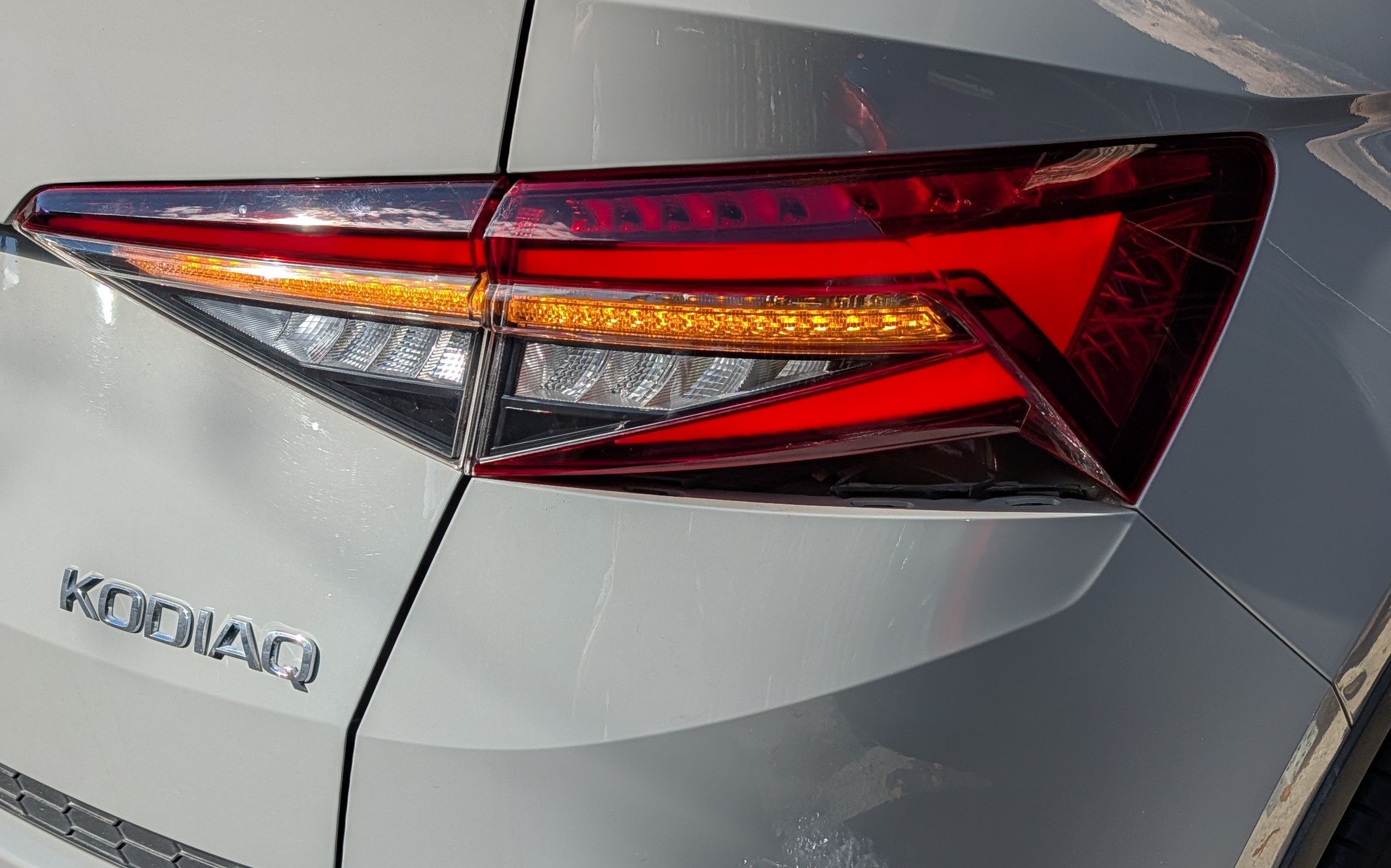
We want to add a bit of bass to the Kodiaq. After much deliberation, we purchased the Helix sound system. This includes a woofer with a small DSP for the speakers and woofer. What is needed in our case: Helix system ---> 000051419B Short-circuit adapter if the woofer is removed ---> 000051727B More details to follow...
-
-
You can Not Update from Firmware x3xx to Firmware x4xx
-
Password PM https://mega.nz/#P!AgEWbXJNihmMYuO4uyZm-6bB5pDjb9xNsqyZXk0bqofMzQYlpRFtj9XJF2vdfW2hAhIaGKyoQpiqQZW9gkgxn8mXKB5ryZ_ef9euCqmTocRmtfQlKVJSVNwwI4eULf-6d6a-HQRv1e4
-
Which Radio? Which Camera,?
-
I converted a Kodiaq myself and find the prices of the adapters simply outrageous... There must be an OEM solution for this, and I seem to have found two solutions after studying the SLP and comparing it, etc. But currently only affects the Continental Gateway. I should have the Kodiaq available this week, then I'll do a real-life car test..
-
-
-
-
-
You can Not Update direct To Firmware 353T
-
Error 1: Basic Settings for the flaps triggern Error 2: The Lights are in the travel Mode, you can Change it in the Car Settings in the Radio
-
Let's take a look at this topic: Skoda Kodiaq VFL Model Control Unit 13: Hardware Number 2Q0907572B Hardware Version H03 Software Number 2Q0907572Q Software Version 0342 What hardware is required: Steering column switch for ACC: 5Q0953502AL ---> NOTE: Depends on the vehicle's production date. Steering column cover for Kessy & ACC: 565858559G 9b9 for Satin Black I bought both for €90. The rest is all software-related. Request password via PM https://drive.google.com/file/d/1gvzALfST6INKoTQLhB5SqGNY11FUr-Gu/view?usp=drivesdk
-
The principle and functionality of the Haldex has remained the same since its development. A multi-disk friction clutch, controlled by oil pressure. I know the part inside out, having supported the assembly line for almost 10 years.
-
-
I know...
-
-
-
-
How many you need?
-
Don't you also need to retrofit the 3-zone temperature flap? Seat heating is a simple job.
-
Byte 11 Bit 02 is by my non Superb virtual Cockpit the Activ TPS BAP
-
Why don't you do one retrofit at a time? What you're doing is unnecessary troubleshooting.