




Cairus
Members
-
Joined
-
Last visited
Everything posted by Cairus
-
Broken wire, i think Blue or Yellow one
-
Dont Reset the unit 09(BCM)!!!
-
-
-
I think @Lutz_91 have pre Facelift Car with pre Facelift BCM and Facelift Light and Dynamic indicator
-
-
But both is PR Code 9VS 3V0035411K for Karoq & Superb The speaker is the Same
-
Change 5E To 3V Last Version: 3V0035411K
-
It would be new to me that you can control the dynamic blinking via the mib
-
-
The speakers don't have a Canton label. There's a lot of marketing behind it.
-
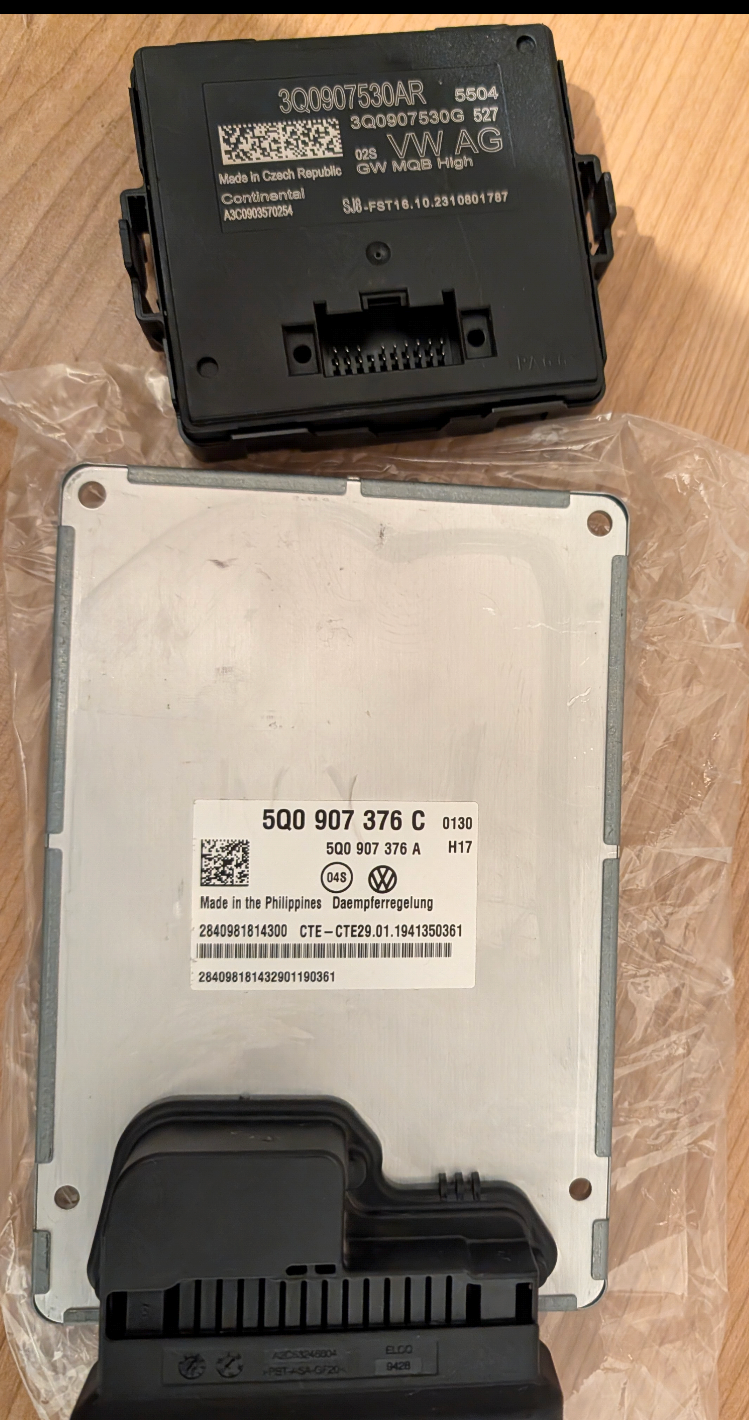
@IvanMaihaus The latest Firmware is 0480 Password send me a Message https://mega.nz/#P!AgGWtzUFoIOM4t9fc-ytrUjaQcCFEvmu8jKphKDSB14nvb6R3neEHfChr0i8fyXQe6SkrUDjtl3vpPDZXRGV44NecBDE2by_C0hK_zDuHWDuB9bbfSd4gJMWyqcRA7qmbxxCSZ4ldowGood morning everyone. The next parts are on the table. This time the DCC control unit and the gateway. Both are relevant for the DCC settings, which should then be done using a slider in individual mode. I'll first make sure it's running on the table. Then I'll edit the individual vehicle data sets and make them available. The Continental gateway needs to be flashed to Index AR. Caution: This can cause problems with the Side Assist Radar; it changes the protocol slightly in the gateway. Personally, I would then switch to the Lear gateway. Required Index AQ. Caution: Replacing the gateway means unlocking the CP and having the functions activated. Regarding equipment, you need a tool for writing the data sets, so not OBD11 or the like. For example, VCP or ODIS or VC Tool. The DCC unit need Firmware Index C with Software Version 0130 I'll keep you updated.
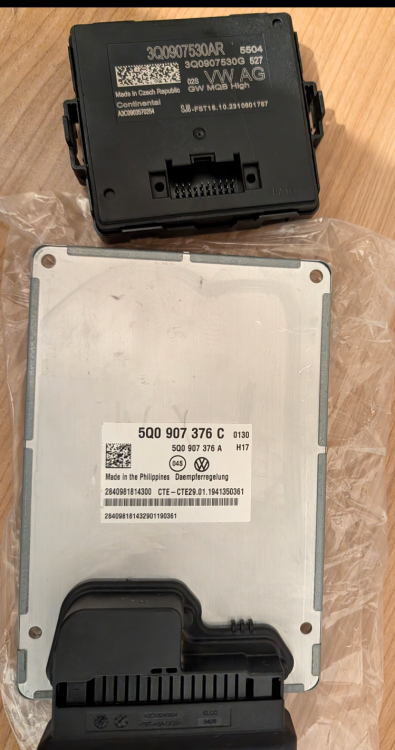 In my experience it will unfortunately not solve the problemFor Pr-code "9VS"This is the BCM = This unit Managed the Light and Other things. AE ist the Index of unit. It's important that it's the same functional group. There are basically three versions: Low / Mid(+) and High. You always have to install the same or higher-quality version.OEM Parts?No warrenty 2x 5E0035411G Canton rear door speakers 2x 5E0035411D Canton front door speakers 2x 5E0035411H Canton mirror tweeters 1x 5E0035411E Canton front center speaker 1x 5E0035412 Canton subwoofer 1x 8V0035223 Canton sound system amplifier


Important Information
Welcome to BRISKODA. Please note the following important links Terms of Use. We have a comprehensive Privacy Policy. We have placed cookies on your device to help make this website better. You can adjust your cookie settings, otherwise we'll assume you're okay to continue.