Cairus
Members
-
Joined
-
Last visited
Everything posted by Cairus
-
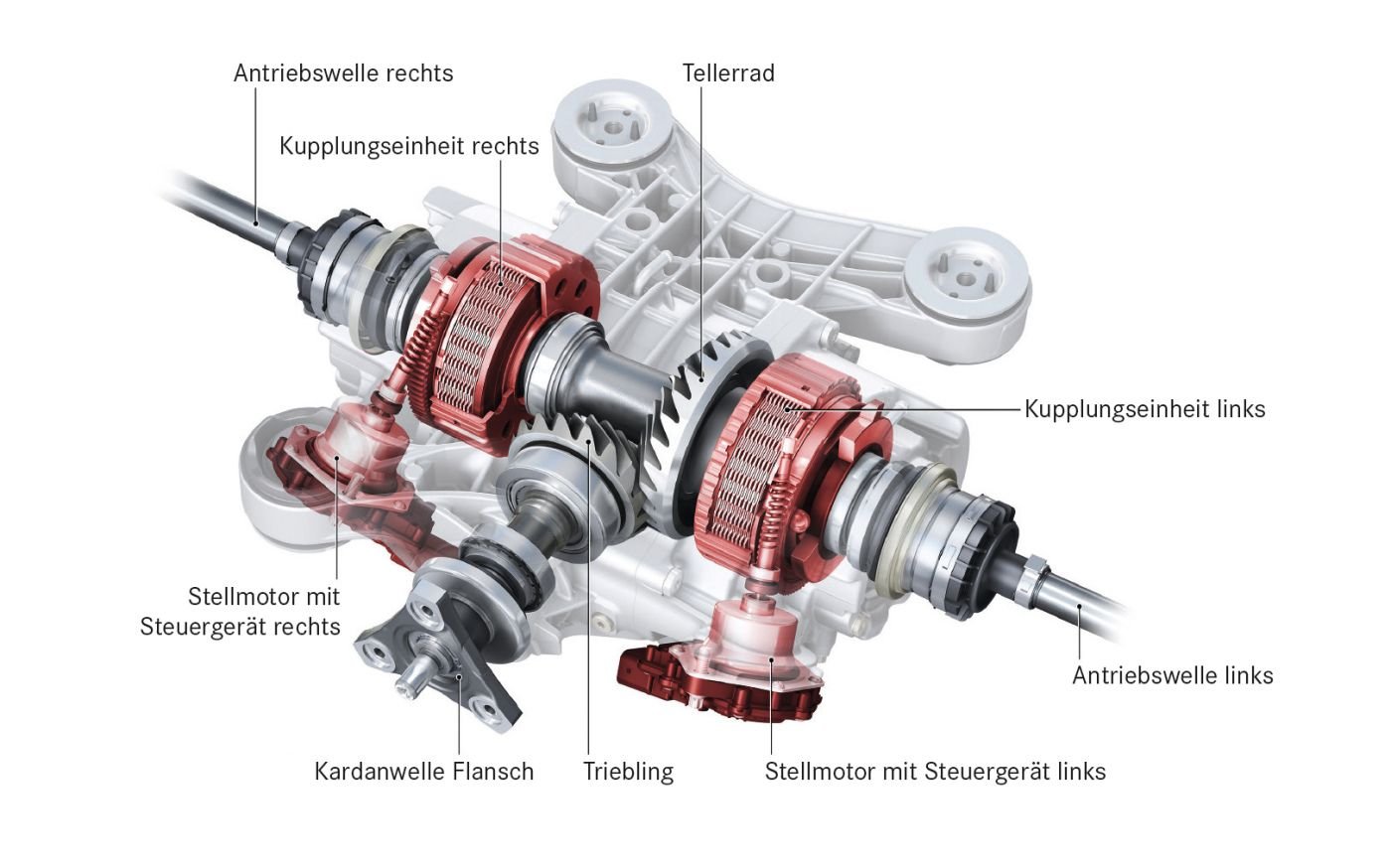
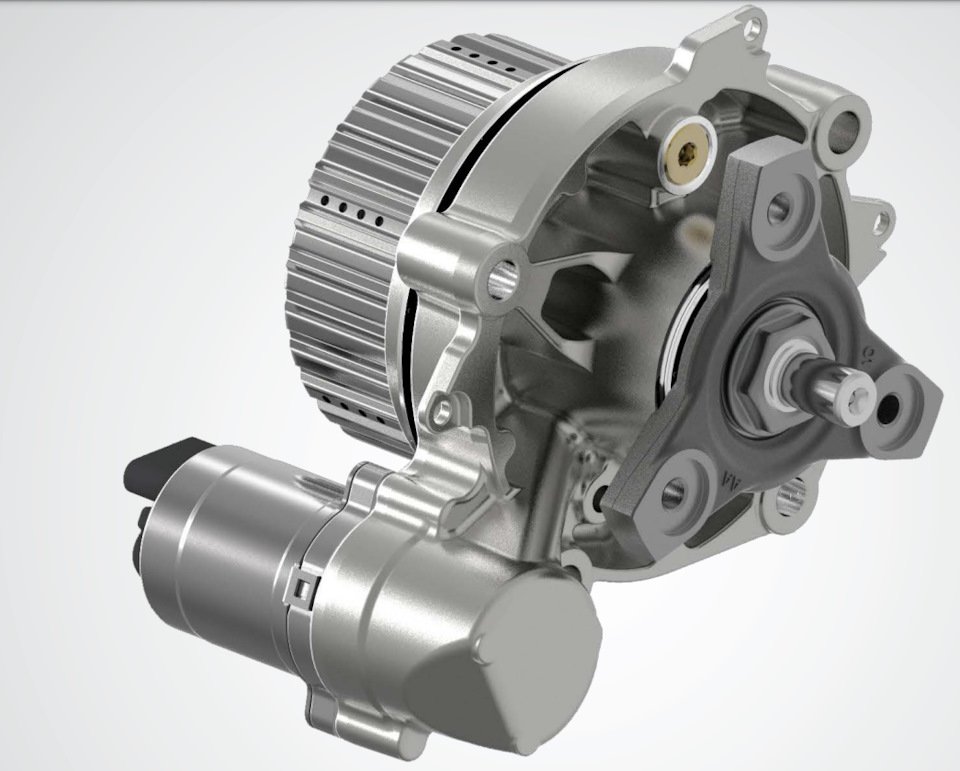
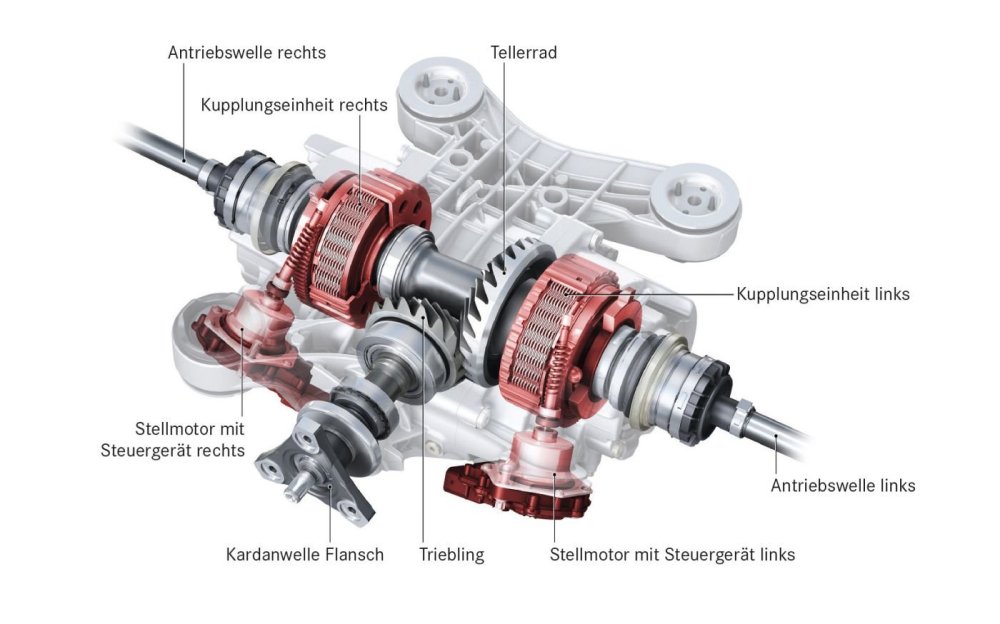
As a little extra, even the VW R models, Audi RS3, and Mercedes A-Class AMG, Cupra etc...have a multi-plate friction clutch; only the high-performance models have two of them, and the preload is achieved differently. However, the complete system isn't a VW or Audi development. It also comes from our company. Currently, we're offering the electrification of this model. 😜
-
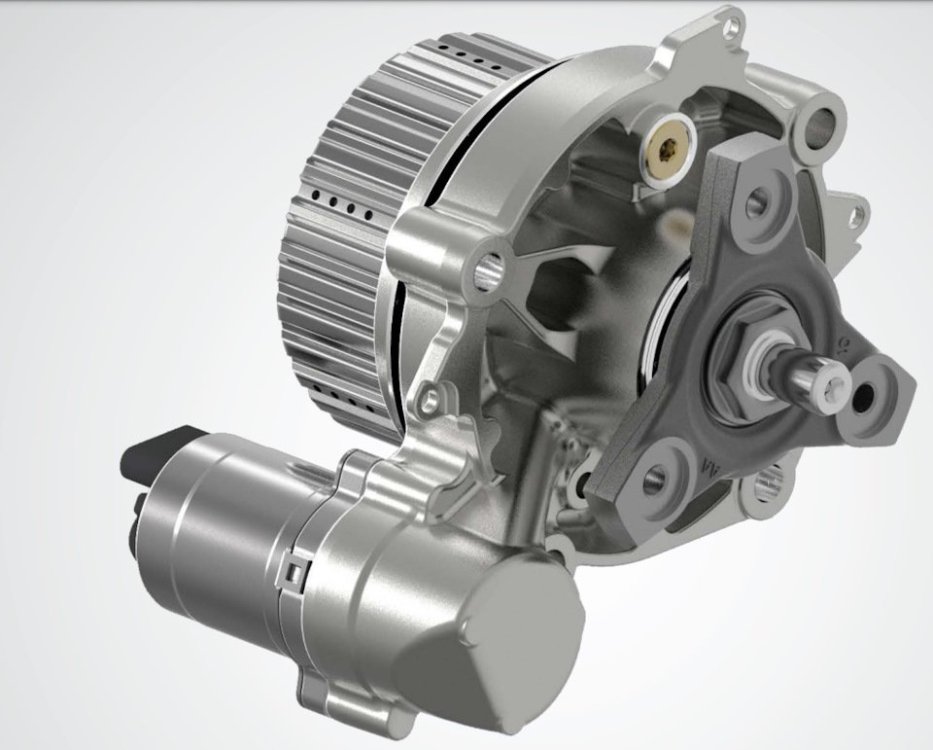
Gen 6 Controller ist no include in the Pump
-
Gen 5
.jpg.1edb383bd69e9d8d71024e48680f9be6.jpg)
-
Just a quick point: the transfer case for the rear axle of the 4x4 is a Haldex Gen 6, manufactured by BorgWarner. As a former supplier of the complete transfer case, I can tell you that VW themselves extend the maintenance interval. BorgWarner has completely different recommendations 😜
-
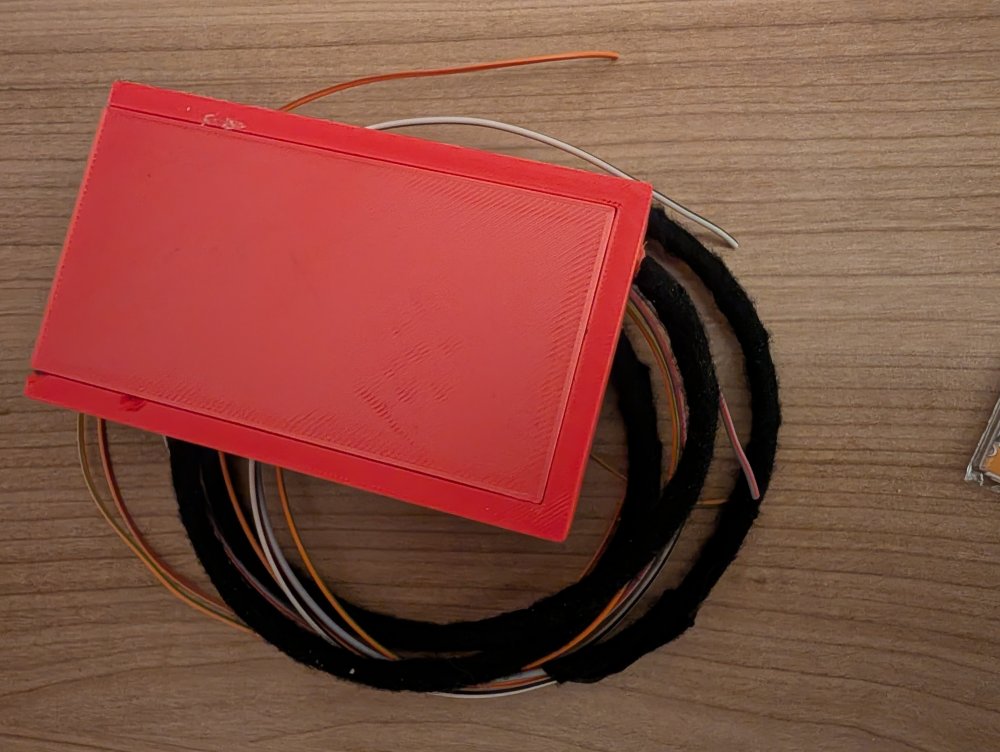
More Compact and with disable Start Stop 😏
-
Never Octavia 3
-
Drive Mode also?
-
Good morning. The pACC system, or rather the automatic speed control, should be able to be deactivated in the driver assistance systems menu. This topic is in the Kodiaq 2 section, where SFD 2 is a bigger issue. The camera can probably be coded to deactivate traffic sign recognition, but you likely can't or won't want to modify control unit 5F or 13. SFD 2 tokens currently cost around €400 if purchased separately. So, test whether simply deactivating the camera function is sufficient and doesn't trigger any visual error messages for the driver. Which Car exact?
-
There can always be variations in quality. Otherwise, try swapping the LED bulbs around and see if the fault moves. In a worst-case scenario, you can usually code the error message so that it no longer appears.
-
You have Change Xenon To LED?
-
This will change your service interval to a fixed interval.
-
Finish new Generation steering wheel Made the converter own
-
-
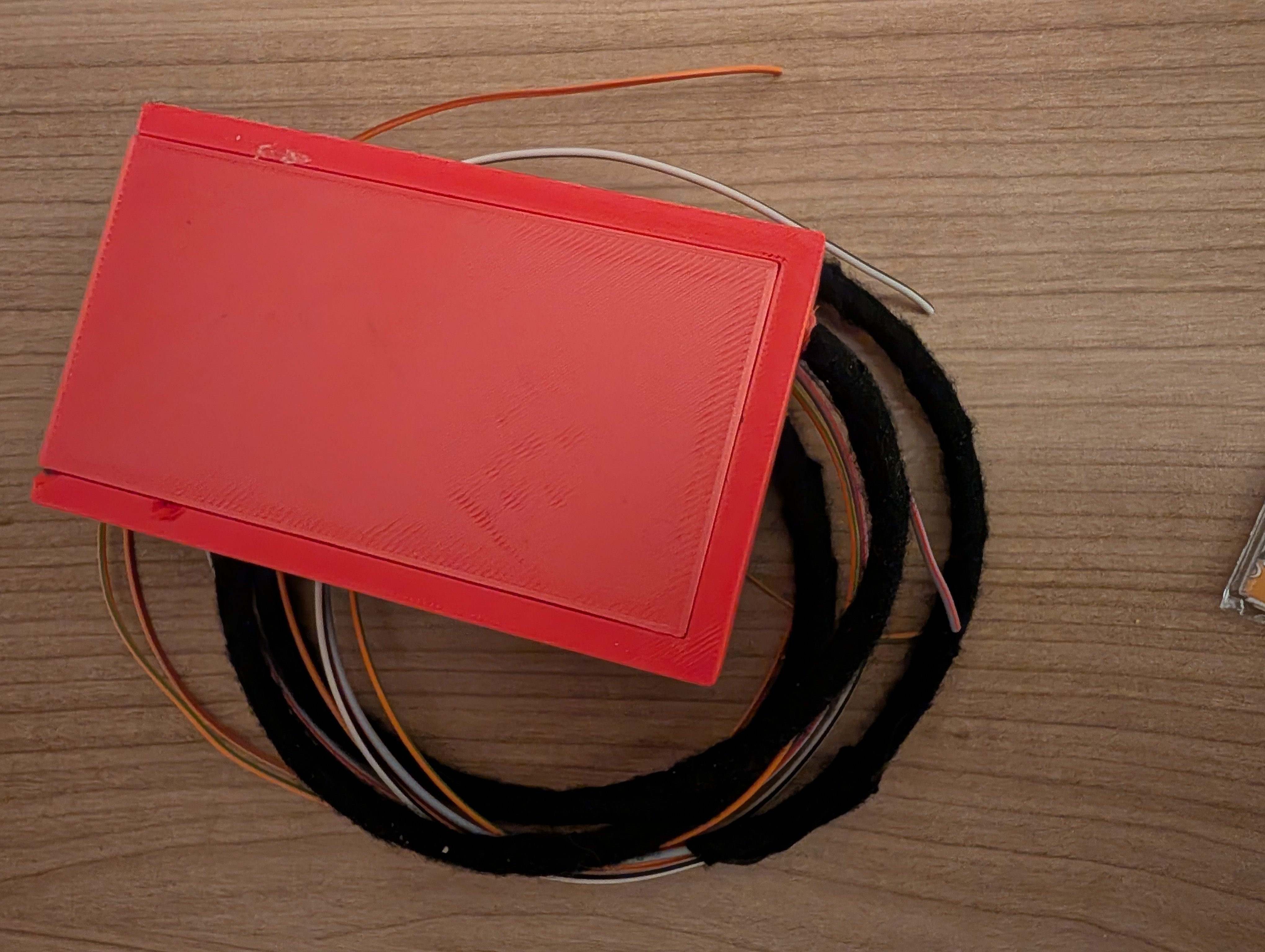
So, I solved the problem with a homemade converter. Cost: €15. Required: KL15/KL31 and CAN Comfort.
-
Superb 3 dont have SFD
-
You need Patch or Skoda because CP and Funktion restore etc etc
-
Yes, i think Software brick
-
Which HW and SW Version HT have your Unit on the Sticker in the unit Chassis?
-
-
https://mega.nz/file/lrc1BaCD#nq_LSllnN-vDCL_fK6YVGXCMPosigM-ZrRJ0RBJsNqA
-
-
-
1) Hardware Retrofit 2) Software Coding 3) Software Lisenc for driving Mode (Gateway) By ESP Button, you have to Check, If it Possible with your HW
-
Both need wire. Drive Mode also have SwaP Protection
-
Yes to Support it... You need the document that describes the channels. This list might help: https://www.t4-wiki.de/wiki/Messwertblock