Cairus
Members
-
Joined
-
Last visited
Everything posted by Cairus
-
Forced reboot done?7
-
-
-
-
-
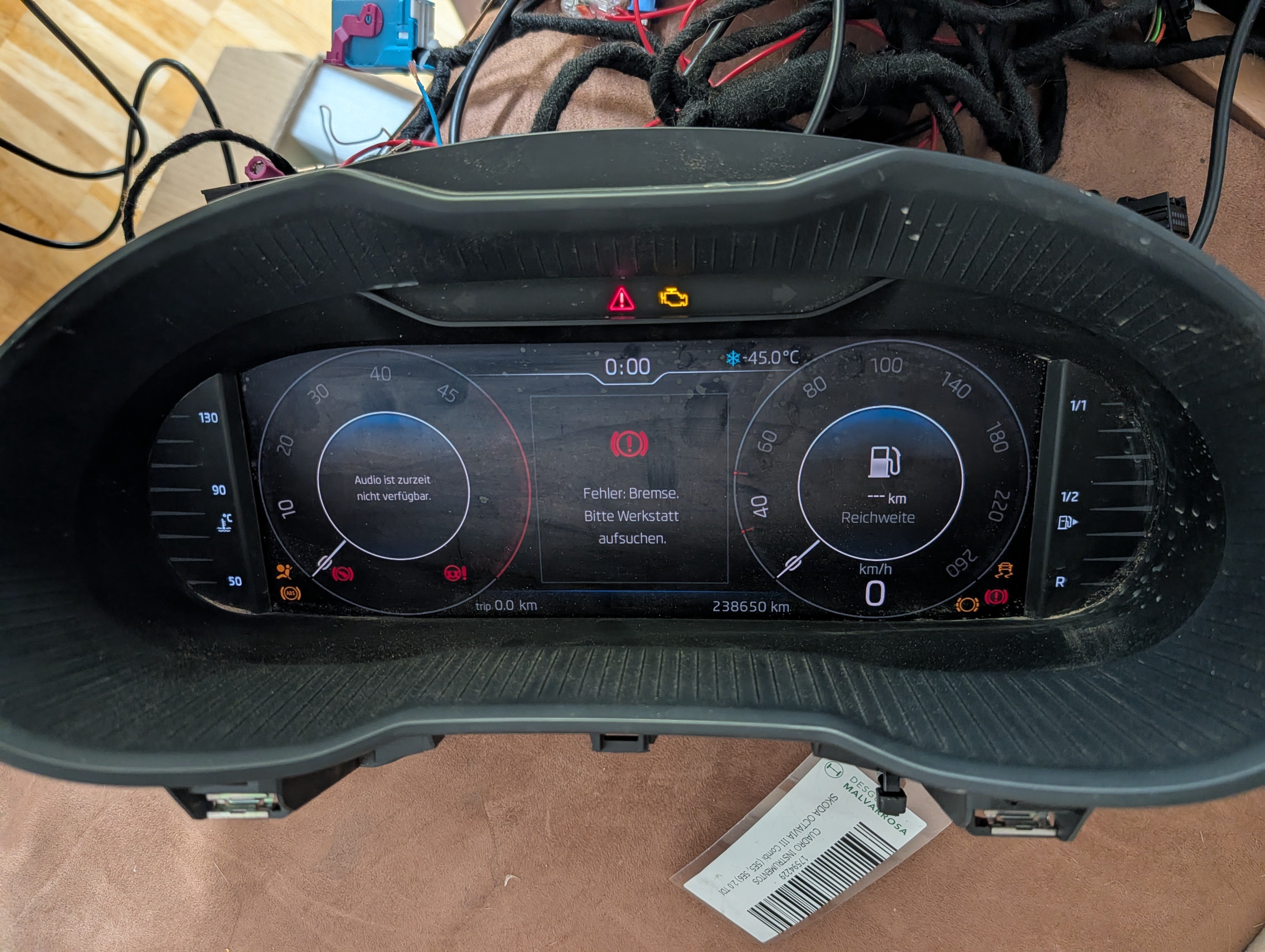
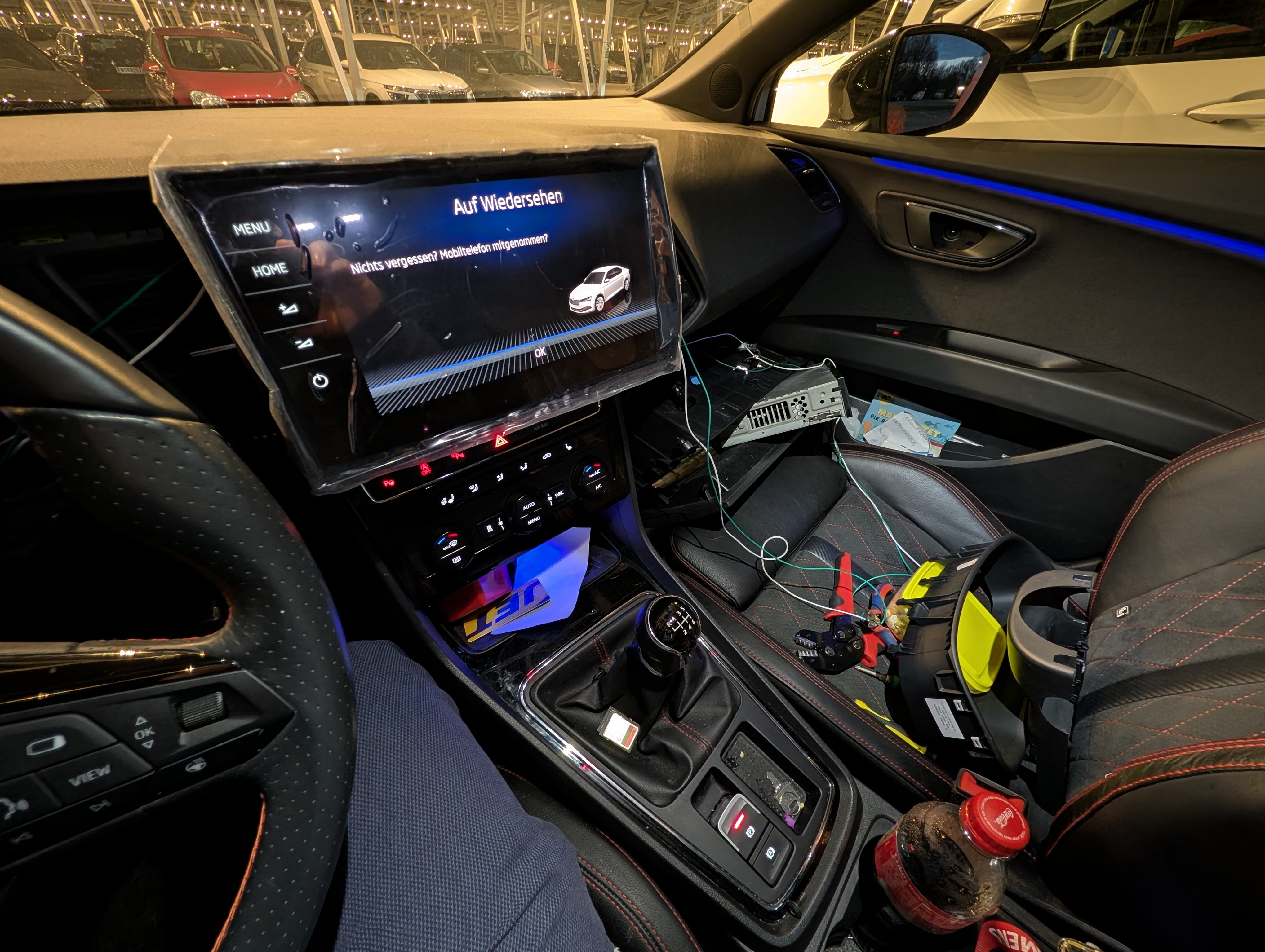
Well, there are two options: 1) You do it the safe way. Have it installed at the dealership, submit an inquiry, wait, hope for approval, learn how to do it, remove it, and adjust the mileage. 2) You learn as a child never to listen to your parents or anyone else, so you do it yourself and stubbornly insist on your own way, which usually ends badly. (Applying the Seat dump to Skoda is a bad idea.) I opted for the second option and made things complicated for myself. Long story short, I ran into a TPI situation, meaning the control unit is fully diagnostic-capable, but the display remains dark. This often affects 2019 model years, specifically the first generation XXX920790 without an index or with index A Virtual Cockpit Generation. So, Immobilizer Generation 5A. If the software glitched, it can be fixed by flashing the complete firmware. If the software has glitched, it can be fixed by flashing the entire firmware. Long story short, I ran into a TPI issue. Then I remembered I bought a defective Kodiaq Virtual Cockpit last year with the same problem... Okay, Virtual Cockpit can only be flashed with an unlocked immobilizer... Great, I have two Virtual Cockpits, both with different VINs, of course, and I need an unlocked immobilizer... What do you do? Right, screw it, get down in the car, remove my own Virtual Cockpit, make a data dump (praying the rosary that the thing stays intact), and flash the dump to both Skoda Virtual Cockpits... What can I say, it worked perfectly. The immobilizer, CP, key, etc., were all transferred correctly. Back in the car, connected the defective "Virtual Cockpits," didn't give a damn, turned on the ignition, and started it (note: if a different VIN is detected, the ABS coding is automatically set to 0, and all basic settings of the ABS block are lost). The car started right up, the coolant temperature and fuel gauges worked immediately, the turn signals worked, etc. That means the immobilizer was completely transferred. What can I say? It worked perfectly. That means expecting a long flash this weekend.
-
Wichtig Control unit is installed?
-
-
-
-
-
What say the Error Log?
-
So, Our Octavia 3 will be getting a Virtual Cockpit. I'd like to document this process a bit here. What's needed: Virtual Cockpit ---> Part number 5E0920790A Bezel ---> Part number 5E0919287 (subject to change) Additionally, if you want navigation in the VC and other features, you'll need to run a MOST cable from the VC to the 5F module. I bought a used one myself. But be aware, the process for adapting the instrument cluster has been made stricter for used units. You have to submit an application with the data from both the original and the new instrument cluster. The factory checks if it's stolen, etc. After hopefully receiving approval, the dealer can program it. Important: Always take all keys with you. For this conversion, I want to do the instrument cluster myself using an EEPROM dump. I can also do the mileage reading myself. This isn't possible with ODIS on used units. My only remaining issue is adjusting the CP. I'll have to wait and see if I can find the information in the dump. I'll let you know as soon as there's any news.
-
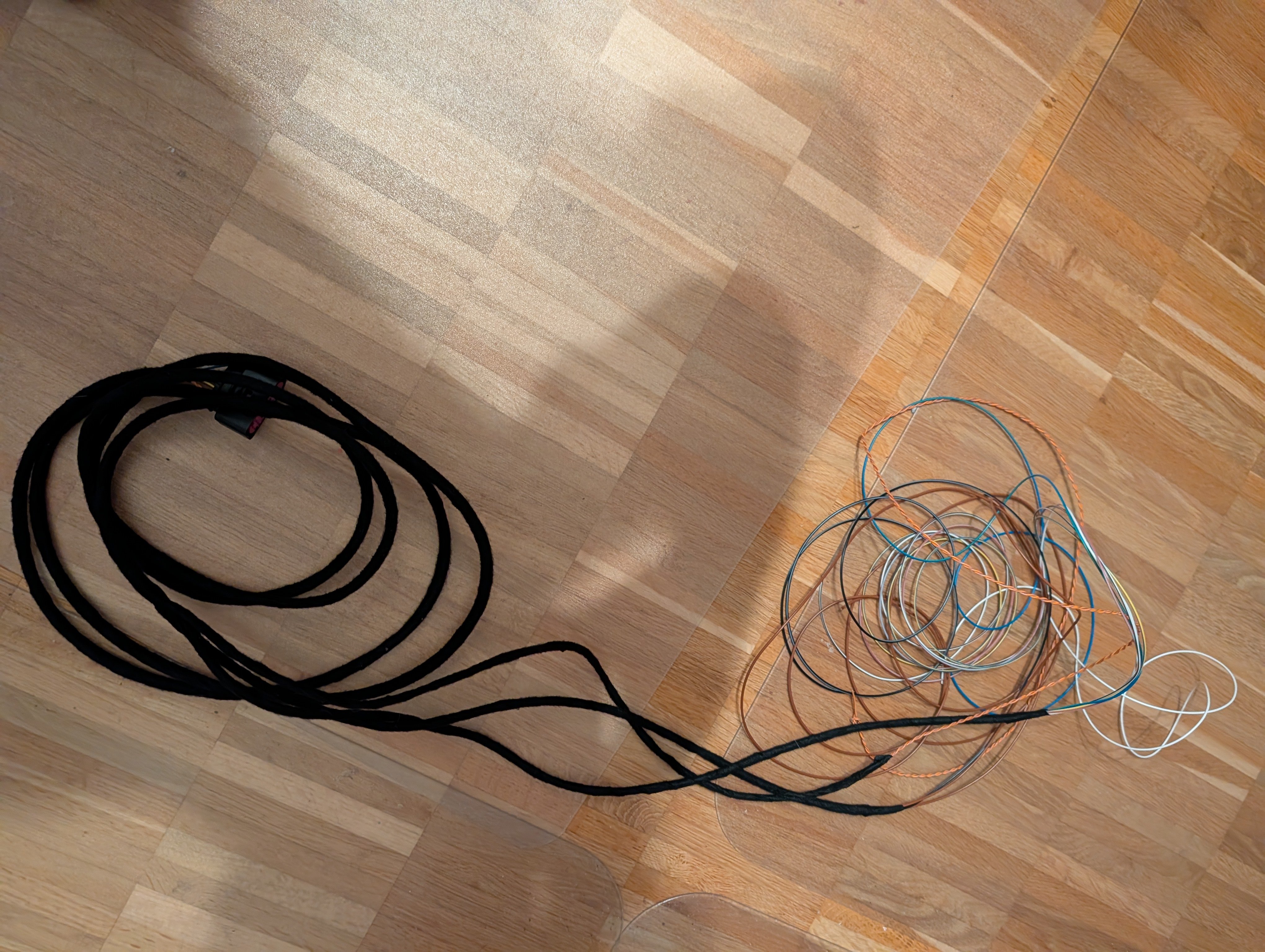
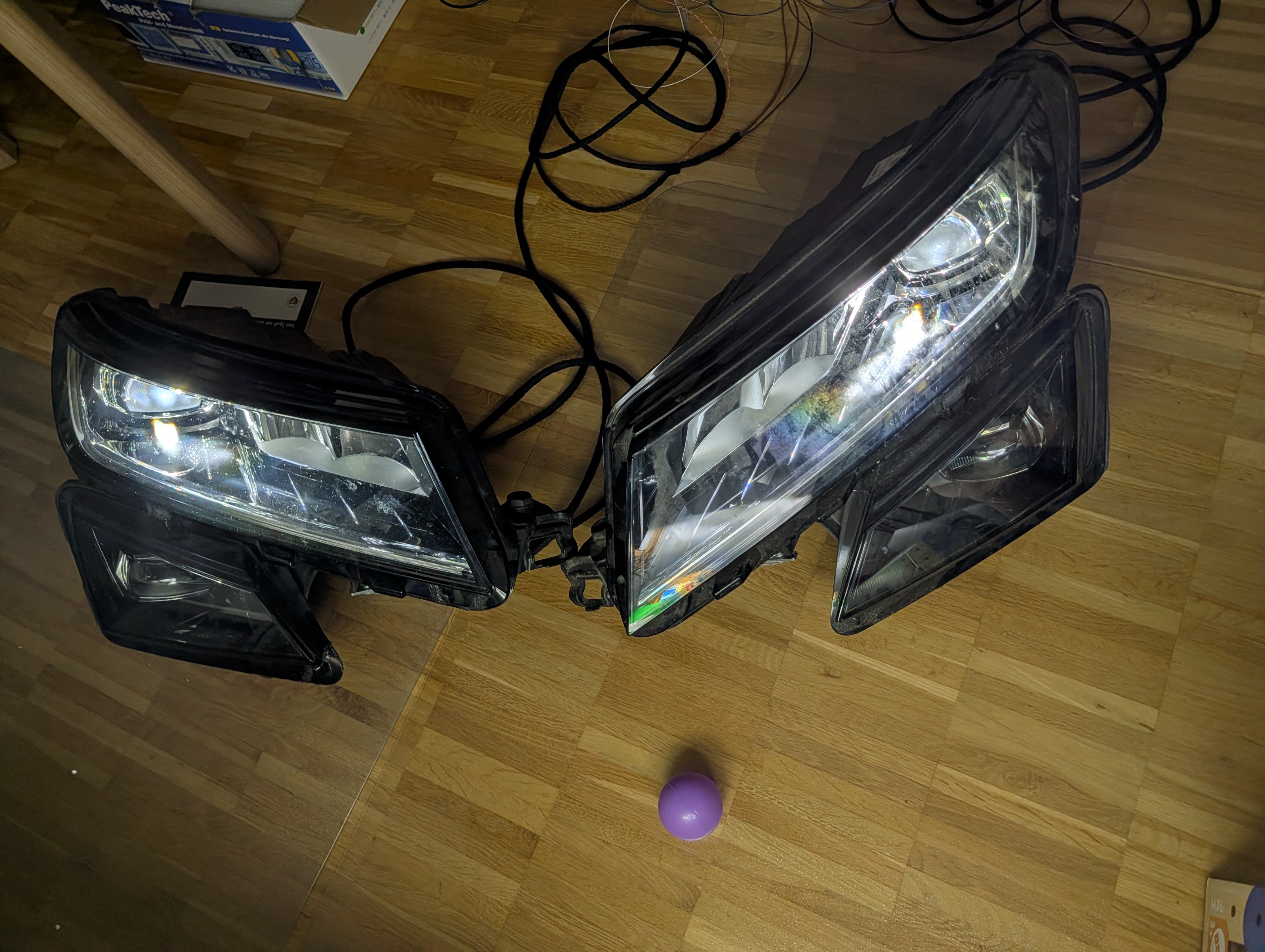
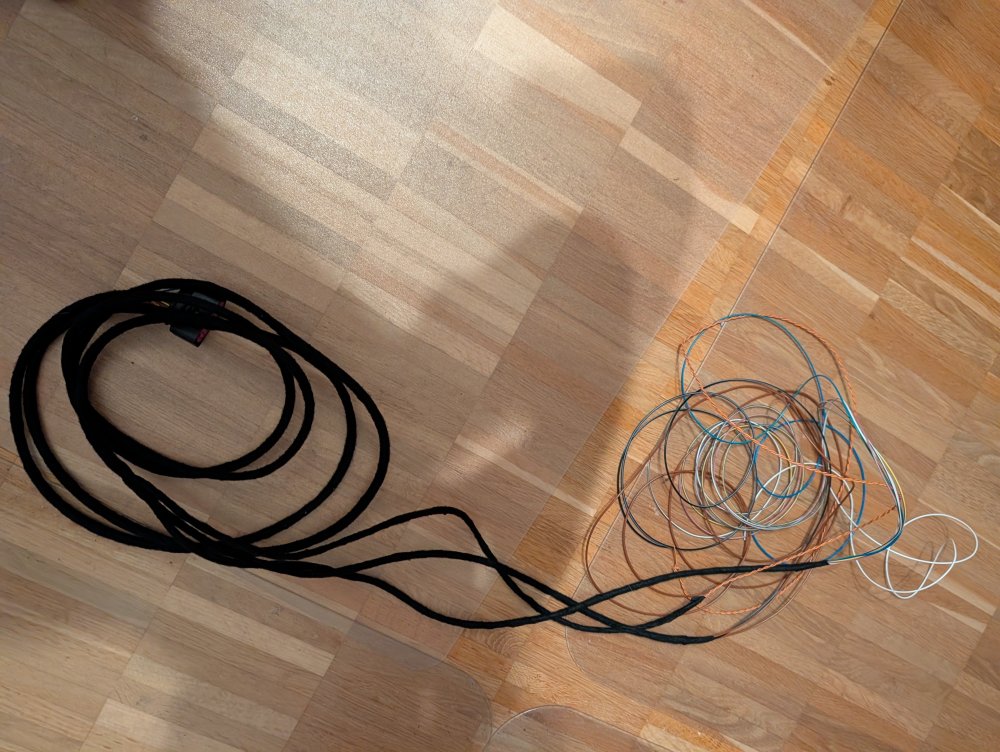
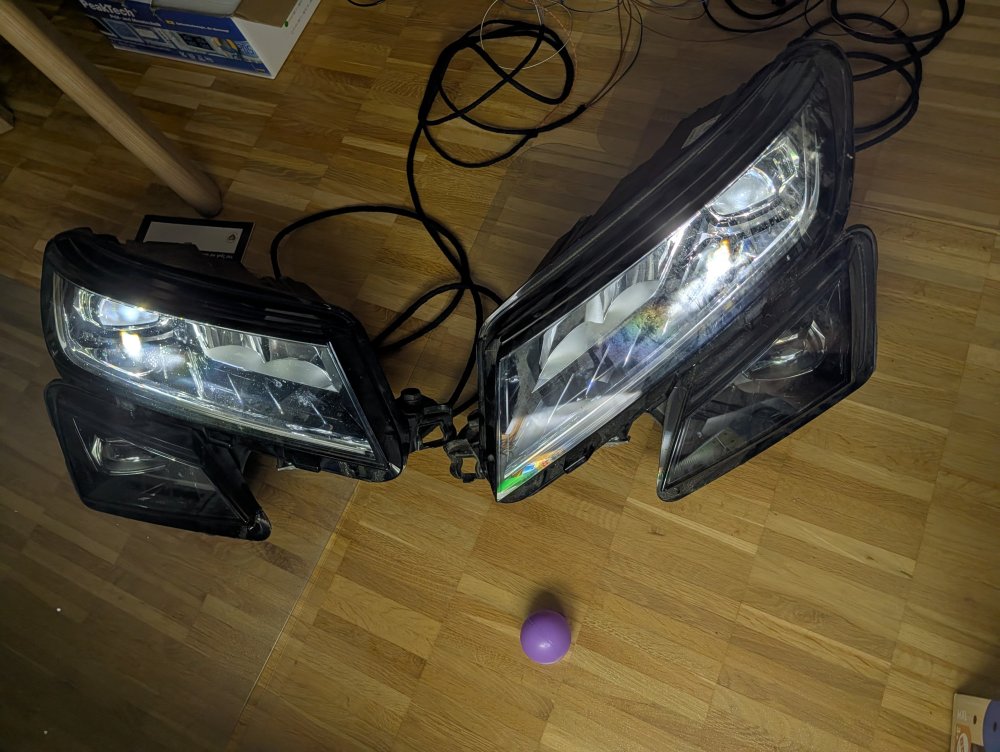
Headlight wiring harnesses manufactured and a full table setup carried out with unit 19,4B,09,D6&D7 etc. etc.
-
Sorry, yes
-
Only Show by Problem in the MFA
-
-
You read my Post?
-
Patch mib2 with Navi, SD Card Patch Without Navi, you need To Open the Unit and QNX
-
-
Screen is only for unit. 8" Columbus MIB1 works with mib2. Change unit, which you have to Patch, and Coding on your Car, Change Canton AMP
-
-
I only Update to 0332 Maximum
-
-
Canton? You need New amplyfire or someone which can Upload MIB 1 Dataset for Canton in the mib2 Display is OK, New unit MIB 2 or mib2,5 dont have Wireless Car Play