langers2k
Resident Member
-
Joined
-
Last visited
Everything posted by langers2k
-
The electrical systems are very different so a MK3 Fabia MFSW buttons won't work on a MK1 Fabia. If you really want a MFSW, I'd suggest you find one from a car with the same platform as the MK1 Fabia.
-
Yeah, a generic OBD reader quite often misses manufacturer specific codes :( Hopefully VCDS or something else VAG specific will give you some pointers...
-
It would be very unusual for the airbag light to be on with no fault codes. Can you add a full autoscan from VCDS?
-
Not sure, I've never used OBDeleven. I think a backup of the BCM might have enough information included
-
Have you got the adaption map to go with that?
-
Go to address 19, OBDeleven should be able to confirm the hardware/software versions
-
I thought DCC was a SWaP/FeC thing in the can gateway. Do you have any errors shown by VCDS? Which gateway have you got? Maybe it's too old to properly support the MIB2.5...?
-
That nozzle looks like the one fitted to the camera rather than the rear wiper
-
Pretty sure I also used ODIS-E too
-
I think it's similar to the MK2? If so, the cover will flip up and you can move the entire nozzle slightly, for more fine tuning, you can use a pin or similar to move the metal jets in the plastic housing.
-
Calibration is easy enough with ODIS but I don't think it's possible with VCDS. At least I couldn't do it Few pictures from when I calibrated mine:
-
Yup, for bog standard ACC it's all done by the radar unit. If you want some of the more advanced features like traffic jam assist/follow-to-stop, then you'll need both the radar and a highline camera capable of lane assist etc. Be warned, some radar units will only support front assist (emergency braking) and not ACC. Retrofitting ACC is not cheap, you're going to need a suitable radar unit, replacement stalks, possibly wiring and then you need to deal with component protection, any applicable FeC/SWaP codes and other coding...
-
ACC doesn't use the camera... It uses the radar behind the front grill.
-
If I were you, I'd take the cluster off and fully dry it out. Then check the lamp for any cracks/damage and inspect the seal. Assuming it's all fine, refit the cluster but make sure the wiring sits inside the car body and isn't preventing the seal from making a good connection with the car body.
-
Erm, not sure if you can do it via the Columbus. I'm sure there is a map delete CD somewhere for the Columbus. Otherwise, if you have some older maps you could try installing them. I haven't got a Columbus to play with anymore so it's hard to give more concise instructions I'm afraid.
-
The pre-fl lights are the wrong shape for a FL bumper... You either need to swap everything or customise the bumper so it'll fit your lights.
-
The part number you want is on the face of the mirror motor. You can see if in yellow here:
-
I doubt you'll get any warning lights from unplugging the bt module 👍
-
Unplug the BT module. It's probably under one of the front seats...
-
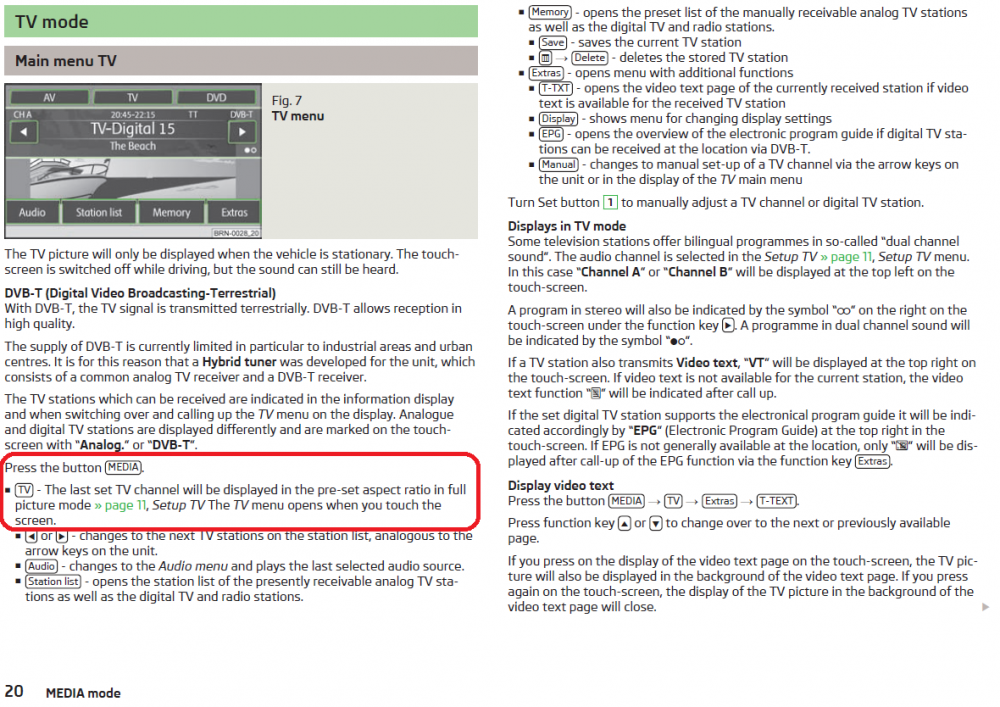
From the user manual: Yup, 57 is one above 56. Example autoscan with a Columbus (37 and 56) and TV tuner (57) installed: https://forums.ross-tech.com/index.php?threads/12823/
-
EQ settings tend to be a very personal thing, move the bars and see what sounds best to you
-
You know you have it as you can watch TV It's a separate device, I think it lives behind one of the boot panels. It should also show up as a module during a diagnostic scan, address 57 if I remember correctly.
-
Given your posts so far, I'd suggest you just grab a genuine card, they aren't expensive. Changing the CID is easy if you have the right knowledge, tools and SD. At least when I last did it, you needed: - a basic knowledge of linux and it's command line - a laptop with a 'real' SD card reader (not internal or external USB) it should show as /dev/mmcblkX (not /dev/sdX) - a suitable Samsung SD card (I believe they fixed the 'bug' that allowed CID changes in late 2017...) I believe you can also do it via an Android app called "SD Insight" but I've never used it and will only support certain phones. Couple of links that might help: - Thread with some suggested CID's for a MIB1 headunit: https://cartechnology.co.uk/showthread.php?tid=33768 - Youtube video of someone changing the CID: https://www.youtube.com/watch?v=tbWXsSaAb2M Good luck.
-
Yup, should be fine using VCDS, certainly worked on 20.4.2.0 when I updated my headunit. Quick google...
-
Please read my previous replies! The only difference between a 'genuine' and 'non-genuine' SD card is the CID. - If you have a SD card that allows you to change the CID, then do that - If not, buy a genuine card with the correct CID