Cairus
Members
-
Joined
-
Last visited
Everything posted by Cairus
-
Es ist aber eine Codierung. Steuergerät 13 Byte 24 Bit 04 Steuergerät 17 Anpassung Anzeigen Längsregelkoordinator Gra It is a coding setting. Control Unit 13 Byte 24 Bit 04 Control Unit 17 Adaptation Display Longitudinal Control Coordinator Gra
-
Once again, the ACC function is protected by a SwaP key. If you didn't have factory-installed ACC, this key is missing. Without the key, there is no active ACC. not always
-
@sussamb is possible Virtual Cockpit? Which HW and SW Number have unit 13?
-
-
Swap prodection You have to Patch ACC
-
ROW 308 No warrenty https://mega.nz/file/Uu9QUa7I#6xdYdHcfsO8hfYv1SW_ONWPuZBzYe3y6qsFwCooGrJQ
-
-
What's this about? Disabling pACC? Disabling TSR?
-
The correct 5F coding would be: > Channel "Car_Function_List_BAP_Gen2- traffic_sign_recognition_0x21" > Set value to "activated" > Channel "Car_Function_List_BAP_Gen2- traffic_sign_recognition_0x21_msg_bus" > Set value to "Data Bus Extended" > Channel "Car_Function_Adaptations_Gen2- menu_display_road_sign_identification" > Set value to "activated" > Channel "Car_Function_Adaptations_Gen2- menu_display_road_sign_identification_over_thresh_old_high" > Set value to "activated" If an error occurs in the ACC (if present), activate bit 0 in byte 1 of control unit 13. However, Kodiaq models from 2021 should have a 2Q camera, and then the traffic sign recognition is protected by SwaP.
-
You have a unit only with 1 SD Slot. Patch only works direct on emmc with QNX
-
Which unit is installed ?
-
There are now two ways to retrofit an MIB 3 MQB system. So, not an MIB 3 EVO. You can use the original 8" display, or you can install a 9.2" display somehow. ... I looked at both solutions... I tested an 8" VW unit, part number 3G5035820M. It's important to note that with TechnikSat/Preh/Joynext, the software version must not exceed 0332, otherwise the device cannot be patched. I have a USB solution for CP Off and all FeC Active. For it to work, the online services must be deactivated via coding. Then the coding needs to be adjusted. I find the VW HMI simply awful. Therefore, VW is out of the running for me. There are also 8" Seat or Skoda units. Alternatively, there's the larger MIB 3 MQB with a 9.2" screen. I used a Seat Ateca unit, part number The Display Octavia 3 9,2" is 5E0919606D The Ateca unit is from LG. Here I disabled CP and modified all FeCs with an EEPROM change. So, I created a dump, made the changes, and then wrote them back. Caution: With SFD 1 units, all coding and adaptations must be done beforehand, before patching. What else needs to be considered during the conversion, as the USB port will no longer function? This means the USB connection needs to be replaced. I used the following components: USB-C dual board, part number 5NA035736 The control method is now different; the new boards are powered by 5V from the MIB 3 and 12V from the vehicle's electrical system. The data line is also wired differently. Either modify the connectors on both ends of the cable (the MIB side needs to be plugged in rotated 90°) or buy an MIB 3 cable set: 2GD035736 Autoteile Dual Typ-C Schnittstelle Frontladestecker für VW ID6 Jetta 2019-2024T-Roc 2018-2024 https://a.aliexpress.com/_ExSqe7C The journey to our holiday destination went without any problems; it was about 400km. For people without a sound system, not much changes. In my Octavia 3 without a sound system, it can still be optimized with data sets, etc. However, if you have the internal sound system in your Seat, like me, you'll run into problems with the MIB3... the MIB3 only supports 8 channels, so my center speaker and subwoofer are non-functional. Existing sound systems in Skoda vehicles should be codingable in the MIB3 without any problems.
-
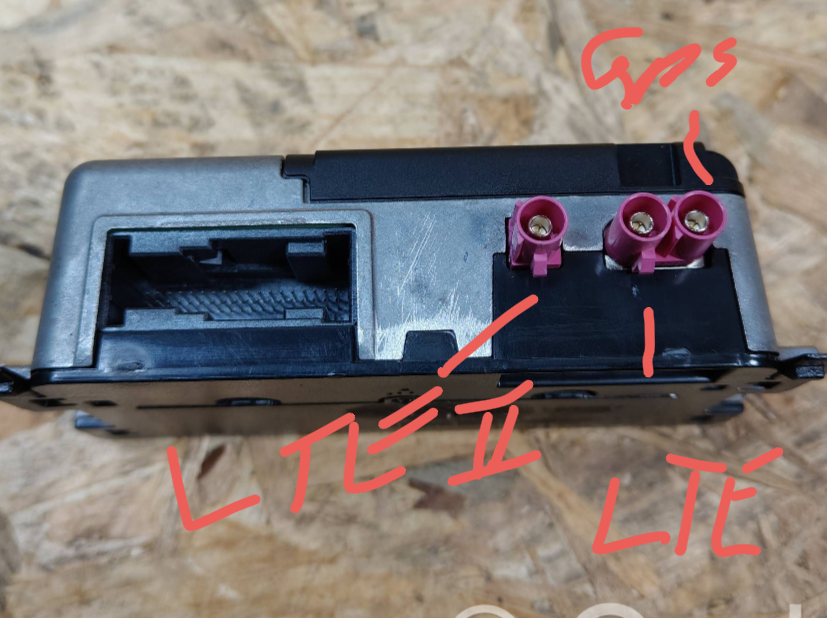
Retrofit OCU 3 High for MIB 3 GPS Signal Thread startercairus Start dateToday at 06:14 TagsNone Reply Leon Mk3 (2012-2020) Cover Unwatch ••• cairus cairus Active Member Today at 06:14 Add bookmark #1 Ich möchte die Informationen teilen, da ich entweder ein MIB 3 für 8" oder MIB 3 für 9,2" im Leon nachrüsten werde, bzw schon Testläufe hatte. Welche OCU habe ich im Einsatz: Hardware Teilenummer: 5WA035284B Software Teilenummer: 5WA035284E Es ist wichtig, das die Hardware Teilenummer Index B hat. Habe den Datensatz vom Ateca in Verwendung sowie die Codierung angepasst. Benötigt wird folgendes Pin Out: T36a/12 ---> Klemme 30 T36a/25 ---> Klemme 30 T36a/7 -----> Klemme 31 T36a/35 ---> Ethernet - T36a/36 ---> Ethernet + T36a/5 -----> CAN Komfort Low T36a/6 -----> CAN Komfort High Antennen Anschlüsse, siehe Bild I'd like to share this information because I'll be retrofitting either an MIB 3 for 8" or MIB 3 for 9.2" in my Leon, and I've already done some test runs. Which OCU am I using? Hardware part number: 5WA035284B Software part number: 5WA035284E It's important that the hardware part number has index B. I'm using the data set from the Ateca and have adjusted the coding accordingly. The following pinouts are required: T36a/12 ---> Terminal 30 T36a/25 ---> Terminal 30 T36a/7 -----> Terminal 31 T36a/35 ---> Ethernet - T36a/36 ---> Ethernet + T36a/5 -----> CAN Comfort Low T36a/6 -----> CAN Comfort High Antenna connections, see image
-
https://mib.plain.gg/
-
https://mega.nz/folder/0uUXwJpI#_tAZkDLwN4rWT3JSV4dYBQ
-
The data set has nothing to do with basic communication.
-
Is it a OEM?
-
-
-
Wait i send in View minutes a Long Code
-
Start the vehicle, switch on the seat heating and rear window heating. Measure the battery voltage; it should now be 14.2–14.8V.
-
You have try my Test?
-
How old ist the Battery?
-
Why you want Update?
-
Test Coding is with TRS