Leaderboard




.jpg.1006585dfe4e2977315b67c3d642e37b.jpg)

Popular Content
Showing content with the highest reputation on 14/10/20 in Posts
-
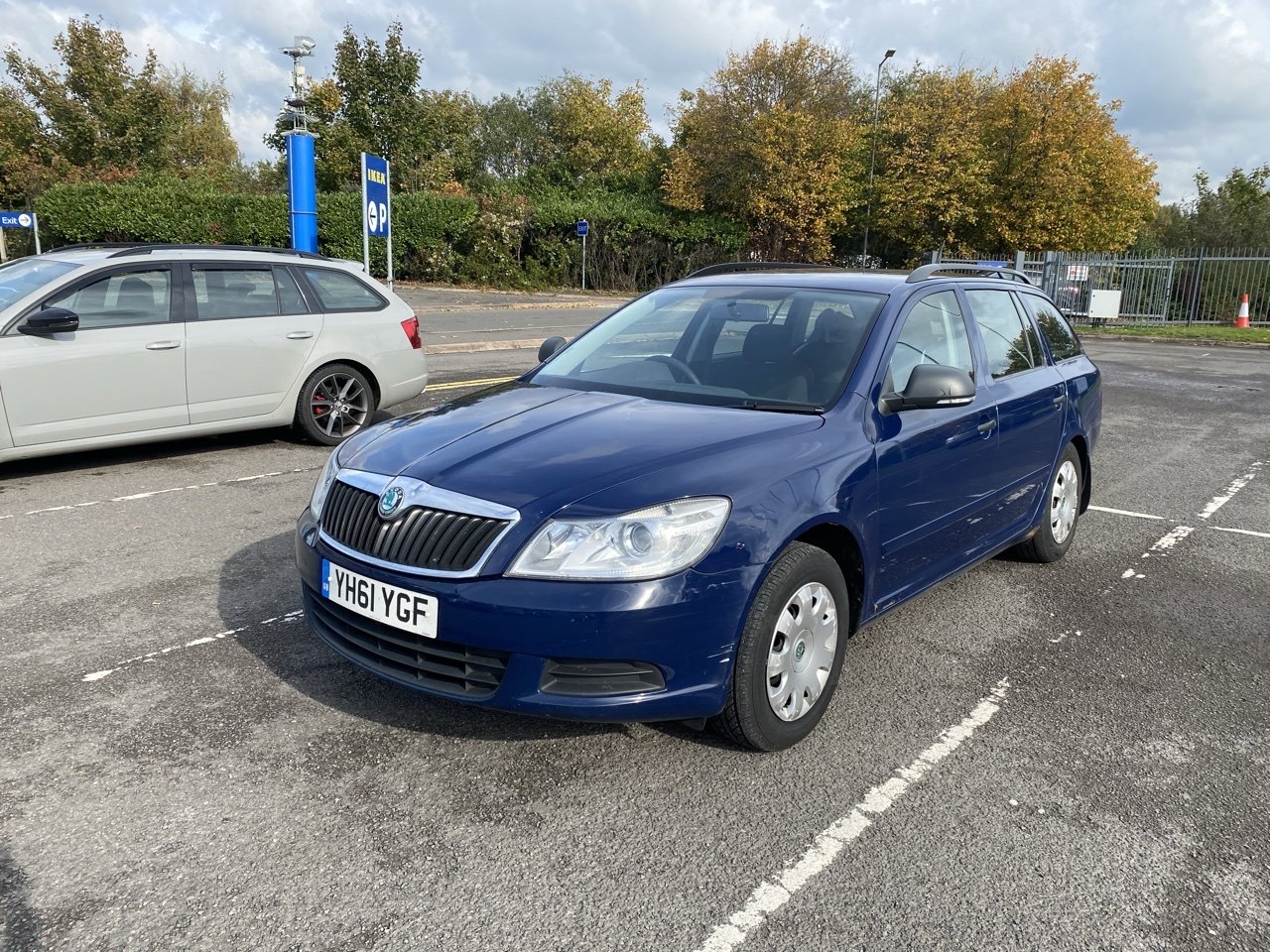
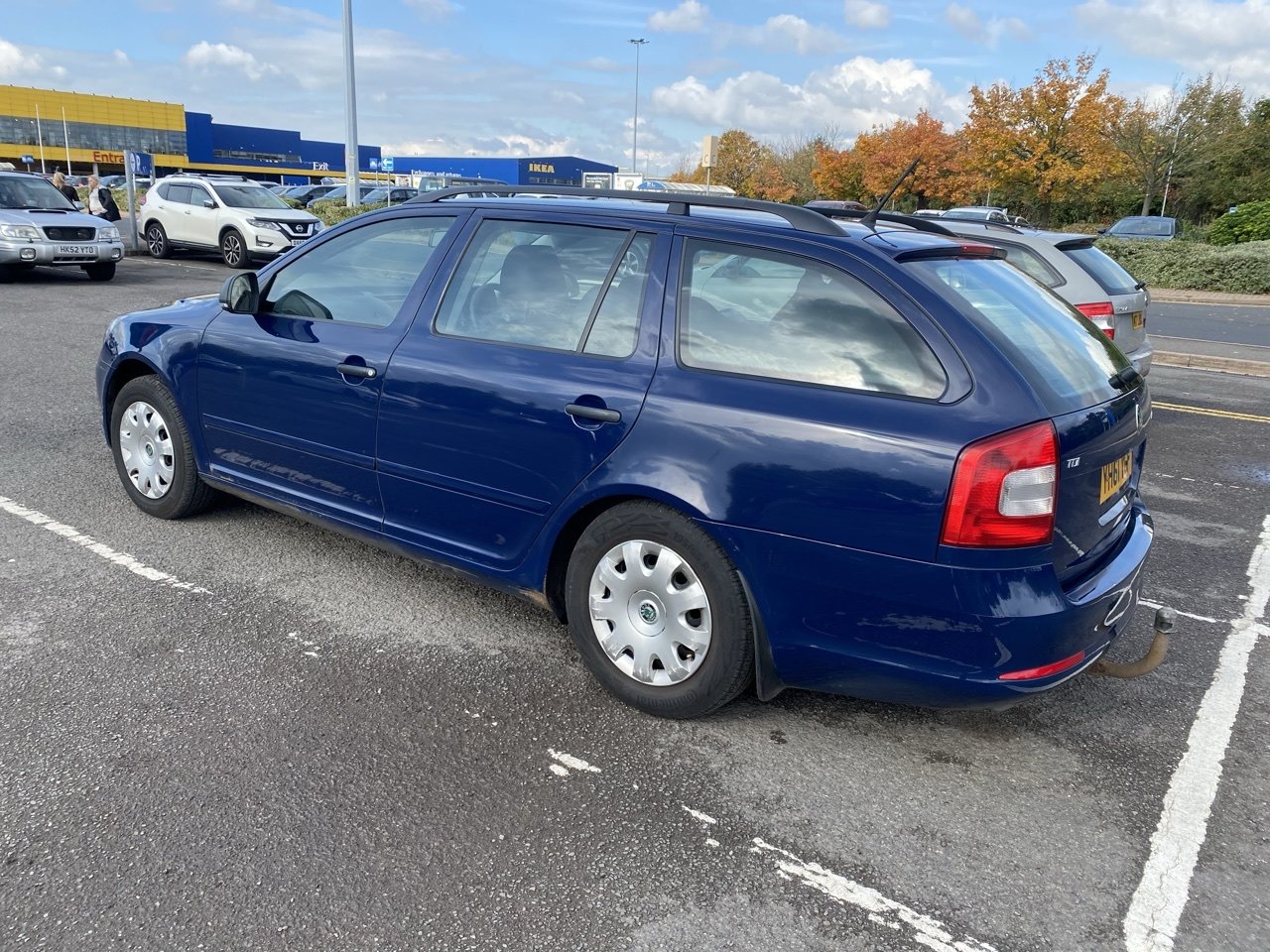
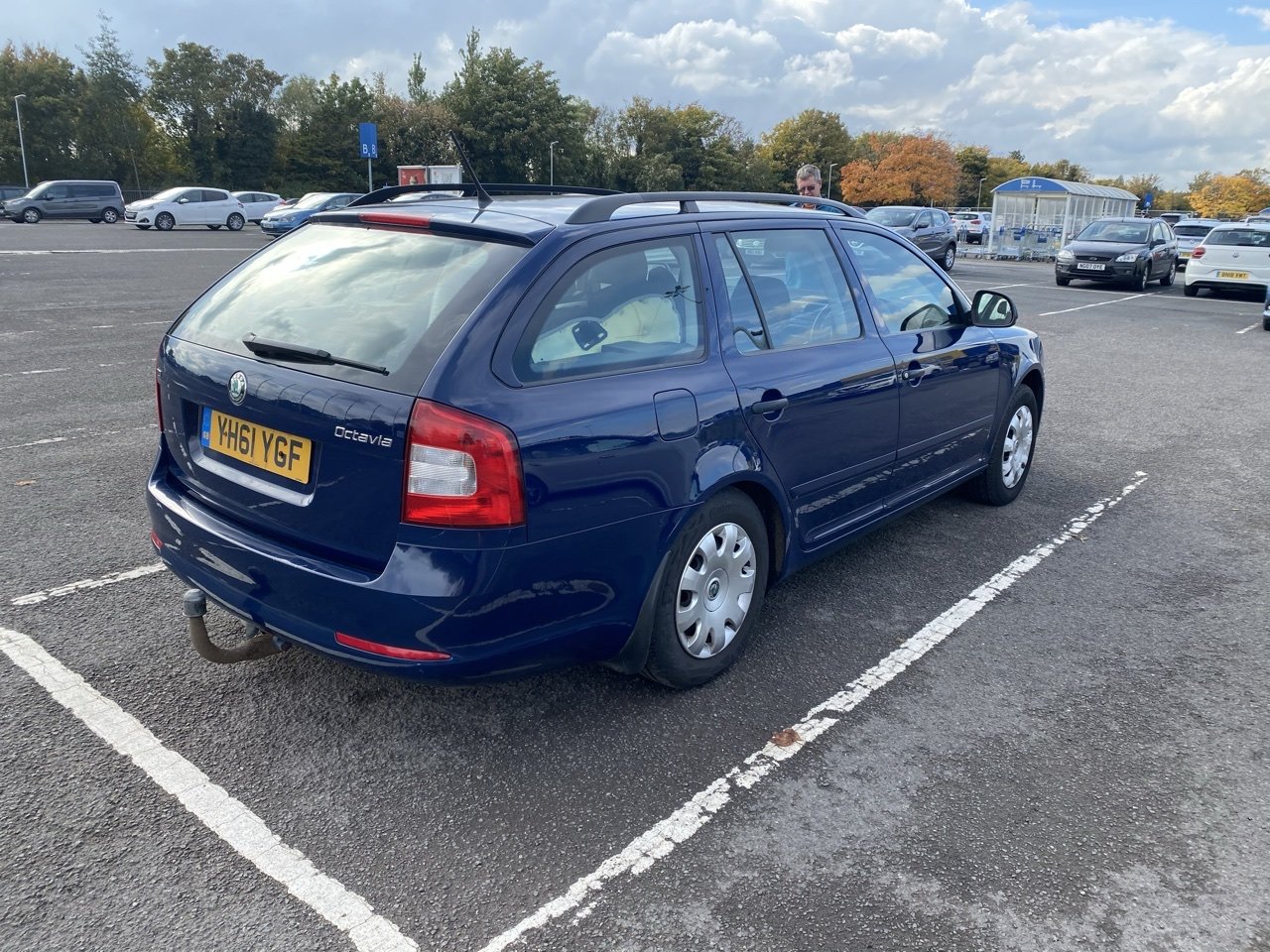
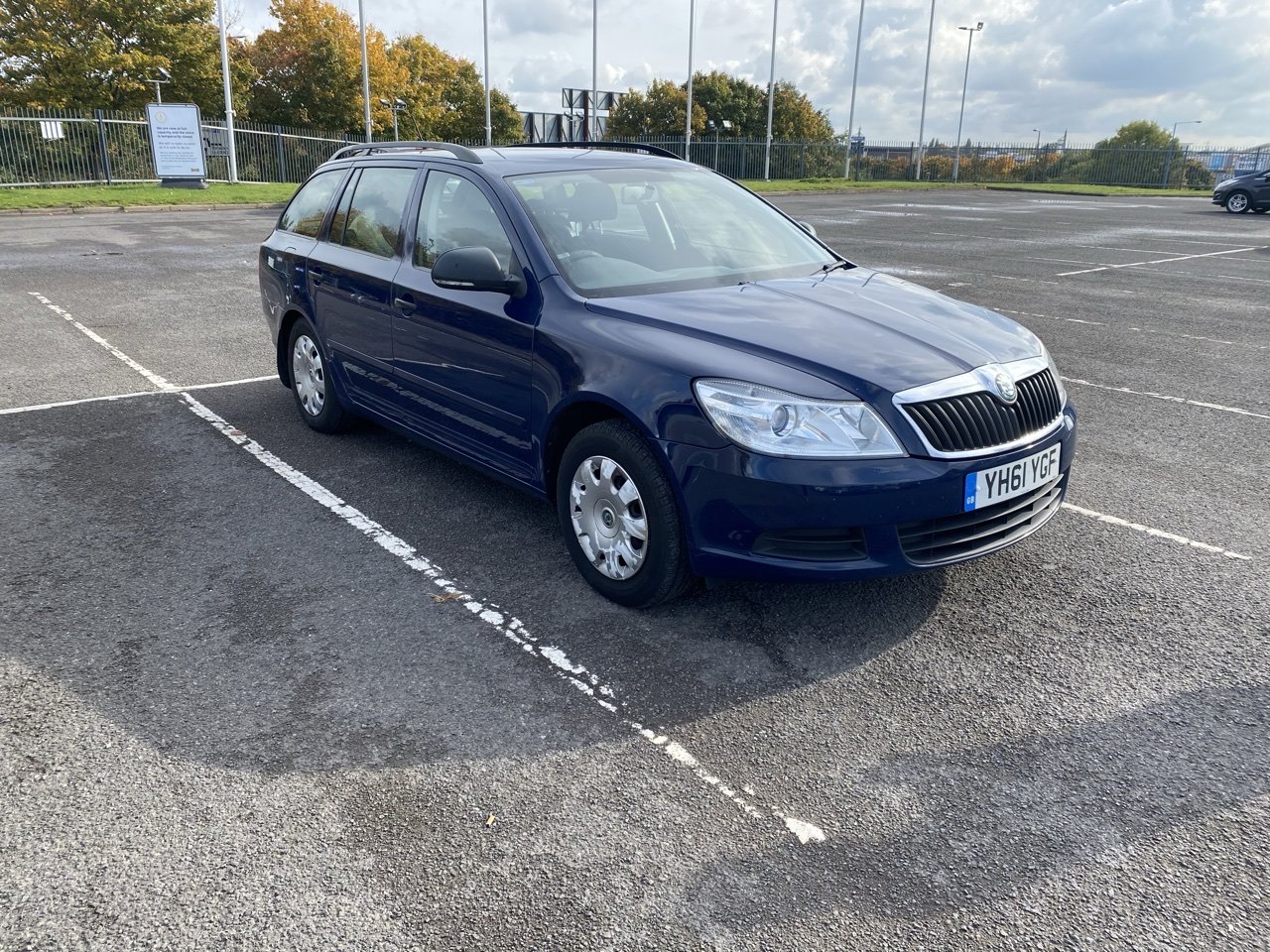
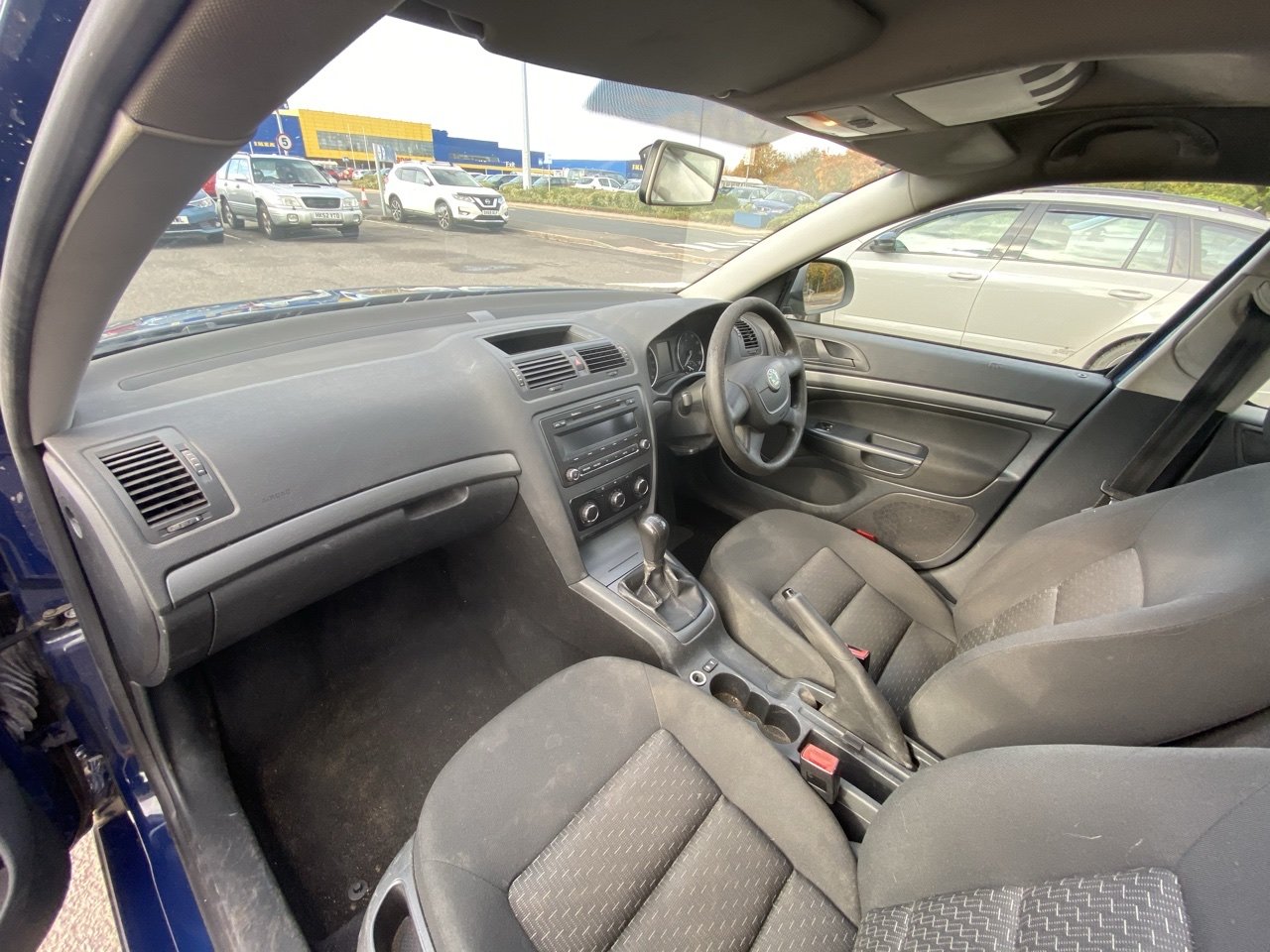
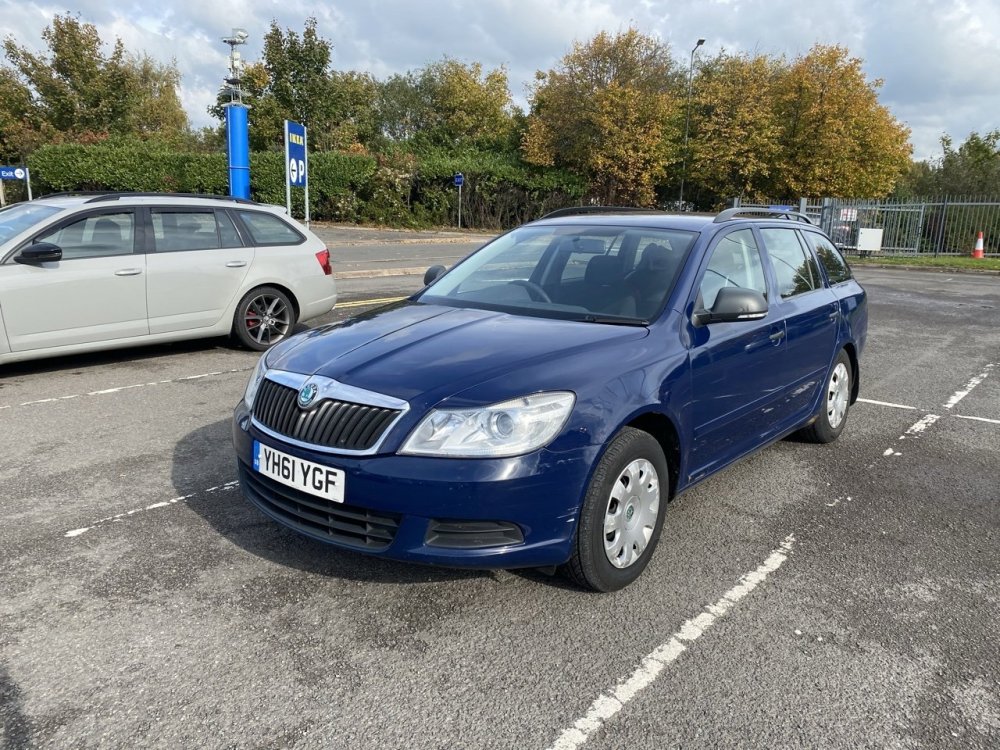
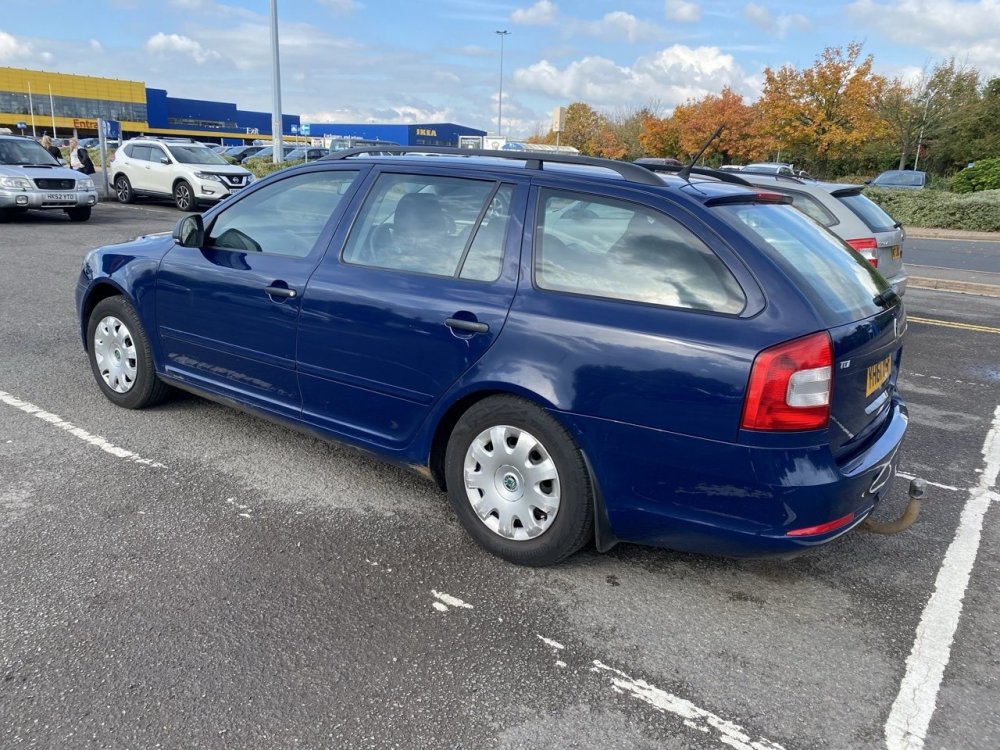
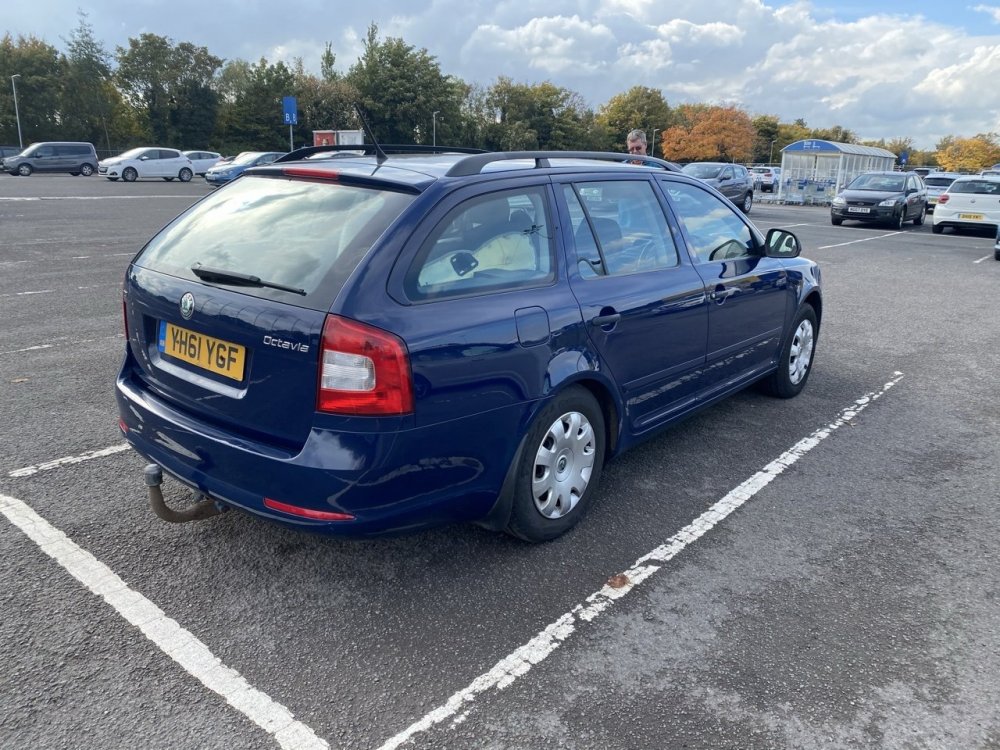
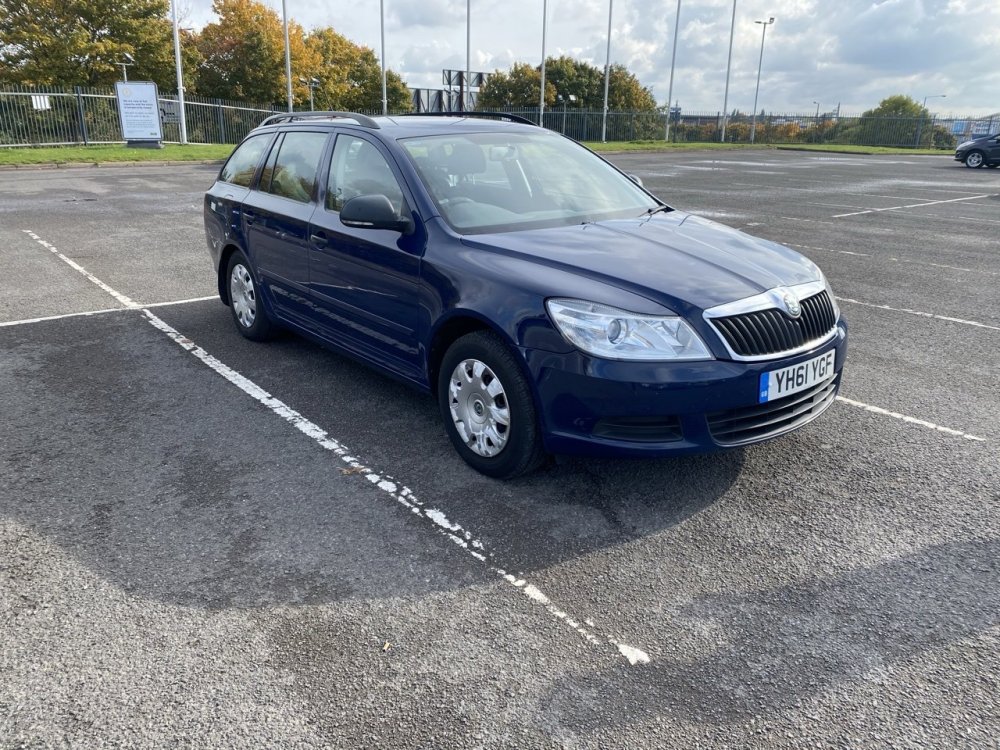
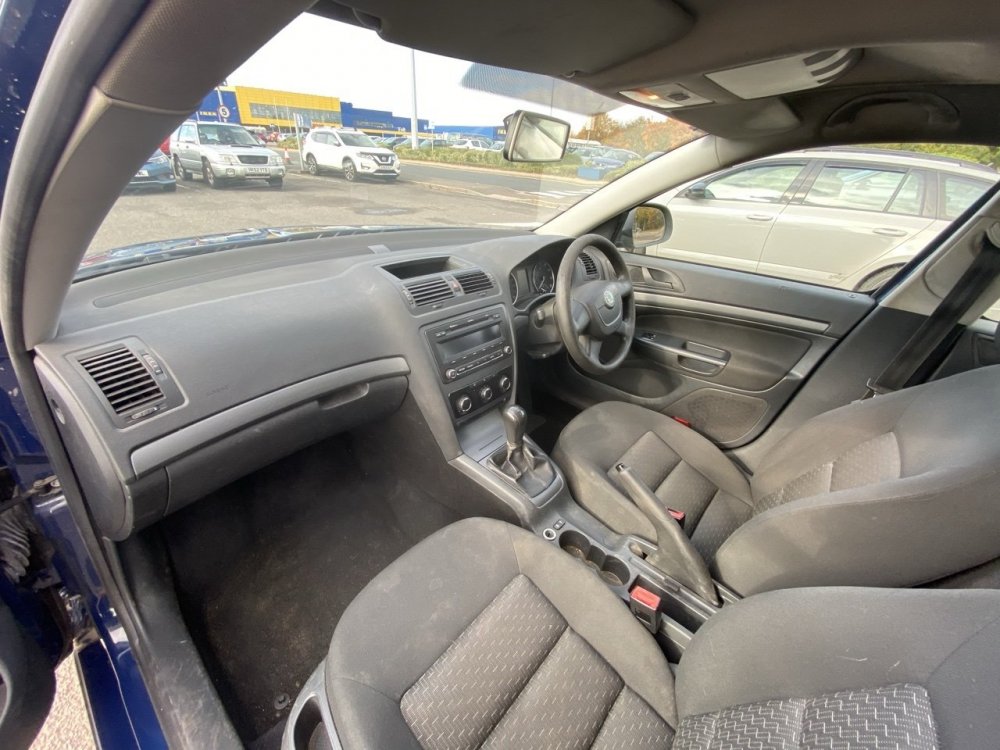
1 pointWelcome everyone to my Dad’s new workhorse, this 2011 61 Octavia 1.6 TDI S. It’s very very basic (no remote locking basic) and it’s sitting down at the rear as it’s full of my new seats lol but yeah, other than some general detritus, bit of surface rust in places and a flashing glow plug light as the brake pedal switch is faulty (love the OBDEleven for convenient fault finding on the spot) which I negotiated down on and it’s impressive 202,500 miles I’m extremely impressed with it. Some tidy up, some mods and some retrofits are coming and with some shrewd negotiating we stole it with MoT till November 2021 and £30 annual road tax at £1200 😀 Things that have already been ordered: Leather steering wheel Leather gearknob and gaiter Cruise control and trip computer stalks (it already has a cruise control ready clock spring) Jumbo box, armrest, leather handbrake with the Aux port Brake pedal switch Full service gear Right indicator in the mirror as it doesn’t work Things I need to work out and would appreciate help with as I’m new to the 1Z platform Remote locking - super surprised it doesn’t have this as I’d have thought by 2011 even the S would but hey ho, is it a case of a new CCM with remote function, take the transponder from a key, do the coding to match and a remote and an extra wire for signal boost? Can I use the blade from one of the keys here or will I have to get a new one cut? Also, how do you get into the non remote keys? Rear speakers? Is the wiring there for these or does it have to be added if we want them? Can’t wait to learn more about the Mk2, super impressed with it already!
 1 point