Leaderboard
-
.jpg.1006585dfe4e2977315b67c3d642e37b.jpg)
Guest_
FREEDOM9Points83,824Posts -
Breezy_Pete
Sponsor9Points24,576Posts -

EnterName
Resident Member7Points3,811Posts -
Kenny R
FREEDOM7Points4,781Posts




Popular Content
Showing content with the highest reputation on 06/08/21 in all areas
-
2 pointsI run a 1970's Triumph. It has to be run on at least 97 RON fuel or it misfires, runs on etc. It will pink very easily if the timing isn't spot on, the original settings are now useless as fuel has changed so much, so its done by ear rotating the distributor in tiny increments. Its fitted with ethanol proof fuel hose to stop it being dissolved, but its the effect on the rest of the system thats most concerning. 40+ year old seals and floats are delicate enough without being attacked by the ethanol. Andy2 points
-
2 points
-
2 points
-
2 points
-
2 pointsRoyal Dutch Shell and Greenery that supply Tesco Momentum and Esso Super Unleaded in much of the UK are partners in importation and storage and distribution in the UK. As to the additives, detergents and anti foamers etc there is so much nonsense and hype about that and the super unleaded. The 99 or 97 octane with others is the minimum figure you are buying. Any tanker delivery can **** up deliveries but then it is thousands of litres and hundreds of customers might get fueled wrongly. As to Royal Dutch Shell as bad fuel there has not been as bad a co-ckup as when they introduced the new Formula and wrecked many an engine. The bio added will be up to the max figure and not above. If anyone ever worried about bad fuel being purchased these days there is social media and finding other customers that used the same filling station as you is dead easy now. Tracking of fuel and any filling stations where the wrong octane goes in tanks is easily found out. After all the filling stations pay the tax and duty as the fuel is delivered and then the customers are paying tax and duty to them. I know of one filling station that during a fuel shortage sold 95 Ron as Shell V-Power Nitro +, it was not very long until some drivers with cars that so not like running on 95 were back as t the station and demanded refunds, compensation and basically the balls of the greedy aid that owned the place. EDIT / 2022 update now on E5 Super Unleaded.
.jpg.3125813bcac7e751b91722e0efc8d26e.jpg) 2 points
2 points -
This is like a case of Déjà Vu for us. When we bought our Karoq in 2018 there was also a shortage of parts, not micro chips but seats. We managed to dodge any delays on that occasion so hopefully history will repeat itself and our Enyaq will be delivered on time....2 points
-
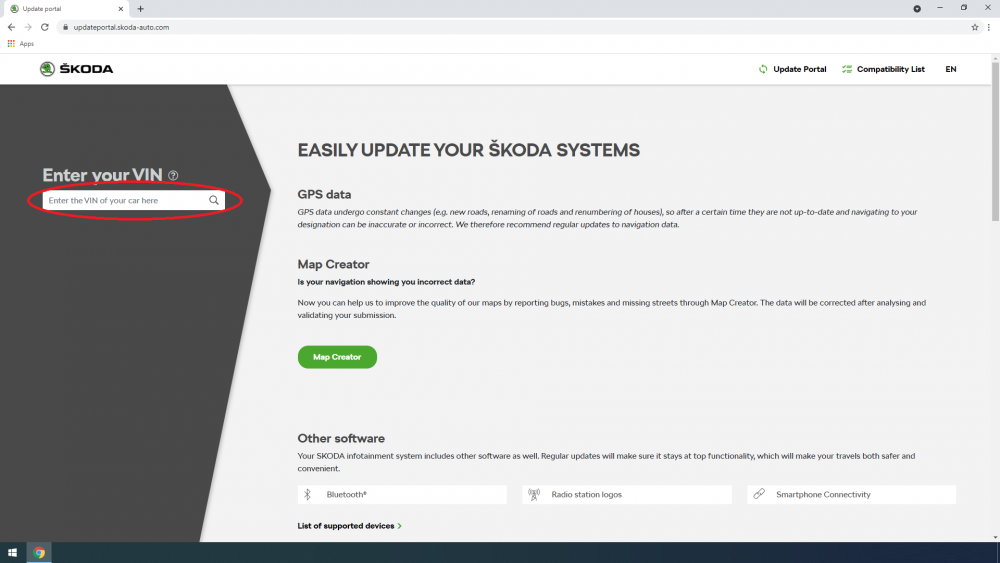
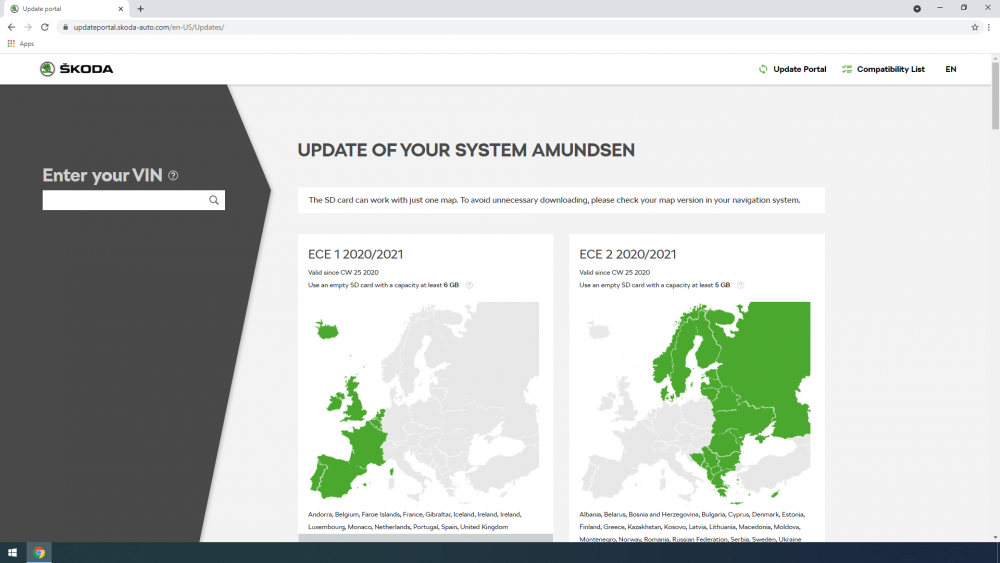
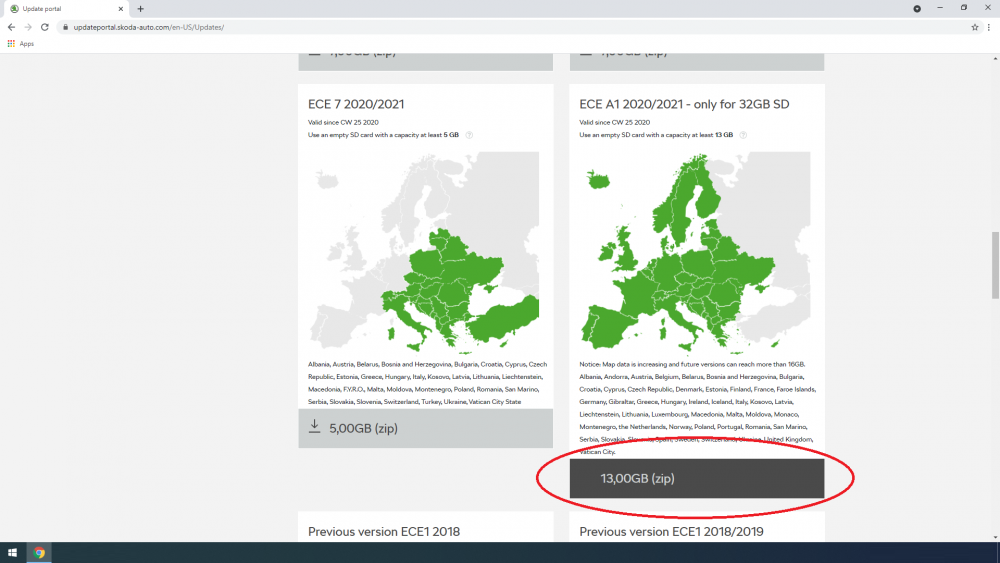
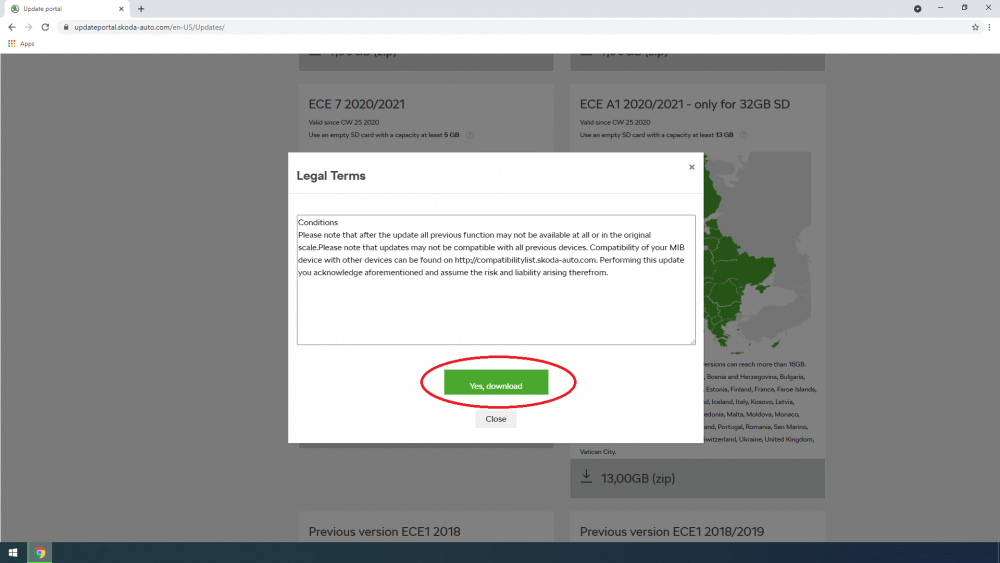
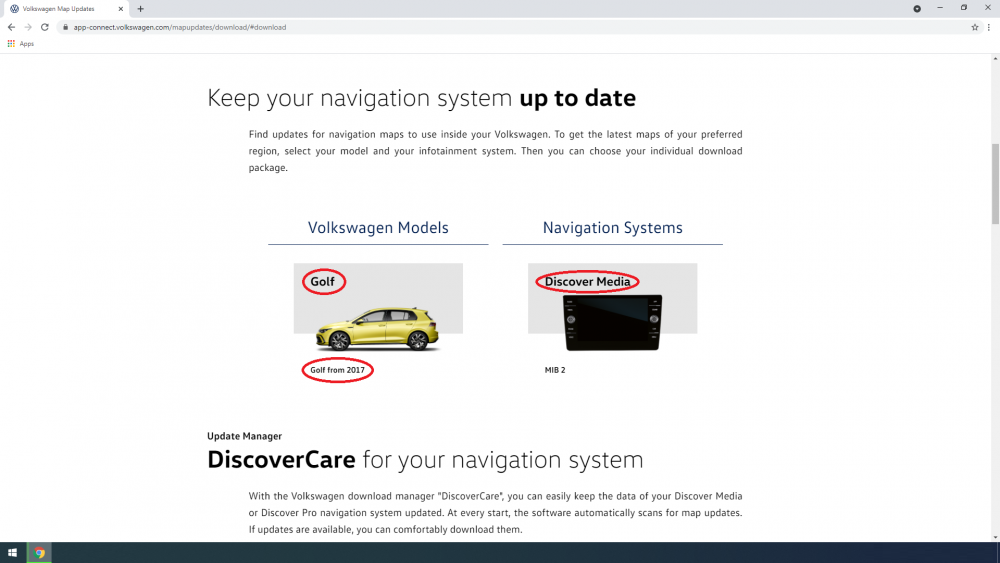
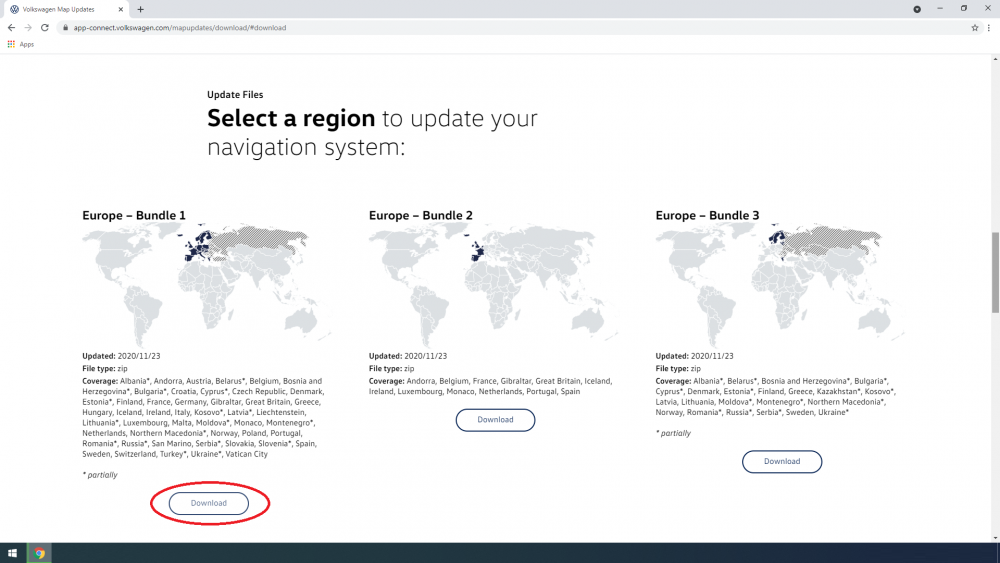
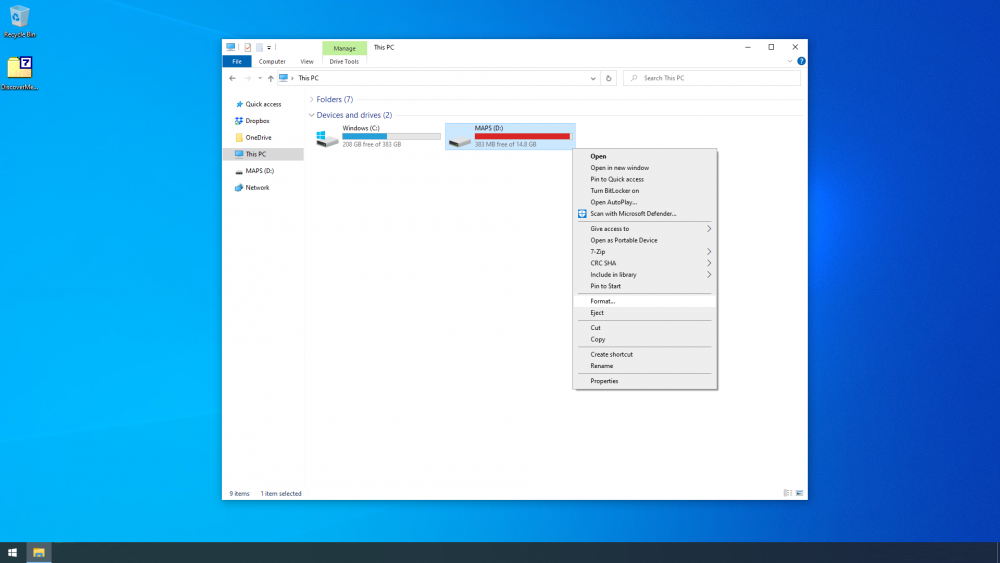
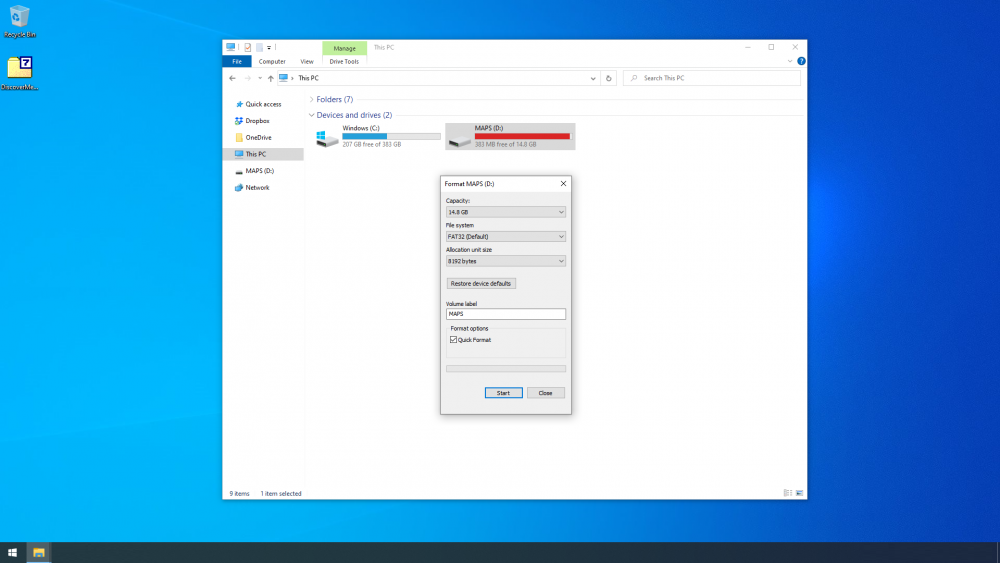
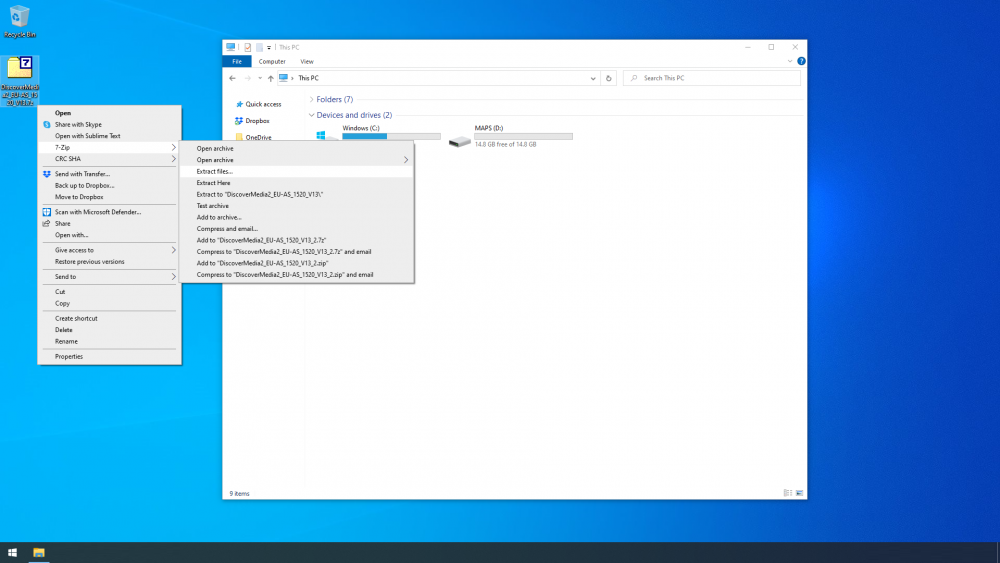
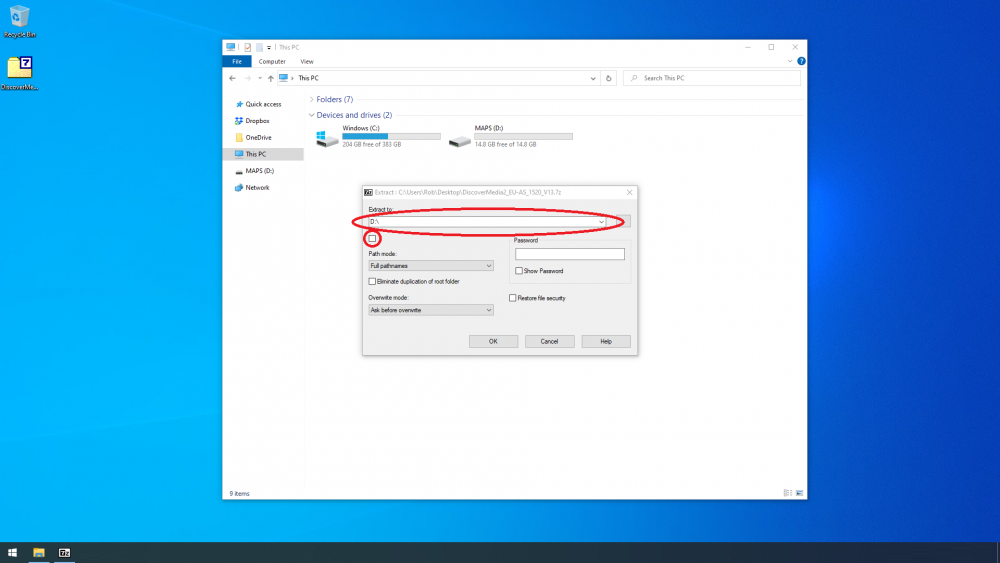
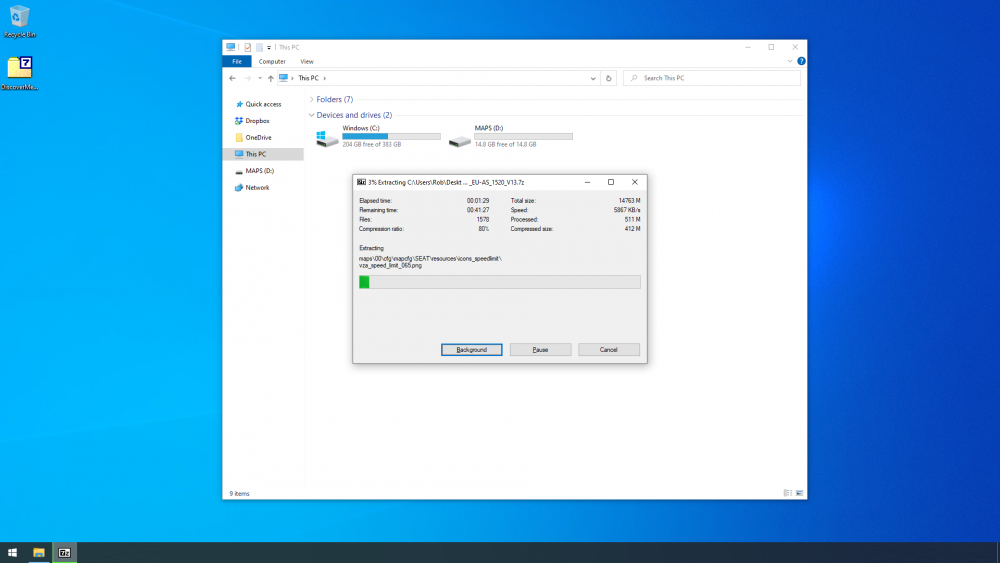
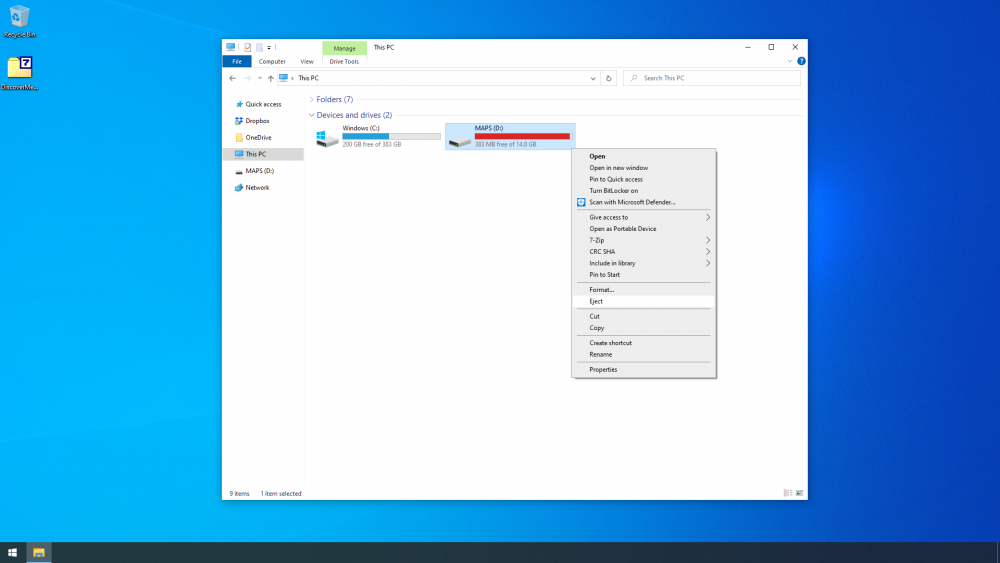
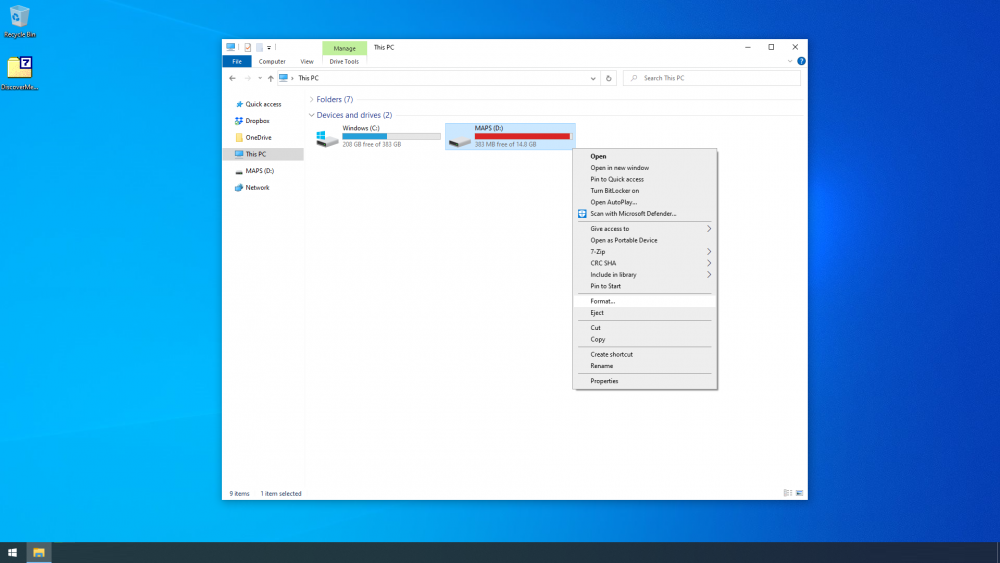
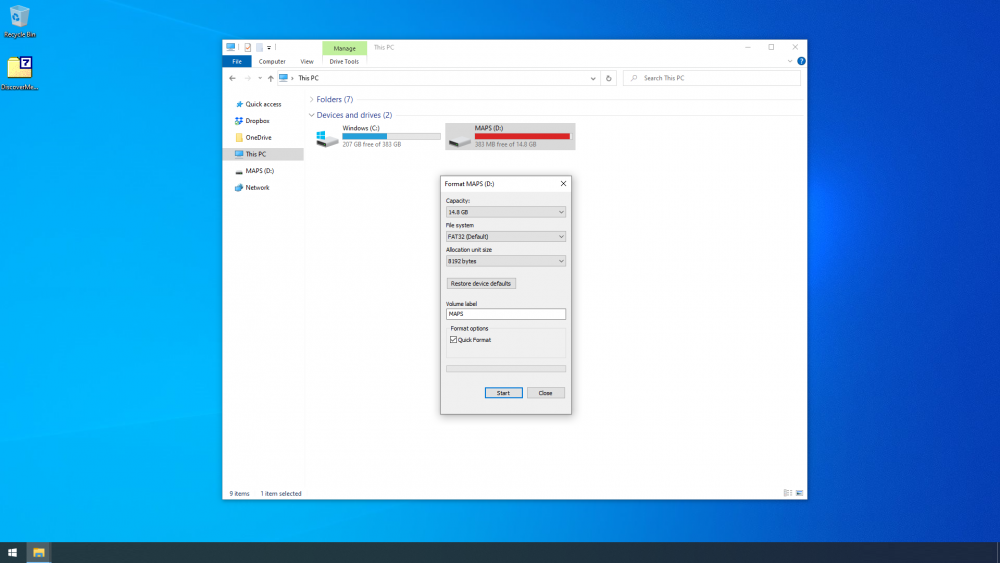
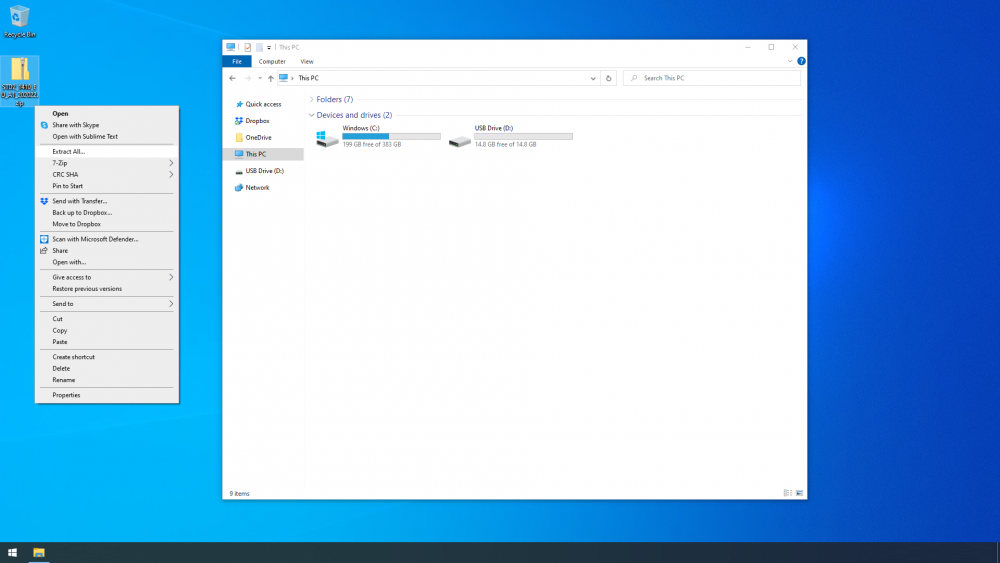
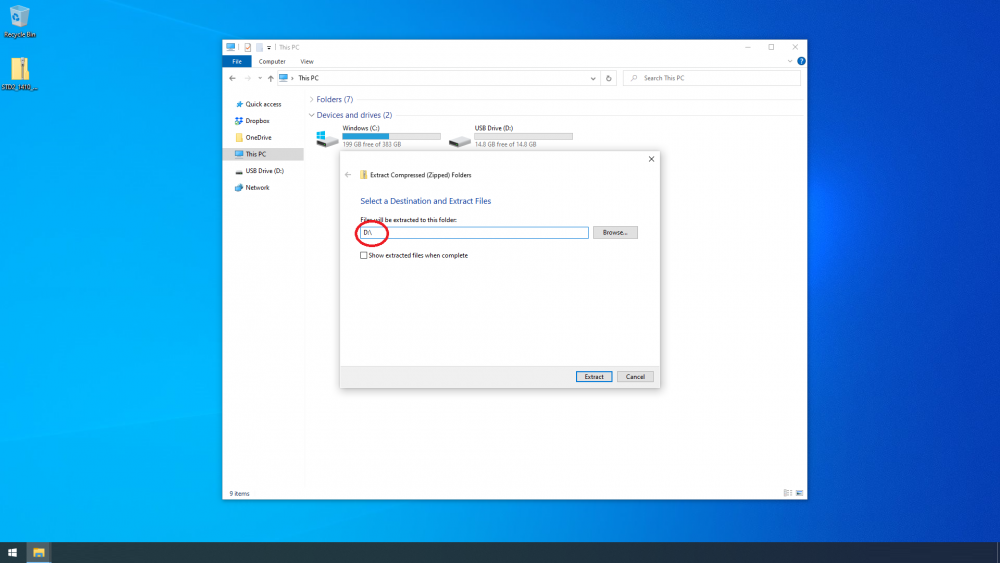
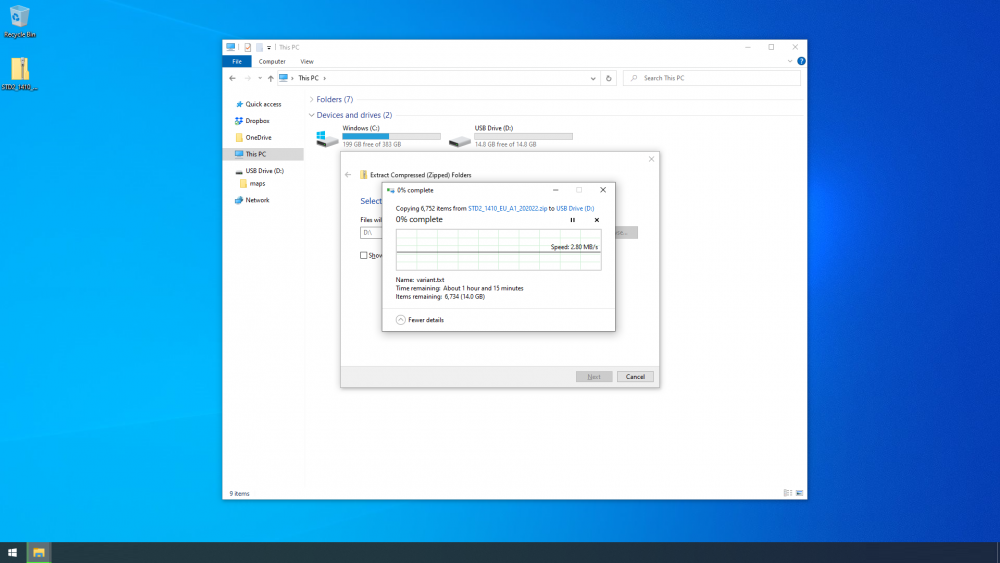
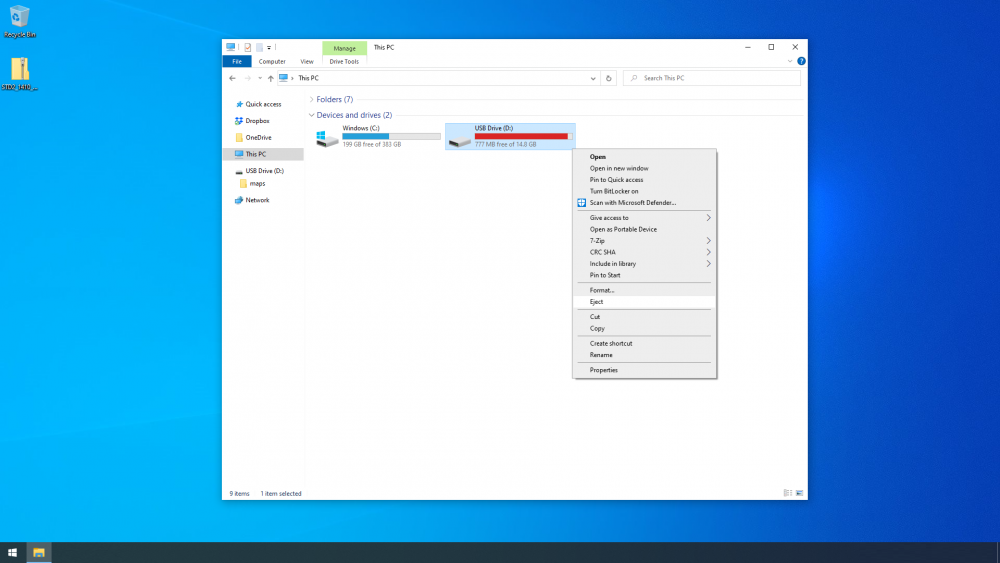
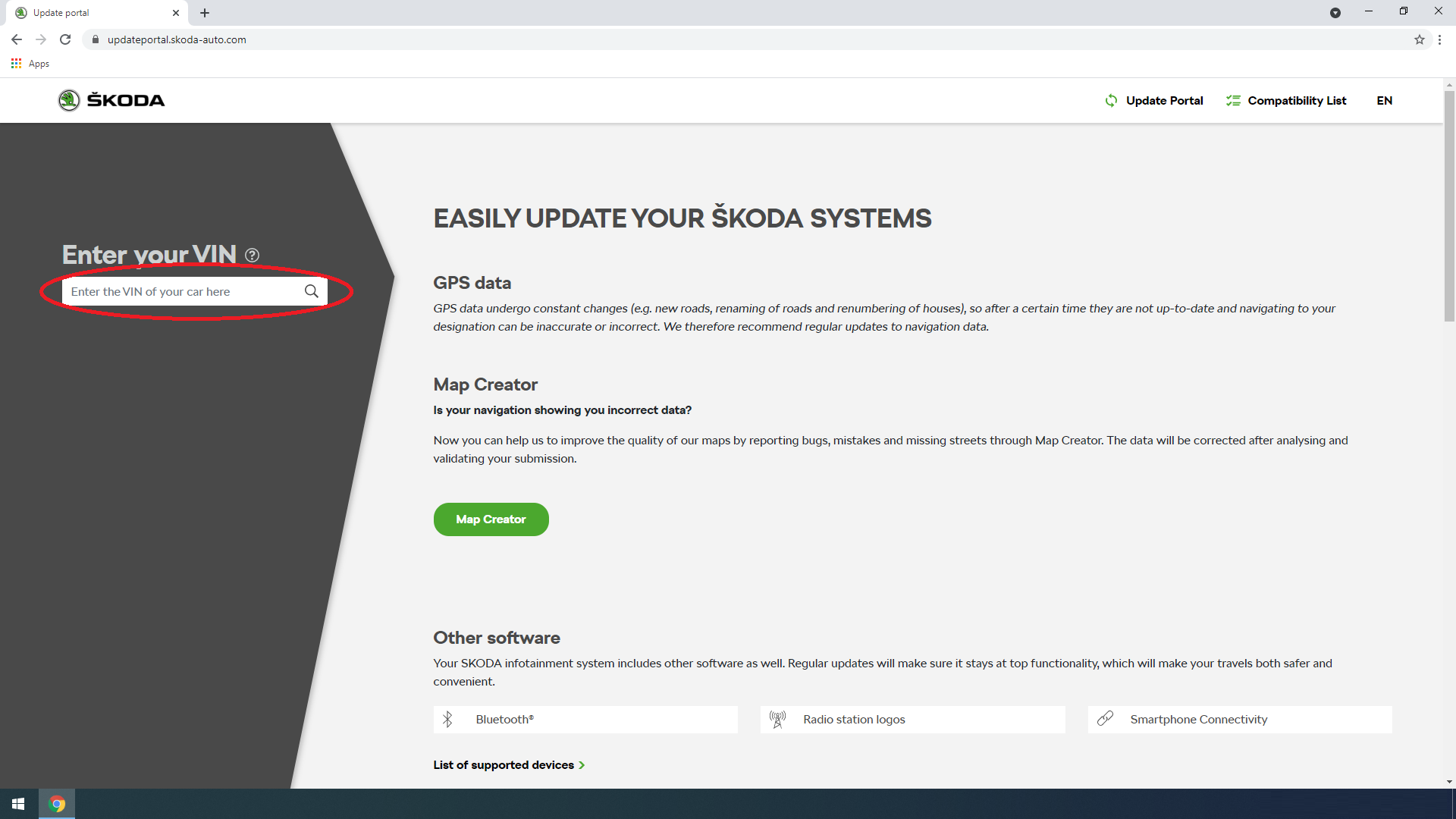
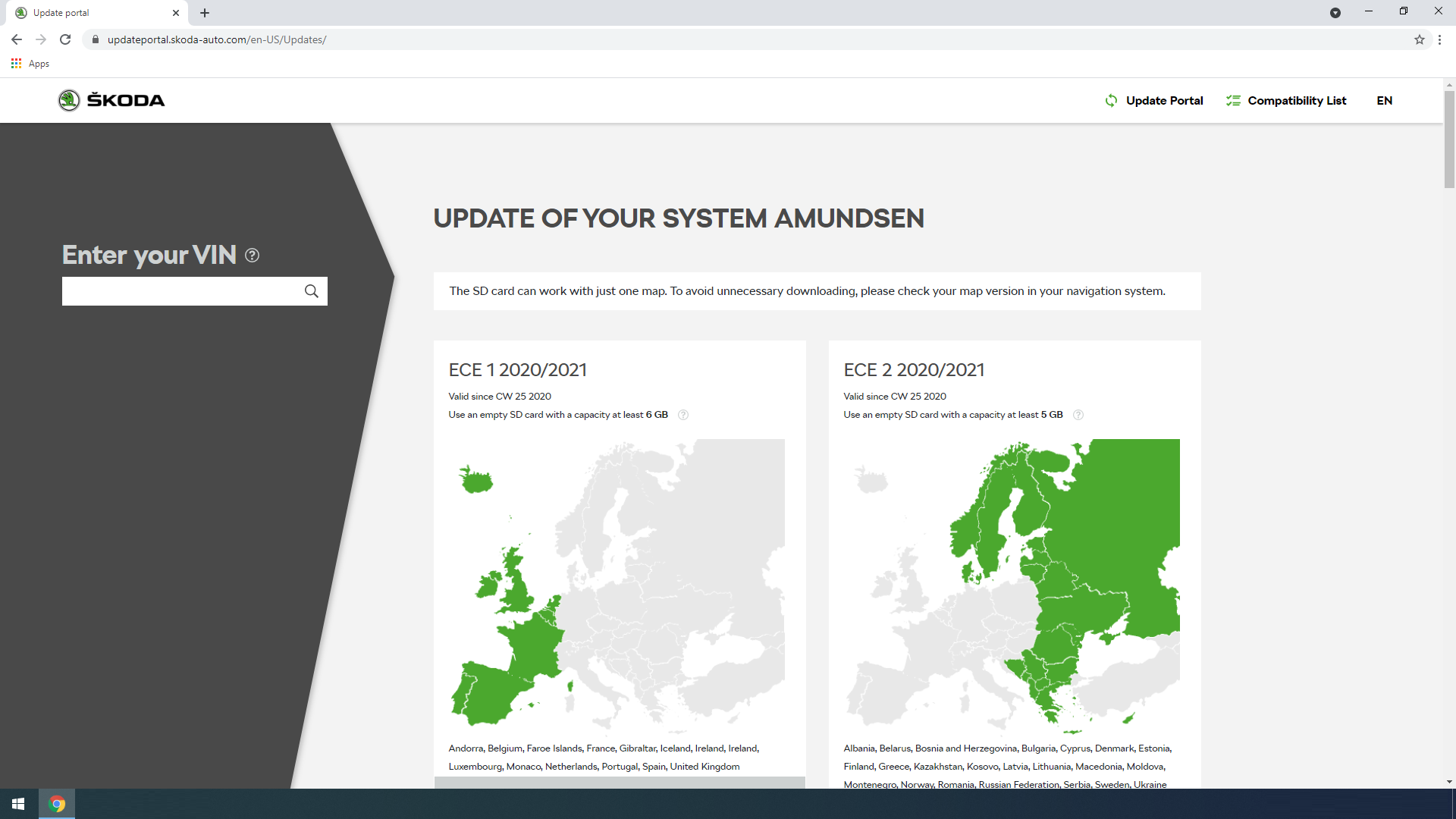
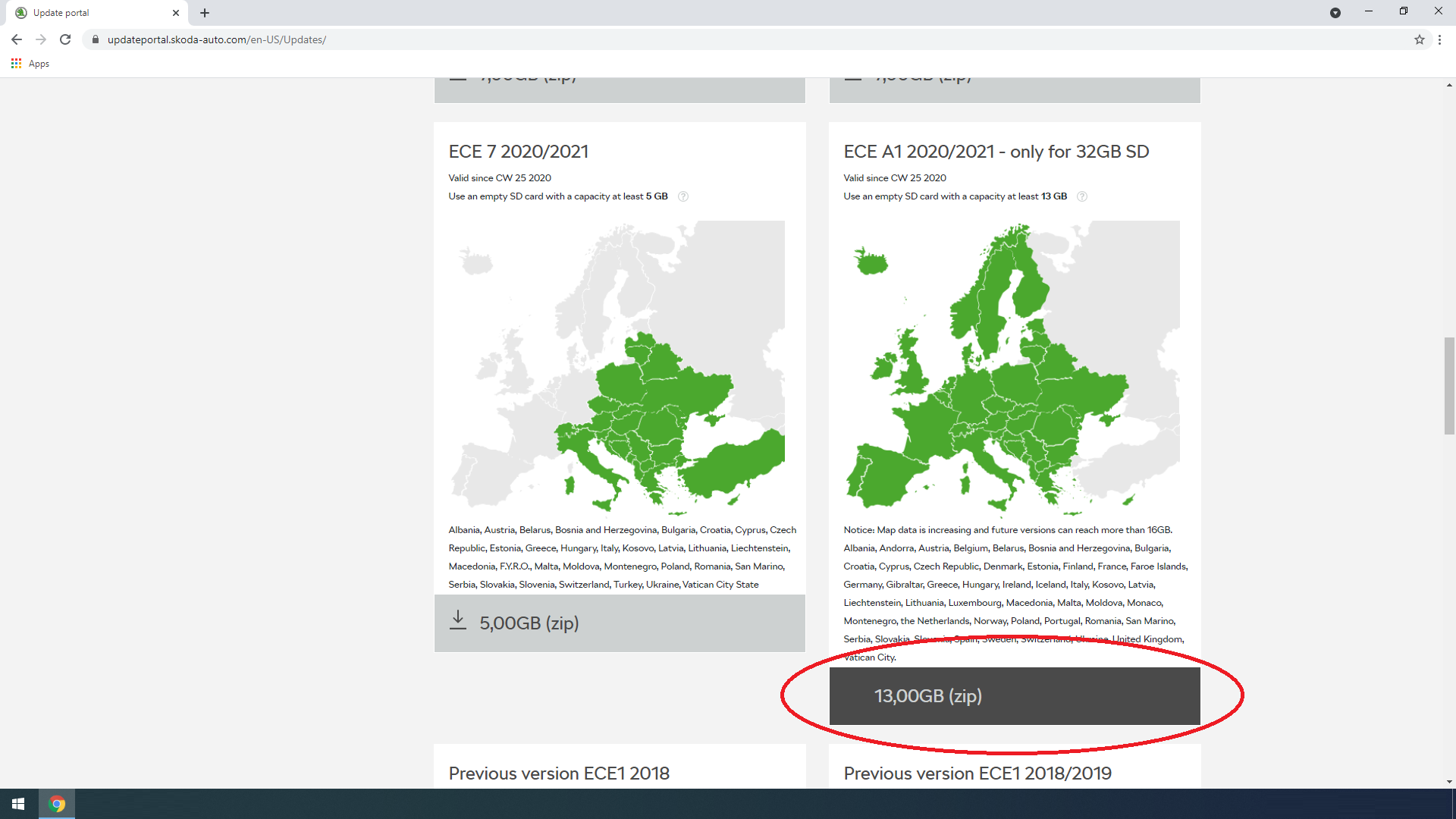
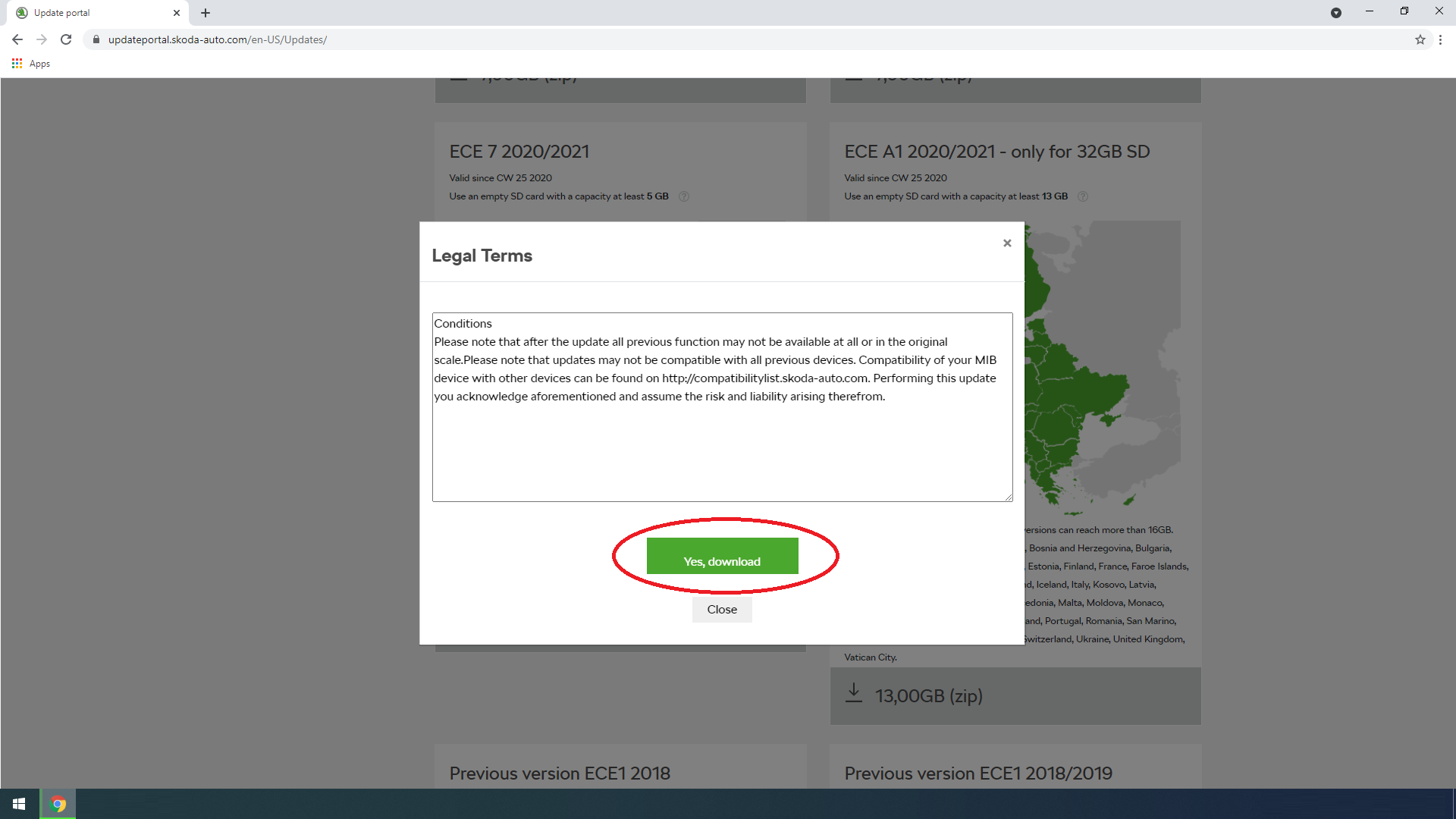
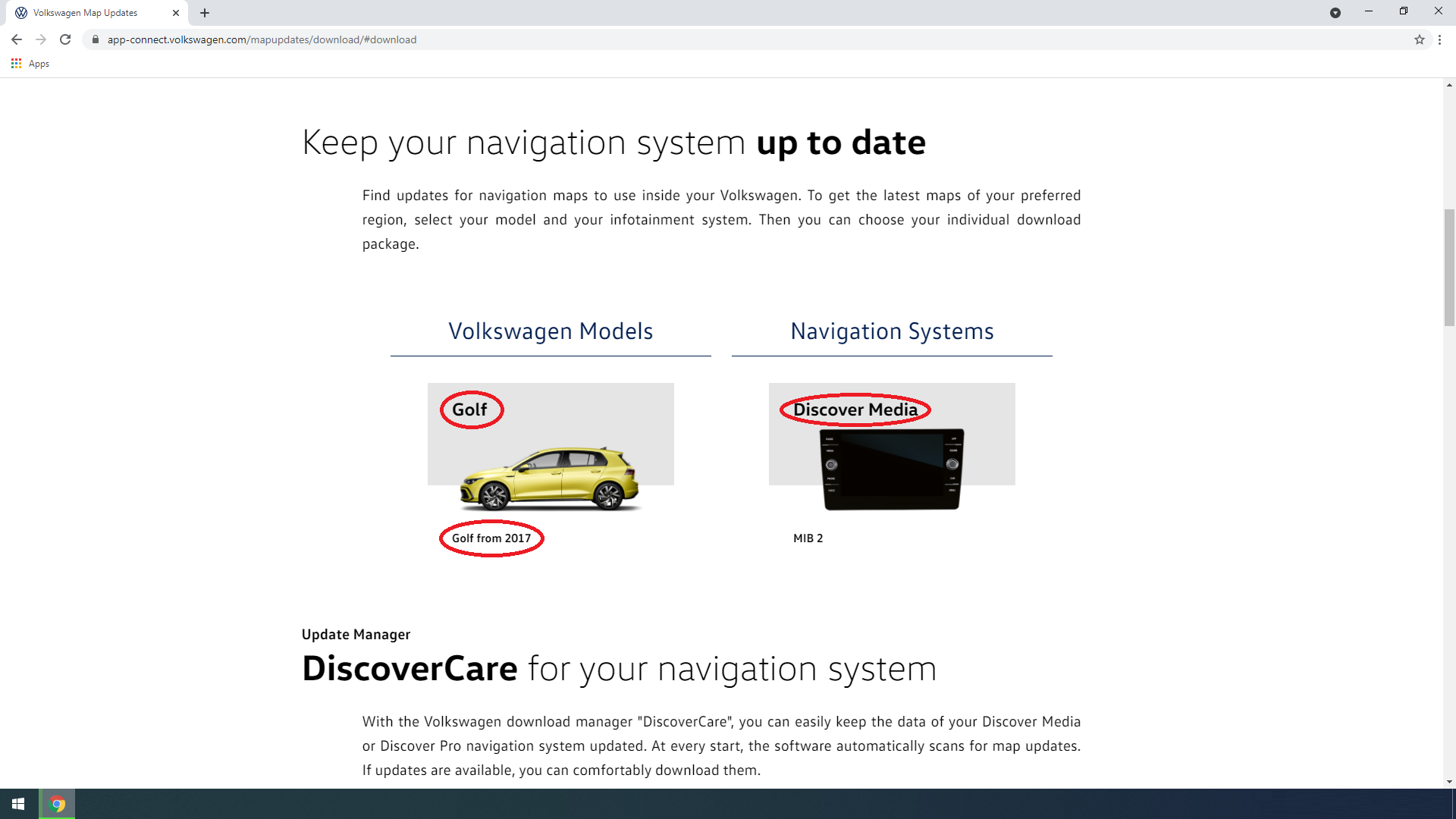
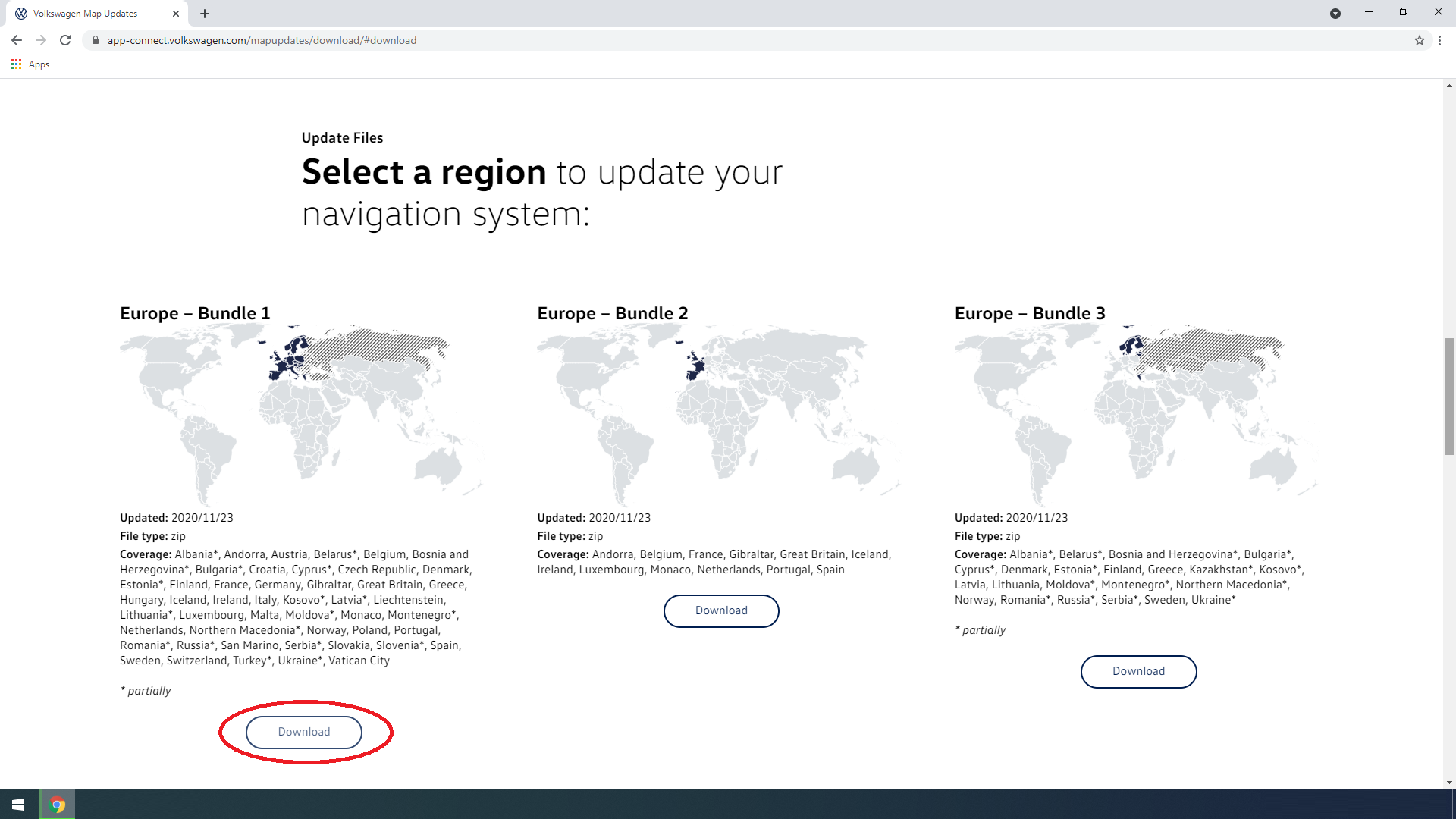
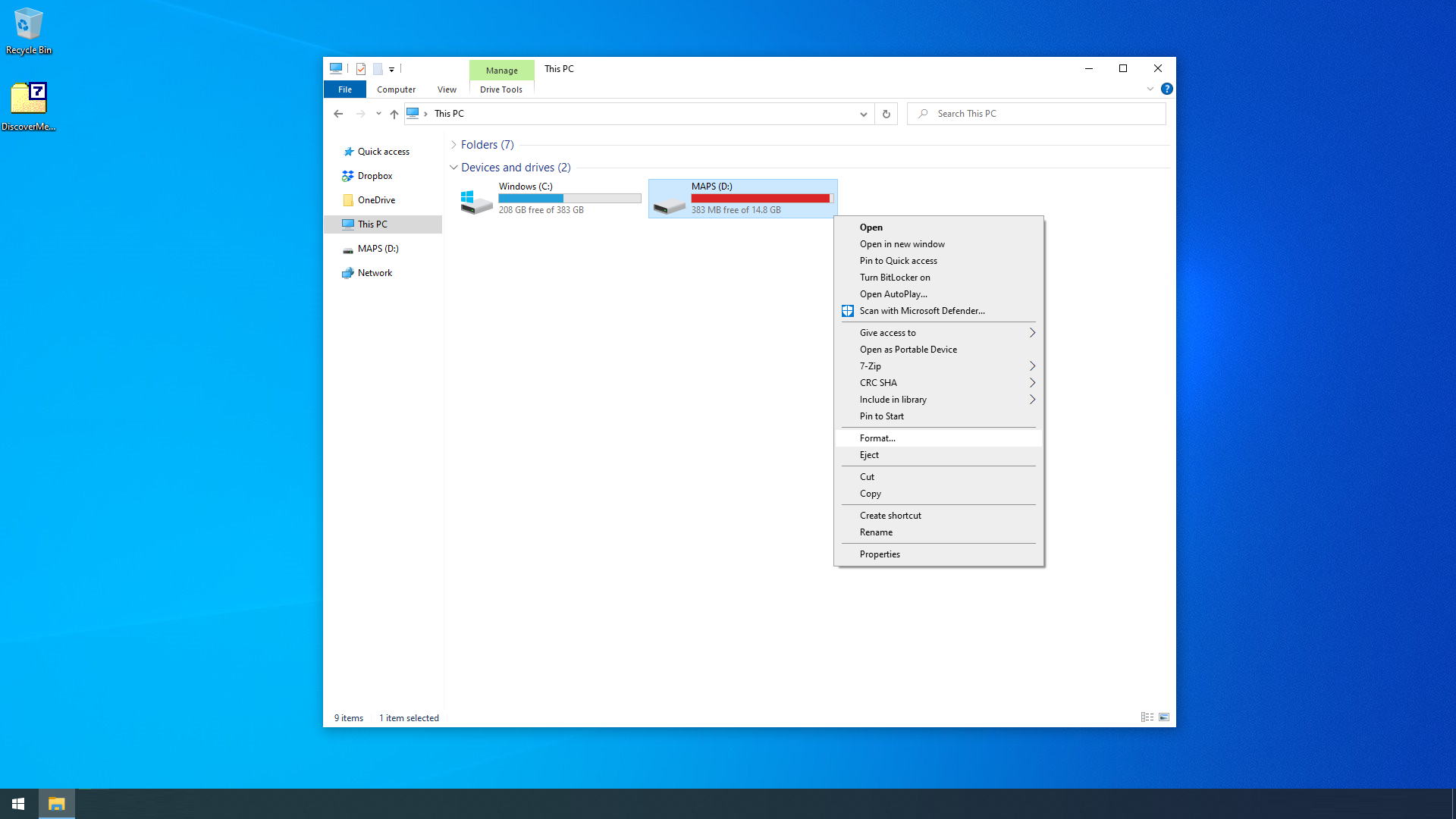
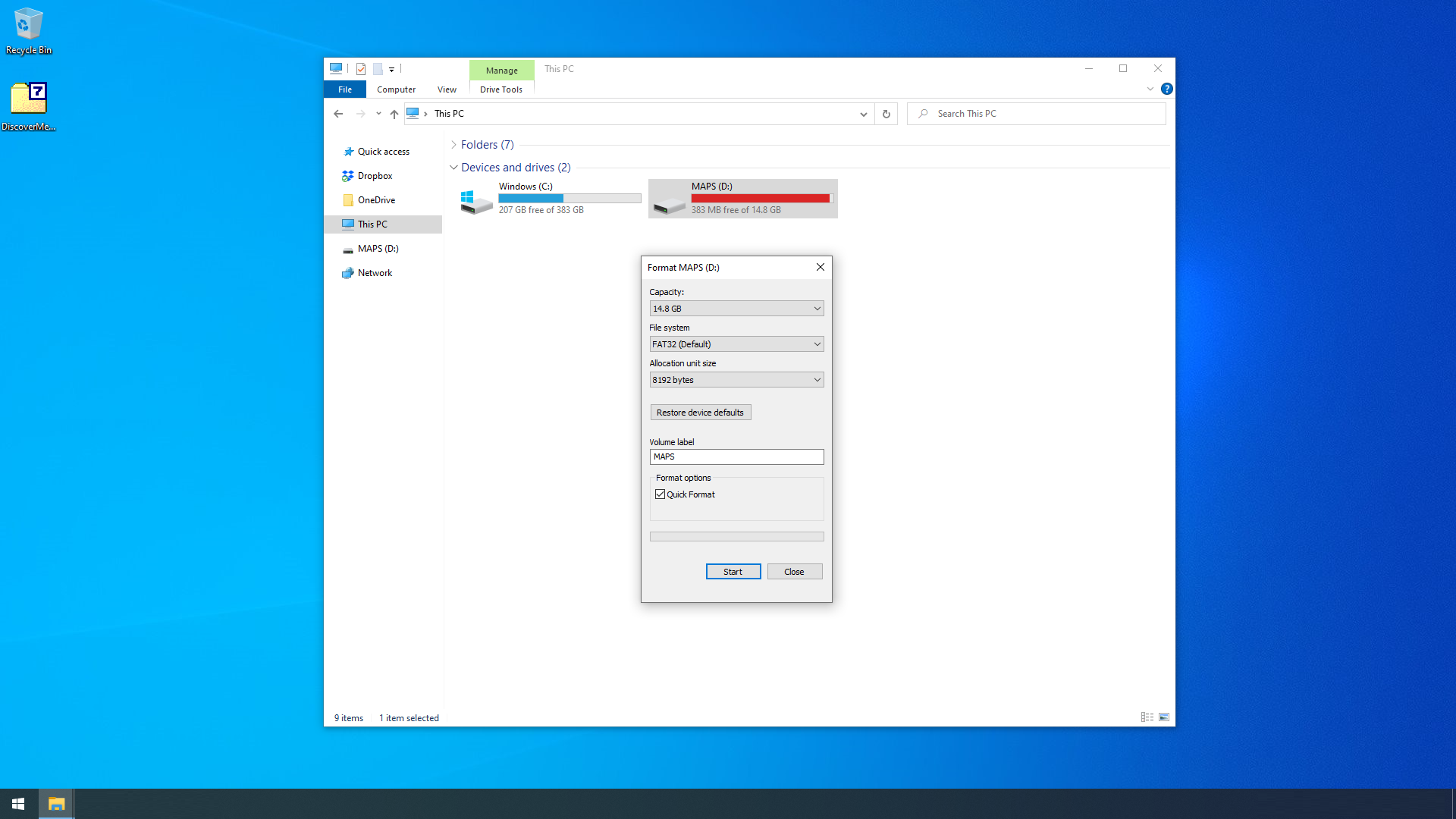
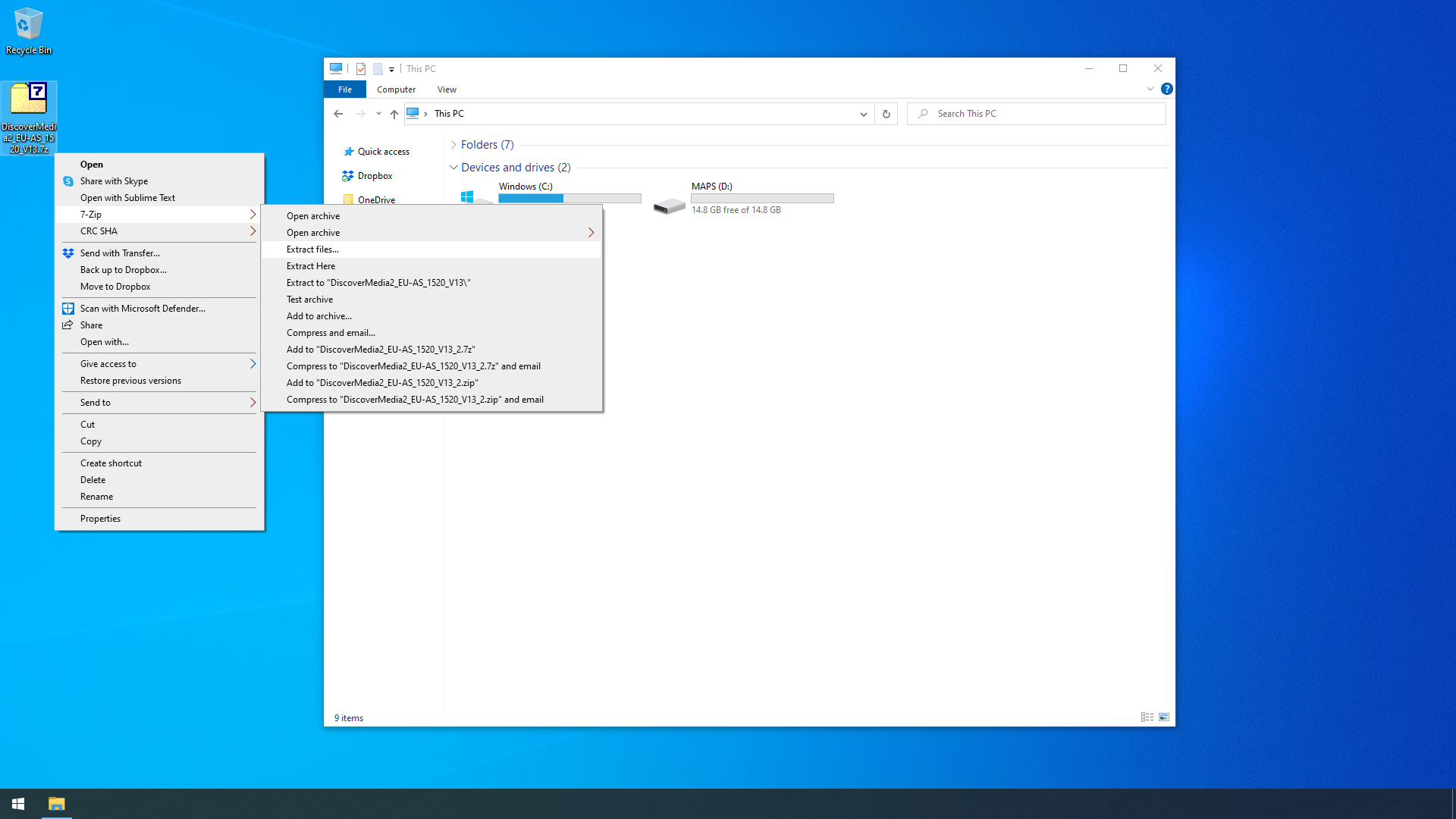
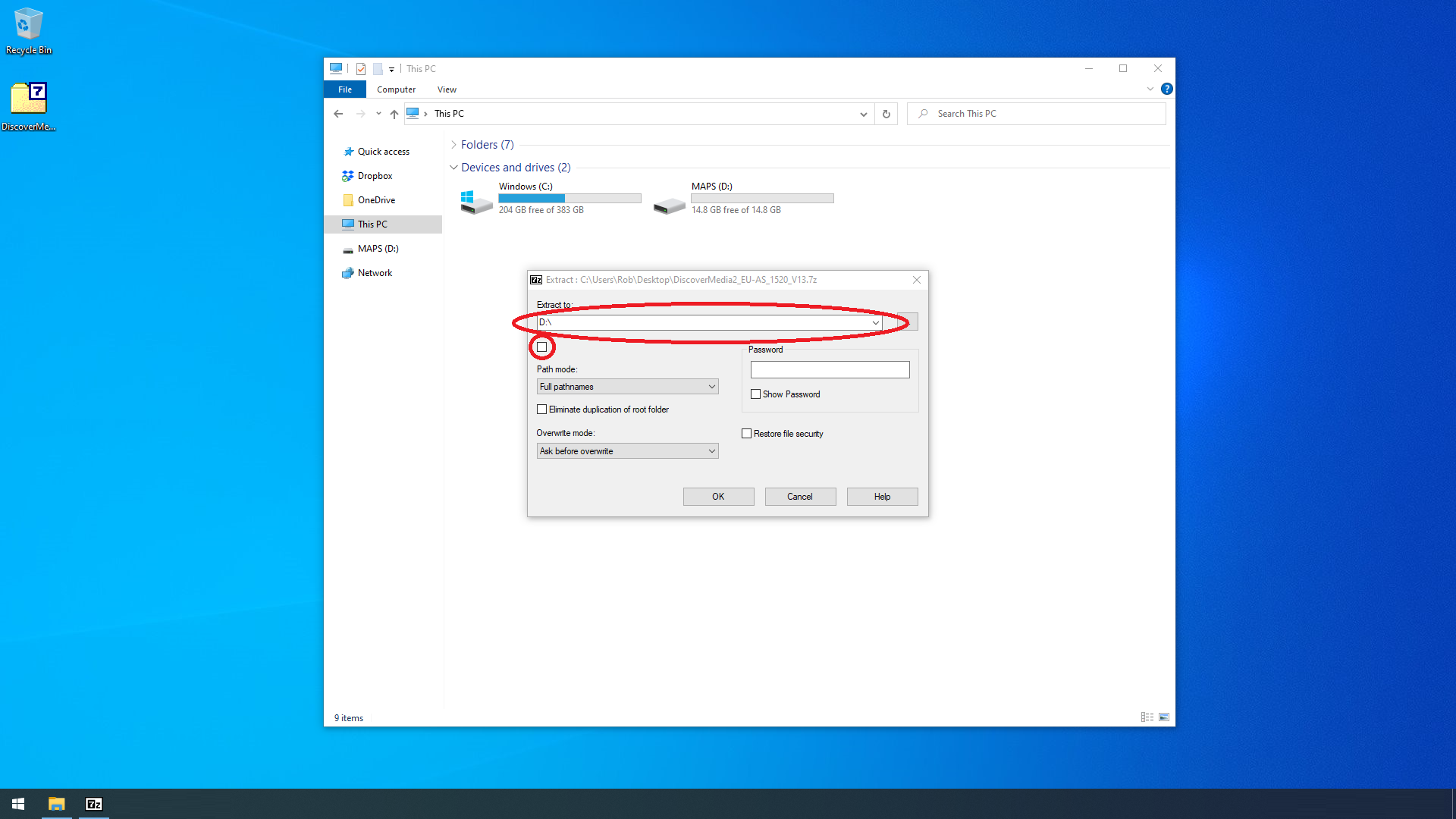
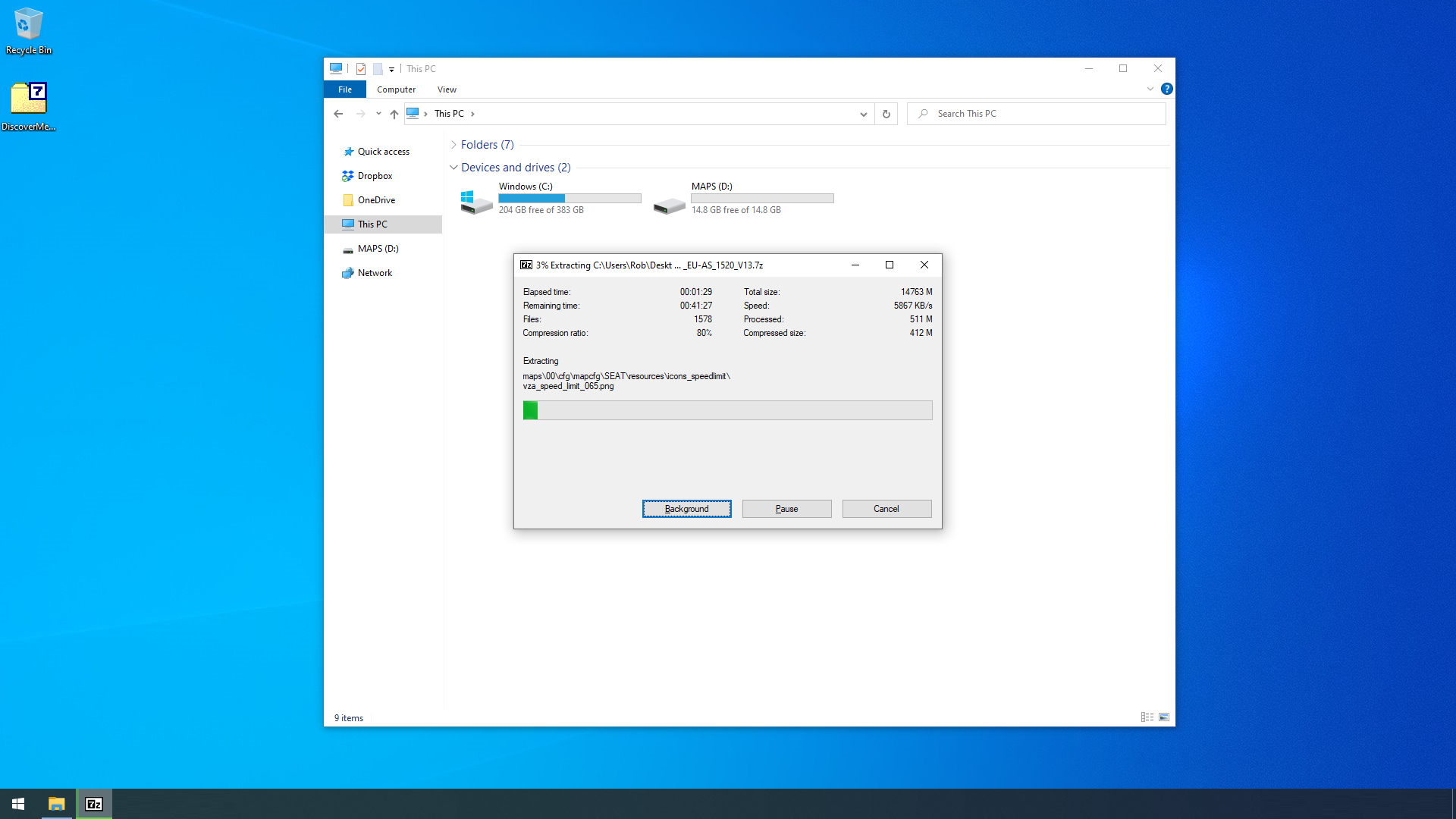
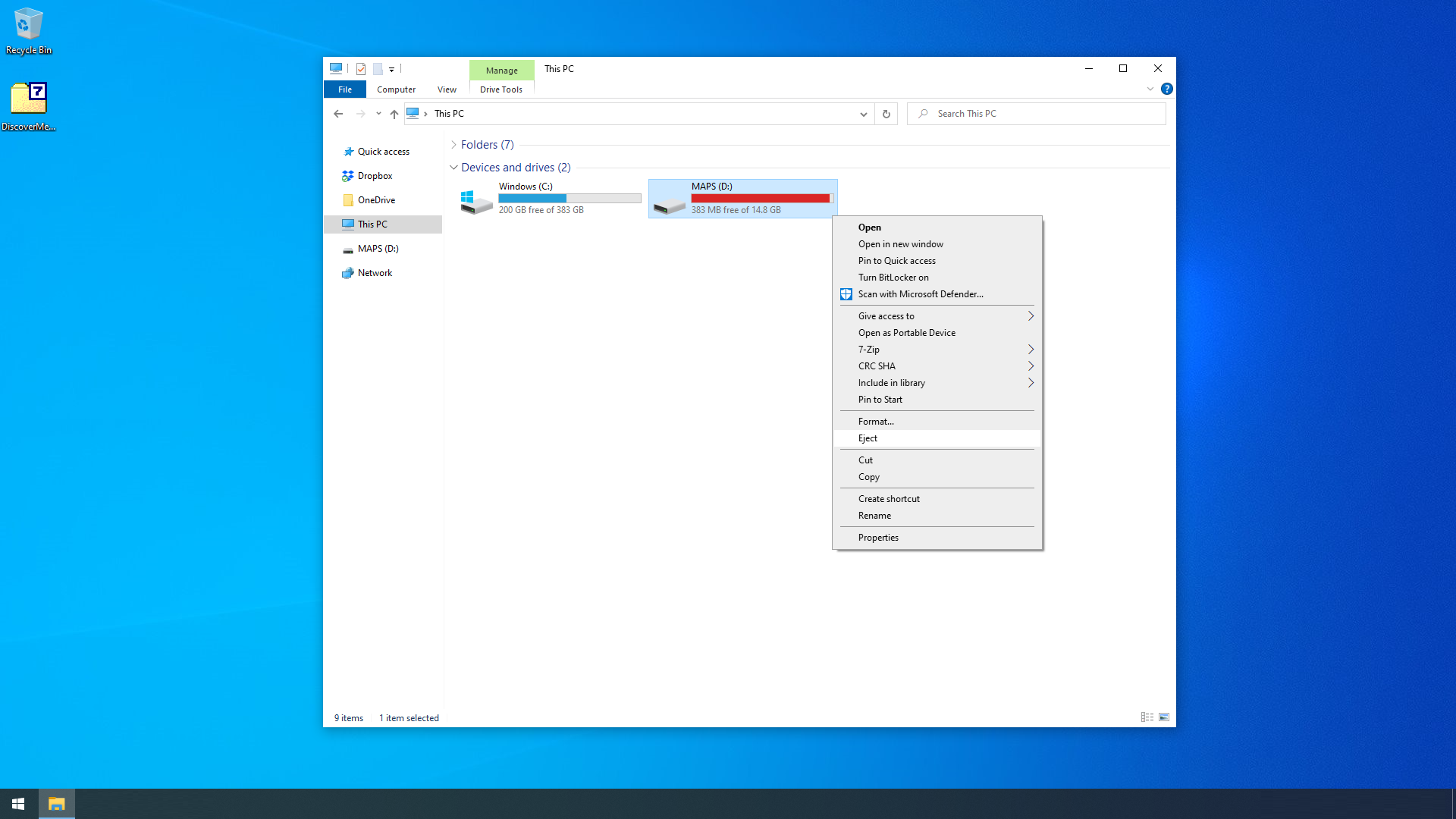
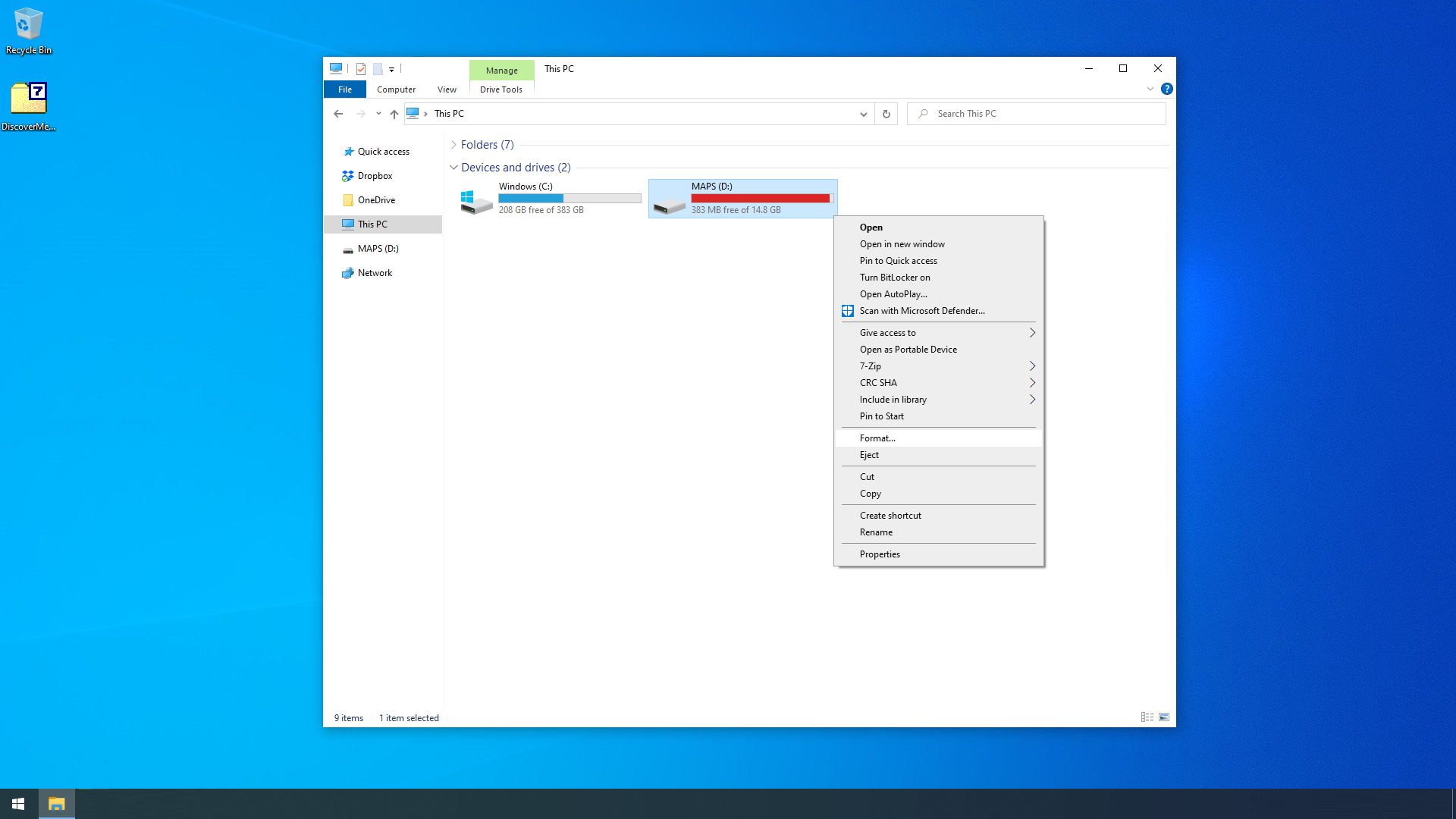
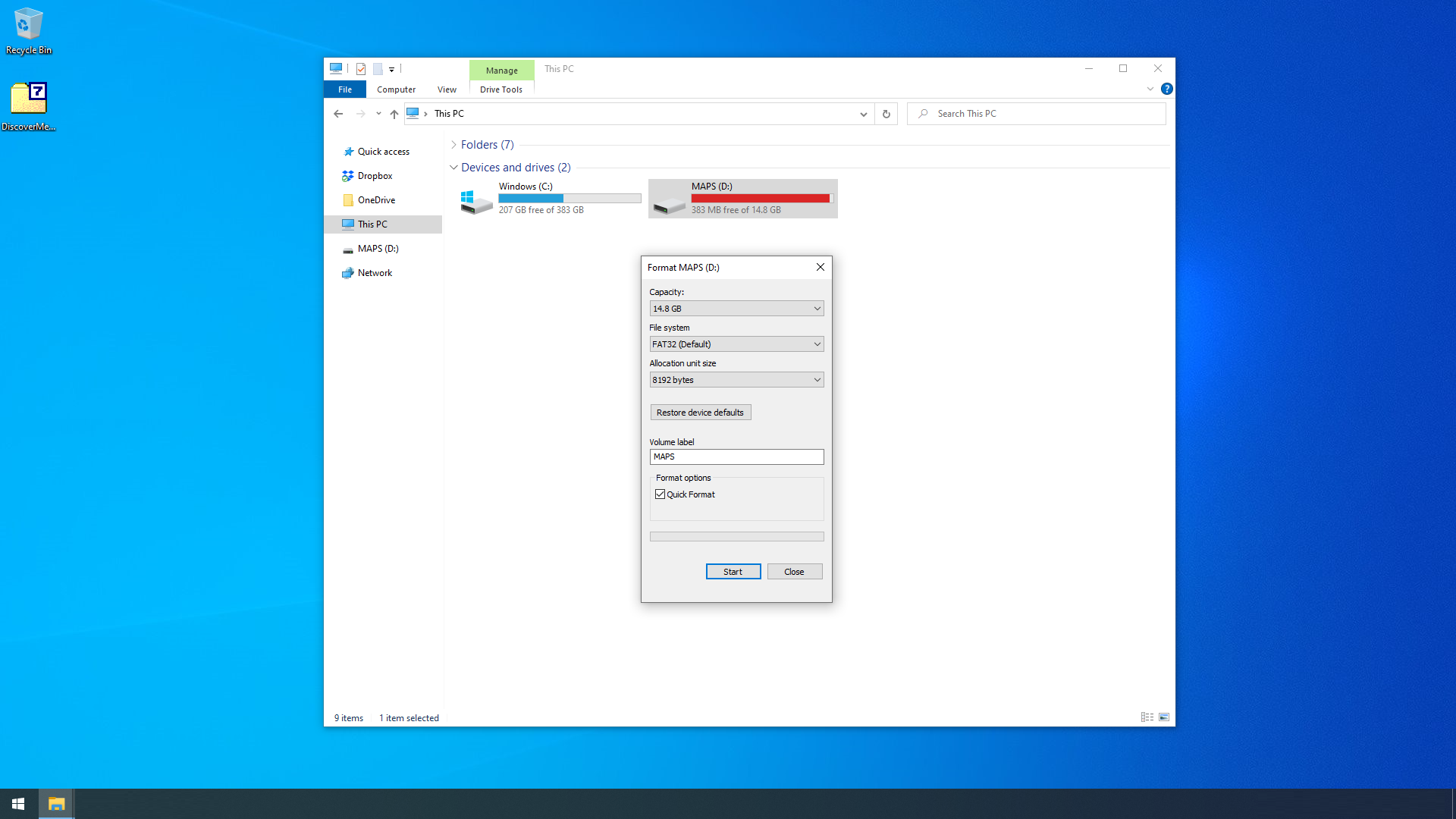
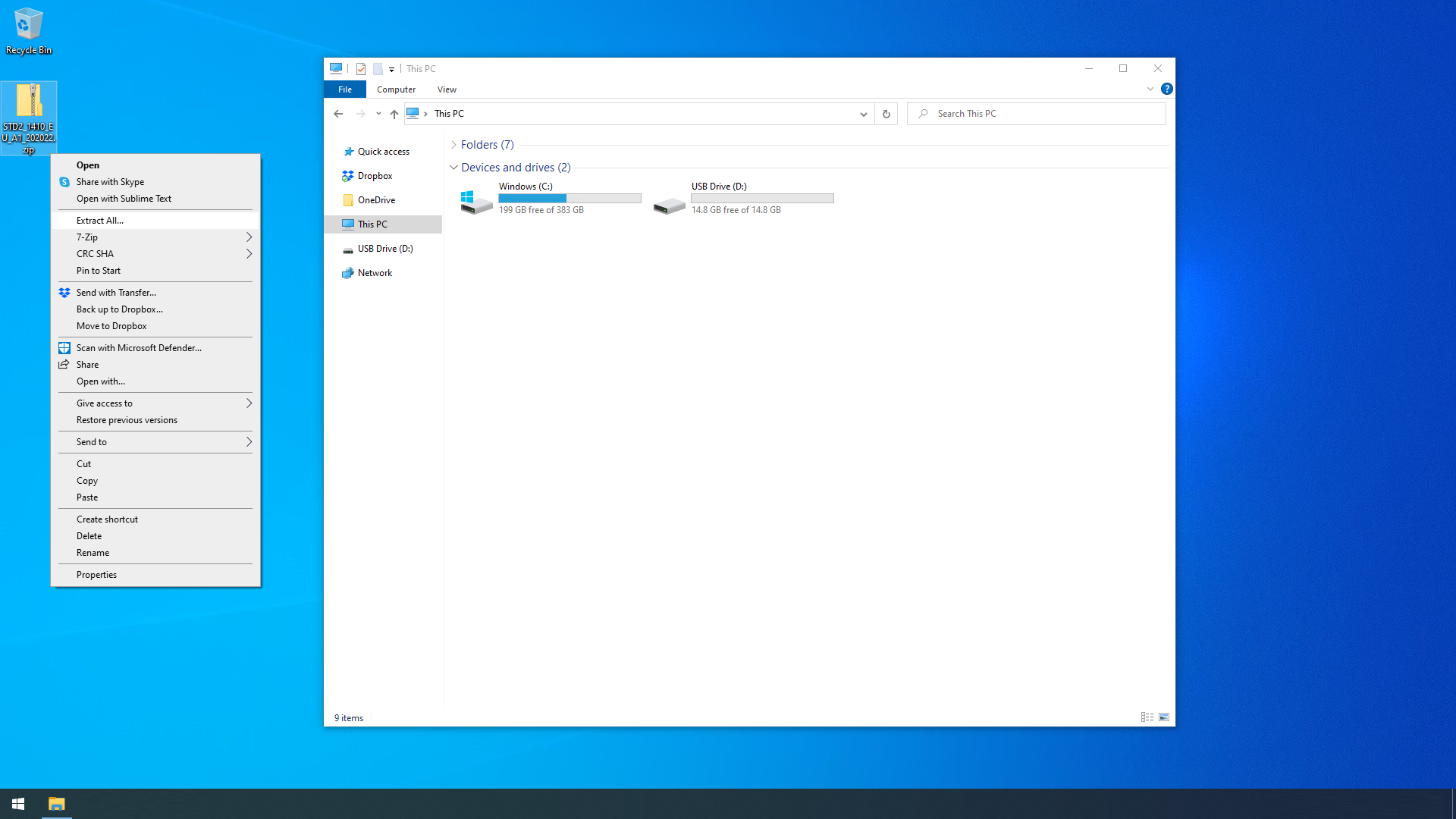
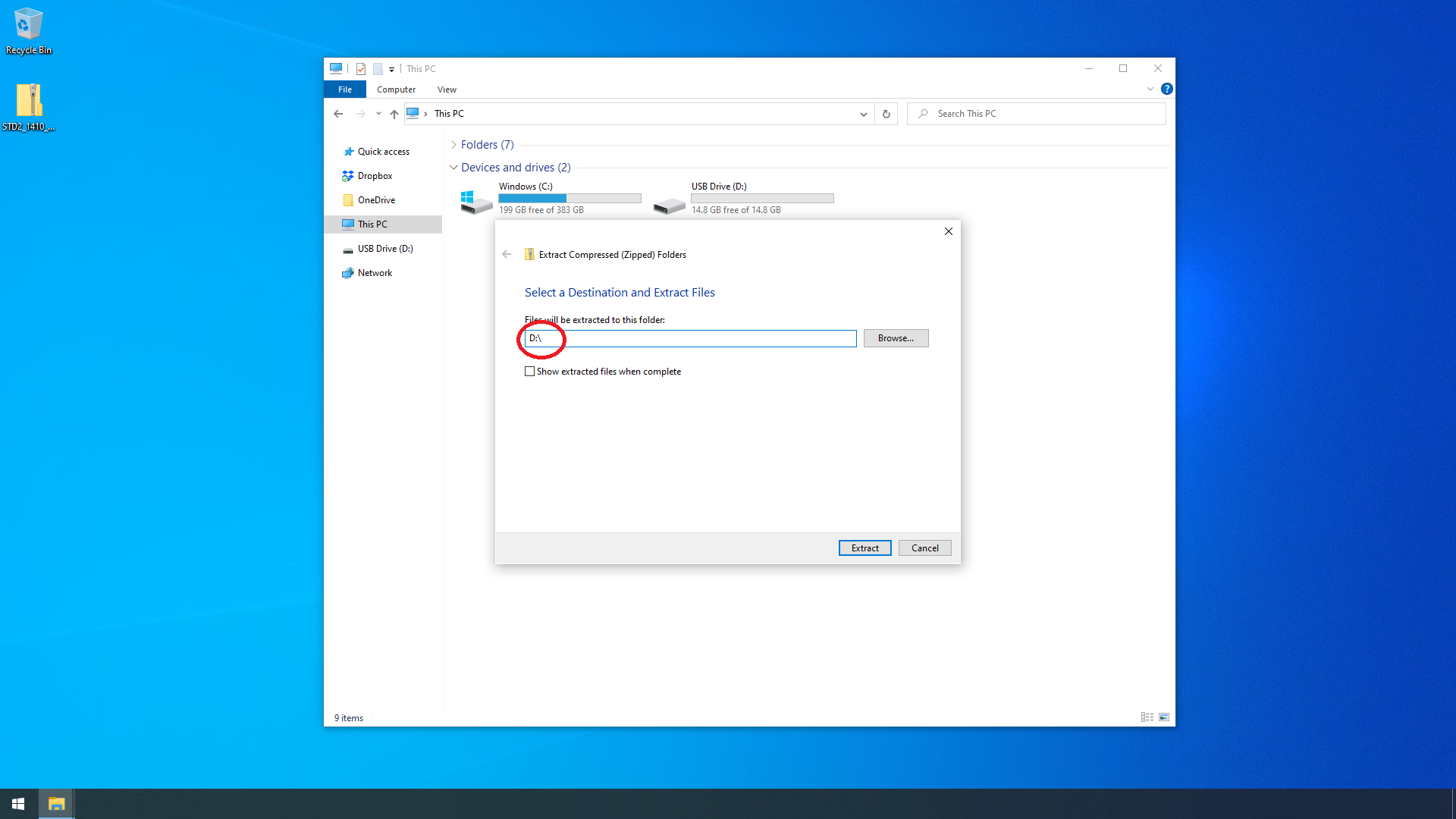
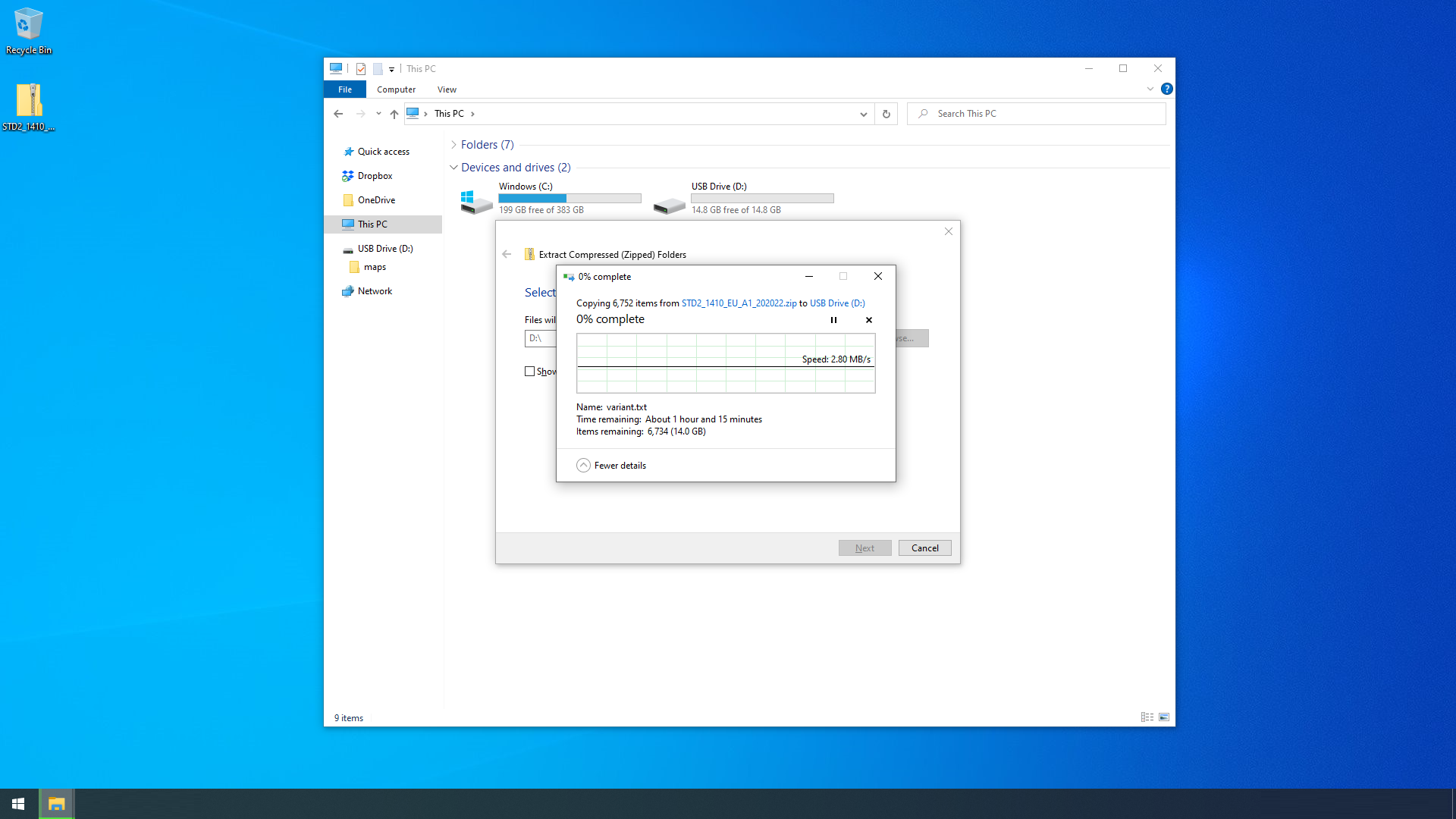
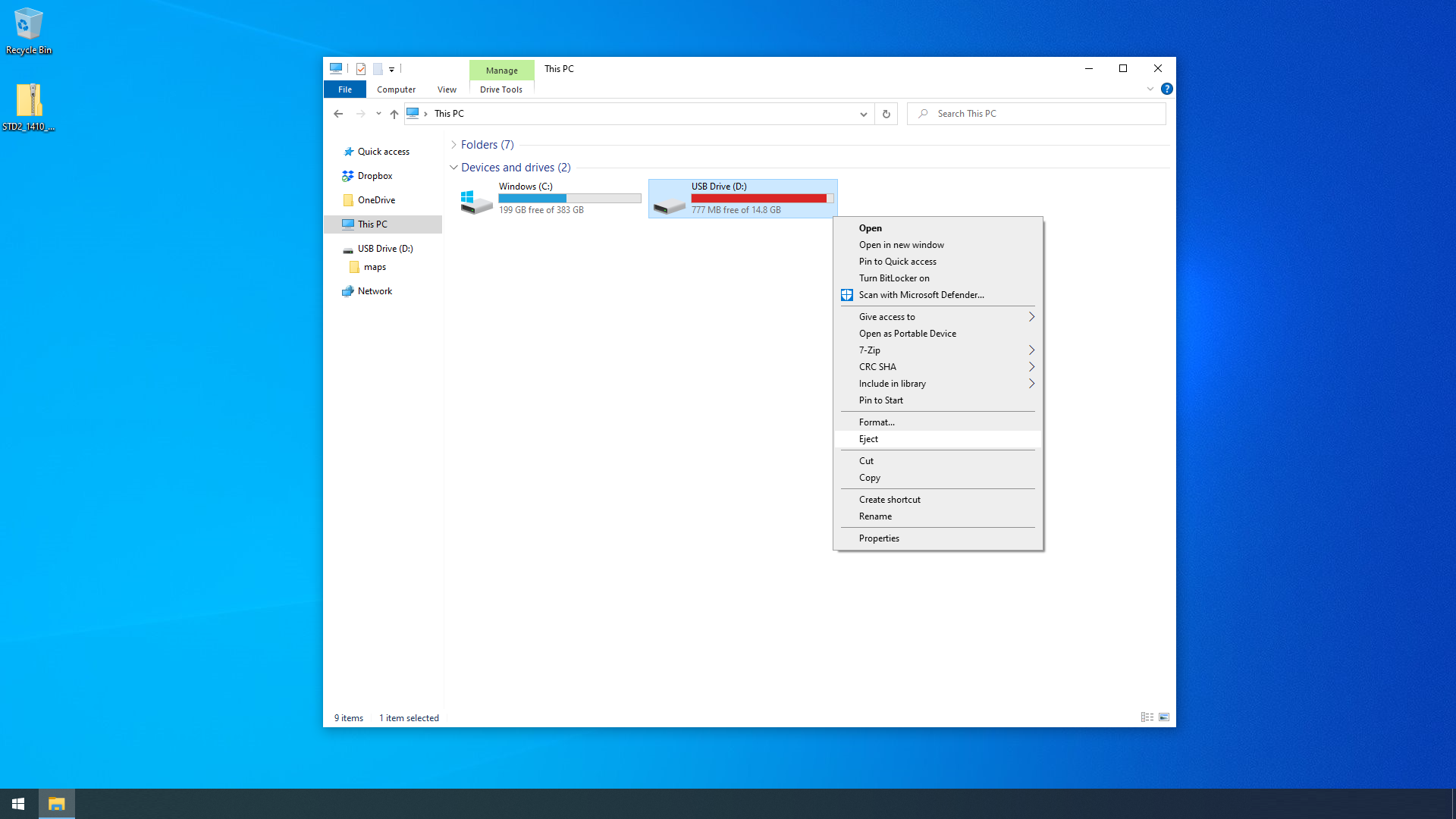
This seems to come up pretty frequently so here are a few screenshots to show the process. First step is to download the maps to your computer, you have three choices: - download from Skoda - download from VW - use MartiniB's direct links The direct links are easiest and updated quite quickly, these are probably the latest, updated Nov '22: https://www.briskoda.net/forums/topic/508188-amundsen-mib2-map-updates-20232024 Warning: The full Europe maps no longer fit on a 16GB card without modification. The smaller ECE 1-7 versions should be fine Bit more info regarding which files to delete can be found here: https://www.briskoda.net/forums/topic/498473-amundsen-mib2-map-updates-202223/?do=findComment&comment=5592747 Downloading maps (Skoda) Goto https://updateportal.skoda-auto.com/ and enter your VIN. Choose whichever maps you'd like. For this guide, I choose the European maps. Click download and wait until they are on your computer. Copying the maps to your SD card (Skoda) Once the download has completed, we can copy the maps to your SD card. - Remove the SD card from your car and make sure the 'lock' tab is in the unlock position (it should be in the position that's closest to the gold/silver contacts) - Then plug the SD card into your computer - Optional step, you can copy the files from the SD card as a backup if you'd like. I don't bother but it's your call. Start 'File Explorer' and find your SD card. In my case it shows up as D:\ but it could be another letter on your computer. Right click on the SD card and select format. People have differing options on the format options, you can see what I used below. Once the format is complete, right click on the maps you downloaded earlier and select 'Extract All...' from the submenu. You need to change the destination folder to match your SD card. In my case it's 'D:\' but you may need 'E:\', 'F:\' etc. Click 'Extract'. And wait! Time will depend on your computer and SD card slot. When it's complete, right click and eject the SD card. Not all computers will show this option. You can now remove the SD from your computer and slide the 'lock' tab is in the lock position (it should be in the position that's furthest from the gold/silver contacts). Downloading maps (VW) Goto https://app-connect.volkswagen.com/mapupdates/car/#download and select 'Golf' then 'Golf from 2017' then 'Discover Media'. There are various options but that should be fine for the MIB2/MIB2.5 Amundsen. Click download and wait until they are on your computer. Copying the maps to your SD card (VW) You'll need to install some extra software called 7-Zip to use the VW maps, it's freely available from: https://www.7-zip.org/ Once the download has completed, we can copy the maps to your SD card. - Remove the SD card from your car and make sure the 'lock' tab is in the unlock position (it should be in the position that's closest to the gold/silver contacts) - Then plug the SD card into your computer - Optional step, you can copy the files from the SD card as a backup if you'd like. I don't bother but it's your call. Start 'File Explorer' and find your SD card. In my case it shows up as D:\ but it maybe another letter on your computer. Right click on the SD card and select format. People have differing options on the format options, you can see what I used below. Once the format is complete, right click on the maps you downloaded earlier and select 'Extract files...' from the 7-Zip submenu. You need to change the 'Extract to:' to match your SD card. In my case it's 'D:\' but you may need 'E:\', 'F:\' etc. You should also uncheck the tick-box if ticked as below. Click OK. And wait! Time will depend on your computer and SD card slot. When it's complete, right click and eject the SD card. Not all computers will show this option. You can now remove the SD from your computer and slide the 'lock' tab is in the lock position (it should be in the position that's furthest from the gold/silver contacts).
 1 point
 -
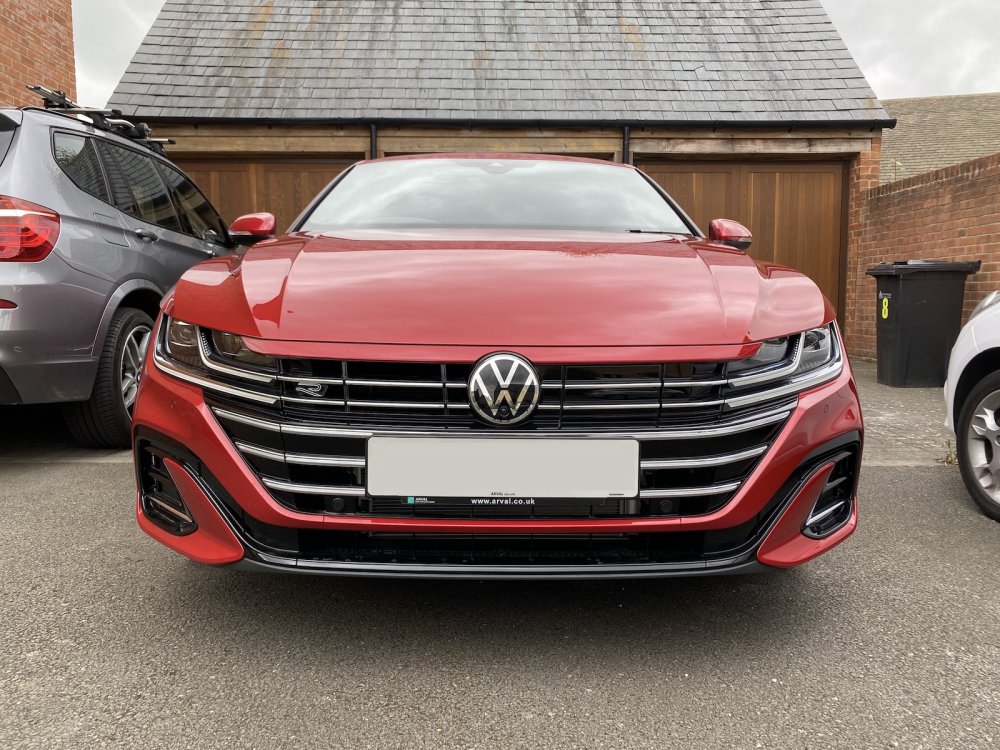
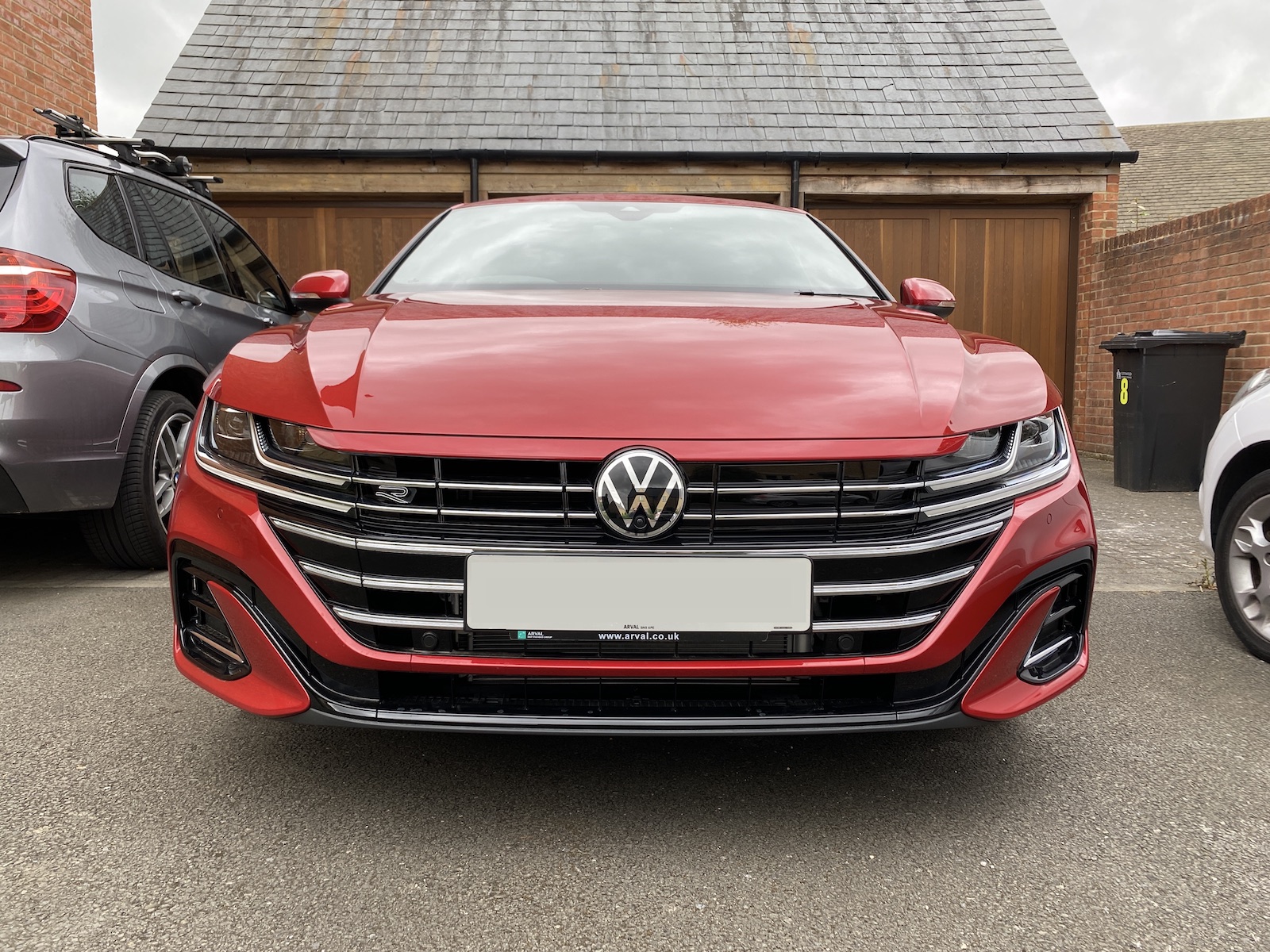
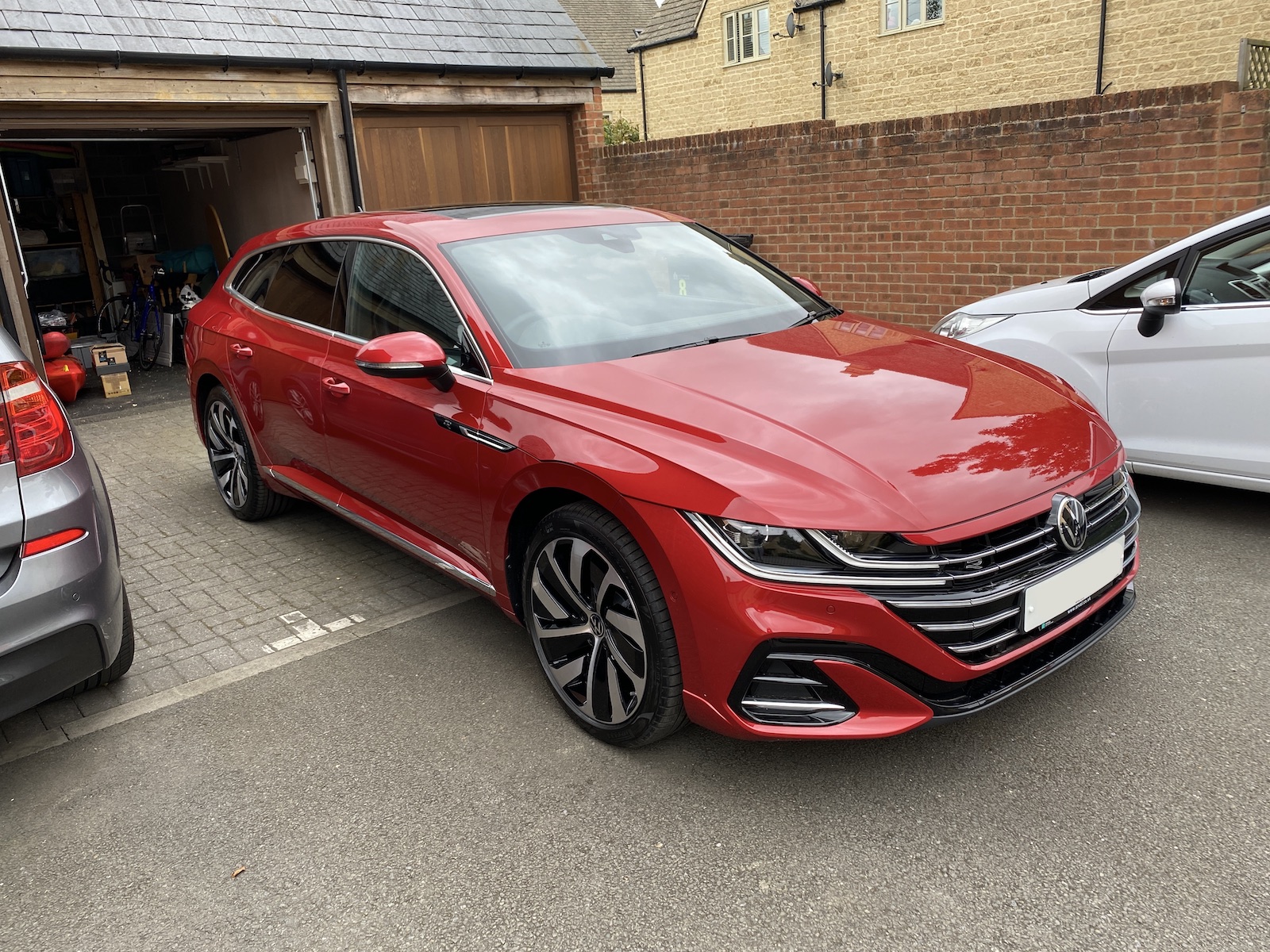
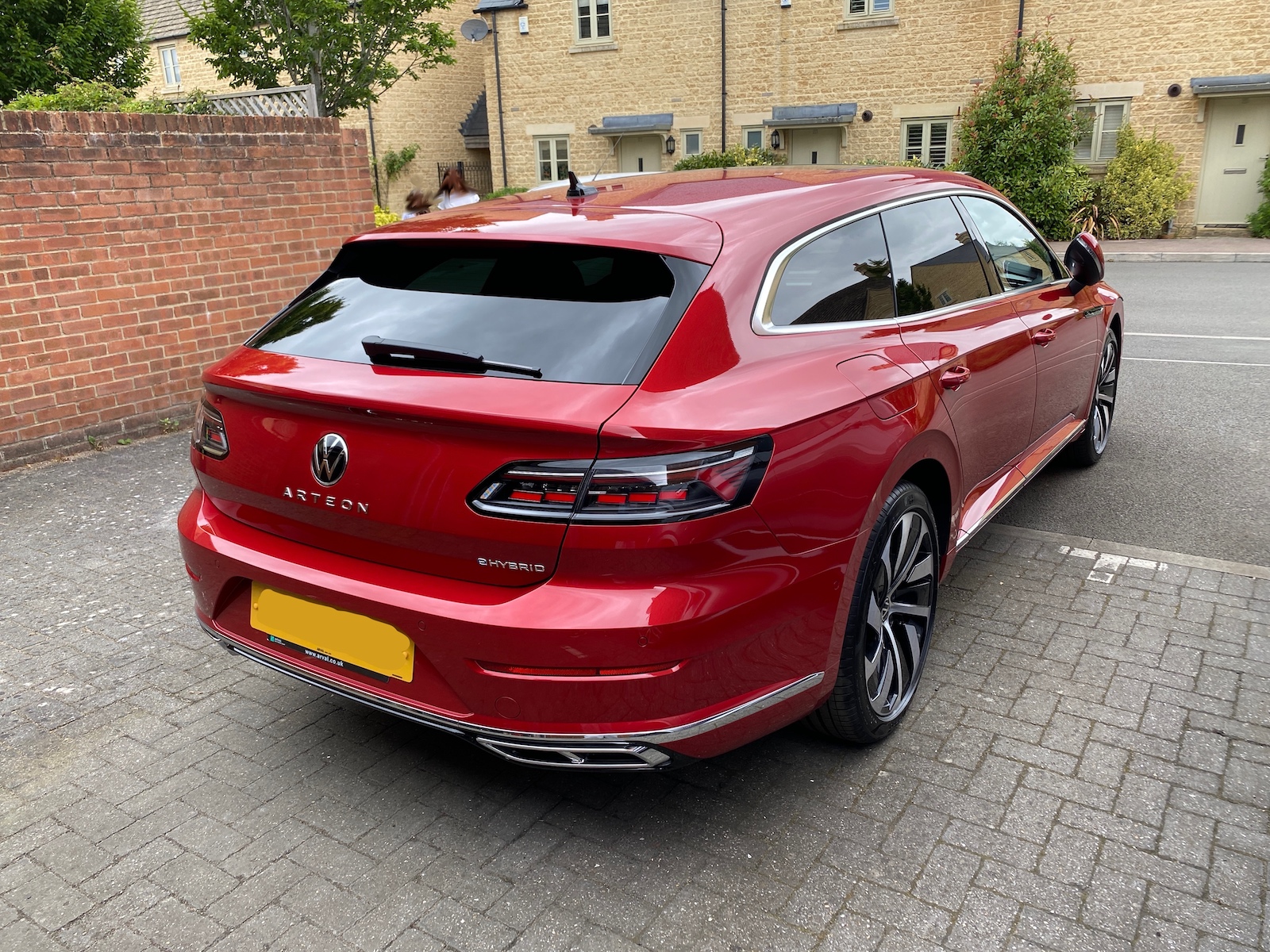
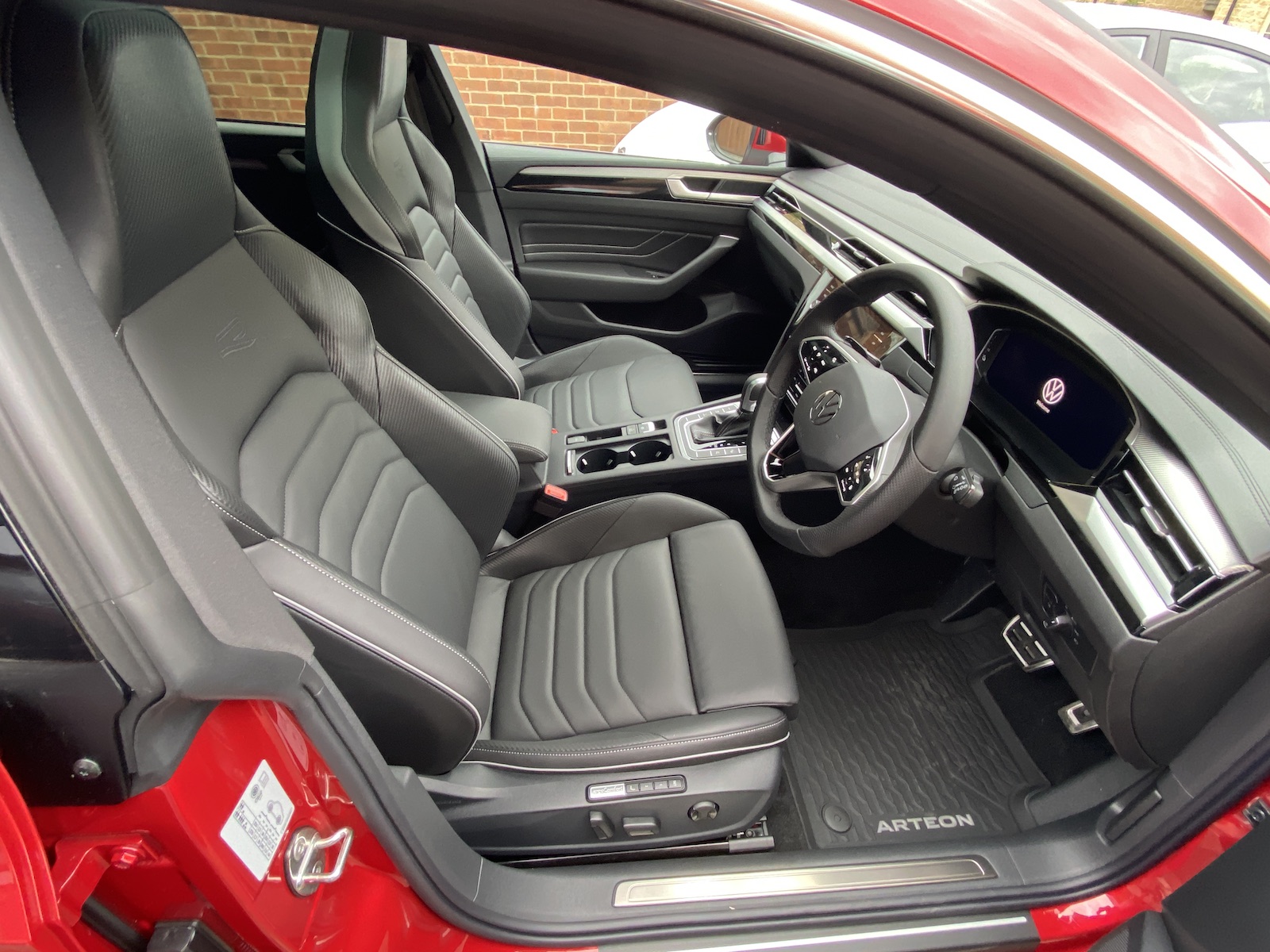
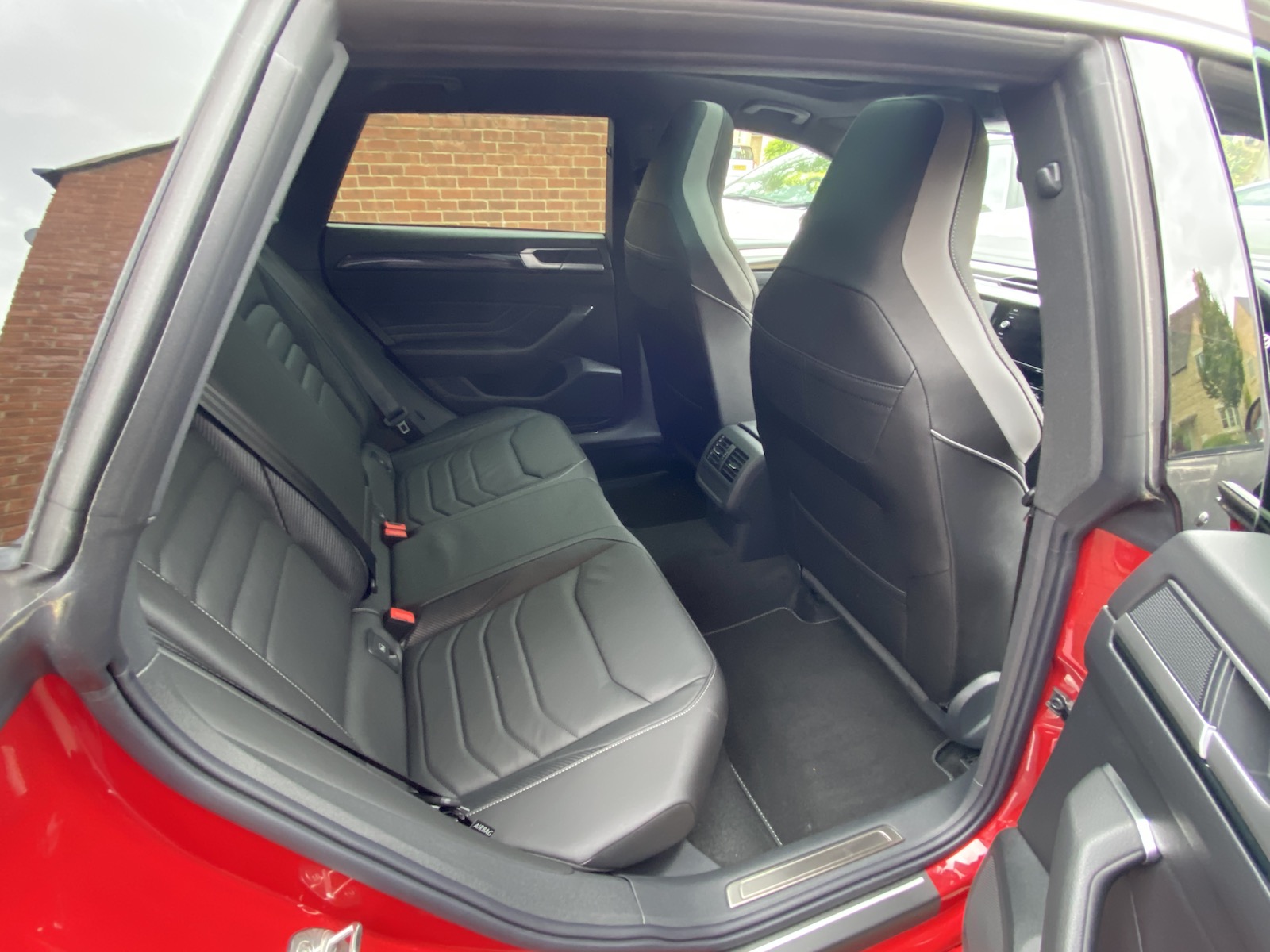
Hi All, After 3 years of owning my Octavia, it's time to bid farewell to it with the arrival of my first company car in over 15 years...the new VW Arteon Shooting Brake eHybrid R Line I'll still lurk around, as there are many very helpful and friendly people on here. The car's not disappearing, as a mate of mine has bought it and I believe he's already set up a user account on here. Thanks to all those who have offered advice when I've needed help, and I hope I've been able to help others too Cheers, Nick
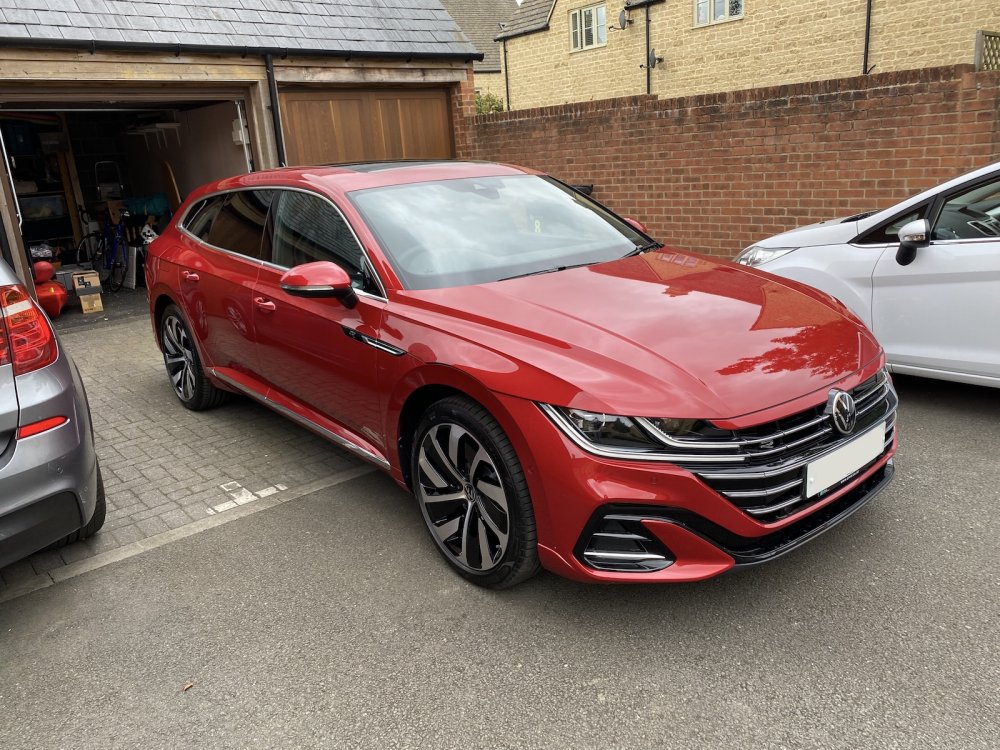
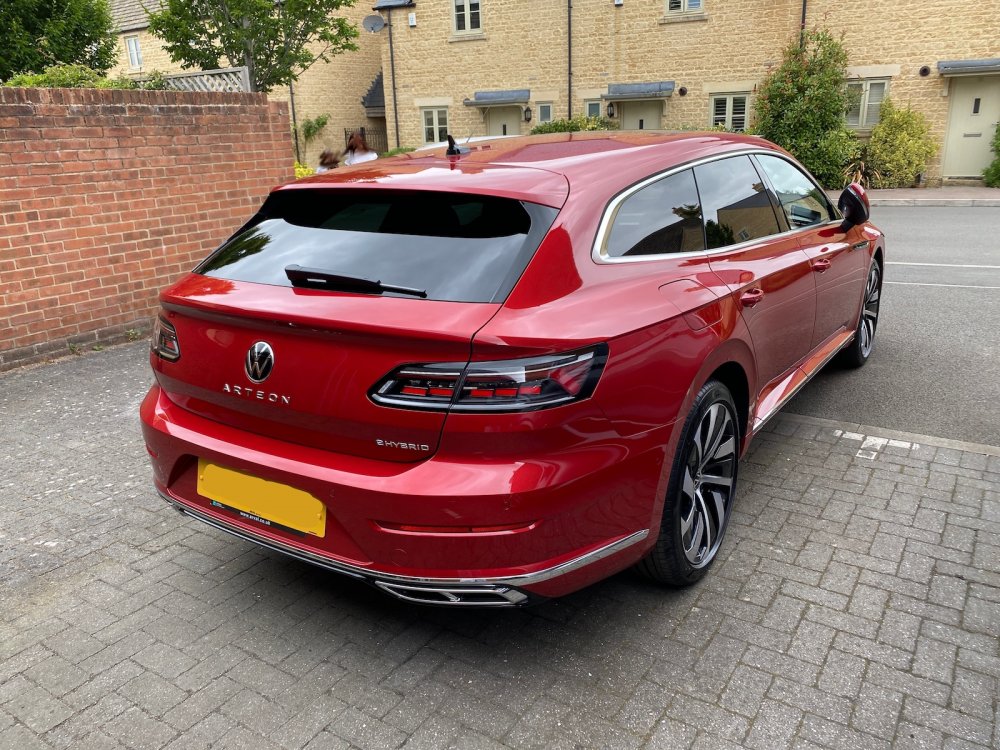
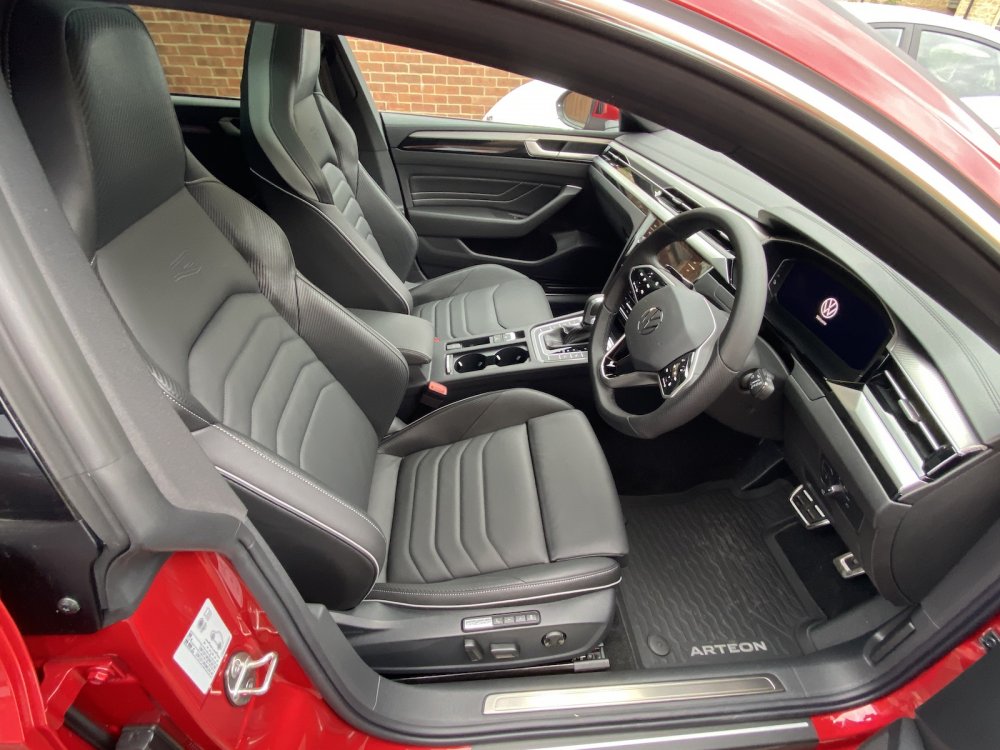
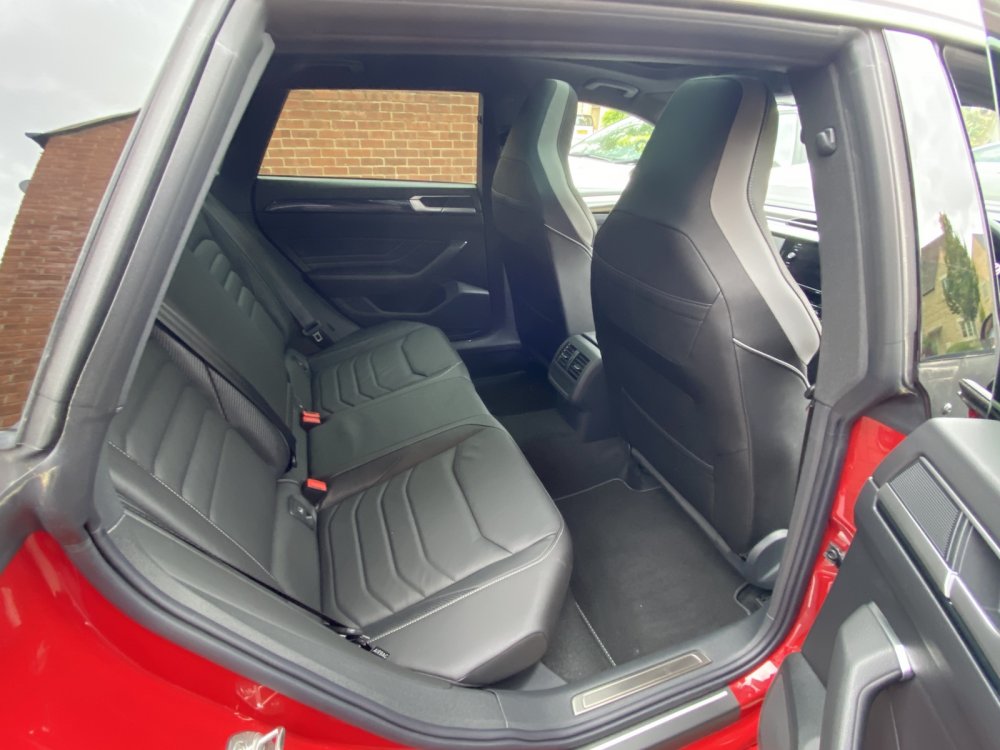 1 point
 -
1 point
-
Vredestein are gradually replacing the Quatrac 5 with the Quatrac. The Quatrac now doesn't have a number, although I have noticed at least one online tyre seller incorrectly calling it the Quatrac 6. The replacement started last year and was due to finish this year. 15" sizes seem to have now gone over to the new Quatrac, but 14" sizes are still available in the old Quatrac 5 model.1 point
-
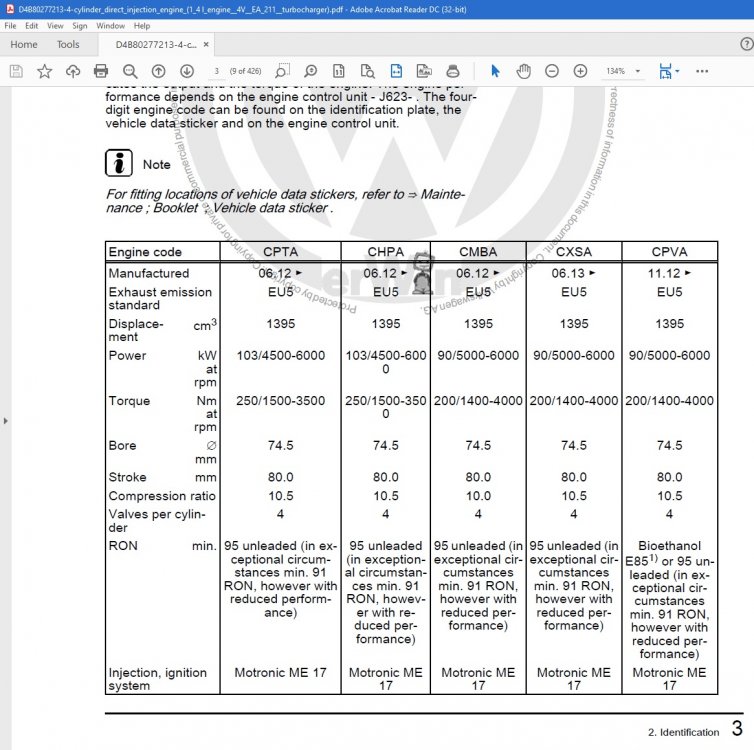
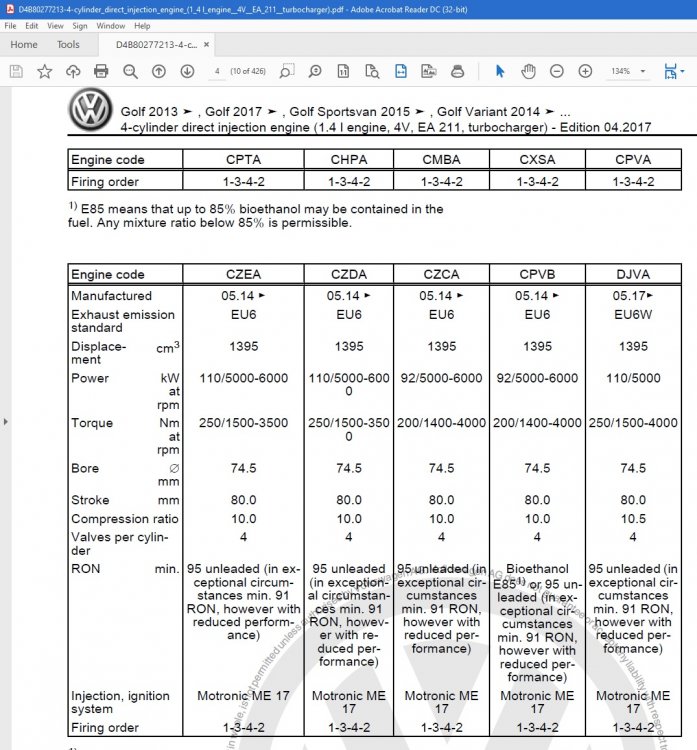
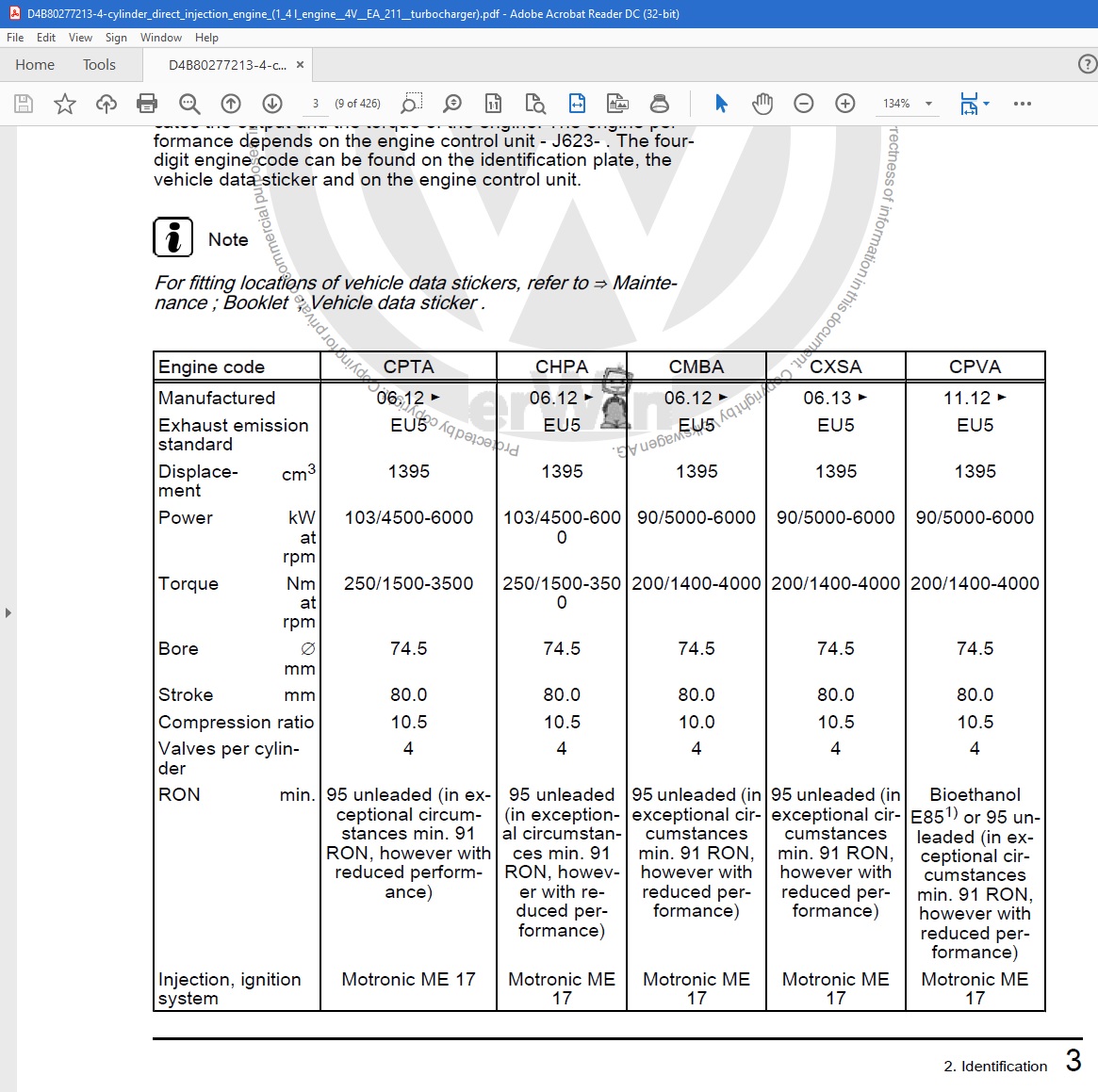
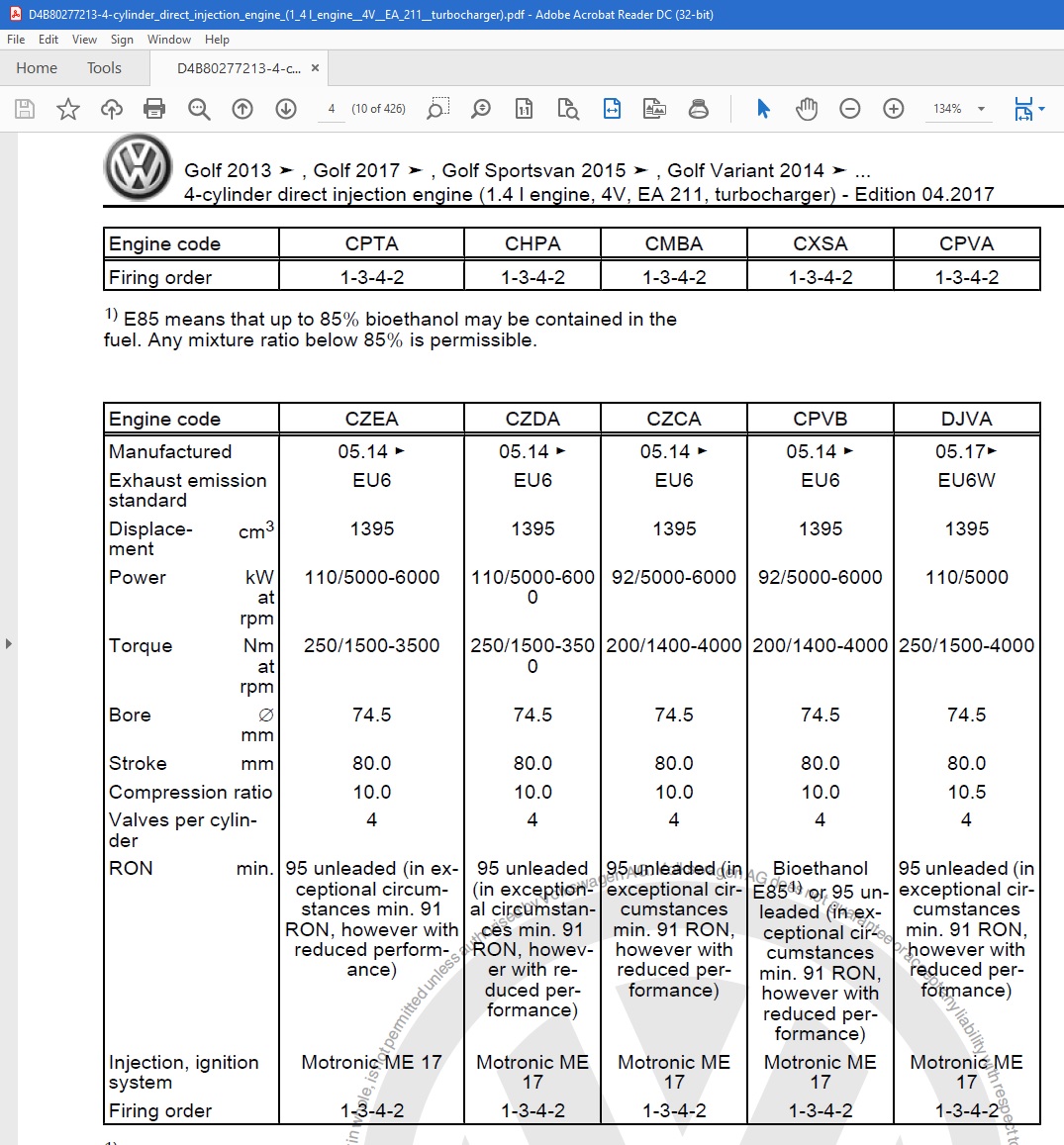
1 pointThe VAG ERWIN repair manuals for the EA211 engines state it. It may also explain why the base "95RON" stage 1 remap offered by tuners gets a nice hike without increasing the turbo boost by much as the timing gets altered correctly to remove the capability (reduced) of running on 91RON.
 1 point
 -
I'd send them a letter saying that you intend to reject and I would do it today. Hand them the letter in by hand and email a PDF to them and to your finance company (if you used one). It's vitally important that this is not only done in writing but traceable to a precise date and time. It's soon enough after purchase that you should still be entitled to a full refund but only if you act very quickly. Even if they manage to fix all of your issues (and that is a really big if), your car will forever be known as one of "those" cars from the early days which were prone to various problems and it will have an impact on the resale value of your car down the line. When I rejected mine, that consideration played a fairly major part. Note that if you're within the first 30 days, you don't need to allow them a chance to repair and you're entitled to a full refund. After 30 days, they get one chance to fix it and the value of your refund might go down. For more info (Note that I didn't use these guys but this was the first result on google) https://www.nelsonslaw.co.uk/can-i-reject-a-car/1 point
-
1 point^^^ They probably know their UK customer base and Mokka were one of the highest sellers or first registration cars, leased to lots of people and owned by Motability and leased out for 3 years. As are many Vauxhall models. Millions must drive them and many might go to Esso but do not think BP, Shell, Gulf etc are for them and they would never buy supermarket fuel that is produced by the same supplier as ESSO fuel.
.jpg.dce3a2706e11f7c315d6b050e3a54835.jpg) 1 point
1 point -
To be fair, I think the Passat is more practical overall, but the Arteon tugs more at the heart than the head, and it's still got a massive boot1 point
-
1 point
-
Hi, I'm mid 40s, in Galway, own a 2009 Saab 93 which is getting long in the tooth. Like playing football, cycling, reading, tv & movies and music. Want to get a comfortable, nice trim & interior car, petrol at a decent price. Use will be mainly short trips so going for a petrol. I like the idea of an automatic, just nicer to drive, virtually no gear shifting. Cheers, Patrick.1 point
-
Cheers, I'm from Cork & living in Galway... My wife is from Clonmel...small world.1 point
-
Hi MicMac. I have some good news finally to share here. While we were waiting for the BCM module which wud take months to arrive, my technician friend tried the steps mentioned by you with various variants..and it recovered when all the lamps were disconnected at the connector and the steps you mentioned were followed a few times. So far it’s working fine..almost a week now. Thanks a ton!1 point
-
Mostly answers the question… I have GY4Season for my winter tyres. There is more tread noise/buzz over a typical summer tyre for the equivalent vehicle speed on tarmac and they are noticeably more squidgy in warm weather temps but they cut through standing water better than summers, deal with cold temps and frosty mornings better and hack through snow perfectly well. A friend with a Yeti put the cross climates on as an all year round tyre and has no complaints even in bad weather in Snowdonia. They are a more summer based tyre compound with winter weather ability. If I was going for a one tyre fits all option, this would be my choice.1 point
-
Try whatever remote fob pairing procedure you might find in the Owner's Manual, as a start? TCM fault may need a short drive to reset itself? (Sheer guesswork) Media; not sure about, does the radio work? If it all gets working can you smash your way into the old unit to see what looks cooked? (Not before though!)1 point
-
1 pointYep - you could be right. It's just when you've had 3 wheels off....and back on again and you can't find a single thing wrong....although I did find something wrong with the wheels. They use bolts instead of nuts !!!!! So trying to hold the wheel in the air and align it with a bolt hole and get the bolt started is a real PITA :-( ....going to have to buy or make a wheel alignment tool and stick it in the boot!1 point
-
1 pointThose three updates are what I got too but again no idea what they are for. Good to know that's what others with the same headunit have got.1 point
-
1 point
-
1 pointMine went in to the dealers earlier this week for software updates. I’m on headunit B and was only updated to 1668 as Ultrarunner says. The invoice lists the campaign’s: 49P9 69BN 97EQ but I can’t find anything on the web about what they relate to. I have a SOS control unit on order to solve the issues with the speaker popping and ‘SOS function unavailable’ errors1 point
-
1 point
-
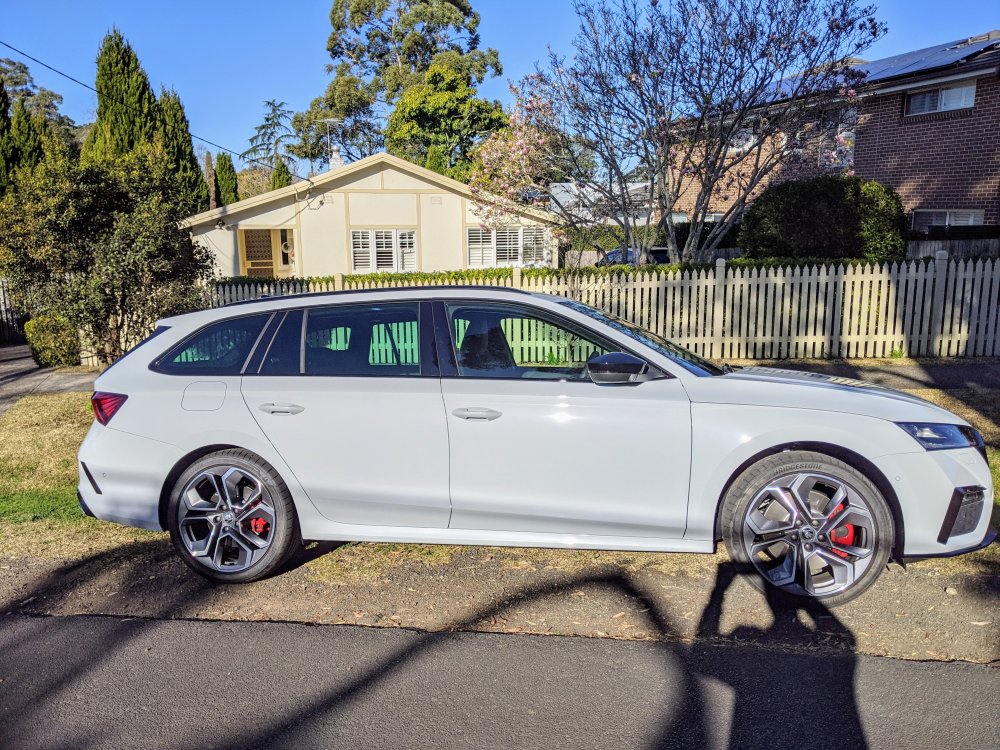
1 pointI can see why you might think that although to me it it clearly different. Strangely as I took that I was thinking how bright and shiny it looked in the sunshine. However it was around 3pm on a wintery afternoon so the sun was low, as you can see from the shadows. I will see if I can capture one that shows it off better. Meanwhile here is the same one with a bit of enhancing.
 1 point
 -
Just a random thought, but if you have a KESSY car, could you have a fake KESSY key that could be used to fool thieves into thinking they had the key? Then they would start the car, drive off, only to find the car stops working after they get off the drive and away from the real key. Yes they could figure out what actually happened, it's a high stress situation, they think they already have the key, and the car of unknown provenance they've just nicked has conked out on them. Chances are, they'll just leg it. Even if they don't, it still gives you a couple of minutes to do something in response to what has happened. The flaw in the plan is that you'd essentially need to leave your car unlocked in advance. Hmm, a few bugs to iron out of my cunning plan, I think.1 point
-
1 pointRescue and emergency services do not rely on W3W, but will use whatever data the caller can give them. If W3W is the location system the caller has, it gets used. W3W is millennials re-branding a concept and thinking they have another new idea again. The better system in the UK is still the OS 6 or 8 figure grid reference as it places you precisely on a ubiquitous mapping system that is used by all rescue services. It is always available with no reliance on batteries or signals as it is carried in paper form very easily. Anyone out on the hills should carry the OS map for area and know how to use it. Sadly technology has made folks think this is obsolete. Instead of W3W app, folks should have the OS Locate app on their phone, which generates the exact grid reference of the location. I have used it to summon an ambulance to a remote road. They found us quickly and with no confusion.1 point
-
This is such a great thread @weyland, it really got me to thinking I could do it myself. Kudos for blazing the trail that people like me have followed.1 point
-
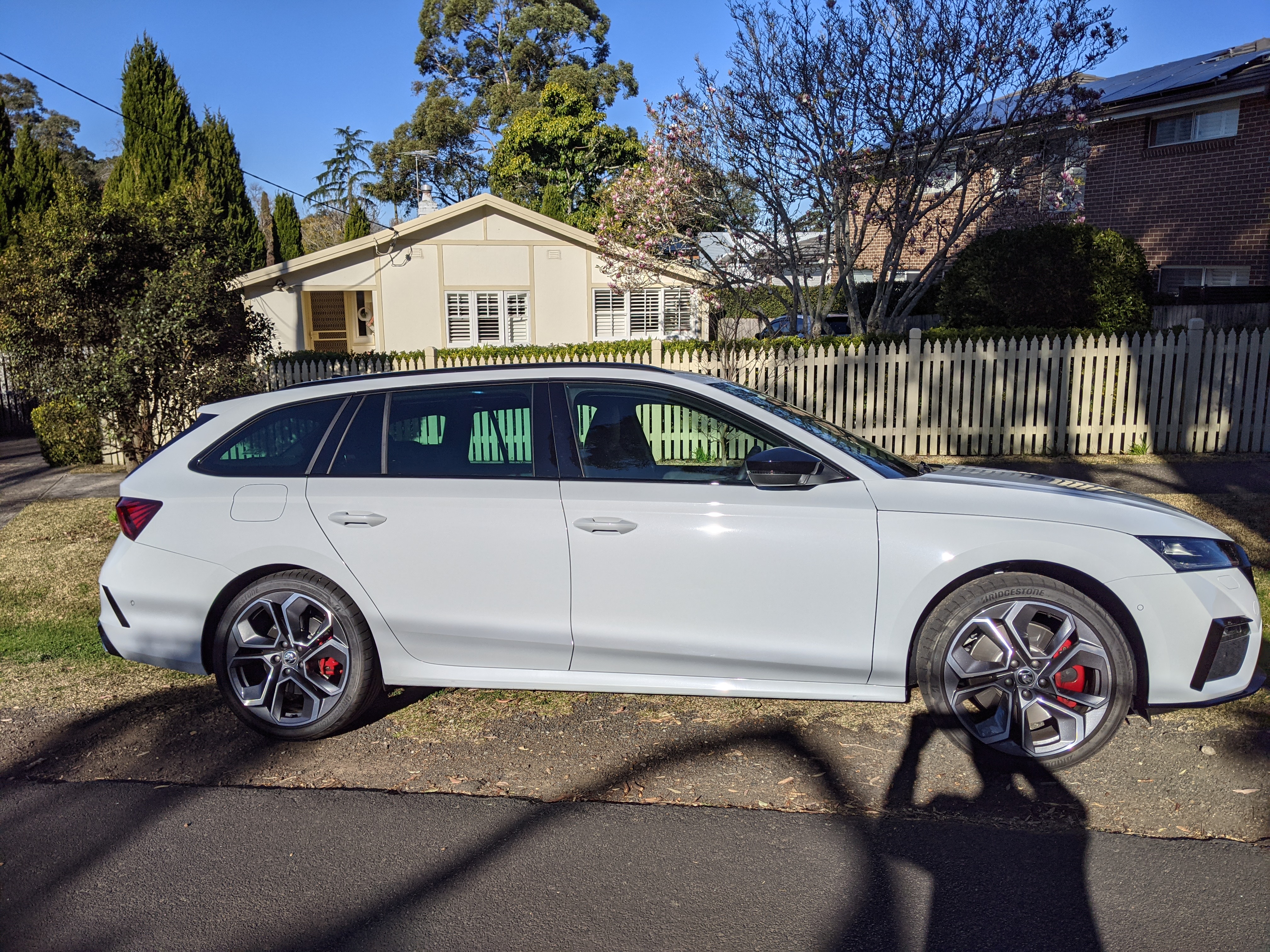
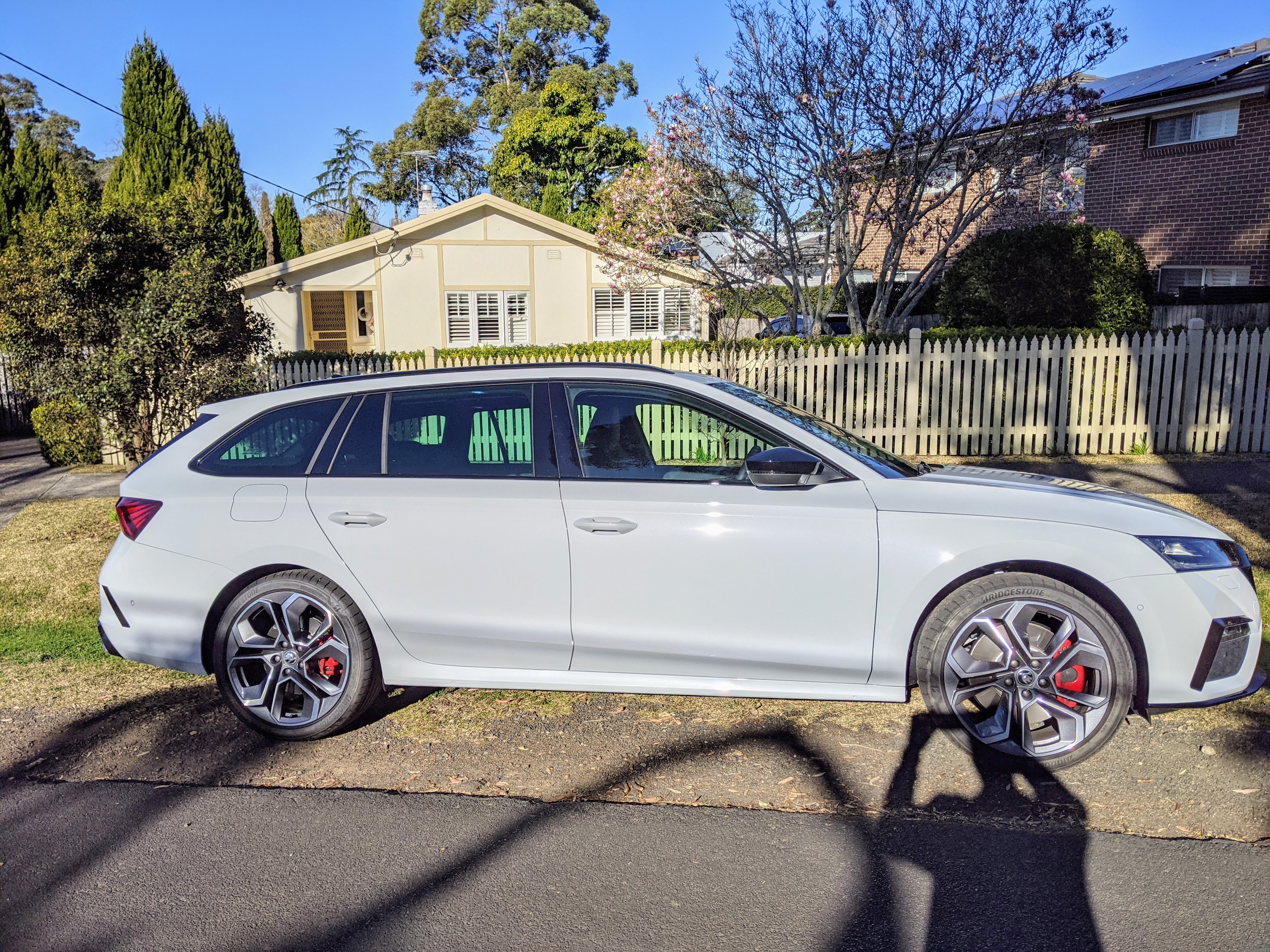
1 pointNice one. But I really don't know what's up with the sunlight you have down there in Australia. This one also looks like Steel Grey. Same as on Andy's picture.1 point
-
1 pointMany decades ago mechanics, fitters or apprentices started greasing door, boot or hatch hinges and putting petroleum jelly on battery terminals at services. It saved the customers from doing it because that was what they were expecting done when paying others to service and maintain their vehicle. Like when grease guns were required as there were grease nipples of places to lube. They had all the gear, all the right grease or oils and they were trained on how to maintain a vehicle for use in the UK through the seasons.1 point
-
Agree. For the new Kodiaq VRS if they had to ditch the diesel due to virtue signaling and/or tax pressures in some markets, then it should have the Superb's 206KW motor. I'll be going for a Formentor Cupra when I replace mine, and it's cheaper.1 point
-
1 pointJust read the other pages before your post ! Everything is described in detail ! If you need help, write pm to somebody.1 point
-
1 point
-
1 pointI have. I had a car that made a blooming awful graunching noise when I opened and closed one of the passenger doors. A bit of heavy grease on the door arm sorted it nicely. Now it's normally done as part of the service, and I don't think anything of it. I wouldn't pay extra to have it done, mind.1 point
-
1 pointThe rust in the coolant is the result of the corrosion of the steel or cast iron parts of the system. Block, liners, intake manifold, pump impeller. Normally the rust must be cleaned mechanically or chemically. The best results I've got so far on EXTERNAL rusty parts is using a rust inhibitor that will neutralize the rust. Not sure what will happen if, let's say, we'd fill the cooling system with such solution. There are some available commercially solutions like Thermocure.1 point
-
This article was posted in the octavia section yesterday … https://www.newsy-today.com/due-to-the-lack-of-chips-skoda-auto-employees-will-remain-at-home-even-after-a-company-wide-holiday-ct24-czech-television/1 point
-
I have read an article recently that they are expecting a supply of chips over the next 2 weeks when the factory is shut for holidays. Hopefully this will go ahead and your car will be finalised after the 16th Aug.1 point
-
1 pointHi I had to take proof of ID into the dealer (they required copy driving licence) they then had to register the info with Skoda and about 2 hours later the lock unlock started to work . It’s all software code and computer communication and it seems to me that not all dealer techs know how it works in detail and if an unusual issue occurs many don’t have sufficient training /skill to put things right. ( they are not usually software engineers) if you are getting incorrect data as you are not registered for lock unlock yet it might be worth starting again with a new account and re setting the car and app.1 point
-
I haven’t ordered one myself, but on a Norwegian Enyaq Facebook page, this question has been asked. At least 8 people in that topic has replied that their cars are on the way and some of them confirms that the car was delayed due to missing chips and was sent back to the factory to have them installed. Google Translate might help. https://m.facebook.com/groups/140265663428845/#!/groups/140265663428845/permalink/981723695949700/1 point
-
1 pointDo you have a trailer hitch? If i connect a trailer AND drive off with the trailer, the car switches off the blindspot detection and a function called maneuvre aid. ( translation, don’t know the correct term). They do switch on automatically when the trailer is disconnected.1 point
-
1 pointI am on my third VAG car with this system. Apart from the phantom wipes it's occasionally does in the dry I haven't had any issues with it. You set the sensitivity with the little selector on top of the stalk and leave in auto. When it rains the wipers start. If it rains harder the wipers go faster. If it's stops then the wipers stop. If you are having issues then maybe give the windscreen a good clean as the sensor patch could be dirty and the rest of the screen not clearing how it should?1 point
-
1 point
-
1 pointI think it's something that grows on you. This the first car I've had with one, and it can take an age to open when you're waiting to juts pop something in the boot... but it can be very handy to open from it from the driver's seat when it's raining and you wife has a trolley-load of shopping1 point
-
1 point
-
1 pointGiven nothing else is complaining about missing comms with the cluster, it could just be the RCD330 is confused? The car is much older than it would have been originally installed in. If the buttons worked normally with the CF but not with the AQ , that would suggest they need LIN 2.0 rather than 1.3 as that's the most obvious difference between the modules. I don't think I'm familiar enough with the pre-FL and it's MFSW to comment further I'm afraid :(1 point
-
Yeah I mean In reality it probably did make a difference. But the engine even in top condition is hardly a smooth or punchy thing. Just shows how much tech has moved on. And even the lowest power 1.4 TSI is leaps ahead of the 1.3 SPi 122bhp (5000rpm) Vs 54bhp (5000rpm) 200nm (1500rpm) Vs 94nm (3250rpm) 5,3 l/100km Vs 7,1 l/100km1 point
-
I can also confirm that's it's an easy engine service. Changed the oil, filter and spark plugs a couple weeks ago. Didn't have to remove the under body cover as the drain is accessible. So jacked the car up, drained oil, unscrewed filter (not a single drop of oil came out so no mess), new filter in and new oil and was done with the oil change in about 20 mins. The spark plugs were also easier than anticipated. Removed the cover, popped open the wiring clips, pulled the coils out with a screwdriver and whipped out the old plugs and put the new in. I must say it seems to run even better with the new plugs. Has a bit more grunt lower down while just pootling around. And the estimated range is showing more than it usually does (just over 800km or 500 miles) with just doing short local runs.1 point
-
1 point
-
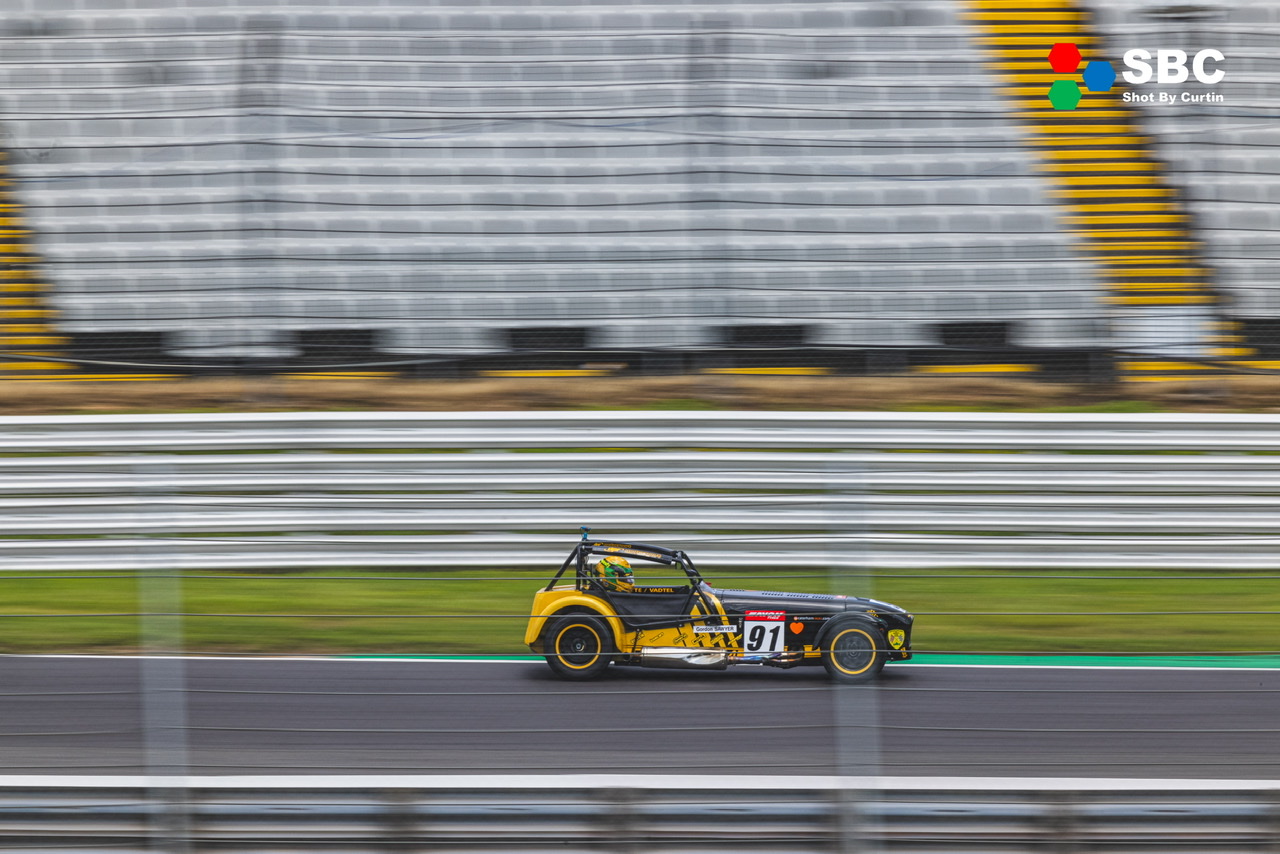
1 pointHey! A little update on this topic: I have ordered Eibach spacers 15mm for back and 10mm for the front. Also I have ordered these new DCC compatible H&R Sport lowering springs. I will add this setup on stock R19 wheels and post a pic how it looks Springs will arrive in 3weeks.. Should be similar to this, as I got same springs. Just different wheels.1 point

















.thumb.jpg.94ac72c6cb19c11c887370b31f058b4b.jpg)