



Leaderboard
-
Lee01
FREEDOM7Points36,947Posts -
Stonekeeper
Resident Member6Points2,993Posts -
Colin170CR
FREEDOM4Points2,454Posts -
.jpg.1006585dfe4e2977315b67c3d642e37b.jpg)
Guest_
FREEDOM4Points83,824Posts
.thumb.jpg.9dd3f612ba7f13d10be5c518d3c8d255.jpg)


Popular Content
Showing content with the highest reputation on 16/07/25 in all areas
-
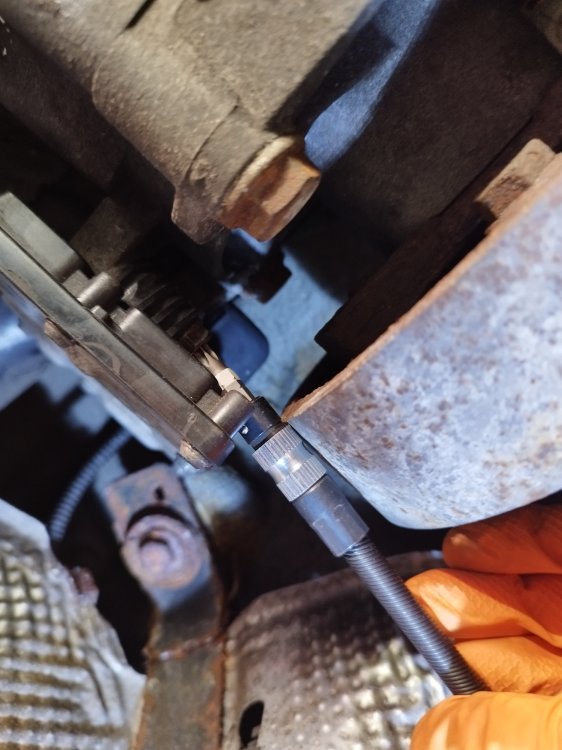
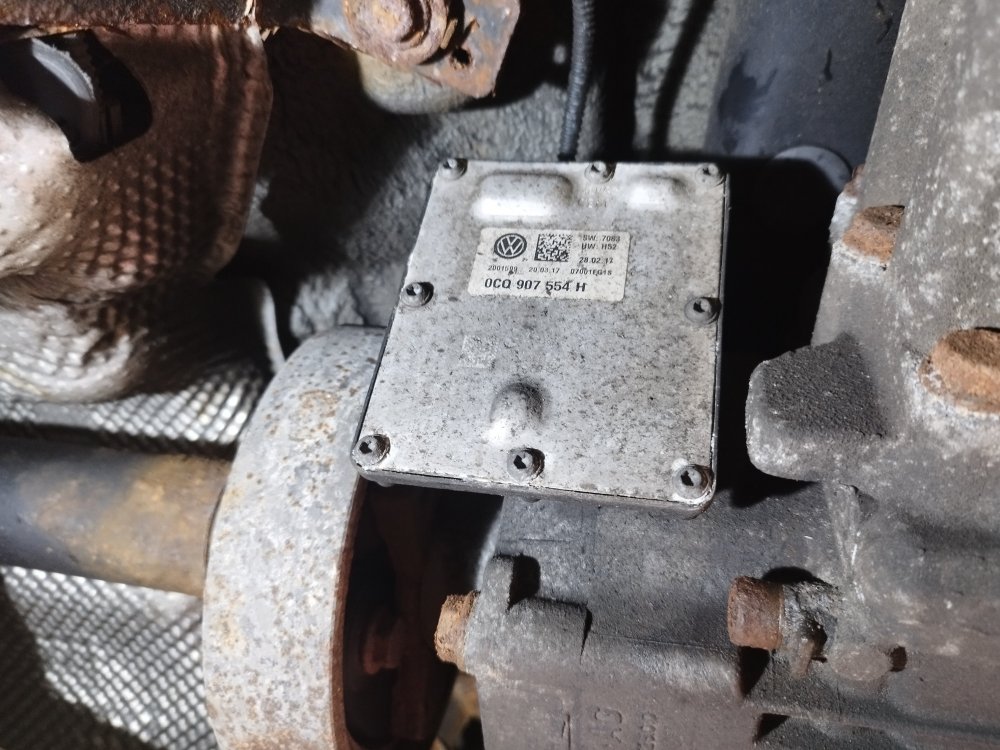
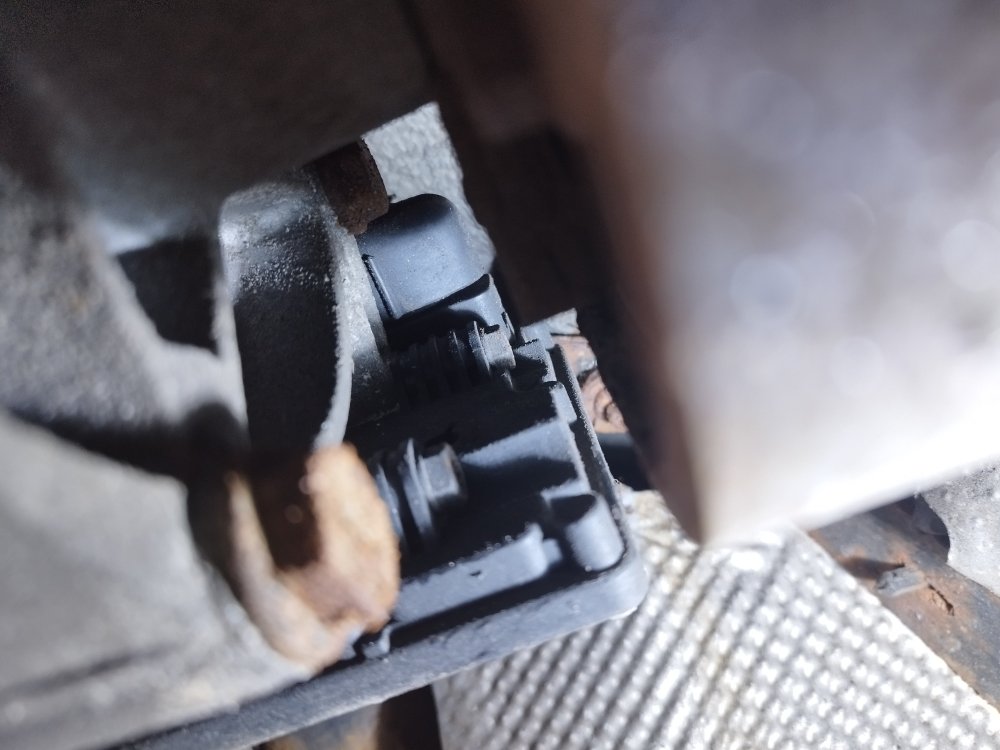
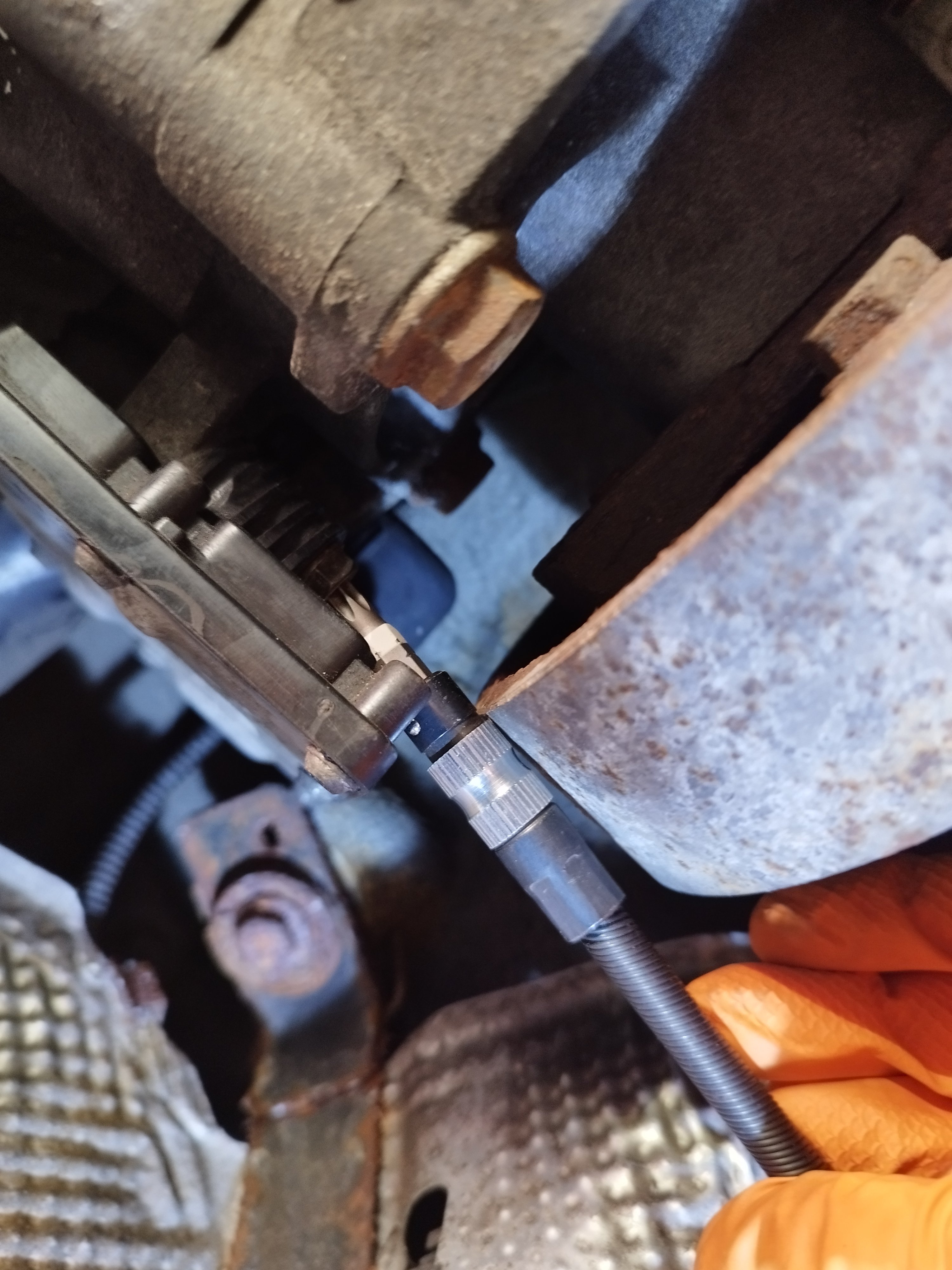
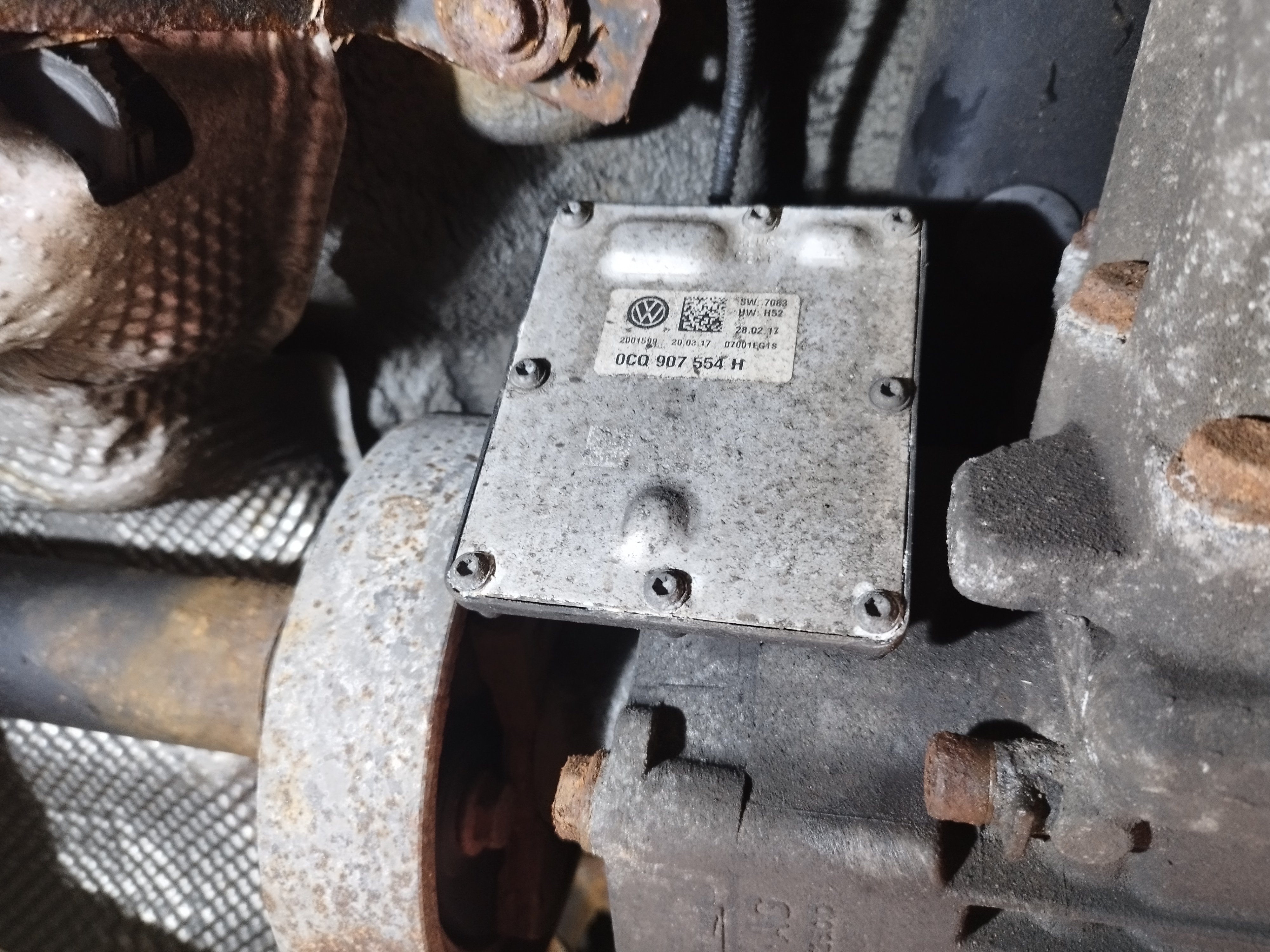
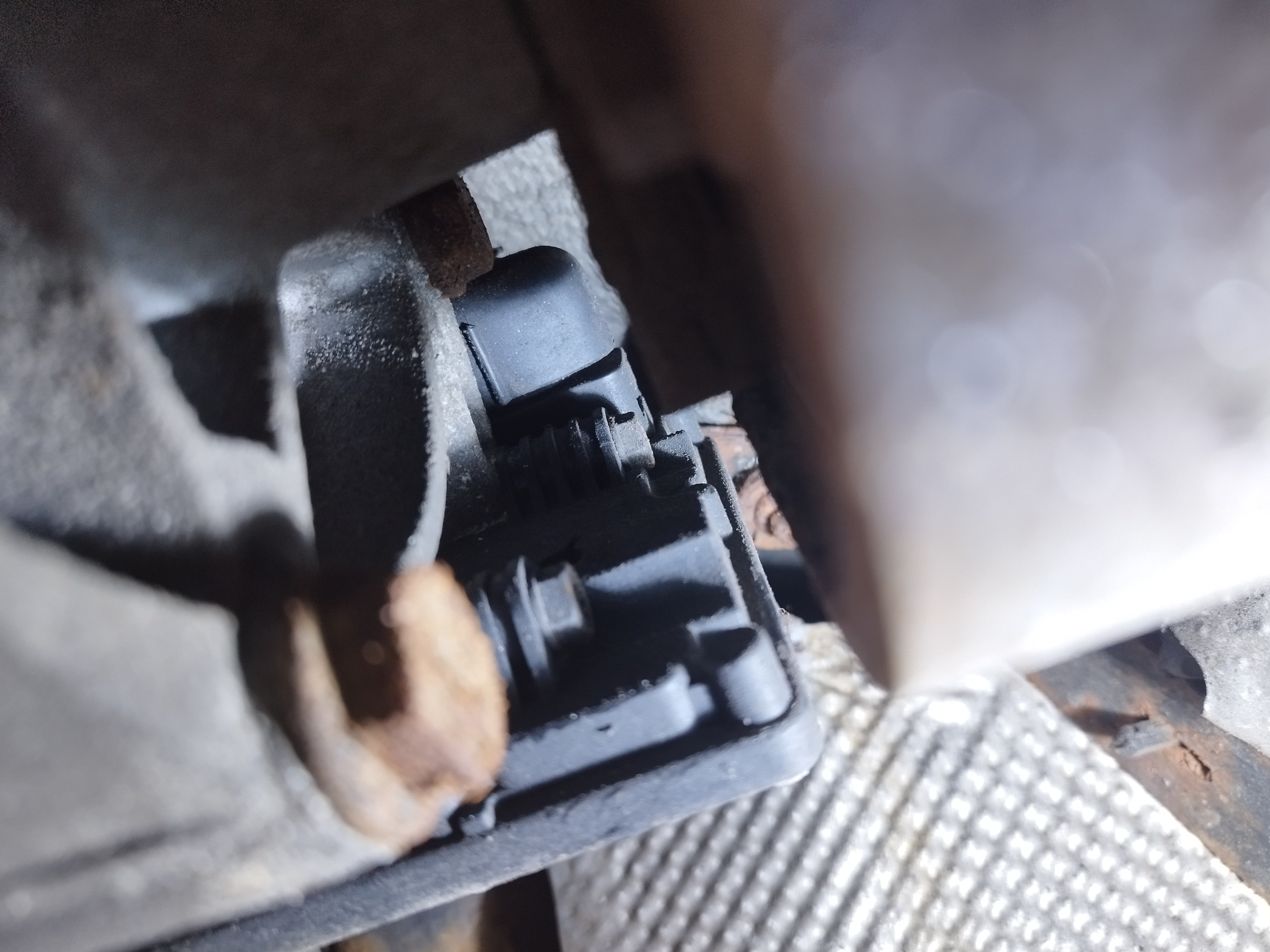
2 pointsHi, I like to give an update when I get to the bottom of an issue in case it's of use to anyone else. The intermittent issue I've been having was resolved after referring to a Golf R 7.5 forum where it was suggested that a common issue is the Haldex controller becoming damaged by water ingress, and a repair service being offered by Haldex Repairs UK. Sure enough, after I'd started off by replacing ABS wheel sensors (cheap and very easily done) but that didn't work, I carefully removed the Haldex controller, 2 10mm bolts (also T30 torx), the bottom one a little tricky due to proximity to the propshaft. 2 electrical connectors at the top with the traditional VW push clip setup. Sent it off by post Friday afternoon, received back repaired Tuesday morning, fitted it today and fingers crossed all the warnings have gone 😄 If anyone else is doing this on the drive, the smaller cable connector, which I think goes to the Haldex pump, has 2 wires covered in braid which has disintegrated on mine and turns to dust which falls directly into your eyes! So best to wear goggles - I re-covered the wires with loom tape, not sure if it gets hot up there - it's miles away from the exhaust, but something has led to the braid disintegrating.
 2 points
 -
2 points
-
@smipx we also a Fabia and Karoq. The Fabia is 2015 1.2 TSI 110bhp, it’s serviced by local independent garage who I’ve used for 20 years. His recommendation was to continue to replace the cambelt every 5 years, because the Fabia only does 2,000 miles a year all short journeys so a very high (20) cold starts per 100 miles. The cambelt is going through a high number of heat cycles which he says is what does the damage. We bought the Fabia in 2016 and will keep it at least another 10 years, so it will have one more cambelt change. Small price to pay for peace of mind.2 points
-
2 pointsI am not sure what "svm" stands for, but plugging it in is plug and play. You just need to code it in later.2 points
-
2 pointsUpdate, called Skoda Assist on App, they were brilliant, they were with me in 40 mins, Battery found to be at fault, & replaced, coded to car & all error codes & warnings lights removed, all under warranty! Very impressed!2 points
-
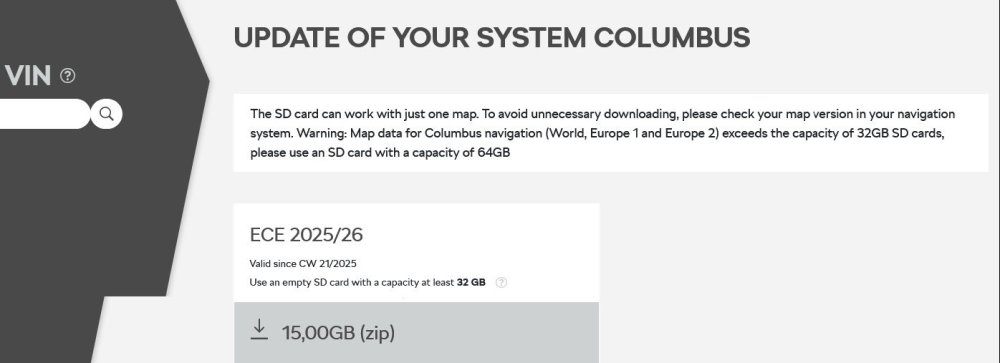
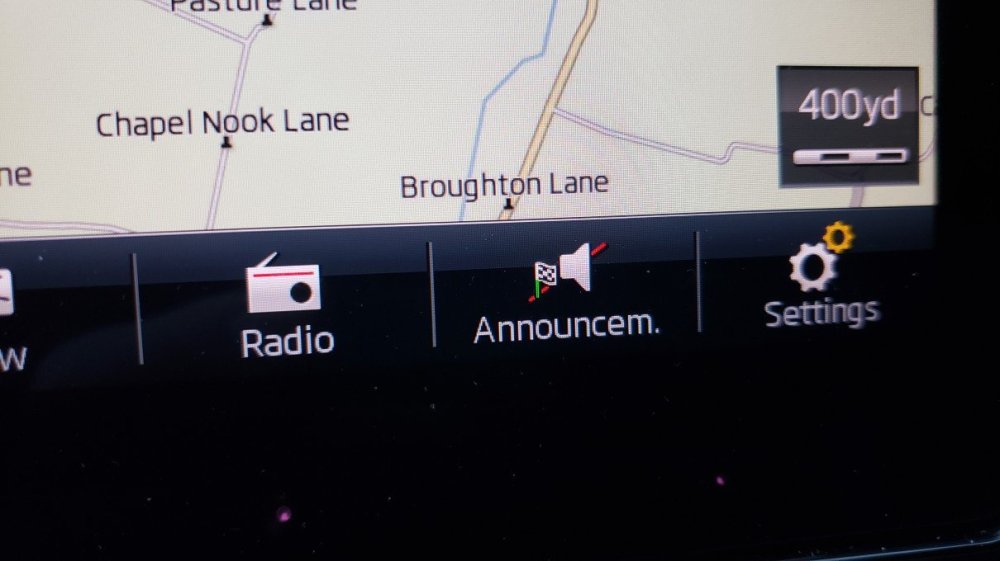
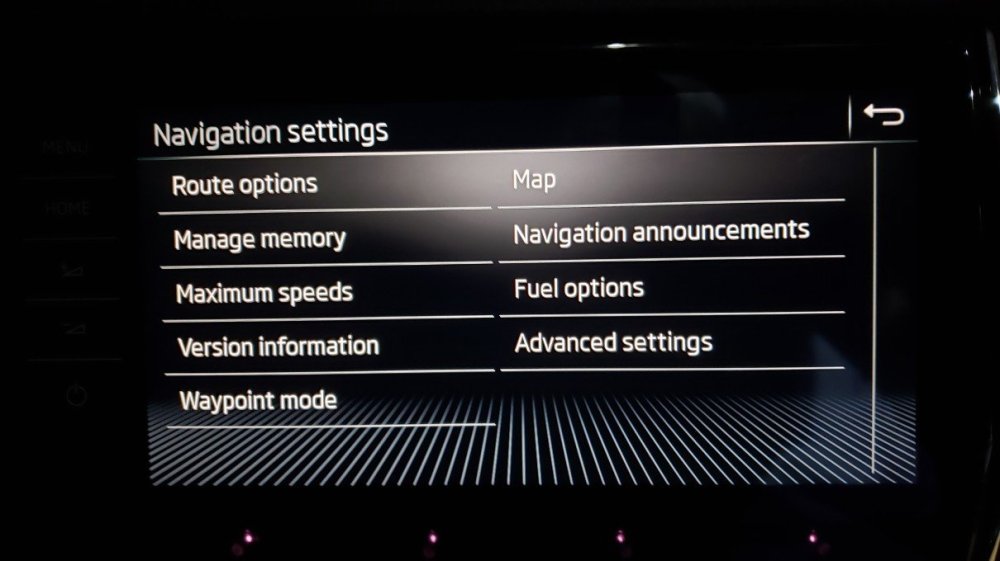
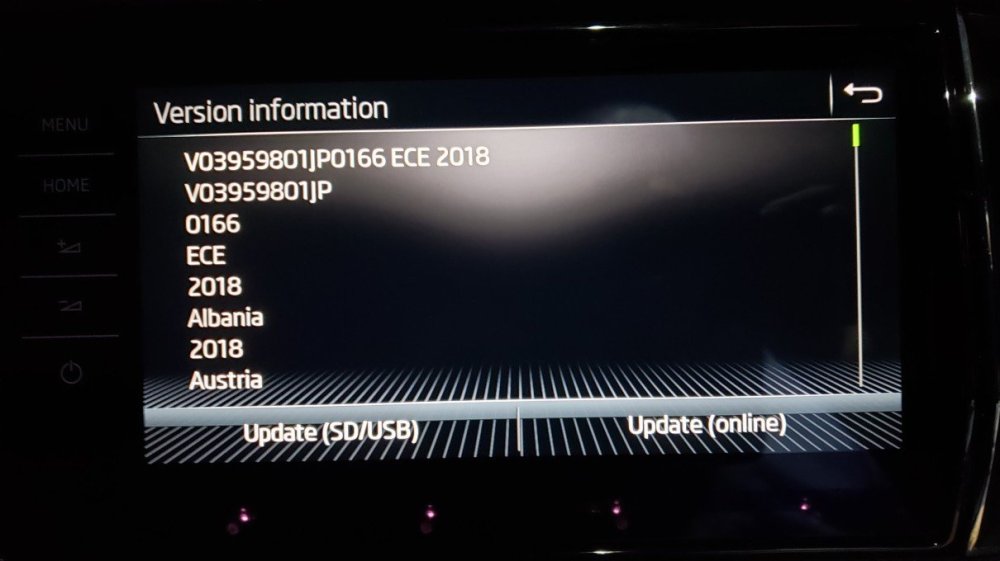
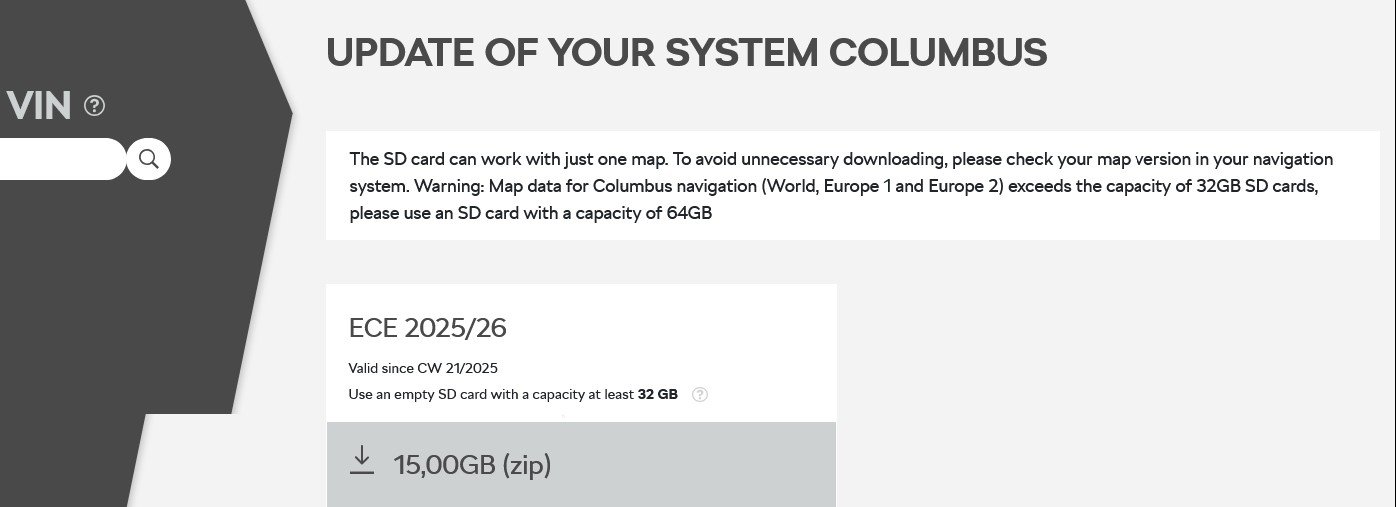
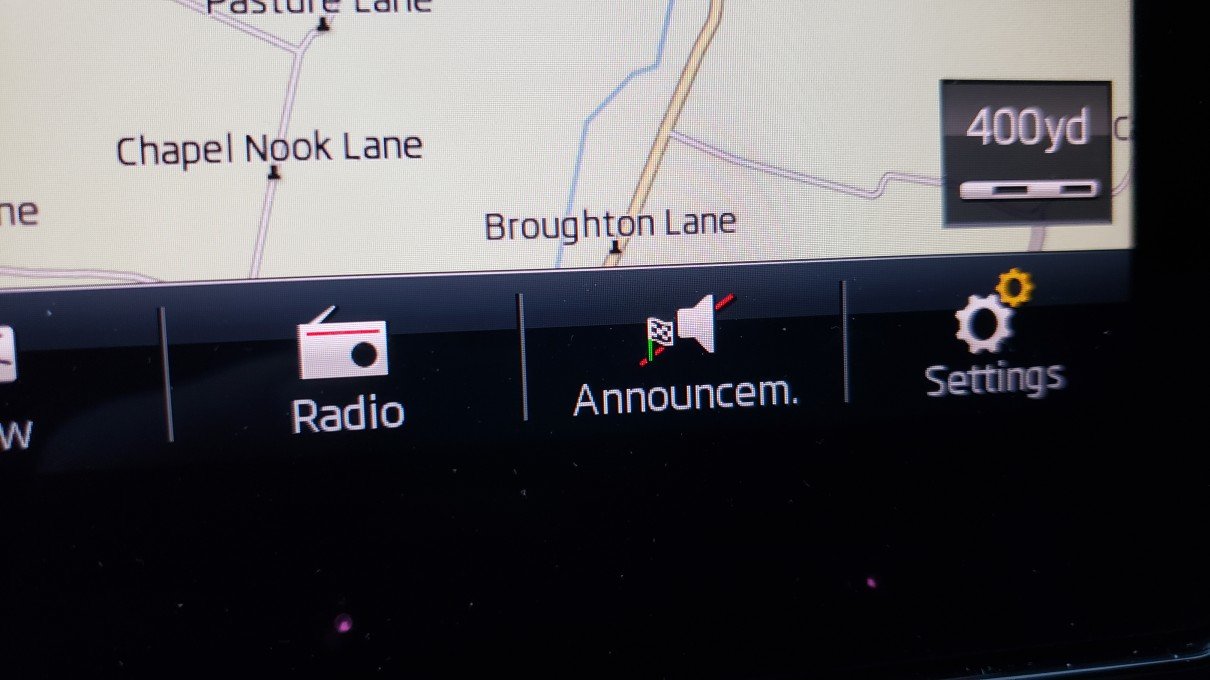
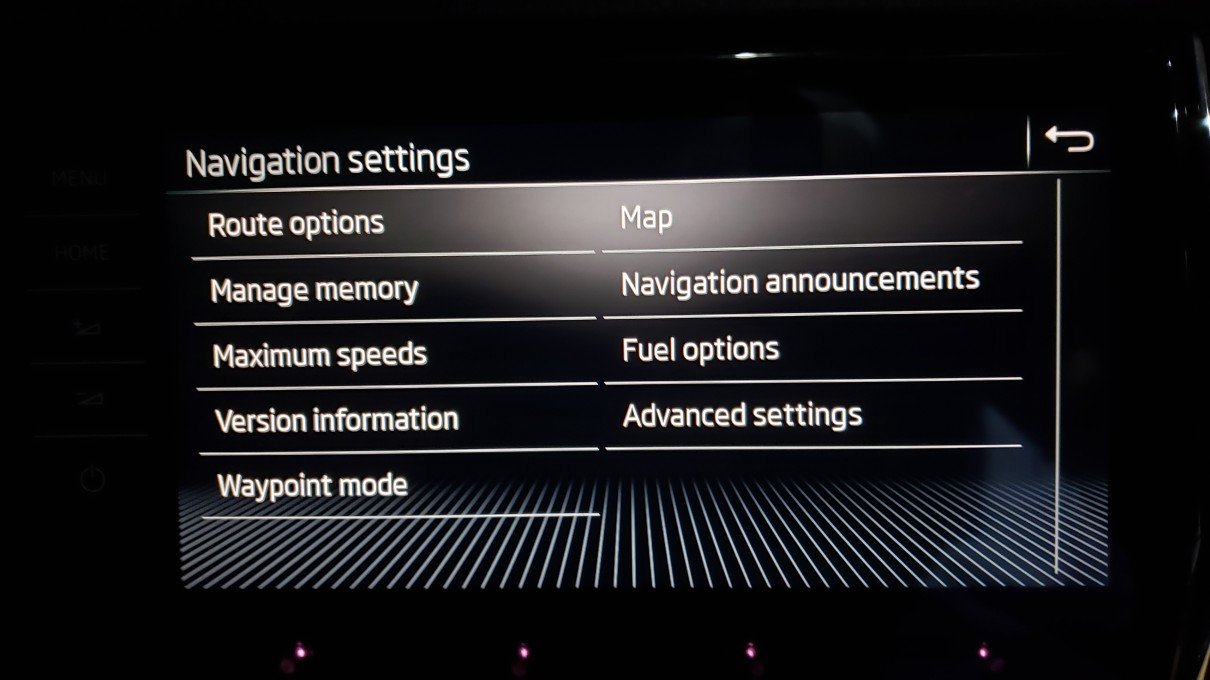
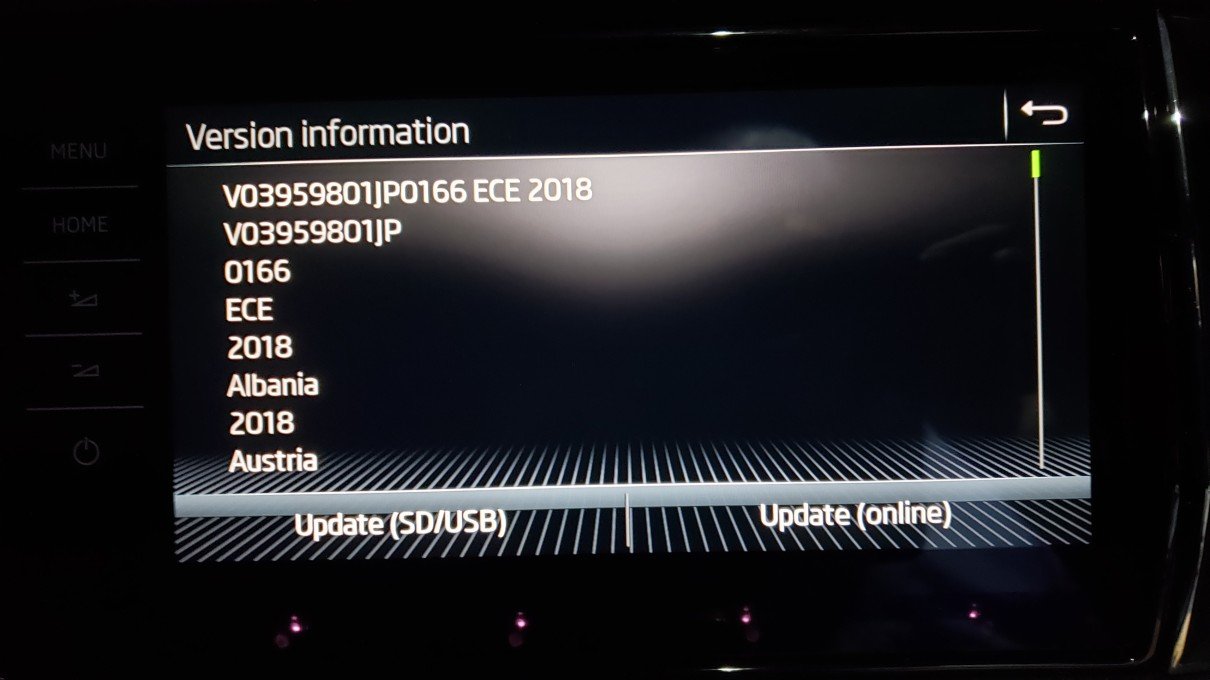
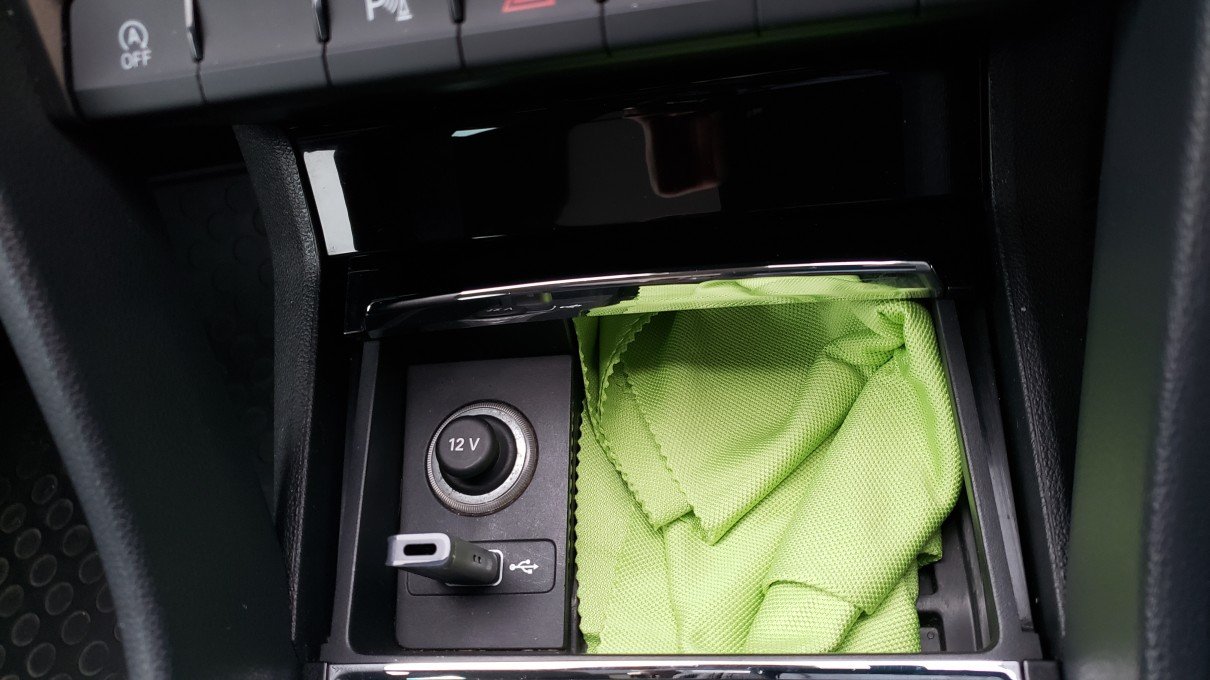
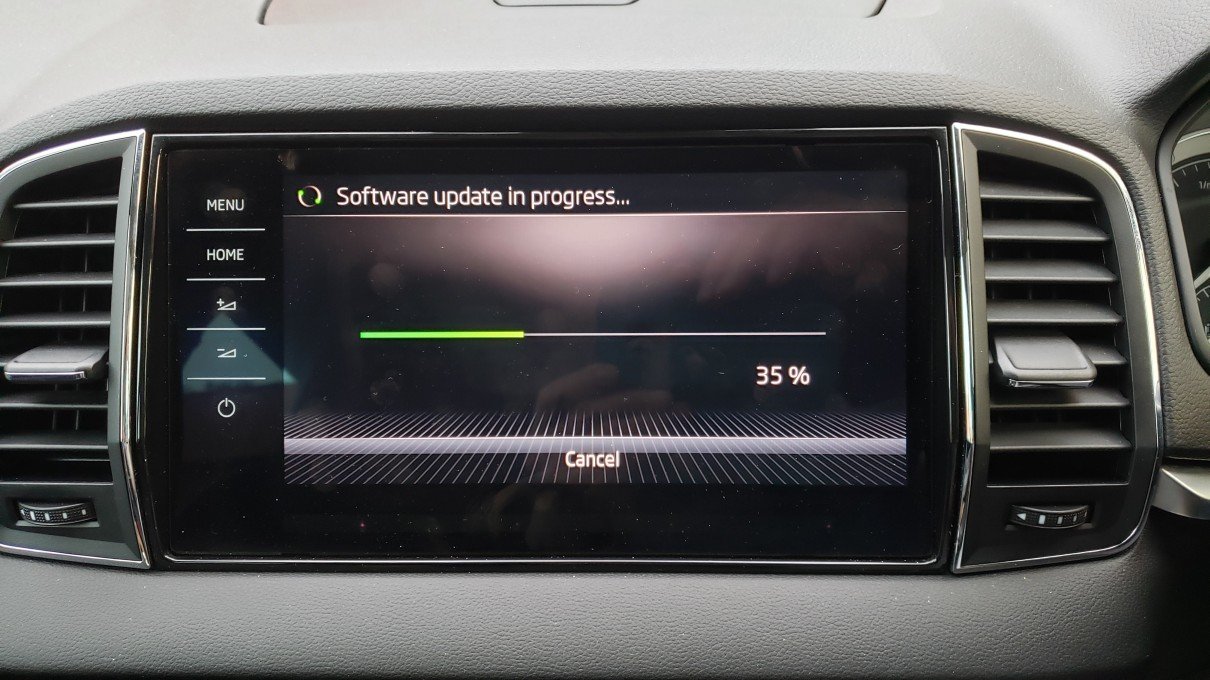
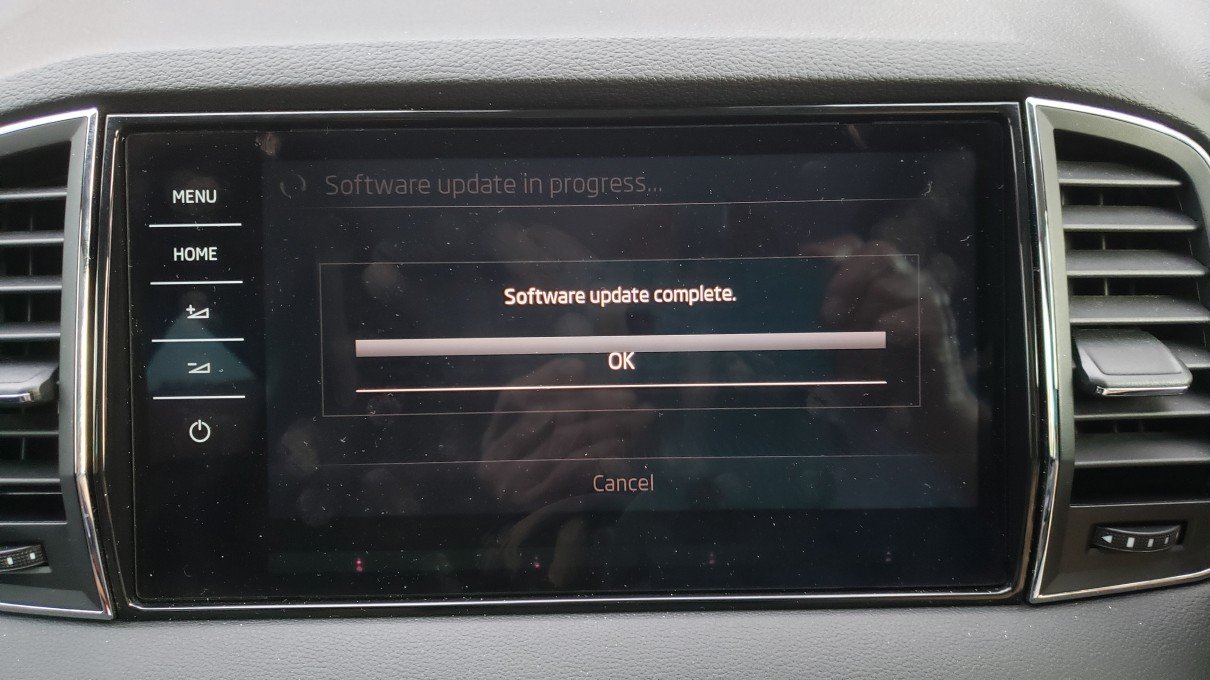
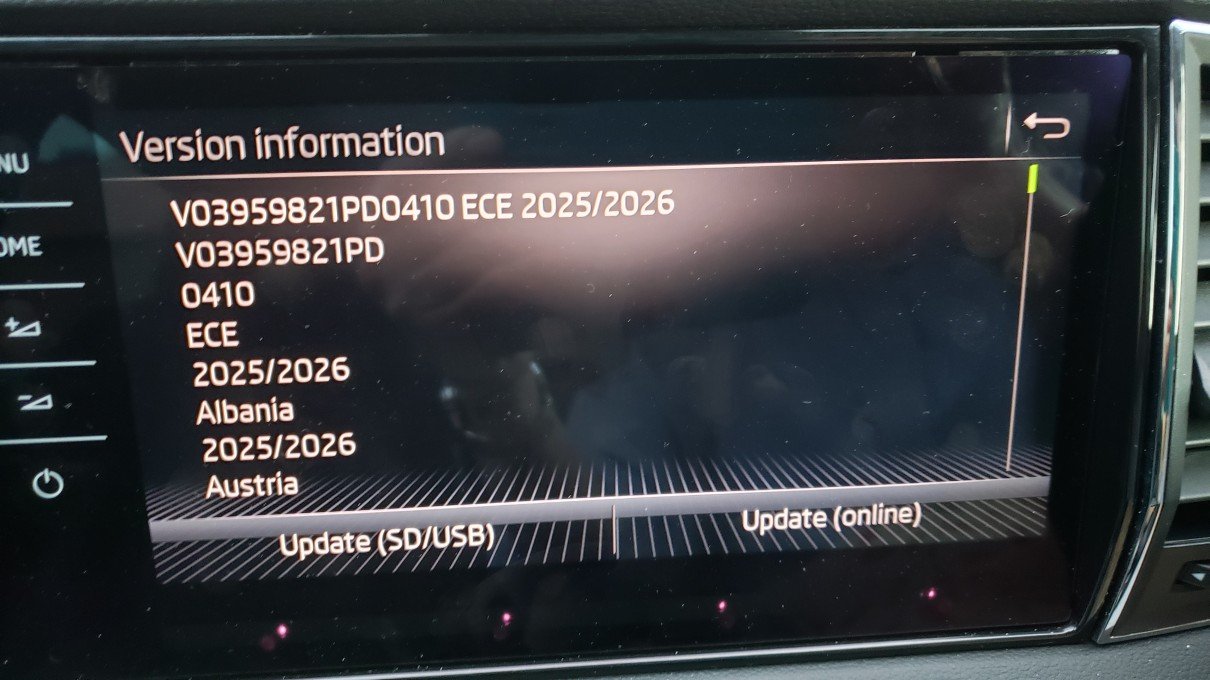
1 pointHello all, I have found the comments in various threads very helpful in (eventually) updating the maps in my Karoq from 2018 to the latest '2025/26' version so I thought I would reiterate and run through the whole process here step by step whilst avoiding the pitfalls -- one or two of which I have myself encountered and overcome by patiently sifting through comments scattered throughout the forum threads. So, the summary steps: 1/ Go to the Skoda update portal and type in your VIN (doublecheck it!) and then click the 'search' magnifying glass. https://updateportal.skoda-auto.com/en-GB 2/ It will bring up the latest map appropriate for your vehicle hardware -- whether Amundsen or Columbus -- so you don't even have to figure out which one you have. (Mine is Columbus). Download the offered file to a suitable directory on your hard disk. It is many gigabytes in size so depending on your internet speed (and how much Skoda servers bottleneck the many downloads they have to cope with) it may take many minutes to several hours. (For me it took 2hrs - after a first attempt which failed - note if your computer goes into sleep mode, it may not resume download after waking). It will be a zipped file. 3/ Prepare a memory device (SD card or USB stick) to transfer the files to the car. NB! Here lies one of the pitfalls which made mine fail the first couple of occasions. The Navigation hardware in the car is VERY FUSSY about the file format used on the transfer memory device. The memory device MUST have a file system with the 'default' or 'standard' cluster size. Manufacturers of different brands 'adjust' the cluster size when sold. For example, I had a 64gb SanDisk USB stick (a very reputable brand) which came with a FAT file system. Now, FAT file systems are not supposed to be used for memory devices larger than 32gb but SanDisk had adjusted the cluster size to make it work. My Windows 10 computer (and others) wrote and read from it fine, but the car Navigation hardware did not recognise or find any of the files on it and update failed. Hence the essential NEED to re-FORMAT your memory device. On Windows 10, this was automatically re-formatted to have the exFAT file system with the 'standard' cluster size etc. 4/ With the freshly Formatted USB stick or SD card, insert it into your computer and extract the zipped file you downloaded from Skoda to the root directory of the USB/SDcard. The extract function in the Win 10 File Explorer works fine to do this. There must be NO OTHER extraneous files on the USB/SDcard. The root directory of the USB/SDcard will now contain just 3 entries -- folder MiB1 (and its subdirectories), folder MiB2, and metainfo2.txt. Don't mess about with any of these files (-- but see other threads about !bad! Apple computers adding !hidden! extra bits to files which you have to remove). 5/ At the car, preferably first charge the car battery with an external charger till it has a good charge. If it has a RESTING voltage of at least 12.65v measured at the battery BUT at least 2-3hr AFTER everything has been switched off (not even opening a door - leave the bonnet unlatched for access) then it has a good state of charge (80%+). Any little current draw from a lead-acid battery will alter the voltage for an hour or two. 6/ Insert your USB/SDcard into the car, switch on the ignition and bring up the Navigation map screen. At the bottom of this screen select Settings. This brings up navigation settings, select Version Info, at bottom of Version Info you can now select 'Update-SD/USB'. It will then say 'searching for update files'. If you have done everything right so far, it will then offer you the version it has found on your USB/SDcard (....or frustratingly say 'no update files found'!) Select 'Next' and 'Software update in progress' will then run slowly and steadily from 0% to 100%. DURING this update, you can switch off the ignition and close the car doors -- but as another poster (Till) says, you must open a car door periodically at least every 15 min to keep the Nav and Infotainment system awake as it goes to sleep about 20min after the last door opening and the update will stop (temporarily). The whole upload to the SatNav in the car, for me, took 50min to finish. You could drive around in the car during this time but the update will probably take longer as the Infotainment system will also be tied up doing other things. Note that at 100%, there is a long pause where nothing seems to happen. This is normal. 7/ After 'Software update complete', select 'OK' & it will just return to the normal Navigation map screen. There was no need to 'reboot' or anything else - as some posters have reported. I hope this helps, and good luck!
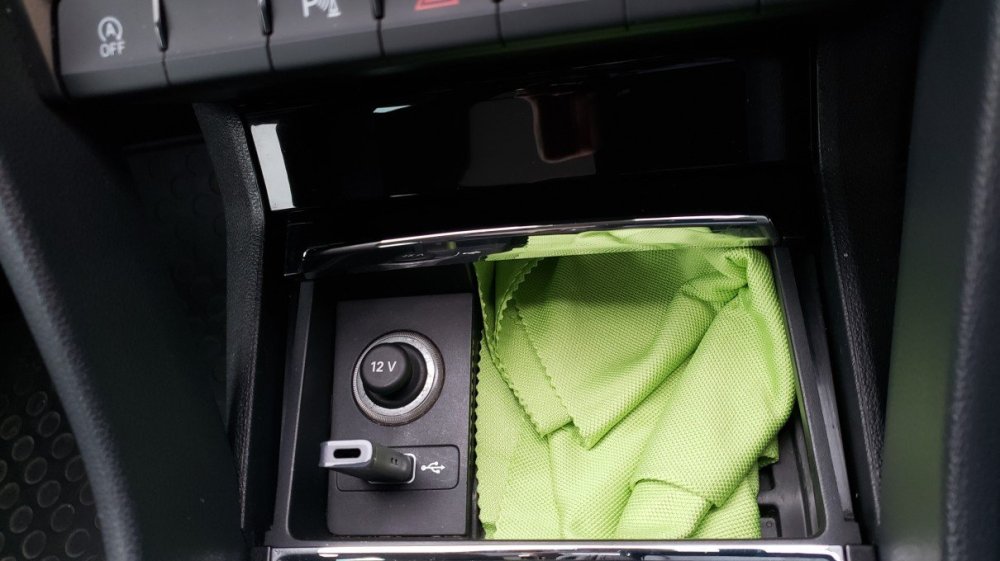
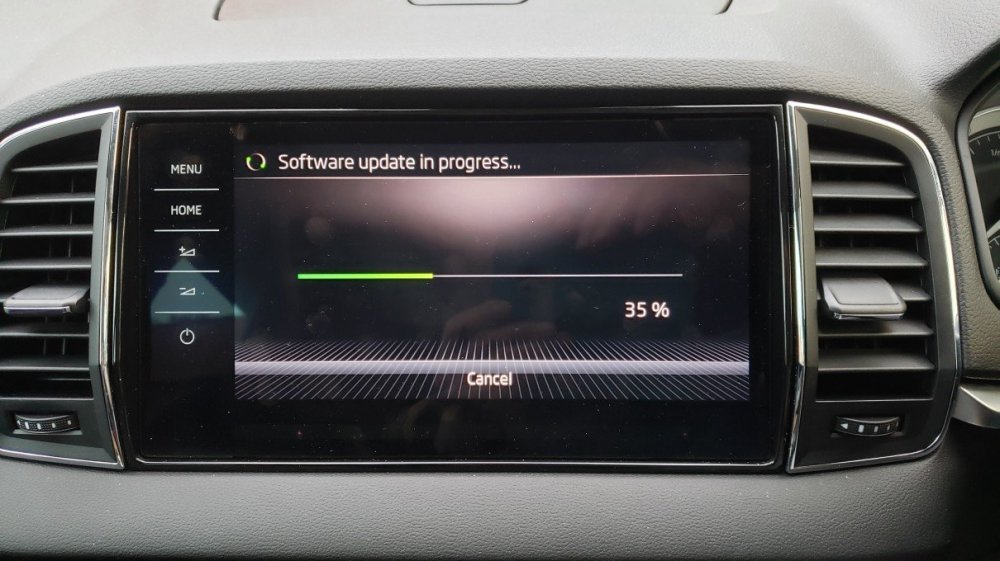
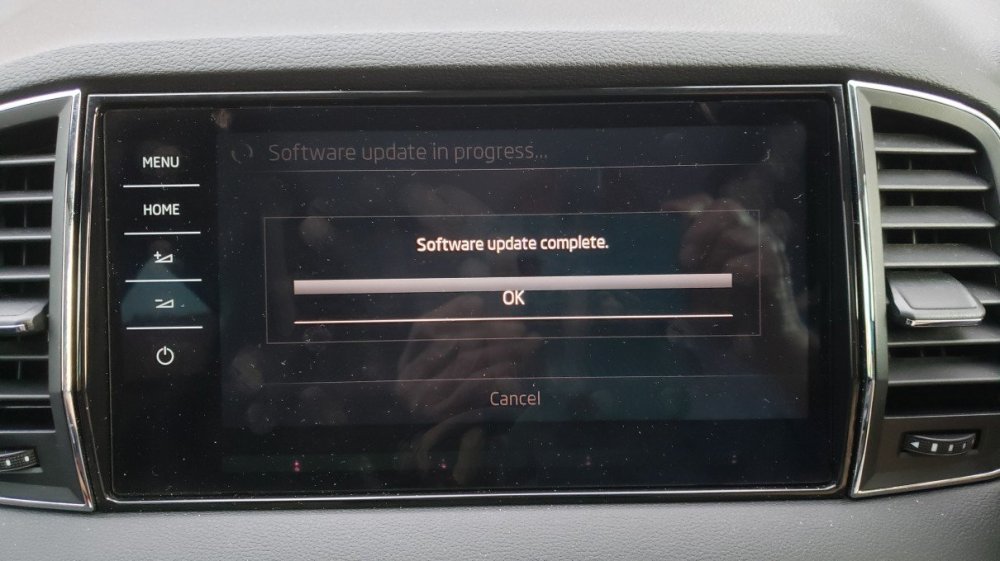
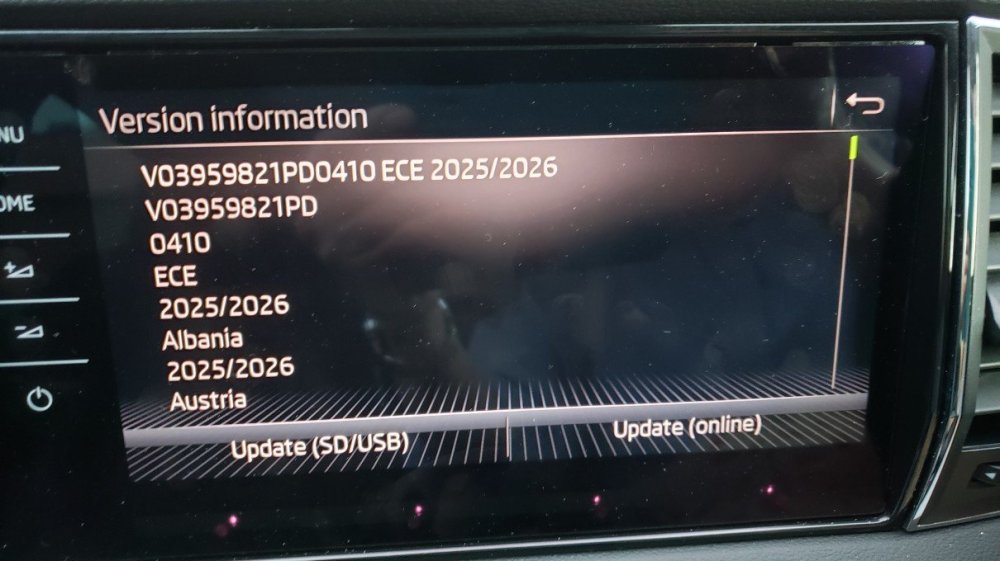 1 point
 -
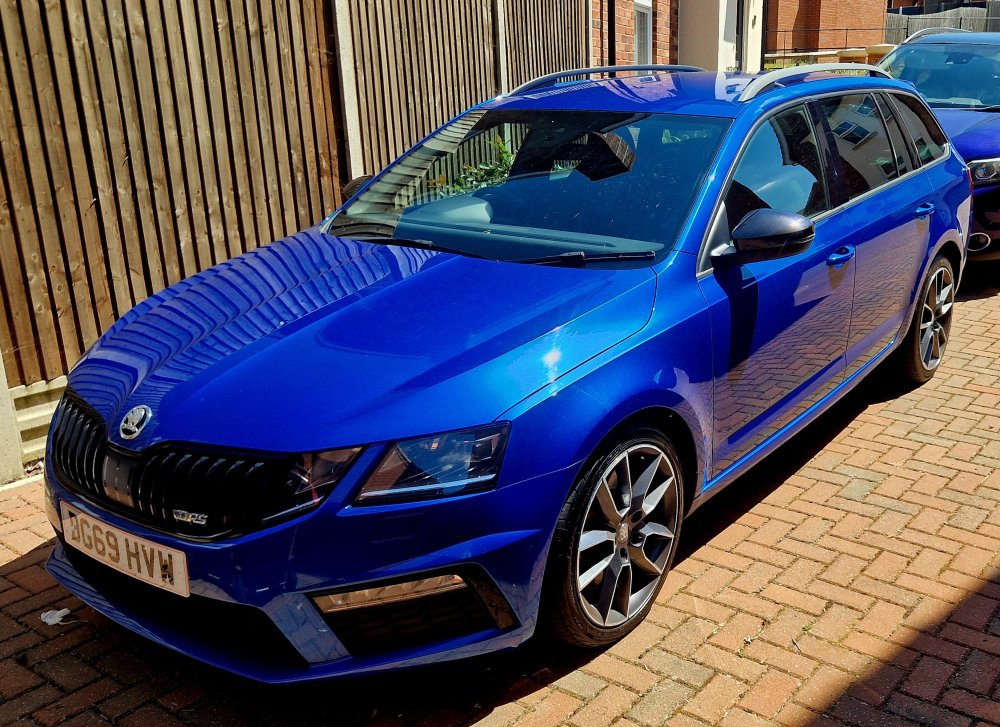
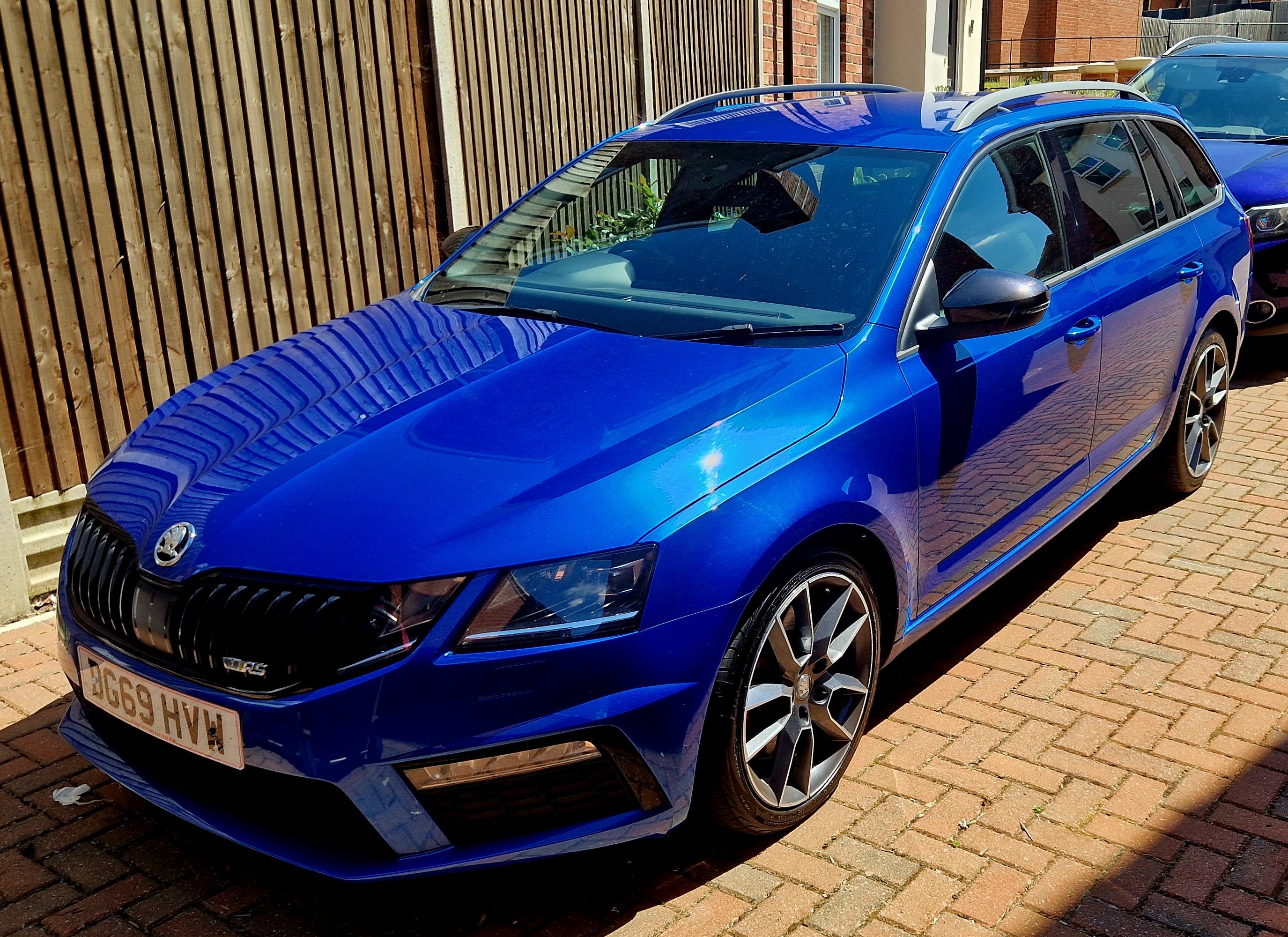
1 pointAfternoon all, recently picked up a 2019 Octavia VRS 245 with DSG. Completly standard apart from some awful light up centre caps i need to replace and burn for crimes against taste. (They spin too) Been a while since i joined a forum, was involved in a few vauxhall/renault & detailing ones before losing hair, buying houses, getting married, kids, people carriers and trips to bloody ikea... Off to have a look around Rob
 1 point
 -
No do not have a superb, but have had higher load XL all season tyres on other Skoda car (before SF3 was invented), and couldn't tell difference from the normal load summer tyres in everyday driving.1 point
-
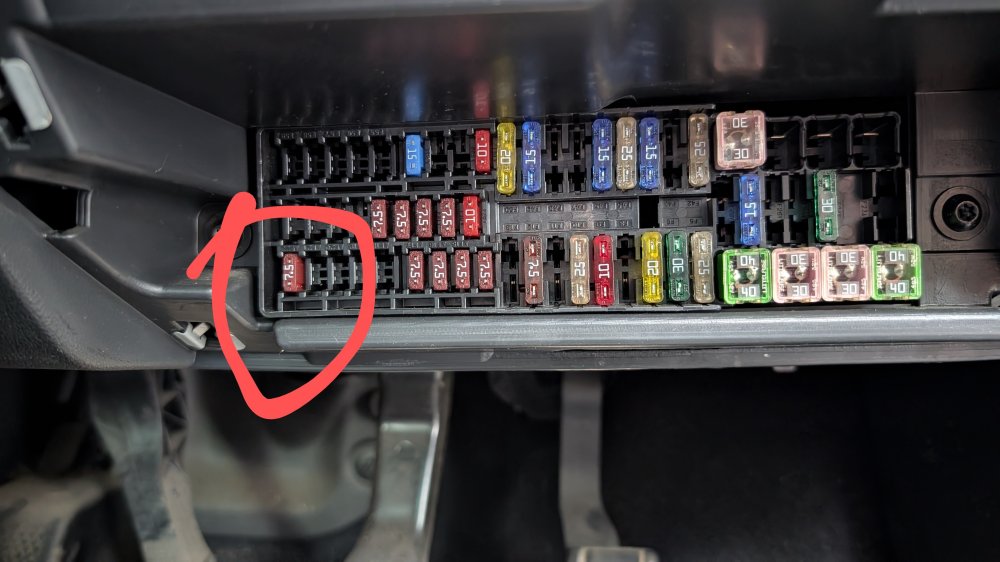
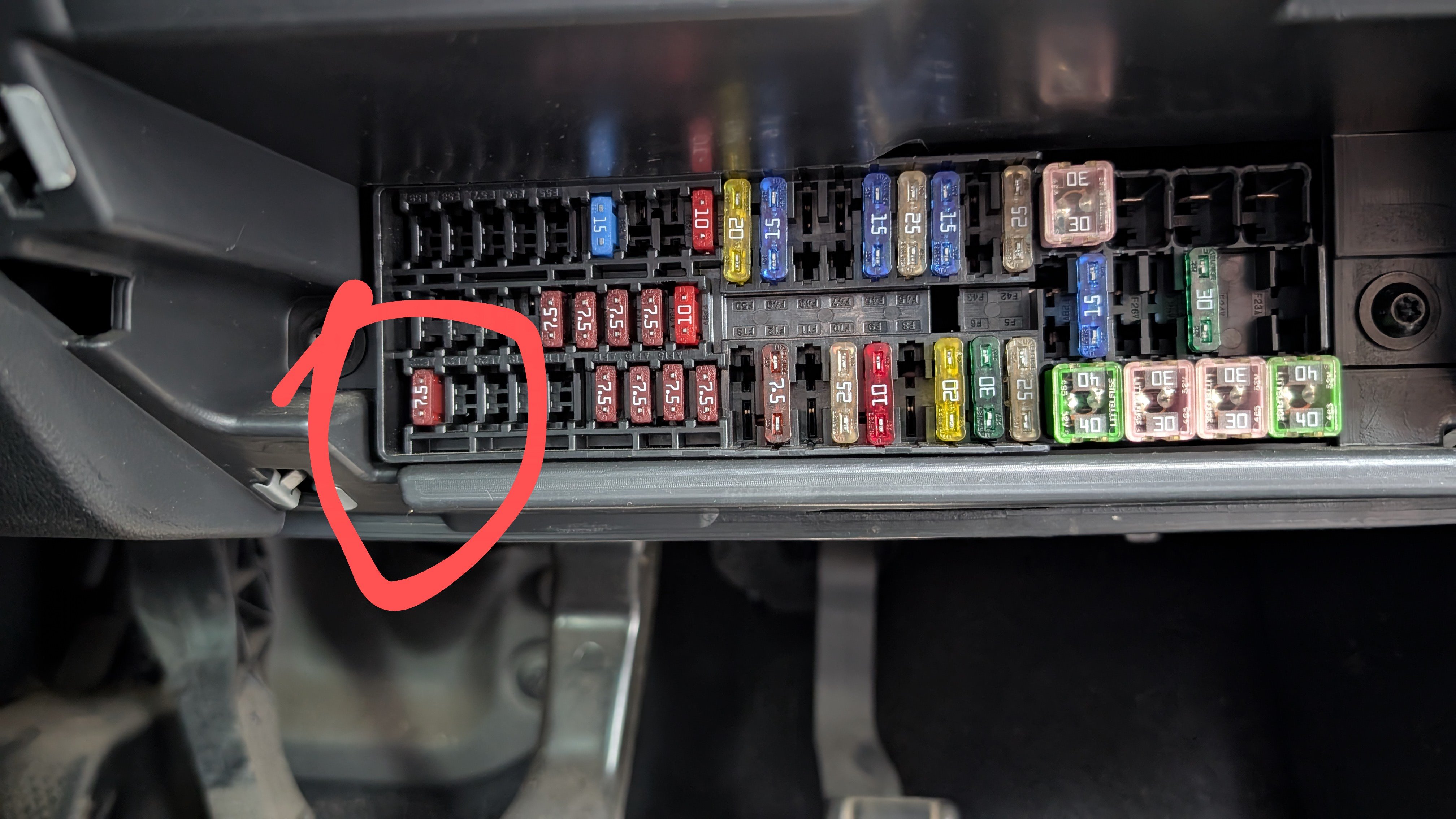
1 pointI have a Skoda Rapid 2015 UK. I spent some time finding the issue. After changing tea pump, it didn't run. So I assumed that it doesn't get any power. The fuse diagram from the car manual is useless. After hours of tempering I found the fuse that was blown. I hope it will help someone.
 1 point
 -
1 pointHi community, I recently bought a 2018 Skoda Superb Style and I'm new to the Skoda brand. So far, I'm very happy with it and I'm keen to learn more about recommended maintenance, tips for tracking maintenance and seeing what ideas/topics this community like to dive into. As a family man, I feel like I've found a great car in terms of safety, interior space (that boot size!) and practicality and would love to see if any hidden quirks/mods can be discovered. See you in the forums!1 point
-
1 point
-
I'm back - as I said, I had Good Year Vector 4-seasons on my Golf GTD Estate which has virtually the same chassis as the Skoda, albeit slightly more firmly sprung. On both the Audi and the VW I like the Goodyears. Good grip in wet and dry, great in the rare snowy conditions we have, even here in Scotland. The only reason I didn't go for them on the Skoda was that I already had 2 Michelin Cross Climate+ with plenty of wear left and prefer to have the same tyre brand all round if possible.1 point
-
Interesting, mine has had a similar effect, saving me around 25 to 30%, not worked it out properly yet, will do that tomorrow when I get back home. Not 100% sure if the car is doing the saving or insurance has come down in general.1 point
-
When I had a Mercedes certain models were notorious for irregular front wheel tyre wear and pulling to the left. Can I suggest that you really need a specialist company such as Wheels in Motion so sort out the problem. I aways had my Mercedes 4 wheel tracked annually at a specialist in Worcester. Good luck1 point
-
1 point@smipx ,It might be interesting to see how a VW Group cam belt failure was "collected" by a used car warranty - hopefully you will never end up being on the receiving end of any fob offs. Though surely someone has already been through this, it would be useful if they could chip in with their experiences. I'm not in any way contradicting/criticising what your general feelings about this are, until this "relaxation" in time/distance change was rolled out by VW UK, Skoda UK etc etc, the rest of Europe and the world that VW AG sells its products into, had already been using longer service periods for these cam belts in "normal" sales regions, not just from a few years back, but at least back to 2000, it was just mainly UK sales area's main dealership service areas that were being encouraged into the initial "4 years" and then "5 years" change periods. I for one was willing to believe that they had extended this change period in UK because more robust materials were being used along with more robust support parts, when in reality it is more likely "the game is up" as we tend to have access to more relevant information.1 point
-
1 pointHey there, owner of a Skoda Octavia, 2018, 1.6 TDI, 110 Not a big brand enthusiast but my father had an older 2000 Octavia 4x4, 2.0 TDI which was a work horse and I've spent quite some time with it on the road myself. I knew it was a nice car to drive, practical and reliable so I bought myself one some years later. So far so good! I do love to modify, code and customise whatever gadget I lay my hands on :) Great forum, thanks everyone for sharing the info and resources! M1 point
-
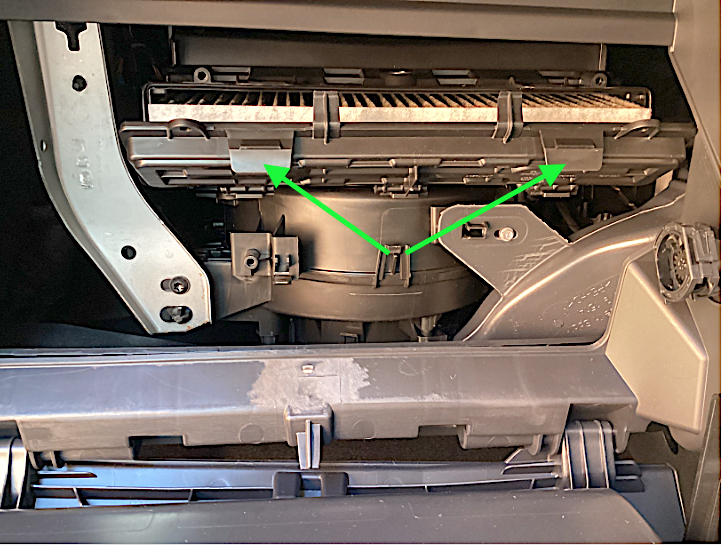
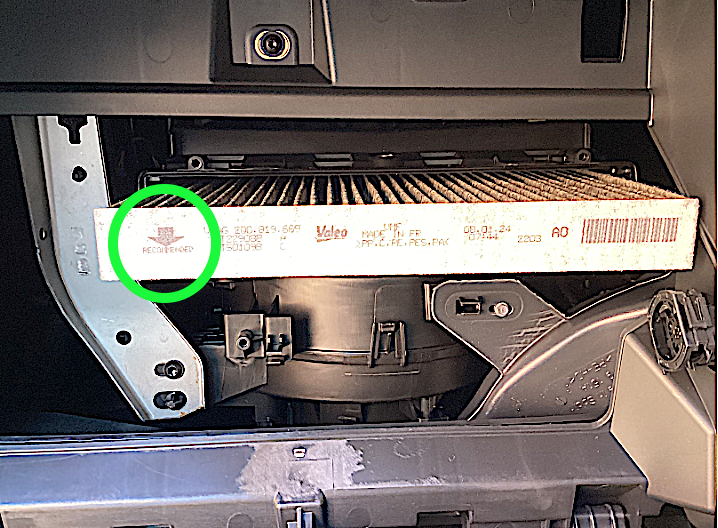
1 pointI notice that a similar enquiry was made here When referring earlier to the 'box' that encloses the air-con filter, I said "How to open that 'box' should be obvious" - but (having just done it) that may have been a mite simplistic. The front cover of the 'box' hinges at its bottom edge and the next photo shows it partially hinged down. To open the cover when it is shut, the two 'flaps' I have arrowed in green need to be pushed firmly downwards (this can be done one flap at a time and it should be plain when the flap has unclipped) Then the cover can easily be removed. This next photo shows the air-con filter partially pulled out and the directional arrow on the filter must point downwards. In my 2024 Fabia Mk4's case, the Skoda-factory-fitted filter is branded "VALEO", but, as it also carries VAG data, it may not show in a VALEO filter retail catalogue. The VAG/Skoda part number is 2Q0819669 and it's visually obvious that the VALEO filter in my car is the activated carbon type. A 'genuine' Skoda filter is advertised here https://www.skoda-parts.com/spare-part/2q0819669-cabin-odour-filter-skoda-39407.html but GOOGLE-searching on 2Q0819669 should identify suitable (and less expensive) equivalent filters from Bosch, Mann, Mahle, etc.
 1 point
 -
I've found this website by chance, was surprised to find a wrong part code, searching for the torch holder to be ready when Aperture will decide to modify one for me 😁 and the skoda parts site had it wrong ... here is the closest I can get to ETKA 🙂1 point
-
1 point@nta16 No problem thank you again for your help. I shall see if any of these guys respond 👍1 point
-
You will hear the difference. Suddenly there is bass!1 point
-
1 pointThose "Visual Health Check" (lies) ticksheets are more of a confidence trick than not, trying to rustle up additional chargeable good revenue and profit work for Marshall's. I was showing my wife's her instance of Marshall's conning only last night - of course Marshall's would say the one for my wife was an administrivia oversight and then have an explanation for the following oversights and bang the con back on. No doubt they trued it on with my wife as she was a woman and wasn't repeated when I was contacting them. They will get out of it by saying it's their recommendation (eta: though as you put they don't make it clear that's it's THEIR recommendation and not VWŠoda's) which is fair enough if they have been doing annual checks of the belt, tensioner and perhaps water pump which they won't have otherwise they would have detailed it and charged you for it. You are luck they put 70% and 80% remaining for your brake rather than just 70and 80% perhaps suggesting that is how much they're worn. The lie sheets can be amusing seeing issues completely disappear in only 20 days and a number of hundreds of miles, and tyres increase in treads depth in a few months, reports on non-existent spare wheels - all administrivia mistakes I'm sure. You could ask Marshall's what evidence they have for picking 5 years change recommendation (other than wanting the revenue and profit).1 point
-
1 point@nta16 Thank you for your response appreciate the help. The only people that are remotely close from what I can see is @devonutopia and @PetrolDave and they are still 2 hours away lol.1 point
-
1 pointThe thing is though - a lot of people in my area are "more mature" and not so wise when it comes to these things. I think it is preying personally and.. more to the point they are making it look like it is a manufacturer recommendation (or at least being very ambiguous). Seems underhand to me. Sure, have a conversation and explain that it might be good to consider it but also, at he same time, be clear that the manufacturer stipulates no time interval (and, if you have an all-in-one like me then a snapped belt and associated damage is covered under the warranty - at least for another year).1 point
-
1 pointObviously assuming this sorted the issue ........ Nice simple fix, well done. I can understand folk not wanting to mess with their vehicle, and they shouldn't have to either ....... ...... but sometimes you just have to bite the bullet and sort the 5h1t yourself, or get a mate to do it. Shame on Skoda not sorting these issues out.1 point
-
1 pointI finally got mine replaced under warranty 2 weeks ago. I had to kick off and email Skoda Australia to complain about the dealer not replacing it under warranty. Surprisingly they ordered the part straight away once Skoda Aus got in touch with them.1 point
-
Thanks for the post with the direct link to the software updates, I couldn't find it on MIBsolutions myself (just have my Superb iV for two weeks and new to doing things myself as software updates). If you do a software upgrade, connect the 12V battery to a charger, preferably one with power supply modus and a constant 12V to not drain the battery. Plugging in your iV (hybrid) system to a charger doesn't work, because the 12V battery doesn't charge then, only the high voltage battery is charged.1 point
-
I like it. 😀1 point
-
Thank you mate! You don't know how much this helped me. I tried to find this lump from below the car but couldn't do it to save my life. Definitely I need to remove the air filter housing first and then try cleaning the drain. If not possible from the engine bay will try again from below the car. This will be the first thing I do on the weekend. I think that the evaporator has never been cleaned from the inside. Car has original condenser and radiator. I cleaned the radiator with a soft brush too. Changed coolant (not as a try to service this AC problem but as a general service). Doesn't leak, doesn't need coolant, engine temperatures stay at the middle, always. About the 22 year old car and service - I'm afraid, It's just how I am. I like to have my cars in the best state possible (if it isn't something too expensive, also I'm a junkyard connoisseur :D). I took care of all the rust, freshly painted some parts, all the plastic trims are almost "like new". I have another, newer, car which I use for longer distances, but I like this Škoda and it's 1.9 SDi for daily commute, because it's a hardworking donkey. It is lazy for sure, but also doesn't have a DPF, simpler EGR, no costly fixes, very fuel efficient, it just goes and goes and goes...1 point
-
1 pointThe Fabia Mk4 has a single air-con (pollen) filter located to the rear of the glove-box. If you refer to this forum discussion and scroll down to my posting of 26 April 2024, you will find guidance on how to fully lower the glove-box so that the 'box' that contains the air-con filter can be accessed. How to open that 'box' should be obvious and make sure you follow the fitting instructions that should come with a replacement filter as to which way up the filter should go. (And make sure you get a good quality replacement filter!!)1 point
-
1 pointMy point was that you can have the required servicing work done on a VW all in one plan. It's not, in any way, excluded. The fact the dealer needs "reminding" of the schedule is altogether another matter.1 point
-
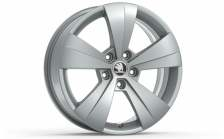
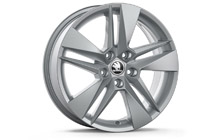
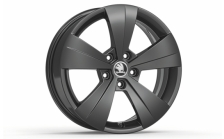
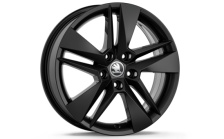
1 point1 point1 pointFrom my experience, the maps in the update portal are usually one version ahead of the most recent...and the update can be performed while driving. Repeated interruptions, etc., don't make any difference.1 point215/55R17 6.5Jx17 ET41 are the only wheels approved by Skoda for the fitment of snow chains on the Superb MK3 272HP/280HP 4x4. You can order alloy rims from the Skoda accessory catalogue from any VAG parts department, by quoting the relevant OEM part number. The OEM part numbers of the below four alloy rims are 3V0071497, 3V0071497B, 3V0071497F, 3V0071497G. The format xxx071xxx means they are from the Skoda accessory catalogue. Alloy rims from the Skoda accessory catalogue are about 60% cheaper than Skoda's normal prices because Skoda are using their accessory catalogue to compete on price with aftermarket alloy rims. 17" alloy rims for Superb MK3 (from the Skoda accessory catalogue) https://eshop.skoda-auto.cz/cs_CZ/alu-kola/c/alloyWheels?q=%3ApriceAsc%3ArimDiameter%3A17%2522%3AcarType%3ASuperb%2BIII%2B%25282015-2024%2529
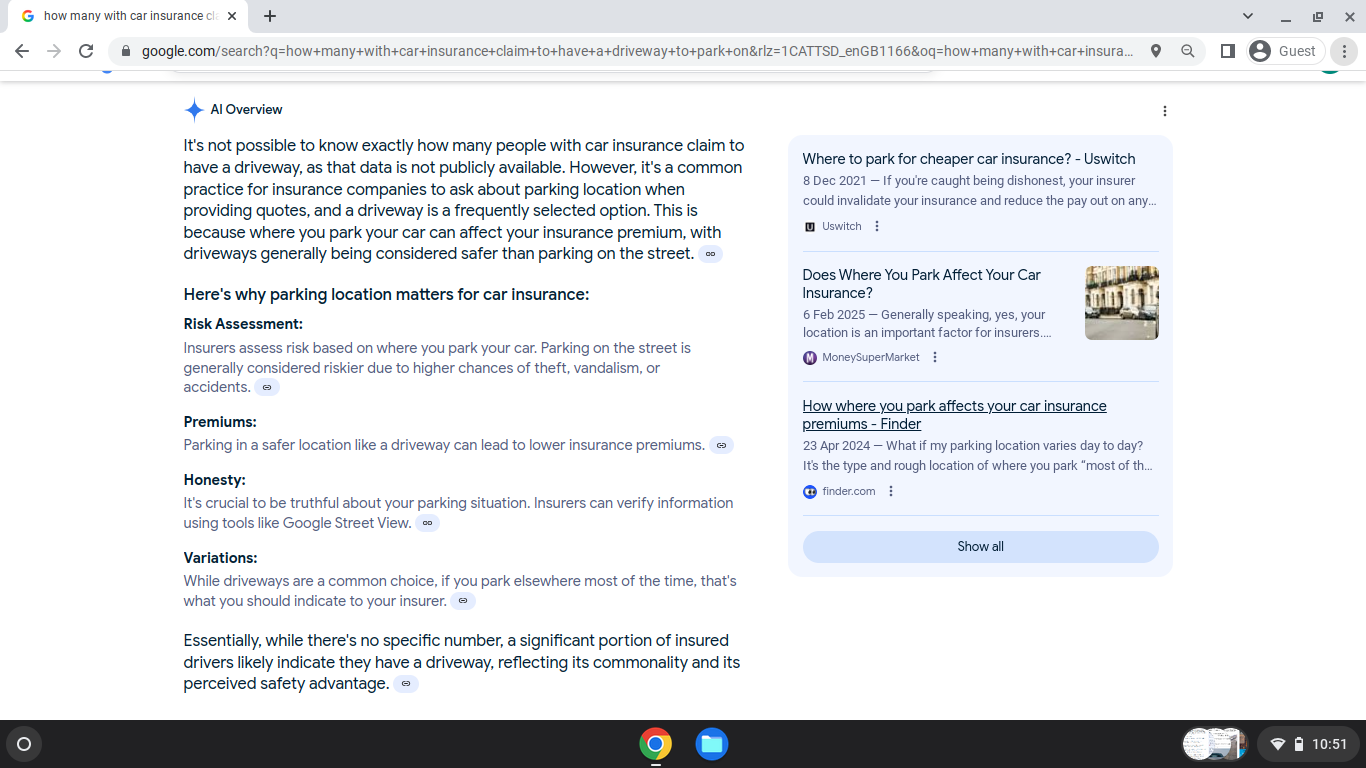
 1 point1 pointSorry for the typos, I've got a failing keyboard in the laptop and sometimes I see them too late ...1 point1 point@PetrolDave No idea why they say 'People that have driveways', it is residential properties that matters / homes. (Are they counting all the 1 day olds to 17 year olds?) They might have from 1 person to 40 living there or any number. Multiple occupancy. How many people in the UK or across the Country of England have a driving licence and live in a property with offroad parking and that can have EV chargers is a figure they have not a clue about, but i am sure someone will be getting paid to conjure up an 'estimate'. There is another issue. Long since past the time Properties / Residences were Surveyed for Council Tax Purposes and then they will know who or what has a door with access to ground floors, or to a private or shared off road parking or access. PS Insurers in the UK know how many Car / Vehicle Insurance Policy holder 'claim to have offroad or private parking' and use it overnight, or even daytime. They will know i expect as a calculation how many are lying on their insurance proposal / application. Another can of worms that Insurers and the Government will not want to be opening.
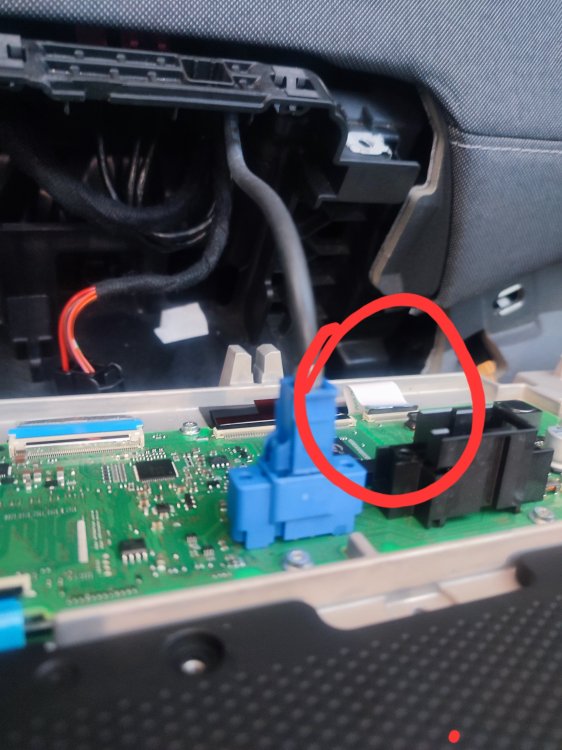
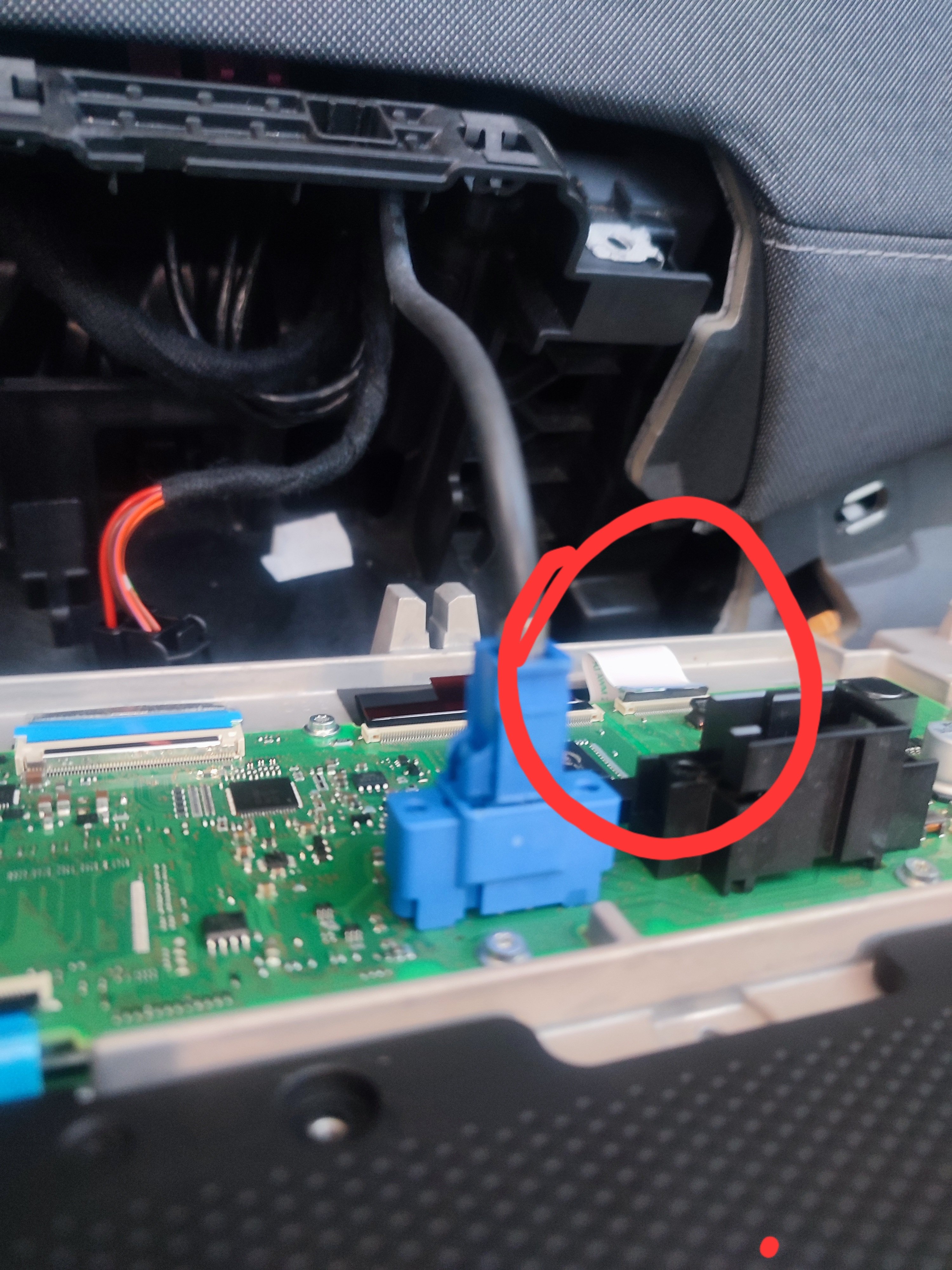
 1 point1 pointTypically mounted on the side of the fuel pump assembly, with the float arm coupled more or less directly onto the wiper. If it's a petrol engine, opening the tank is quite hazardous, and not usually very easy without the right tool to undo the locking ring.1 point1 point@JohnD123 If when fuelling you stop at the first click does the available range show the same as if you are going to brim it maybe putting in 7 more litres? Full / brimmed maybe 80-100 miles covered before the gauge, estimated range drops?1 point1 pointThat's a great link @leolito wish I'd seen that sort of thing ages ago. Although looked at DNFE exhaust and its showing a middle resonator. Mine hasn't got one - they got rid of them from about 2019 onwards but it still shows on 2021 and 2022. However, my car is a real changeover mongrel in some respects. Have already found the Haldex controller is different (and can't be tuned unfortunately).1 point1 point1 pointNot sure on yours but there are pre and post cat lamda. If thats the correct one then unclip and remove. Alasdair1 point1 pointA Top Gear expert? Apologies for my mistake. I stopped watching that drivel years ago.1 point1 pointI'd go with "they all do that" and unless you want to go shelling out wasting money on supposed "preventative maintenance" ( assuming the clutch isn't seeming like its about ready to be done), there are threads on this and up forums if you want to search1 point1 pointHello, I removed the connection cable socket of the multimedia sound touch bar. I only control the sound from the steering wheel.
 1 point1 point@travs that is all true for the standard shocks. Last time I looked into it (a while back) bilstein weren't manufacturing mono tube damptronic units. The only difference was the actual base damping being a bit stiffer on the B6. Being adaptive the requirement for a stiffer shock is minimal.1 pointSure: Check what mib version you have by pressing the menu button for 5 seconds and opening the engineering menu Enter the current version at https://mib-helper.com/ (in my case MOI3_EU_SKMQB_P27000P) to see which version is the newest Download necessary updates from https://mibsolution.one/#/1/9/MOI3/Preh (in my case MOI3_EU_SKMQB_P30800P_0308 and MOI3_EU_SKMQB_P32400P_0324 Format a usb stick to fat32 and extract the update the usb stick (Preferably on windows) Insert the usb stick into a usb-c port (with an usb-c to usb-a adapter) Reenter the engineering menu und select Update Select the usb drive and start the update It's advisable to connect the car to a battery charger when doing the update. In my case I just plugged the iV charging cable into a power outlet and the car and left the driverside door open (don't know if that's necessary). Afterwards you need to get rid of the 1555 error in 5F via VCDS. There are plenty of explanations on how to do that.1 point




























Important Information
Welcome to BRISKODA. Please note the following important links Terms of Use. We have a comprehensive Privacy Policy. We have placed cookies on your device to help make this website better. You can adjust your cookie settings, otherwise we'll assume you're okay to continue.