



Leaderboard
-

EnterName
Resident Member16Points3,811Posts -

lancpudn
Members12Points873Posts -
Breezy_Pete
Sponsor10Points24,575Posts -
pinkpanther
FREEDOM9Points3,969Posts




Popular Content
Showing content with the highest reputation on 10/11/24 in Posts
-
3 pointsSo here are some quick comments to add to artery's great initial review. I got the car 4 days ago and it is great. Still have not pushed the power given the burn-in time but it still feels very quick. But in a much more refined way than the Mk5 GTI it is replacing. The large screen is really nice, and doesn't dazzle at night like I was worried it would. Only downside of it is that I have to stretch a little to reach the far side of it. There is no "fake engine" generator, this is Ireland model so right hand drive. This is an option in the menus to disable the wireless charging, I think there was a topic on older models with hardware solutions for that.3 points
-
3 pointsYour vehicle does not have a chassis. You either have a lot more faith or are even more of a risk taker than me to have jacked up the car directly underneath the rotten area! That it has not collapsed suggests there remains ample strength and welding in a new section of sill and the wing bottom will make a good repair. Entirely saveable but if you do not have the skills to DIY I doubt that you will consider the price being asked by a garage worth it compared to the cars value. 4 decades ago many people like myself were doing 6 repairs like that most weekends for very little money on MOT failures and it was an annual thing for owners.3 points
-
3 pointsAs Yogev's Fabia is a 2024 model, whether he is living in Israel or whatever the duration of his car's warranty, his car will currently be well within its warranty period. The wording of the terms and conditions of a new car's warranty are not standardised and, although mandatory servicing may not need to be performed by an agency of the car's manufacturer, if servicing is performed outside the manufacturer's dealership network, care should be taken to ensure that all parts used and the actions taken conform to the mandatory servicing requirements, and that details of those parts and the actions are carefully documented. This link is to an article by the UK magazine "What Car" https://www.whatcar.com/advice/buying/best-new-car-warranties/n26485 and includes the following guidance Could I accidentally invalidate my new car warranty? As with all insurance policies, there are lots of exclusions and clauses that need to be adhered to so that you don’t invalidate your cover. The main one is that you keep the car maintained regularly to the manufacturer ’s standard and have servicing done within the time or mileage recommended. Although you aren’t usually required to have your car serviced by a franchised dealer, you do have to take it to a garage that will carry out the correct service to the standards recommended in the owner ’s manual. They must use genuine parts, or those of equivalent quality, and it ’s best to get the garage to make a note on the service invoice of all part numbers for items used. You must also stick to fuel, oil and other lubricants that are recommended in the manual. Yogev has said that his 2024 Fabia is his first car and (as I interpret his first posting) he seems to be considering using a non-Skoda-approved workshop to carry out his Fabia's first service. A Fabia Mk 4 is a technically sophisticated vehicle and servicing to meet Skoda's requirements will include the work referred to by Ootohere last Friday They are actually called Oil & Inspection Services. Or if called 'just an Oil Service' i hope they are doing an inspection and plugging in the car, checking for faults or any Software Updates required. Checking a new car as 12 months past someone should be, & do a paint inspection for that warranty. Although a non-Skoda-approved workshop should be able to carry out some of the necessary servicing tasks and use OE parts and oil that meets Skoda's specification, the chances approach zero that it will be able to check for or install any outstanding software updates. There may a persuasive reason for Yogev choosing not to have his Fabia serviced by the Skoda dealership from which he bought the car (eg. that dealership is 200km away from where he lives) or that more local Skoda dealerships are unable to service the car in the near future. But, if it's primarily the question of the cost of the servicing work that's discouraging Yogev, he should consider whether saving a few shekels now is the worth the risk of Skoda being unhelpful if a problem with his car arises in future. And, if it's felt that Skoda will always be helpful and benevolent where warranties are concerned, this 2022 article may cause a re-think. https://www.theguardian.com/money/2022/apr/20/skodas-refusal-to-honour-warranty-staggers-legal-experts3 points
-
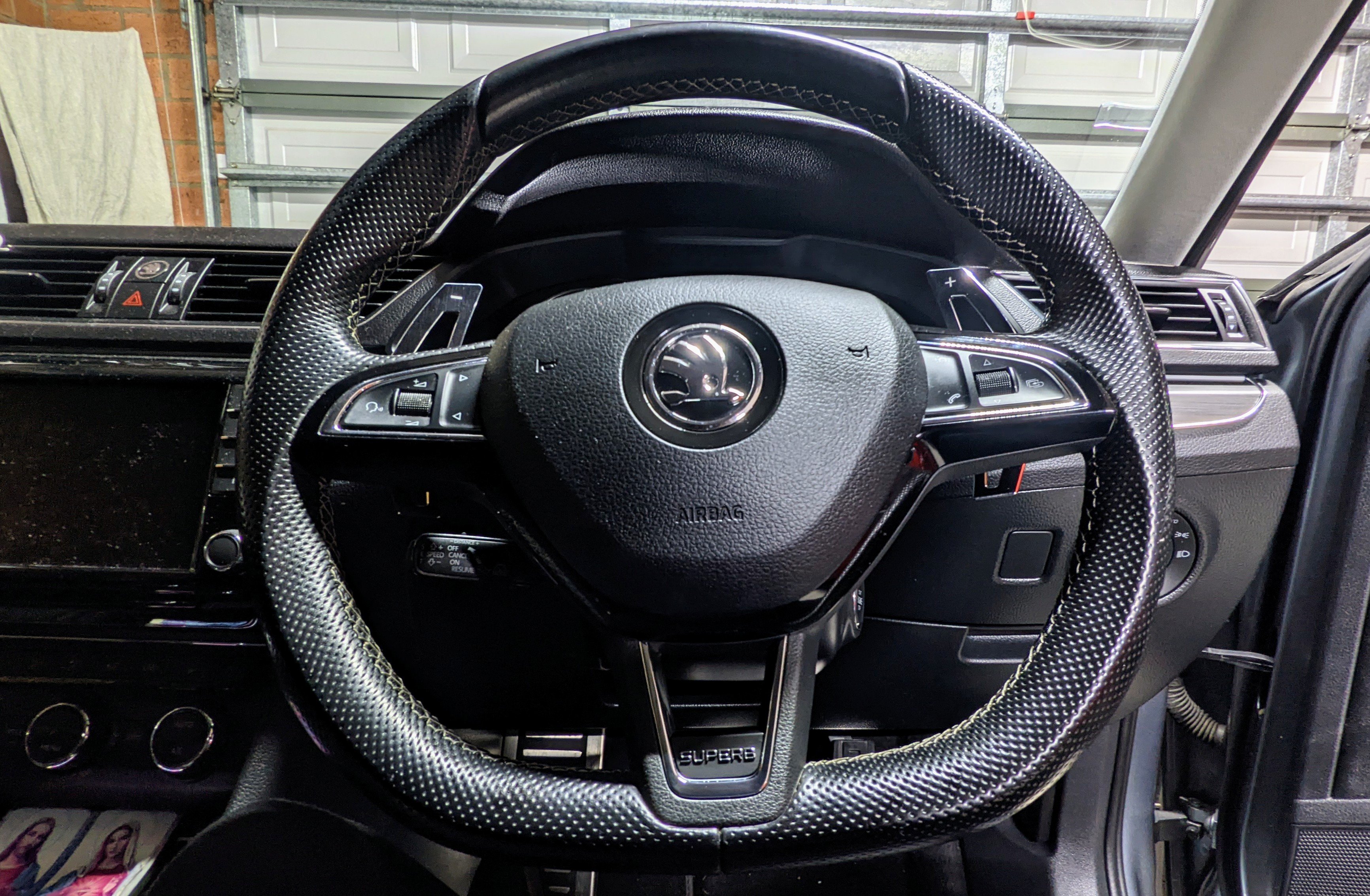
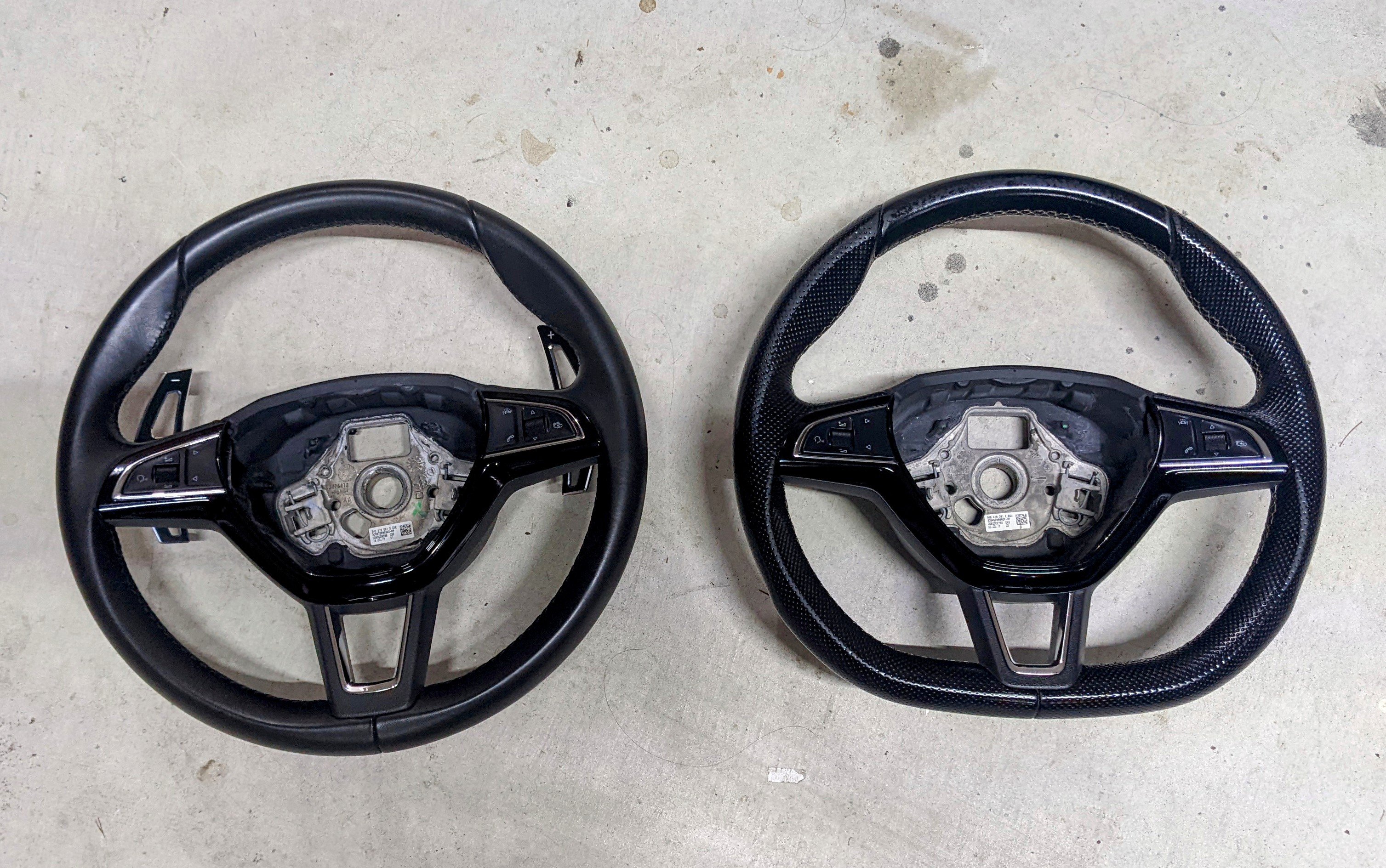
2 pointsThat should fit.....provided neither have heating, or both have heating. If there is a difference, then u'll need to change the clockspring as well, which is an additional cost. I transferred the airbag over from the old wheel. I've retrofitted a flat-bottomed steering wheel from mk3 Octavia RS to my Superb MY17 220. No issues. Left = original Right = secondhand flat-bottomed wheel.
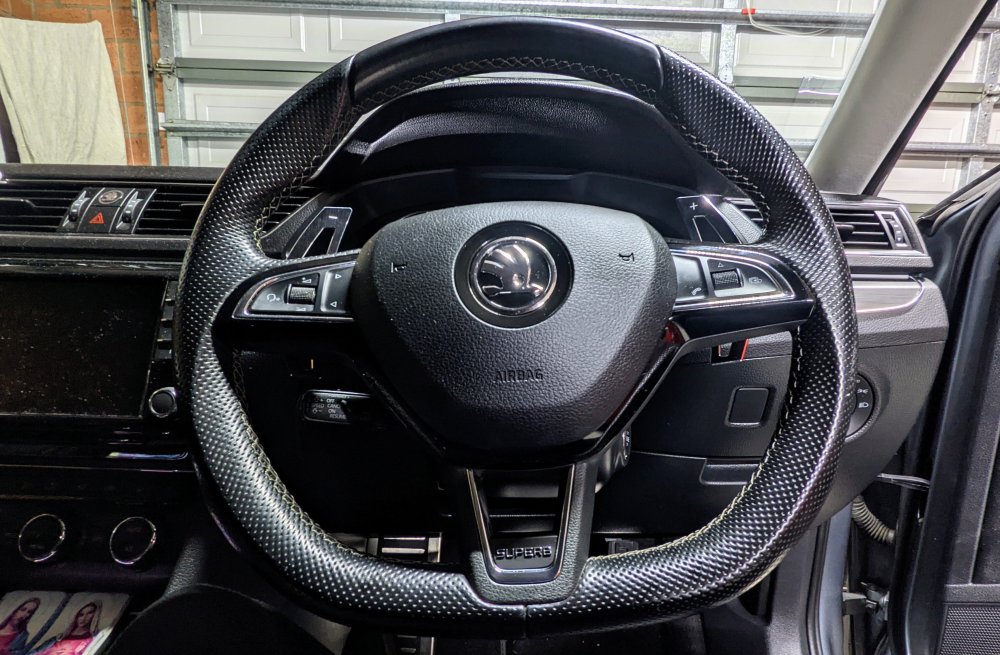
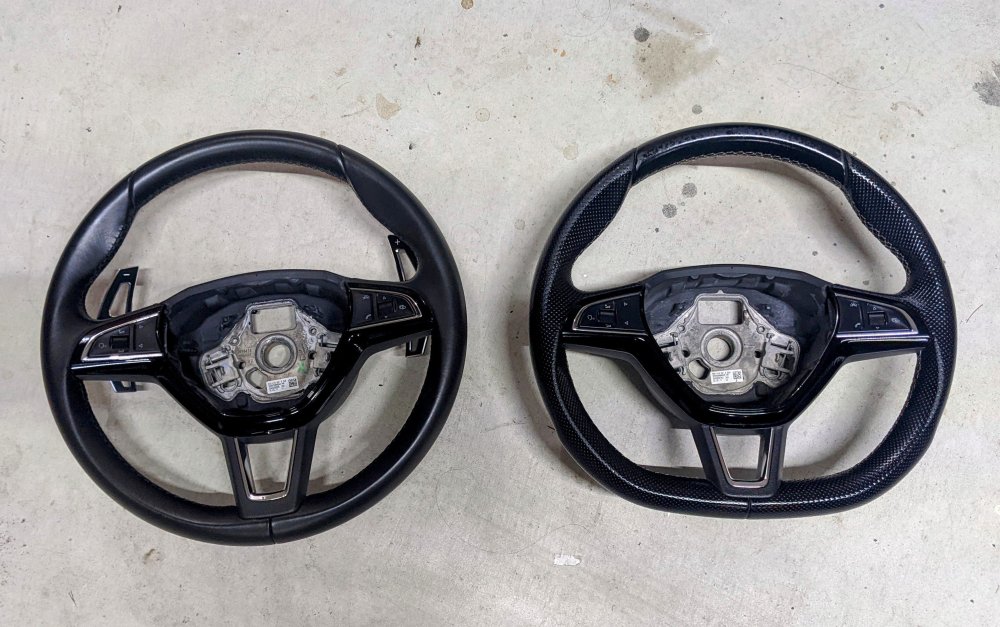 2 points
 -
I was told by a VAG software specialist that you can apply the update with the engine running... Regardless, thanks for the info. I have the file, but as a new Octavia owner (less than a month) and currently not experiencing any issues whatsoever (touch wood) with the infotainment system, I'm quite reluctant to mess with it. If it ain't broken, don't fix it kind of thing....2 points
-
2 pointsWith short journeys and the colder weather it makes any mpg comparison pretty meaningless as the engine will spend a much longer time in warm up phase when consumption is higher.2 points
-
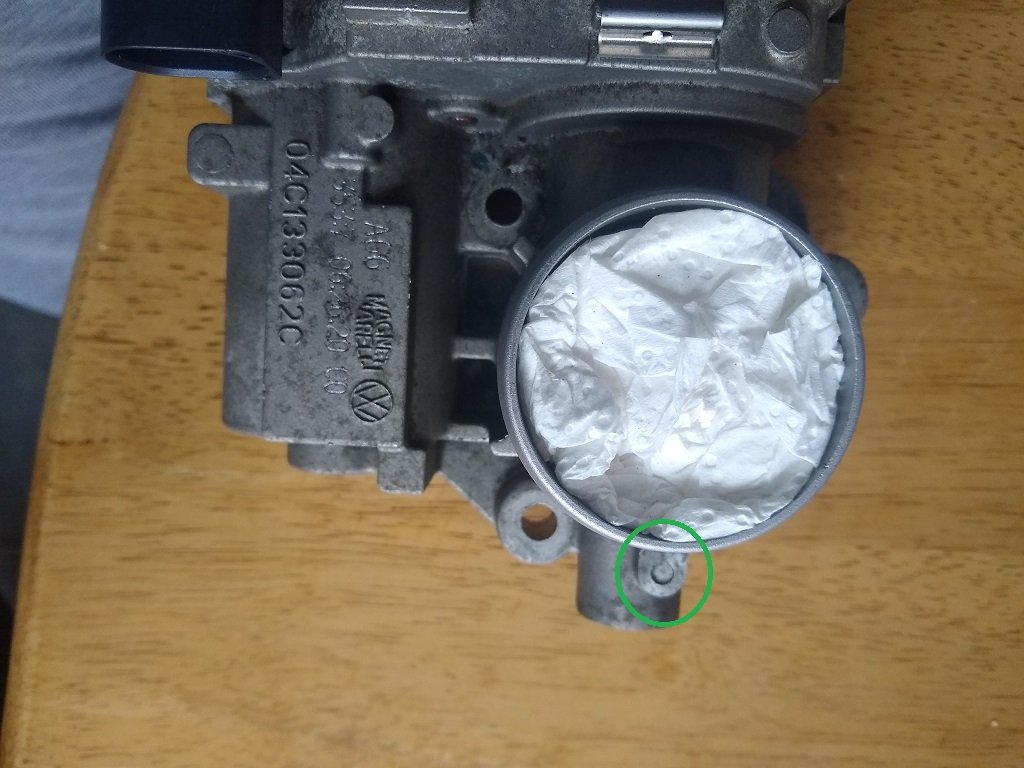
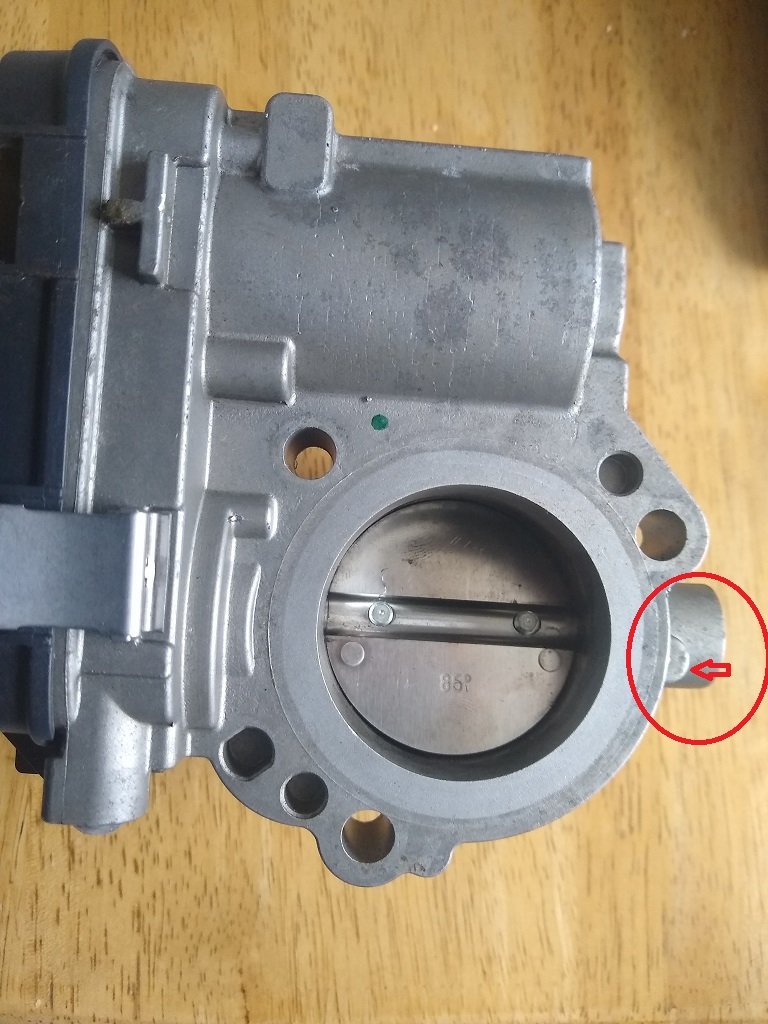
2 pointsSo..... I've found a video on Youtube Next step is to remove the throttle plate (Metal circular thing) by removing the 2 x Torx screws ........ then comes the weird bit You have to drill the throttle body from underneath with a 2mm drill bit ...... once drilled you can tap out the holding pin ........ then the central shaft will slide out See images:- Top - circled green (where the pin is) - Bottom - circled run and arrowed (Where to drill) Once the shaft is out this will give access to the spring Guessing further posts to come
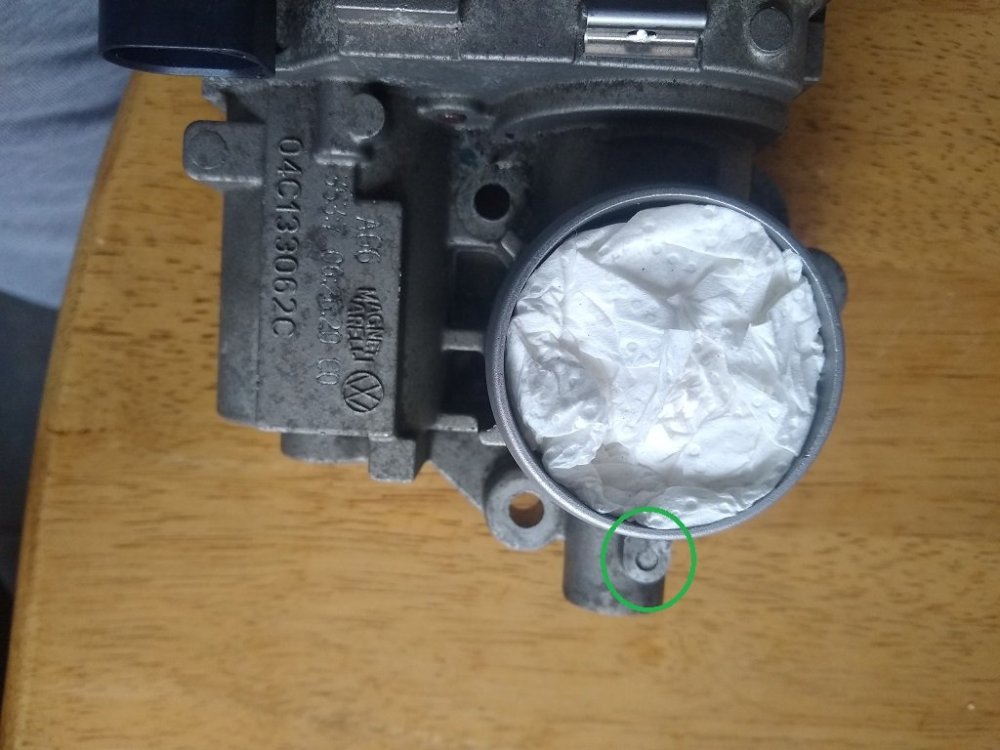
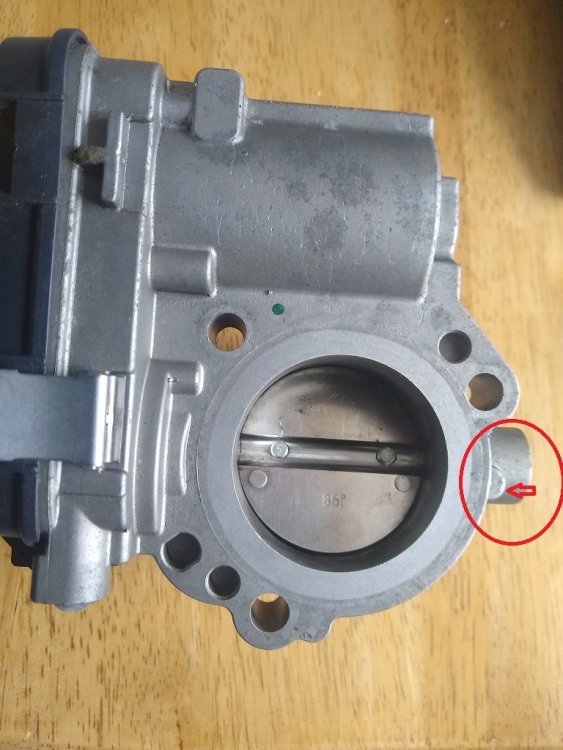 2 points
 -
Parked on a hill and left in gear, by any chance?2 points
-
2 points
-
PlusGas. Apply it, then go for a tea break.2 points
-
Read the guide below and watch the YouTube video which is extremely useful and shows you an update process in real time. Only perform this procedure if you are confident in doing so and it is at your own risk. Apparently, Skoda has stated this will be the last major software version update for the Skoda Octavia Mk4s, although I imagine the mid-Mk4 facelift models will get further updates. I applied the update to my Octavia Estate First Edition 2021 plate and all seems to have gone smoothly but it goes without saying manually update only if you are confident performing the procedure and it's at your own risk. FYI, I updated from version 1969. You will need an ExFat formatted USB-C type drive - oddly my Sandisk Micro SD Card with USB-C adapter wasn't detected by my Octavia so I switched to a 1TB USB-C Lacie hard drive I had lying around and that worked fine. You can tell if your drive is "compatible" and has mounted when you start the update process as, at one stage you will have to select either "USB1" or "USB2" - if a drive is mounted/detected one of these will be in bold. 1. Download the compressed package from one of the two links below: Octavia Infotainment Update Version 1985 - Google Drive https://e.pcloud.link/publink/show?code=XZSh8xZ7iUQu9K1u4uwTGbHqtxFE7m0OFtV 2. Create a temporary folder on your PC or Tablet, for example, MU1985 3, Locate the downloaded compressed file package and then right-click on it or press and hold on it, so the menu appears and it should offer you the opportunity to Extract here or elsewhere, tell it to extract the files to the MU1985 folder and let it get on with it. When it has finished extracting the files you will have the following TWO folders (previously there has been a third file but not this time, just the two folders below): Data Meta 4, Copy the above two folders directly to the root of your ExFat formatted UB-C drive. These two folders need to be at the root / top level of the USB-C drive, not contained in any other folder and you don't want anything else on that drive THERE MUST BE NO OTHER FILES / FOLDERS THAN THIS. Once done you are ready to move to your car to start the update. 5, Insert your USB-C drive into one of the front USB ports and put your car in ignition mode, which you need to do to apply the update, just press the Start Stop button on its own, without depressing the Clutch / Brake which you would do if you were starting the engine I also switched off the climate control before proceeding although I imagine the Update process would disable its functioning anyway. At this point, you must have a full or very well-charged car battery so that the car doesn't shut down halfway through the process. The ignition needs to be ON, the Engine needs to be OFF (NOT RUNNING)! DO NOT START IT DURING THE PROCESS. 6. Hold the "Menu" button until the engineering menu appears. 7, Watch this video which essentially shows you in real-time the update process. It's in German but it's easy to follow and the video relates to software version 1941 but it's essentially the same process. https://youtu.be/4AsSbGd3caU Be warned, there are moments when the screen goes black, the system reboots and the CPU upgrade stage looks like it has frozen but it hasn't. Just be patient, let the system do its thing and you should get a successful update of your system. UNDER NO CIRCUMSTANCES MUST THE PROCESS BE STOPPED ONCE IT HAS STARTED OTHERWISE YOU'LL MORE THAN LIKELY NEED A NEW INFOTAINMENT SYSTEM. Notes. After it has finished updating the system, give it a couple of minutes to ensure that all is well and like it shows on video press resume an wait for about 90s or so and the system will restart just, like in the video. DO NOT START THE CAR UNTIL THE SYSTEM HAS RESTARTED After the update the built-in manual is unlikely to be available for about 48hrs, it does come back! You will more than likely receive another OTA update, it's OK to accept it. Ultimately if you are at all worried about doing it, take it to a VW Independent or Skoda dealer and ask them to do it for you.1 point
-
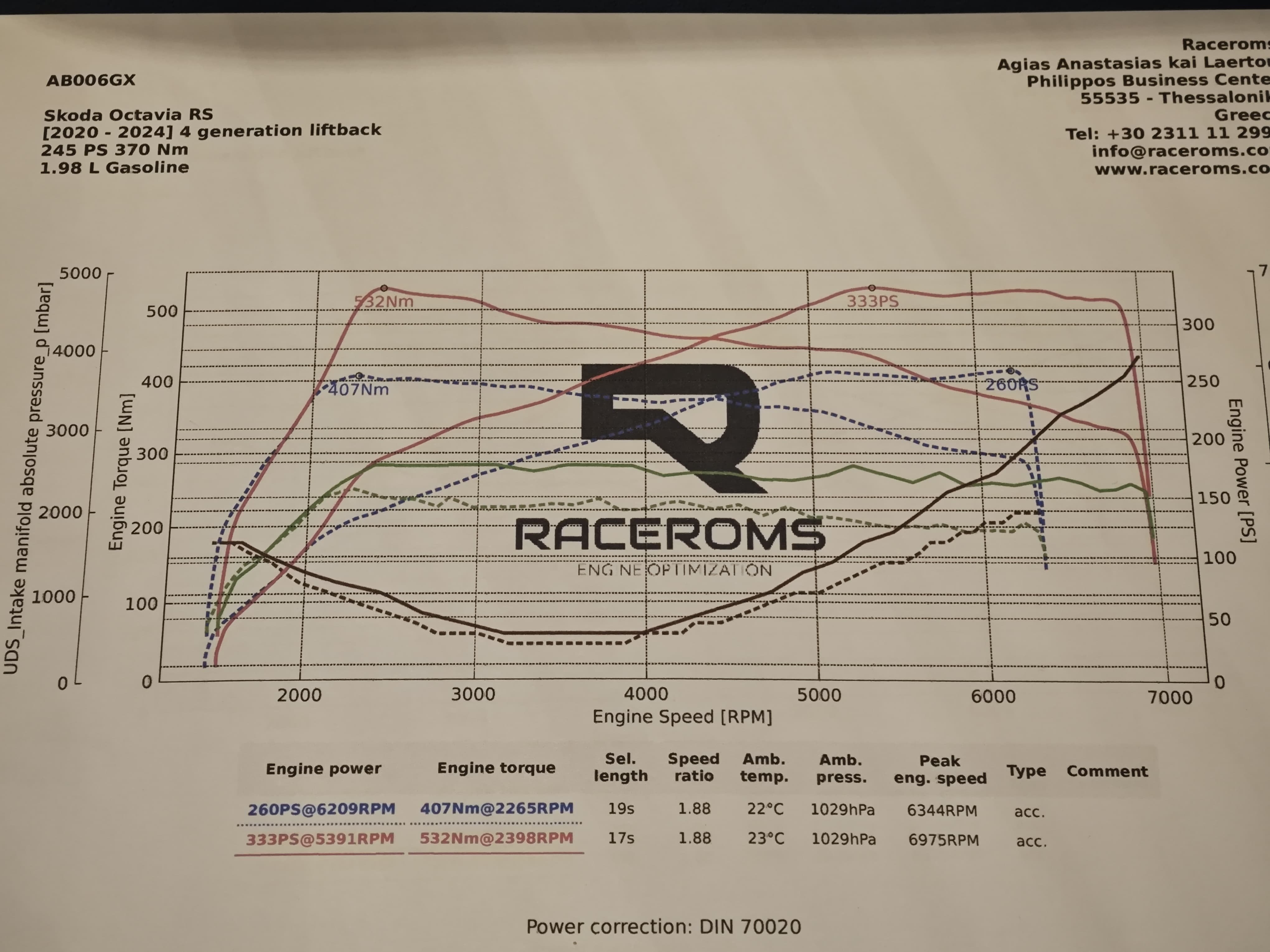
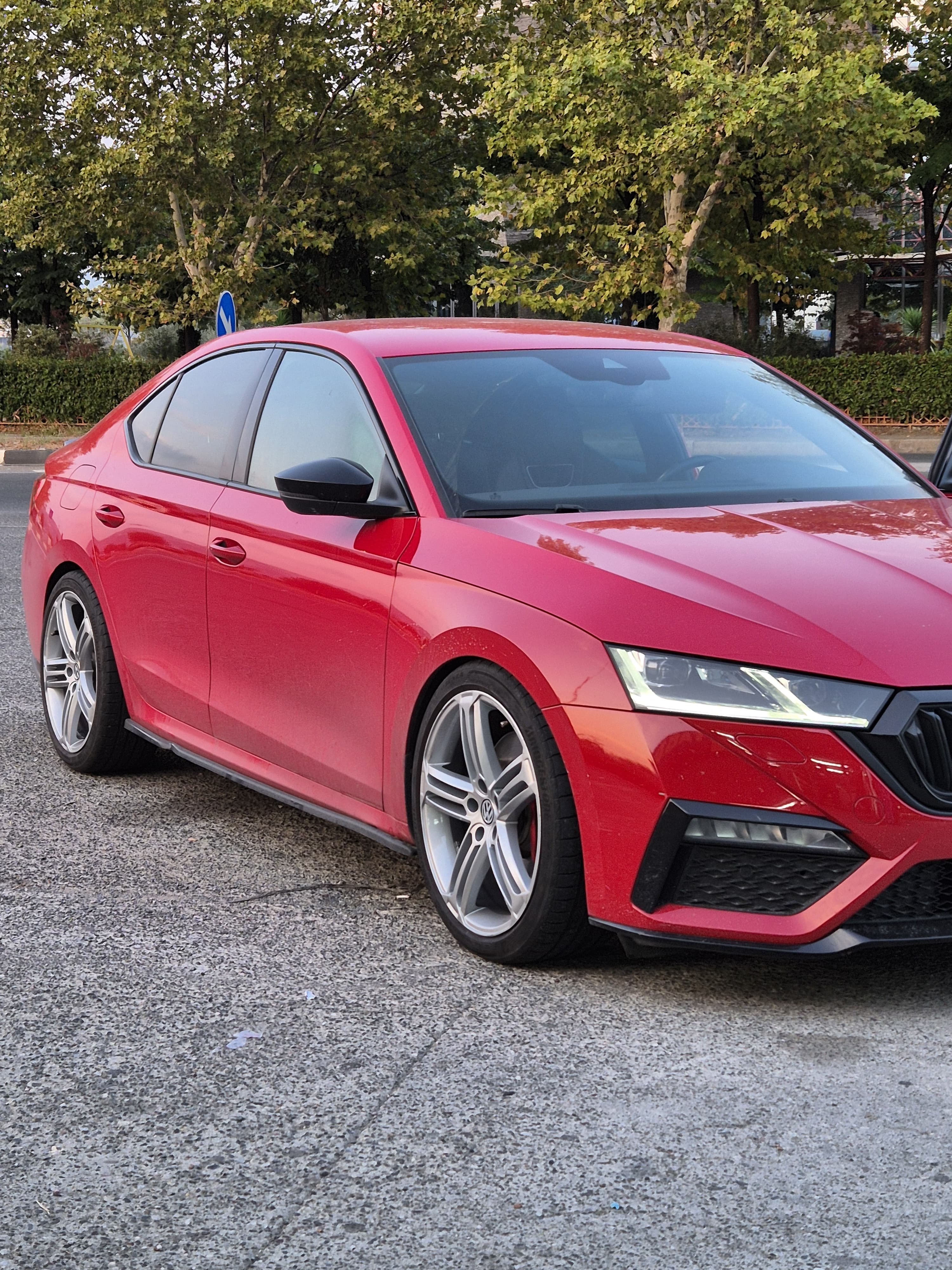
1 pointI installed racechip when I bought it 3 years ago because there was no maps available. Racechip was quite ok at 305 PS (meassured) but the new map now is amazing!! Just WOW! 532 NM at 2,400 RPM... the wheels want to spin even at 4th gear if the asphalt is not good. I guess I need wider and better tires to cope with all that power and torque. For more details, I'm posting the graph, before and after. There's plenty of things in the car but I need to take some nicer pics... H&R springs, Maxton skirts, Golf R wheels (to be painted black) and next doing an audio update (got the customs sub but changing all speakers).
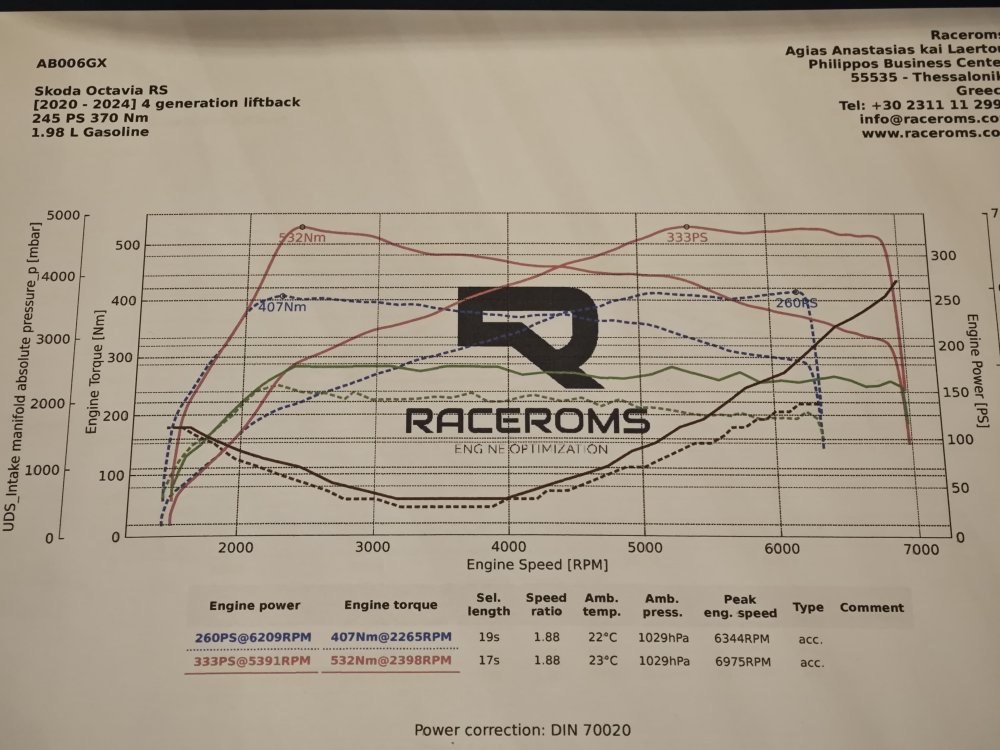
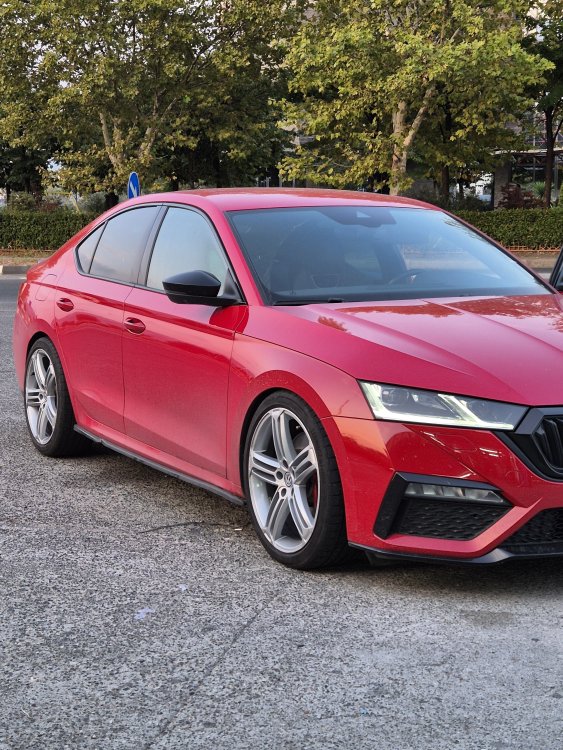 1 point
 -
1 pointHi Guys Sorry for the tardy reply, sorted. NOT as easy as you might suppose. Problem is that the whole system is prioritised towards the touch screen (which all manufactures see as the future) So, when you get the car you are able to set us a favs phone list and also search your address book on the 'big' screen. Press the number on the screen and the call starts, ITS ALL ON THE SCREEN. Incoming calls also light up on the screen, press to accept. The right hand roller on the steering wheel can accept or end a call BUT ONLY is the phone function is selected on the info screen between the speedo and Tacho. If it was set on, say Nav or fuel range (my two go to's) pressing it will just change the selection in the menu option you have displayed, regardless of it there is a 'live' call in progress So, if a call comes in, rather than accepting on the screen (easy) you would have to scroll through the small info menu, using the R/H roller button, select phone and THEN you can accept the call. Equally, if on a call, that you accepted on the screen, to END it on the steering wheel, you again need to select phone on the small info screen and then press it. So, doable but totally counter intuitive. It's a software issue. its a multifunction button, tied to a selected menu. Really needs a dedicated button, no room. Alternatively when it detects a call it should auto switch to phone function to either accept or reject and during a live call. But it doesn't, first world problem, but be nice if it worked as you don't have to take your eye off the road, As it is you have to aim for a small red phone icon on a low screen and you HAVE to look to see and aim for it Not sure you can't programme a short cut so I'll keep trying and let you guys know Cheers1 point
-
1 pointThe clutch sees a higher torque in this situation so this is where you will see early signs of a worn clutch. A check you can to do to verify a slipping clutch is, when going up hill at high torque, maintaining the same throttle setting, press lightly on the clutch pedal until th revs start to rise then release the pedal and see how long it takes for the revs to drop. With a good clutch it will be instaneous.1 point
-
That's what I did with the update to 1941, left the car running and all went well.1 point
-
1 point
-
1 pointA bit of security advice, be VERY wary about using ANY websites or links which have anything to do with Russia. Unless you have beefy security and a VPN in the current climate it could expose you & your machine to something nasty.1 point
-
1 point
-
Thanks nta16, yes actually I have GT85 as well, used to use it on my bike. I did try that in combination with WD40 to free the heat shield bolts. Agree it smells almost 'nice'.1 point
-
Don't worry about forum, I just mentioned it as I know there are/were regular posters in the Mk2 forum that are knowledgeable (and here but not me with the mechanics). Bits I can help with, keep an eye on the battery and it's charge, GT85 is better than WD-40 Multi-Use, certainly for longer lasting lubrication, smells better too and is a penetrating/releasing fluid. - https://gt85.co.uk/ To save virtual and post and page space you can end the eBay link after the item (itm) number, such as, - https://www.ebay.co.uk/itm/1563464436761 point
-
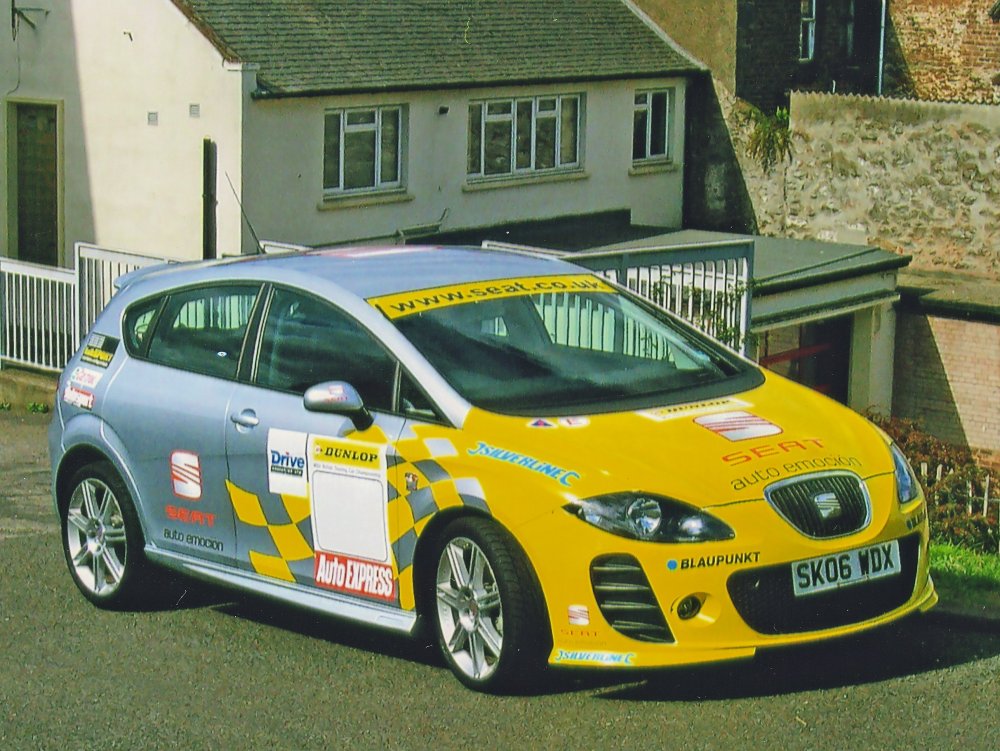
1 pointThe "Nut" behind the steering wheel is the driver! You don't have to notify your insurance of audio upgrades but you do for changing wheels, modifying suspension etc. Some companies are okay with some mods. My daughter had a SEAT and her husband (a mechanic) asked their insurance permission to lower the suspension. They said fine. They then asked about fitting a sports spoiler from the Cupra. They increased the premium by a few pounds. However, when they asked to fit Cupra wheels they said they would rescind their insurance. They ended up buying this instead.
 1 point
 -
1 point
-
1 pointOf course there is the possibility that the motor bearing is "not good" so the motor is drawing higher than "normal" current - and if that is the case, that new speed controller will suffer the same fate as the original one - also make sure that the pollen filter is changed. Did you try spinning the motor over with your fingers when the speed controller first failed?1 point
-
1 pointI believe under the gear selector gaitor is a small yellow tab, push it down and it will allow the car into neutral. this sounds like an ignition barrel internals have failed to be honest1 point
-
1 pointThank you for that. Always good to know. It seems Skoda are returning to the bad old days of a skip on wheels1 point
-
1 pointI come from the era of drum brakes, front and rear. I never had an issue, though I must admit I have never tackled VAG brakes. I just feel why disturb the hub and bearings when you don't have to? In my day you had drive shafts to contend with as well.1 point
-
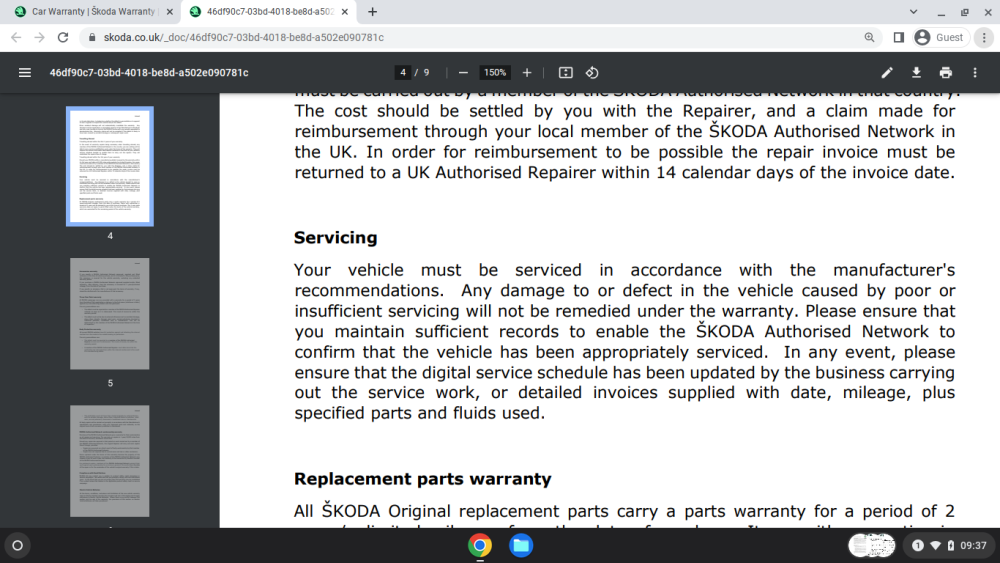
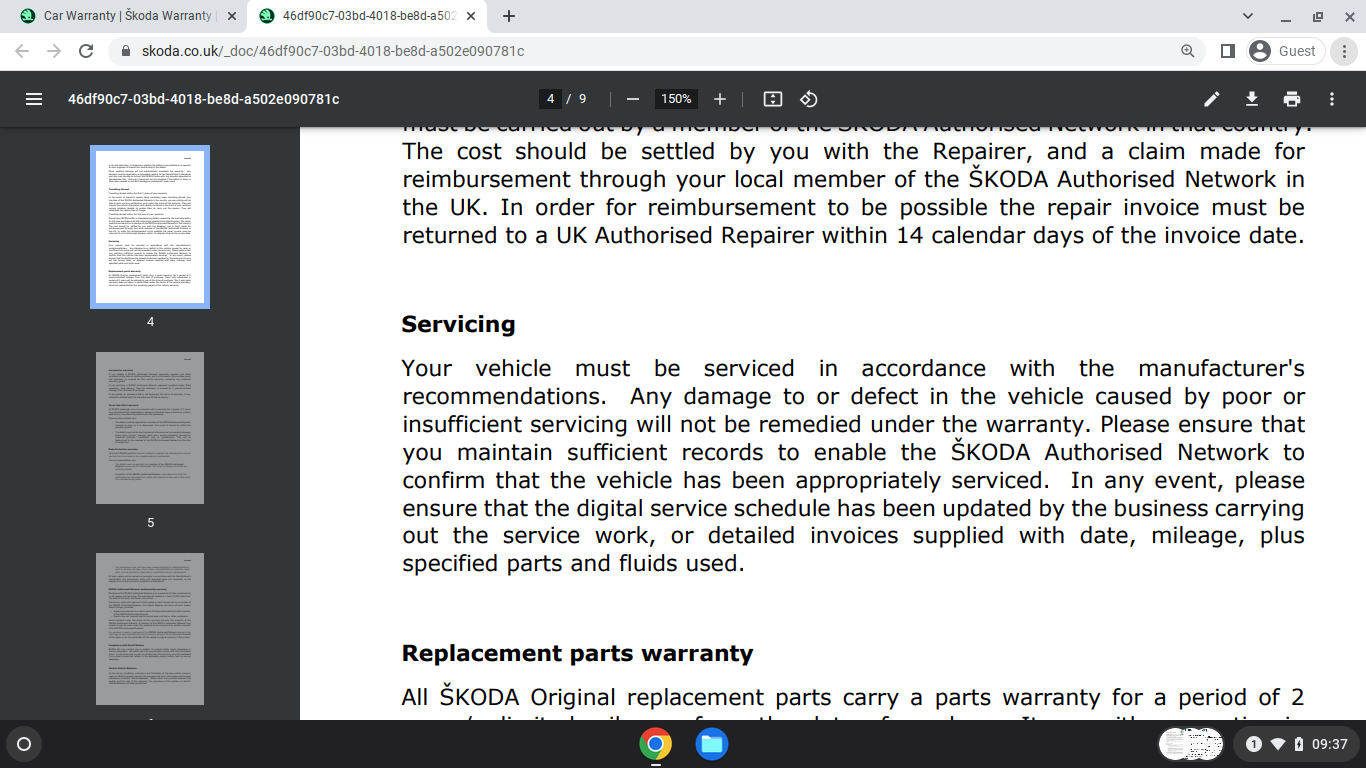
1 point1 point1 pointI suppose they're "slightly worn" the moment the car drives out of the factory. When they tell you stuff like this, you do always feel like you're being softened up for a future hit.1 pointYou have not said what age the car is and what is the version of the firmware is ? It might be worth putting info in your profile for future posts !1 point1 pointSkoda / VW UK have been a bit lax with T&C,s of Warranties in the UK. Various words over the past 2 decades. Service to manufacturers recommendaions. It has been Guidelines in the past. even specification. Never really 'Schedule. Issue being. Ask at Skoda Dealerships, Service Desk staff have little idea of Recommendations, Guidelines, Specifications or Schedules. They learn on the job and use a keyboard. Skoda Approved used cars, or SEAT, Audi, VW, Porsche etc might have Full Main Dealer Service Histories and remainder of the Manufacturers warranty or an extended warranty, yes not SERVICED TO THE MANUFACTURERS RECOMMENDATIONS, or Specification or Schedule. Brake Fluid not changed, VAQ Diff or Haldex Servicing not carried out, etc etc. They are 'Simply clever', but simply vague. Cambelt Changes 1.5 TSI ACT in the UK a dust free country was at 5 years / 50,000 miles by the Recommendations / Schedule. Skoda / VW Group dealers had all these Approved Used cars at 50,000 miles or more, no Cam Belt changed, owners were not paying £750- £1,200 so traded in cars. VW Group changed the Advice / Recommendation / Schedule last June. Enough people had been conned into paying, Now they had not the Staff or all with the equipment to be doing the job and maybe losing money. SKODA_Warranty_Terms_July_2023.pdf
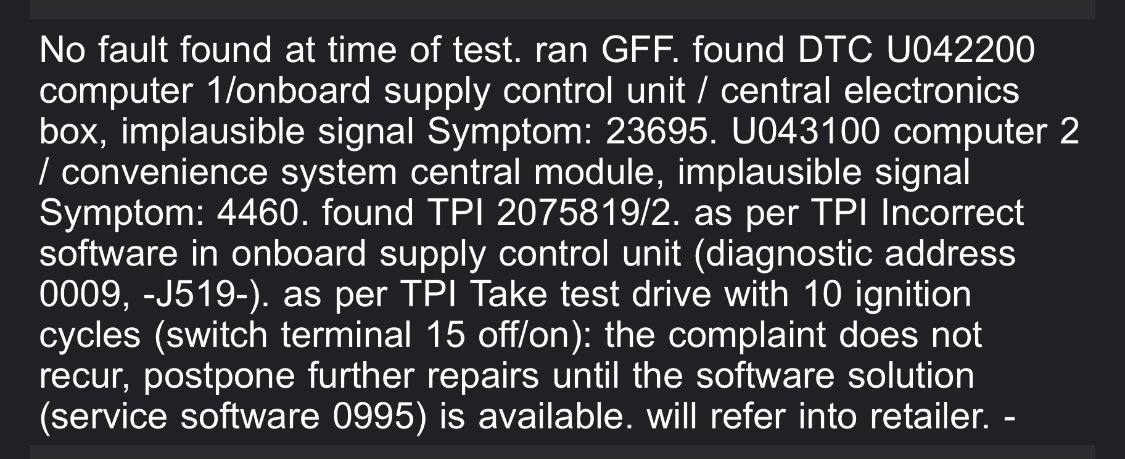
 1 point1 pointI think that a whole host of software issues are appearing all across the Skoda range. I have recently picked up a Skoda Scala SE 1.5 tsi, registered in July with 1000 miles on the clock. Had it three days( bought it on 01/11/24) and the engine management light came on, then epc. The fault is intermittent and sometimes no warning lights and everything starts as normal. I called out Skoda assist and on their second visit in three days the technician found a TPI saying it’s a known software fault see below.
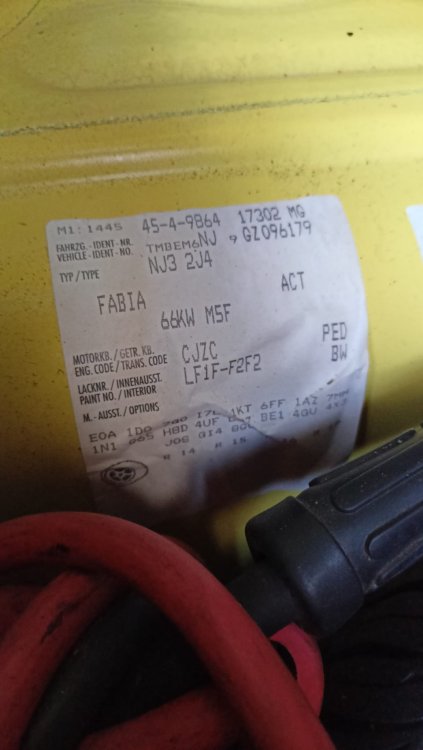
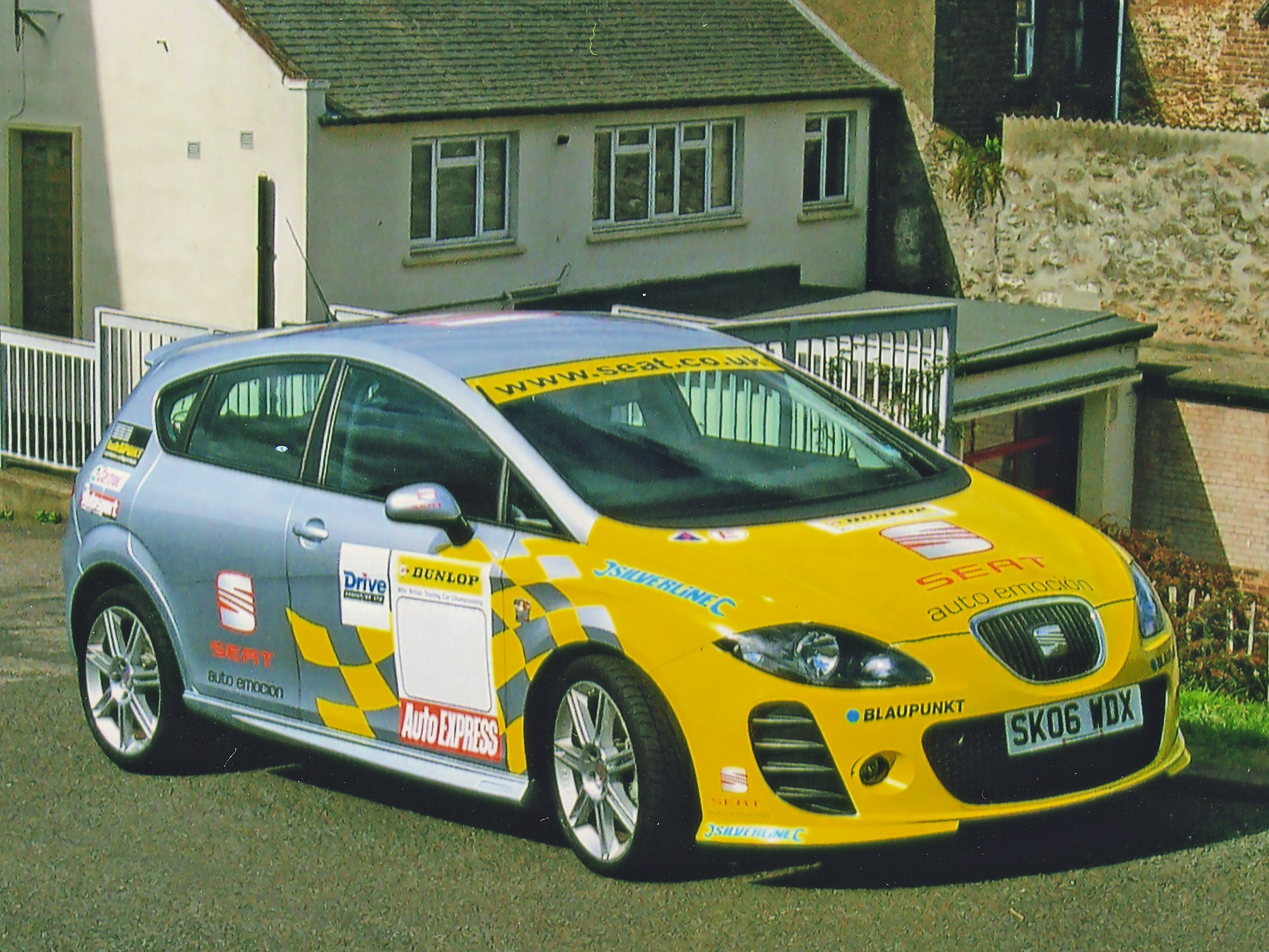
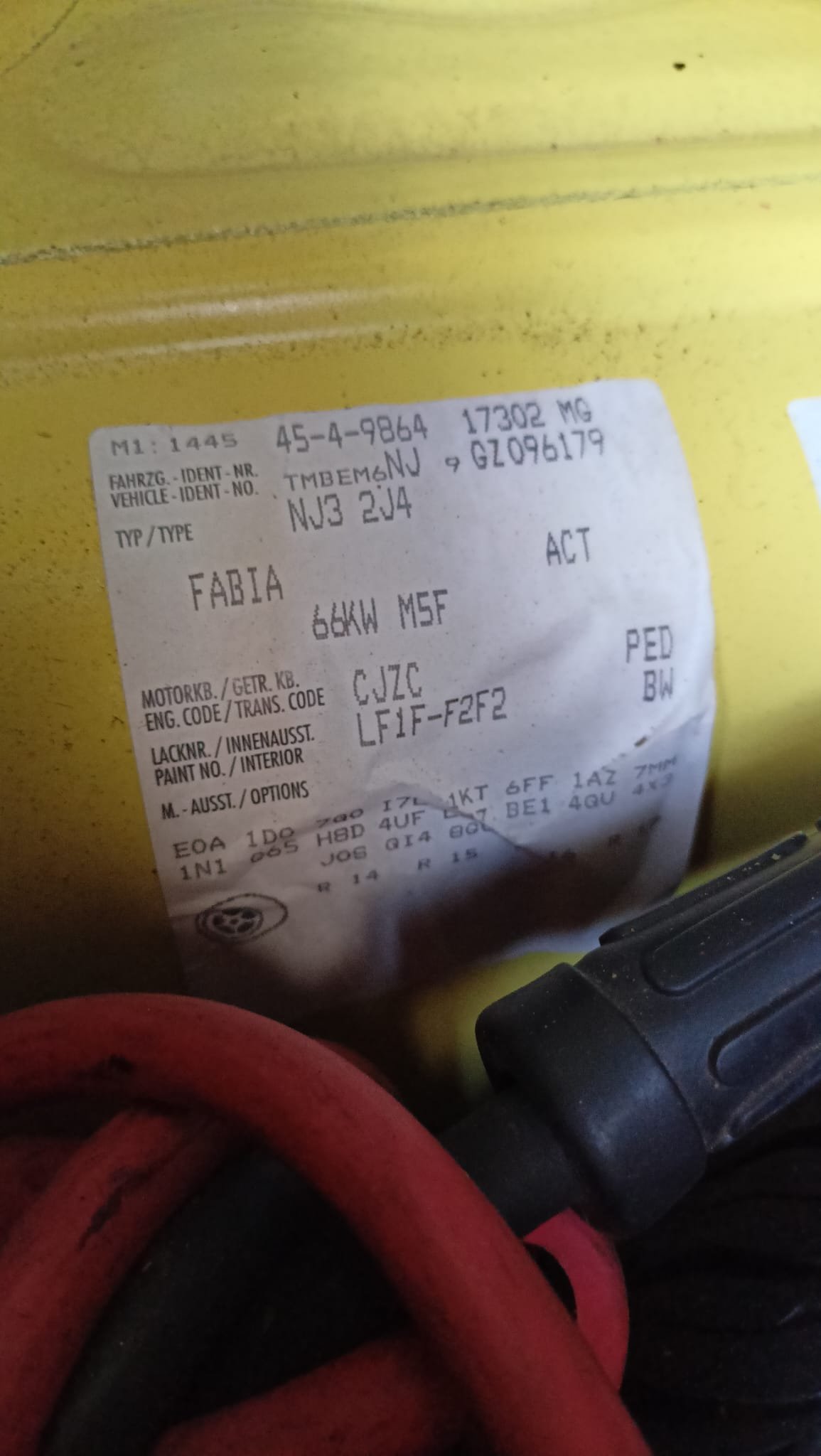
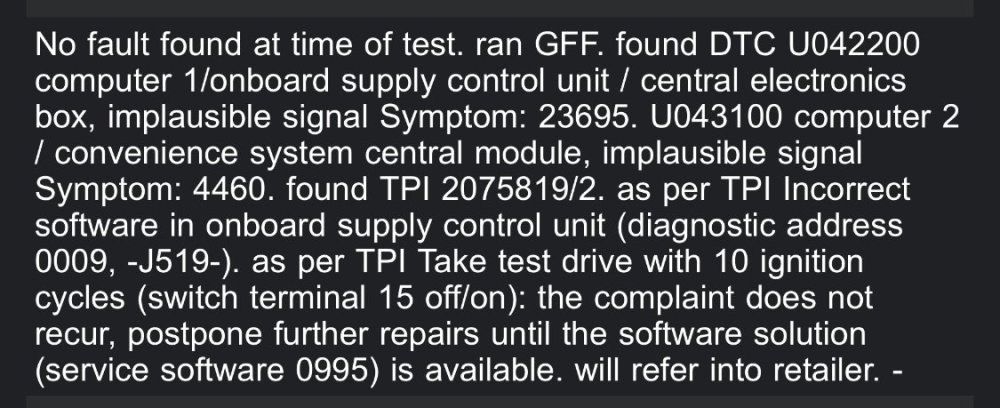 1 point1 pointHi If fault codes don't answer the question, I would start by getting the fuel pressures checked. It sounds like the pressure after starting may be dipping below the minimum threshold for whatever reason. A second possibility is a crankshaft or camshaft sensor, which can exhibit heat-related intermittent failure.1 point@JHH20 Welcome. Is that when the car is maybe going from 2 cylinder mode to 4 cylinder or just the turbo coming in? Maybe nothing to do with it, but. What tyre / wheel size is on your car and have you experimented with the tyre pressures? Try putting the front wheels to the rear and rear to front.1 pointNever had anything like that and my Karoq is 6 years old.1 pointThis topic is old but I'll post for posterity's sake and in case anyone finds this on Google: There might be a sticker in your boot under the floor, maybe under your spare wheel, and it should look like this: Mine is "Sprint Yellow", or LF1F. In this specific image it is a slightly dirty yellow with a dash of jumper cable 😁
 1 pointI prefer clean area, apply generously and if possible leave to soak at least overnight if not longer, then try to tighten before trying to loosen, if no joy repeat, apply generously and if possible leave to soak at least overnight if not longer, then try to tighten before trying to loosen, Time and patience is often the secret but I know some/many have do not always have the time and for many the patience. I had a fail when I didn't exercise enough patience, but I succeeded the next day when an engineering shop hadn't, I think they run out of time and patience, PlusGas isn't as good as it used to be now it's made for/by someone else, only this Thursday I throw a way a drip-tin of the 'new' PlusGas as the tin had corroded at the bottom and emptied itself in the shelf box and a spray can of the 'new' PlusGas lost it's aerosol after a third of the contents used. My previous drip-tin I probably had for about two decades in the shed. I used to use Rapideeze before PlusGas but that went out of production decades back' Think I'll just use GT85 if needed as a penetrating/releasing fluid as it's so good for other stuff.1 pointDo yourself and your daughter a big favour and fully recharge the battery with an appropriate battery charger maintainer following the instructions in the 'Owners Manual' and the charger maintainer booklet. Better is low and slow, say a 4-amp or less, charger, this may take many hours or a day or more to fully recharger the battery. You can definitely get the battery fully recharged by Thursday (well as full as it may be able to go) if you start now it might be there by tomorrow if the battery is good and you've already charged the battery enough.. Modern cars have easier engine starts even if the battery is low, when the battery can't start the engine the battery is very low indeed. Even if the engine starts and the headlights seem bright enough the battery can still be too low for the VW computers and they can throw up all sorts of unexpected warnings and lights and error codes. Just staring a parked up car doesn't really help it much and if the engine isn't fully warmed up to 90c on the oil temperature then it's doing some harm. The coolant temperature gauge is biased to go to and stay at an indicated 90c when it is above and below this and moving. The car needs to be driven some reasonable distance to exercise the parts, components and systems on the car. If the car is parked up unmoved for about a month then the battery is best disconnected or a charger maintainer left connected to the battery to keep it topped up. If the program for your daughter's model and year of VW isn't fully up to date then errors may appear on it and if the scanner's battery, or if powered by the car's battery, is low in charge then again errors may appear on the scanner's readings. P334B - http://wiki.ross-tech.com/wiki/index.php/P334B/013131 16712 - http://wiki.ross-tech.com/wiki/index.php/16712/P0328/000808 Personally I would fully charge the car's battery and check the scan tool is fully up to date and then after take readings again, just in case, and then see if the situation is still the same. Could be a typo but you've put 2013 for your daughter's Fabia, this is the Mk 3 forum, not that it matters as the principles are the same. Good luck, let us know how you get on.1 point1 pointI appreciate the climate is a lot colder recently getting into single digits in the north east. I always use the vpower, ultimate fuels etc. Think I'm going to put the old wheels back on next week and see what happens.1 point1 pointOh my word I didn’t realise there are two covers! I must have looked at the outer larger ones. What a numpty. I’ll check later and get back to you. Thank you!1 point1 pointyesterday was a busy day at work...
 1 point1 pointYes, you have to change two values: 09 – Central Electrics - Adaptions Search 'scheinwerferreinigung' (headlight cleaning) Select 'SRA Verzoegerungszeit' and set value to '2000' (don't worry that the range is '0-250' on the input field) - it is the time in ms how long you have to hold down the washer stick to initiate headlight wash request. Commit the change Number of activation front wash per SRA activation - Anzahl Betaetigungen Frontwaschanlage pro SRA Aktivierung: This is by default set to 10 and means if you pull the washer lever 10 times it will activate the lights cleaning. You need to change it to 1 so that every time when you hold washer stick for 2 seconds, it cleans lights. If you leave it to default then headlight wash occurs only after 10 time of holding 2 seconds. Now when you hold washer stick ~2 seconds, it will spray water on to lights.1 pointDon't waste your time. Leave it stock and look after it. If it doesn't do what you want, sell it and buy a TSI. Gaz1 point1 point1 point1 pointThe Sportline doesn't have standard suspension, ie. standard ride height...it has sports suspension, ie. lowered ride height. I would go for the Bilstein B8's instead of the Bilstein B6's. I looked at some information and the Bilstein B8's are only 20mm shorter than the Bilstein B6's, so the sometimes quoted opinions that you need at least a 30mm to 40mm drop for the Bilstein B8's to work is incorrect. This actually makes sense, because Bilstein want to sell their Bilstein B8's in large quantities, not restrict their sales to only cars that have been dropped by at least 30mm to 40mm. The Bilstein listings themselves say that the B6's are for standard suspension and that the B8's are for sports suspension...as you can see in the links below. Standard suspension = Standard ride height Sports suspension = Lowered ride height Bilstein B6 standard ride height shock absorbers (for Superb MK3) 35-229872 front shock absorbers https://www.autodoc.co.uk/bilstein/7522722?search=BILSTEIN+Shock+absorber+(35-229872) 24-229890 rear shock absorbers https://www.autodoc.co.uk/bilstein/7543304?search=BILSTEIN+Shock+absorber+(24-229890) Bilstein B8 lowered ride height shock absorbers (for Superb MK3) 35-229919 front shock absorbers https://www.autodoc.co.uk/bilstein/7522724?search=BILSTEIN+Shock+absorber+(35-229919) 24-229937 rear shock absorbers https://www.autodoc.co.uk/bilstein/7522727?search=BILSTEIN+Shock+absorber+(24-229937)1 pointThere is no Canbus connection or communication with headlight bulbs, its just misinformed BS that the sellers trot out. The body control module has a bulb monitoring function, it sends a pulse to the lights on start up and measures the volt drop which is proportional to the circuit resistance, crude but it can tell if a filament is blown or the wrong wattage bulb fitted, it communicates this information via canbus to other modules like the instrument panel, that is about as tenuous a connection to Canbus as could be. The bulbs will not have chips in them, they will have a parallel shunt resistor to make the overall resistance equal to the incandescent filament bulb that should be fitted.1 pointhttps://www.witter-towbars.co.uk/accessories/keys/westfalia-detachable-neck-keys If there are 5 numbers engraved on the barrel of the lock, take the last two numbers and put 2W in front of them to purchase the right key.1 point1 point



.thumb.jpg.f83a46b9b3c0d976b9dbffbb523c9874.jpg)
























Important Information
Welcome to BRISKODA. Please note the following important links Terms of Use. We have a comprehensive Privacy Policy. We have placed cookies on your device to help make this website better. You can adjust your cookie settings, otherwise we'll assume you're okay to continue.